Windows Hello PIN Not Working on Windows 11: Fix
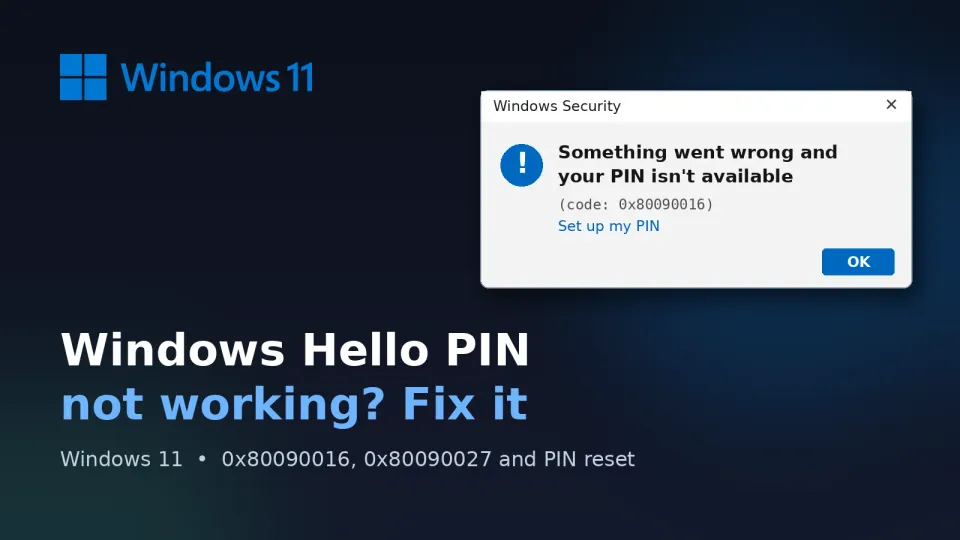
Windows 11 says your PIN isn't available (0x80090016, 0x80090027)? Reset the PIN, check the TPM and clear the Ngc folder, step by step.
Updated: 17 November 2026. Checked against Microsoft's support pages on changing or resetting your Windows Hello PIN and common Windows Hello issues, Microsoft Q&A threads on the "your PIN isn't available" error, and Thank You for Patching's tracker for Hello sign-in breaking after the 26H2 upgrade.
Short answer: when Windows 11 says "Something went wrong and your PIN isn't available", your files are fine and your account is fine. The PIN is just a key stored on that one PC, and something broke it. Sign in with your password instead, then use I forgot my PIN or remove the PIN and set up a new one. If that won't stick, check the TPM in tpm.msc, and as a last step reset the Ngc folder where Windows keeps the PIN data.
The usual triggers are boring ones. A Windows update or feature upgrade, a BIOS update, turning Secure Boot or the firmware TPM off and on, or swapping a motherboard. Any of those can leave Windows unable to open the key behind your PIN, so it throws an error code like 0x80090016 or 0x80090027 and falls back to asking for a password.
How I wrote this: I haven't had this error on a machine of my own, so I won't pretend I did. The steps below come from Microsoft's own support pages and the fixes that Microsoft's Q&A volunteers and moderators keep giving people, put in the order I'd try them. Start at the top. Most people are done by Step 3.
Jump to:
- What the PIN error means
- Quick checker: match your error code
- Step 1: Sign in with your password
- Step 2: Use I forgot my PIN
- Step 3: Remove the PIN and add a new one
- Step 4: Check the TPM in tpm.msc
- Step 5: Reset the Ngc folder
- Step 6: Reset Ngc from recovery if you are locked out
- Step 7: If it started after an update
- Step 8: Work or school PCs
- FAQ
What the PIN error means
A Windows Hello PIN isn't like a password. Microsoft's support page puts it plainly: the PIN you use on your device is different from your Microsoft account password, and different devices can have different PINs. The PIN only unlocks a key that lives on that PC, usually protected by the TPM chip. Nothing about it goes to Microsoft's servers.
That's why it breaks the way it does. If the TPM gets reset or switched off, or the files that hold the PIN data get damaged, Windows can no longer open that key. Your password still works, because the password is checked separately. So the fix is almost always the same: get in with the password, throw away the broken PIN, and make a new one.
Microsoft's own troubleshooting page says that if you're asked to create a PIN again after already having one, "it may be due to security updates or changes in the system." So a single prompt after an update isn't a sign of anything bad. It's worth worrying only if the new PIN breaks again after a reboot or two.
Quick checker: match your error code
Microsoft doesn't publish an official Windows Hello meaning for each code. The names below are the standard Windows crypto error names those numbers map to, and the triggers are the ones people commonly report. Use it as a pointer to where to start, not as a diagnosis.
| What you see | Crypto error name | Common trigger | Start at |
|---|---|---|---|
| 0x80090016 | NTE_BAD_KEYSET (keyset does not exist) | BIOS update, TPM reset, fTPM or PTT switched off | Step 4, then Step 3 |
| 0x80090027 | NTE_INVALID_PARAMETER | Damaged PIN data, feature update, hard shutdown | Step 3, then Step 5 |
| 0x80090011 | NTE_NOT_FOUND | PIN data missing after a restart or update | Step 1, then Step 5 or 6 |
| No code, PIN just asks to be set up again | None | Security update or system change | Step 2 or Step 3 |
| PIN, face and fingerprint all gone after 26H2 | None | Reported after the 26H2 upgrade (not confirmed by Microsoft) | Step 7 |
Step 1: Sign in with your password
On the sign-in screen, click Sign-in options under the PIN box and pick the key icon. That switches the box to your password. For a Microsoft account it's your Microsoft account password, the one you use at outlook.com. For a local account it's the password you set for that account on this PC.
If you don't remember the Microsoft account password, Microsoft lists three ways to reset it: choose Sign-in options > Web sign-in and then Forgot my password, select I forgot my password on the sign-in screen, or reset it from any browser on another device. For a local account, the password box offers a reset through your security questions after a wrong attempt.
Before going further, check the boring stuff once. Microsoft's own checklist is to make sure you're typing the right digits and signing in to the right account on a PC with several users. Caps Lock and Num Lock matter if you allowed letters in the PIN.
Step 2: Use I forgot my PIN
If you sign in with a Microsoft account, there's a faster route. Below the PIN box on the sign-in screen, select I forgot my PIN, verify your account, and create a new PIN. If several accounts are on the PC, pick the one you're fixing.
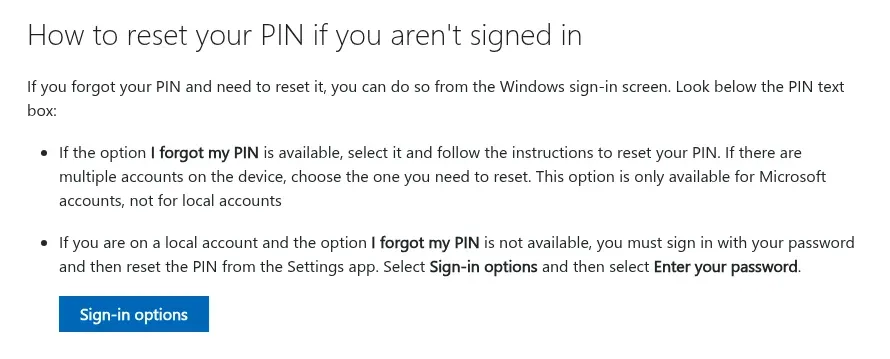
Two catches. This option is only there for Microsoft accounts, not local accounts. And on a local account, Microsoft says you have to sign in with your password first and then reset the PIN from Settings. If you're already signed in, the same option lives at Settings > Accounts > Sign-in options > PIN (Windows Hello) > I forgot my PIN.
Step 3: Remove the PIN and add a new one
This is the fix that sorts most cases. If Settings still shows Change PIN but the PIN fails at the lock screen, changing it isn't enough, because the broken key stays behind. Remove it completely and start fresh:
- Sign in with your password.
- Open Settings > Accounts > Sign-in options.
- Click PIN (Windows Hello), then Remove, and confirm with your password.
- Restart the PC.
- Go back to the same page, click PIN (Windows Hello) > Set up, and create the new PIN.
- Press Win + L and test the new PIN straight away, then test it once more after a restart.
If Remove is grayed out, look further down the same page under Additional settings for "For improved security, only allow Windows Hello sign-in for Microsoft accounts on this device." Turn that off, restart Settings, and the button should become clickable. You can turn it back on after the new PIN works.
If the setup itself fails with an error, Microsoft's advice for PIN creation errors is short: sign out, sign back in, and try again. A full restart does the same job and is worth one try before you move on.
Step 4: Check the TPM in tpm.msc
Your PIN depends on the TPM, so if the TPM isn't ready, no amount of PIN resetting will help. Checking it doesn't change anything:
- Press Win + R, type
tpm.mscand press Enter. - Under Status, look for "The TPM is ready for use."
- Under TPM Manufacturer Information, the Specification Version should be 2.0.
If it says no compatible TPM can be found, the firmware TPM was probably switched off, which some BIOS updates do when they reset settings to defaults. It's called fTPM on AMD boards, PTT on Intel, or sometimes Security Device Support. Before you touch it, save your BitLocker recovery key. Changing TPM settings can make the PC ask for that key at the next boot, and my guide to finding your BitLocker recovery key shows where it's stored.
Then go to Settings > System > Recovery, click Restart now next to Advanced startup, and choose Troubleshoot > Advanced options > UEFI Firmware Settings. Find the TPM option, set it to Enabled, save and exit. Back in Windows, run tpm.msc again, then redo Step 3.
One warning I'd underline: don't pick Clear TPM as a fix for a PIN. Clearing wipes the keys stored in the TPM, and that can include the ones BitLocker uses. Enabling it is safe. Clearing it is a last resort.
Step 5: Reset the Ngc folder
If a new PIN won't save, or works once and breaks again, the PIN data on disk is likely damaged. Windows keeps it in the Ngc folder at C:\Windows\ServiceProfiles\LocalService\AppData\Local\Microsoft\Ngc. Clearing it is the fix Microsoft's Q&A moderators give again and again for this error.
Know what you're wiping first. Ngc holds everything Windows Hello keeps on this PC, so your PIN, fingerprint and face sign-in all have to be set up again afterwards. If you've saved passkeys to Windows Hello, check Settings > Accounts > Passkeys first and make sure each of those sites has another way in, like a password or a passkey on your phone. Then:
- Sign in with your password on an administrator account.
- Right-click Start, choose Terminal (Admin), and open a Command Prompt tab (the commands below are cmd syntax).
- Take ownership of the folder:
takeown /f C:\Windows\ServiceProfiles\LocalService\AppData\Local\Microsoft\Ngc /r /d y - Give administrators access:
icacls C:\Windows\ServiceProfiles\LocalService\AppData\Local\Microsoft\Ngc /grant administrators:F /t - Rename it rather than deleting it, so you can undo it:
ren C:\Windows\ServiceProfiles\LocalService\AppData\Local\Microsoft\Ngc Ngc.old - Restart, sign in with your password, and set up a new PIN in Settings > Accounts > Sign-in options. Windows creates a fresh Ngc folder on its own.
The /d y part answers "yes" in English. On a Windows install in another language, the confirm letter may be different, so if takeown complains, check its help with takeown /?. Once the new PIN has survived a few restarts, you can delete Ngc.old.
Step 6: Reset Ngc from recovery if you are locked out
Sometimes the error screen offers "Set up my PIN" and nothing happens when you click it, and the password option is missing too. Then you need the Windows Recovery Environment:
- On the sign-in screen, hold Shift, click the power icon, and choose Restart.
- Go to Troubleshoot > Advanced options > Command Prompt. If BitLocker is on, it will ask for the recovery key here.
- Reset the permissions:
icacls C:\Windows\ServiceProfiles\LocalService\AppData\Local\Microsoft\Ngc /T /Q /C /RESET - Rename the folder:
ren C:\Windows\ServiceProfiles\LocalService\AppData\Local\Microsoft\Ngc Ngc.old - Close the window, choose Continue, and sign in with your password. Then set up a new PIN.
In recovery, your Windows drive isn't always C:. If the path isn't found, type dir C:\Windows, then dir D:\Windows, and use whichever letter actually has the Windows folder.
Step 7: If it started after an update
If the PIN broke right after Windows Update, there are two things to know this month.
First, the 26H2 upgrade. Thank You for Patching is tracking reports of Windows Hello PIN, fingerprint and face sign-in all failing after the upgrade to Windows 11 26H2 (the KB5121794 enablement package). It's marked as reported, not confirmed by Microsoft, and it isn't on the 26H2 release health page. One admin upgraded about 60 Hello for Business machines with no problems, so it's clearly not hitting everyone. The recovery they list matches this guide: sign in with your password, use "I forgot my PIN", then remove and re-enroll fingerprint and face. If you haven't upgraded yet, my 26H2 should-you-update guide covers whether it's worth doing now.
The same tracker links a possibly related bug where apps lose their saved logins after the upgrade. One workaround posted for it is to turn off Use my sign-in info to automatically finish setting up after an update under Settings > Accounts > Sign-in options. Nobody has proven it's connected to the PIN problem, but turning it off costs nothing.
Second, if a monthly update caused it and Steps 3 to 6 didn't help, you can roll back. Go to Settings > Windows Update > Update history > Uninstall updates, or use System Restore to a point from before the update. I'd treat both as temporary. The monthly update carries security fixes, so let it install again later once you know the PIN reset works.
Step 8: Work or school PCs
On a company laptop, Windows Hello is often set up as Windows Hello for Business and controlled by policy. The rules are different there. Your IT team may block removing the PIN, require a certain PIN length, or handle resets through their own PIN reset service. If "I forgot my PIN" fails on a work PC, don't start deleting folders. Tell IT the exact error code. On Intune-managed fleets, one fix reported after the 26H2 issue was an admin recreating the Microsoft PIN Reset enterprise apps and granting consent again, and that's on their side, not yours.
The same goes if your work account also signs you in to Outlook. If the new Outlook keeps nagging you for a password after a PIN reset, my new Outlook password prompt fix covers that separately.
Related guides: if Windows Security features look locked after a reset, see Smart App Control grayed out on Windows 11, and if the BitLocker key screen shows up after a TPM change, read how to find your BitLocker recovery key. My Windows 11 100% disk usage guide links all my other Windows fixes. And if Microsoft Teams won't get past its loading screen after a sign-in change, I've covered that in new Teams stuck on loading or sign-in loop.
FAQ
Why does Windows say my PIN isn't available?
Because the key behind the PIN can't be opened anymore. Nine times out of ten there was an update, a BIOS flash or a TPM change just before, or the Ngc folder got damaged. Get in with your password, remove the old PIN and make a new one.
Is my Windows Hello PIN the same as my Microsoft account password?
Nope. They're two separate things, and your laptop and desktop can each have their own PIN. Resetting the PIN leaves your account password exactly as it was.
Why is there no "I forgot my PIN" option?
You're probably on a local account. It only shows up for Microsoft accounts, so pick Sign-in options, type your password, and reset the PIN from Settings once you're in.
Will deleting the Ngc folder delete my files?
Your documents and photos don't live there, so no. What you lose is sign-in stuff: the PIN, fingerprint and face all need redoing. I'd check any passkeys saved to Windows Hello before you do it, just in case.
Should I clear the TPM to fix a PIN error?
I wouldn't. Clearing wipes the keys inside it, BitLocker's included. Switching a disabled fTPM or PTT back on is a different thing and is fine, as long as your BitLocker recovery key is saved somewhere first.
If your error code isn't in my table, or the PIN keeps breaking after every restart, tell me in the comments with the code and your Windows build, and I'll take a look.
Comments ()