Keyboard Typing Double Letters on Windows 11? 8 Fixes
Keyboard typing double letters on Windows 11? Test for key chatter, lengthen repeat delay, clean the key, update firmware, or use Bounce keys.
Updated: 23 November 2026. Checked against Microsoft Support's keyboard accessibility page, its accessibility shortcuts list, the Windows settings catalog, and Logitech's and Razer's own troubleshooting pages.
Short answer: first work out whether the keyboard is chattering or Windows is repeating the key. Tap the bad key slowly in the checker below. If one tap gives you two letters, the keyboard itself is usually at fault, so clean the key, try another port or a fresh battery, and update its firmware. If letters only double when you hold a key a bit too long, open control keyboard and move Repeat delay towards Long. And if you just need to get work done today, turn on Bounce keys under Filter keys. It hides the problem, but it doesn't fix it.
A note on how I put this together. My own keyboard isn't doubling letters right now, so I'm not going to pretend I reproduced every case. I took the menu paths from Microsoft's pages, the hardware steps from Logitech and Razer support, and read through Microsoft Q&A and Corsair forum threads from people with this exact problem. Where a tip only comes from other users, I say so.
Jump to:
- Double letter checker
- Which fix matches what you see
- Step 1: Confirm it's chatter, not key repeat
- Step 2: Lengthen the repeat delay
- Step 3: Close keyboard apps, macros and remappers
- Step 4: Clean under the key
- Step 5: Change the port, battery or receiver
- Step 6: Update firmware and raise debounce time
- Step 7: Reinstall the keyboard driver
- Step 8: Turn on Bounce keys as a stopgap
- FAQ
Double letter checker
Rather than guess, try the checker below. Nothing fancy: it logs when a key goes down and when it comes back up. A real finger can't press the same key again 10 or 20 ms after lifting off it, so when that happens, it gets flagged as chatter. Hold a key long enough and Windows starts auto-repeating; the checker counts that separately, because it's normal.
Double letter checker. Click the box, then tap the key that doubles 20-30 times, one clean tap at a time. Don't hold it down.
| Key | Presses | Suspected chatter |
|---|
Waiting for key presses...
You held a key long enough to auto-repeat; that's normal, not chatter.
Runs only in your browser. Nothing is sent anywhere.
Tap the key that's misbehaving, then try one that isn't, so you've got something to compare against. Thirty slow taps each is plenty. One or two flagged keys and a clean rest of the board? That's pretty much the textbook picture of a dirty or tired switch.
Which fix matches what you see
In my reading, double letters nearly always trace back to one of three things: the keyboard, a Windows setting, or an app that sits in between. Here's the quick way I'd sort out which.
| What you see | Likely cause | Start with |
|---|---|---|
| One or two keys double on a quick tap | Switch chatter or debris | Steps 1, 4 and 6 |
| Letters double only when you hold a key a little long | Repeat delay set too short | Step 2 |
| Every keyboard you plug in does it | Software, settings or drivers on the PC | Steps 2, 3 and 7 |
| It only happens in one game or app | That app's macros, bindings or overlay | Step 3 |
| Wireless keyboard repeats or sticks at random | Weak battery or radio signal | Step 5 |
| Same keys double on another computer too | The keyboard itself | Steps 4, 6 and 8 |
Step 1: Confirm it's chatter, not key repeat
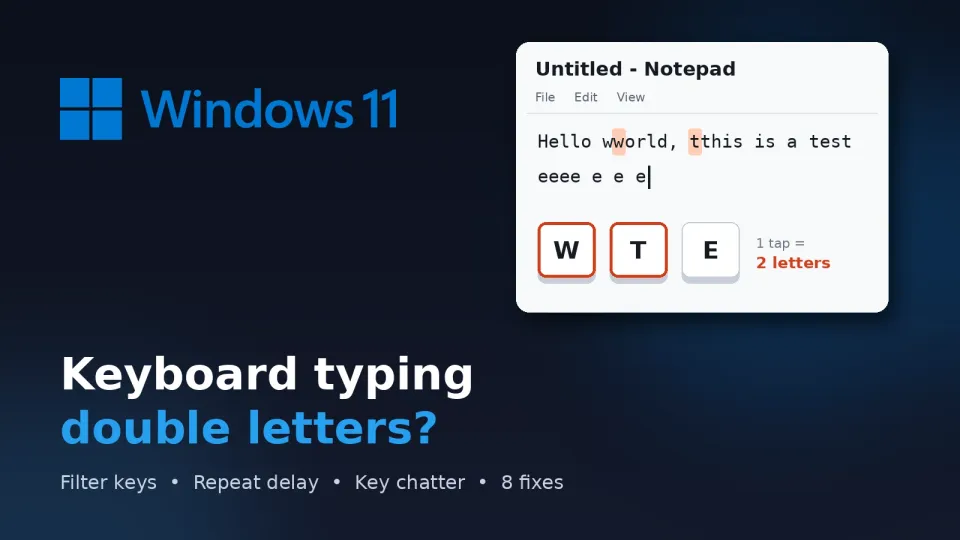
On screen you get the same "hheello" either way. Under the hood they're different problems with different fixes.
- Chatter is when one clean tap sends two presses. The switch inside the key bounces, or dirt stops it making a clean contact, so the keyboard reports a second press a few milliseconds after the first one.
- Key repeat is a Windows feature. Hold a key and, after a short delay, Windows types it again and again. If that delay is set very short, a slightly slow tap is enough to get a second letter.
So, run the checker with quick, separate taps first. Then, if there's a second computer in the house, plug the keyboard into that too. Doubles that follow the keyboard to the other machine? Jump to Steps 4 to 6. Got the opposite, where any keyboard you plug into your PC doubles? Then it's the PC, and you want Steps 2, 3 and 7.
You can also open the On-Screen Keyboard (press Win + R, type osk, press Enter) and click a few letters into Notepad. If those come out clean, Windows itself is handling single key presses fine.
Step 2: Lengthen the repeat delay
The repeat settings still live in the old Control Panel window on Windows 11.
- Press Win + R, type
control keyboardand press Enter. - On the Speed tab, drag Repeat delay towards Long.
- If held keys also fire too fast, move Repeat rate a notch towards Slow.
- Click in the test box on that tab, hold a key, and check it feels right. Then click Apply and OK.
Be clear on what this changes. It only affects what happens while a key is held down. It won't stop a chattering switch from sending two presses on a quick tap, so if the checker flagged chatter, this step alone won't fix it.
Step 3: Close keyboard apps, macros and remappers
Anything that hooks into the keyboard can send extra keystrokes. That includes the maker's own software (Logitech G HUB or Logi Options+, Razer Synapse, Corsair iCUE), remapping tools like PowerToys Keyboard Manager, AutoHotkey scripts, game macro tools, and remote desktop or screen sharing apps.
- Right-click each keyboard app's icon in the system tray and quit it fully, not just close the window.
- Test again in Notepad.
- If the doubling stops, turn the apps back on one at a time until it returns. That one is your culprit. Check its macros and key bindings, or reinstall it.
Razer's own guide for keys that spam says the same thing: exit Synapse, test, and if the keyboard behaves without it, do a clean reinstall of Synapse. If the problem only shows up in one game, look at that game's key bindings and any overlay running on top of it before blaming Windows.
Step 4: Clean under the key
Boring, but it works more often than you'd think. Logitech puts cleaning the key with compressed air at the very top of its list for keys that repeat or type odd characters.
- Unplug the keyboard, or switch it off if it's wireless.
- Tip it upside down and blow compressed air around and under the bad key, at an angle, from a few sides.
- On a mechanical keyboard, pull the keycap with a keycap puller and clean around the switch. Then press the switch a few dozen times so it works itself loose.
- On a laptop, stick to compressed air. Laptop keycaps clip on with small plastic hinges that snap easily, so check your laptop maker's guide before you pry one off.
Spilled coffee or soda on it? Give it a full day to dry before it goes back on the cable, and expect sticky keys to need more than one cleaning.
Step 5: Change the port, battery or receiver
Logitech's page on repeating keys says to plug the keyboard (or its receiver) straight into the PC, not a hub, extender or KVM switch, and to try another USB port. Funny detail: if swapping ports helps, they point you at the motherboard's USB chipset driver next.
- Wired: use a port on the back of a desktop. If the cable comes off, try another cable.
- Wireless with a USB receiver: put in fresh batteries or charge it, and move the receiver closer. A USB extension cable can help bring it nearer the keyboard.
- Bluetooth: remove the keyboard under Settings > Bluetooth & devices, then pair it again.
Here's the sneaky part with wireless. If the signal drops for a split second, the "key released" message can get lost, Windows assumes you're still holding the key, and you get a string of the same letter. Looks exactly like chatter. Hold the keyboard right next to the receiver and type a bit; if the doubles vanish, you've found it.
If the keyboard isn't showing up properly at all after moving it, my USB device not recognized fix covers ports, power settings and drivers in more detail.
Step 6: Update firmware and raise debounce time
Keyboard makers ship firmware updates that sometimes fix input bugs. Both Logitech and Razer list a firmware update as a standard fix for repeating keys. Use the maker's own app: Logi Options+ or G HUB for Logitech, Synapse for Razer, iCUE for Corsair.
Some gaming keyboards also have a debounce setting. Debounce is how long the keyboard waits after a key press before it will accept another press of that same key. Raising it a little can hide a switch that has started to bounce. In Corsair iCUE it's called Key Switch Debounce Time, under the keyboard's device settings. Users on Corsair's forum report that raising it a few milliseconds at a time stopped their doubles, but it isn't there on every model, and optical-switch boards like the K100 OPX don't have it. Go up in small steps and test after each one. Set it too high and fast double letters you actually meant to type, like the "ll" in "hello", can get dropped.
Don't go adding debounce values to the Windows registry from random guides. If your keyboard's software doesn't have the option, use Bounce keys in Step 8 instead.
Step 7: Reinstall the keyboard driver
Worth doing when every keyboard you try doubles on this one PC, or when a laptop's built-in keyboard went weird right after an update.
- Right-click Start and open Device Manager.
- Expand Keyboards. External keyboards usually show up as HID Keyboard Device. Laptop keyboards often appear as Standard PS/2 Keyboard or under the maker's own name.
- Right-click the keyboard and choose Uninstall device, then restart the PC. Windows reinstalls the driver on startup.
Quick warning: have a spare keyboard or the On-Screen Keyboard ready before you uninstall the only one you've got. Laptop owners, grab the keyboard and chipset drivers from your laptop maker's support site too, and peek at Settings > Windows Update > Advanced options > Optional updates for any driver waiting there.
Don't expect miracles, though. A driver lives on the PC. If the same key chatters on two different computers, no driver on earth will fix that.
Step 8: Turn on Bounce keys as a stopgap
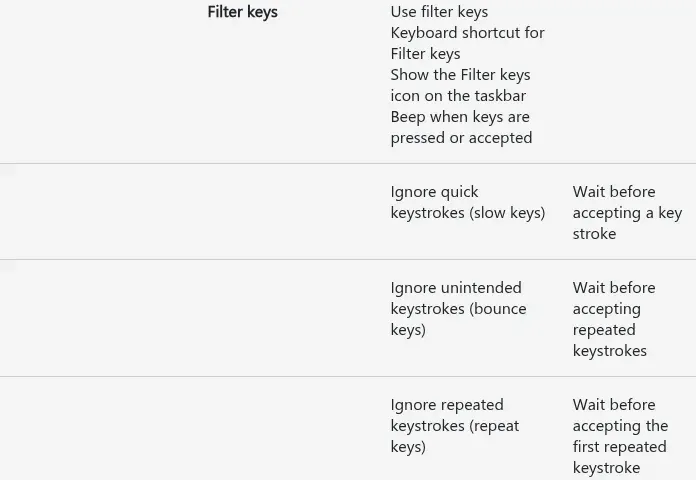
Bounce keys sits inside Filter keys. Switch it on and Windows ignores a repeat press of the same key that lands too soon after the first, which happens to be exactly what chatter is. Fastest way I know to get typing again.
- Open Settings > Accessibility > Keyboard.
- Turn on Filter keys and click it to open its options.
- Turn on Ignore unintended keystrokes (bounce keys).
- Set Wait before accepting repeated keystrokes to the shortest time that stops the doubles.
- Leave Ignore quick keystrokes (slow keys) off unless you need it. That option makes Windows wait before it accepts any key at all, which feels like lag.
The catch is that it applies to every key. Typing words with real double letters, like "book" or "coffee", takes a slightly slower second press. One person on Microsoft Q&A said Filter keys added a big typing delay for them, and that's why I'd treat it as a stopgap rather than a fix. Holding the Right Shift key for eight seconds turns Filter keys on or off, so if it switches itself on by accident, my guide to turning off Sticky keys and the Filter keys shortcut shows how to stop that.
If you've cleaned it, changed ports, updated the firmware and the same key still chatters on another computer, the switch is wearing out. Check the warranty first. Logitech and Razer both suggest contacting support at that point. On a hot-swap mechanical keyboard you can pull the switch out and fit a new one. On a laptop, it usually means a keyboard replacement, so take it to the maker's service centre.
Related guides: this guide is part of my Windows & PC fixes series. If your controller is the problem rather than the keyboard, see controller not detected on PC.
FAQ
Why is my keyboard typing double letters all of a sudden?
Usually a dirty or worn switch, a weak wireless signal, or keyboard software sending extra presses. Less often, the Windows repeat delay is set too short. Use the checker on this page to tell chatter apart from normal key repeat.
Is keyboard chatter a hardware problem?
Most of the time, yes. If the same key doubles on another computer, the switch or the keyboard itself is the cause. Cleaning, a firmware update or a higher debounce time can help, but a switch that keeps getting worse needs replacing.
How do I stop Windows 11 from repeating keys?
Press Win + R, type control keyboard, and move Repeat delay towards Long and Repeat rate towards Slow. That only changes what happens while a key is held down, not chatter from a quick tap.
Does Filter keys fix double typing?
Bounce keys, inside Filter keys, hides it by ignoring a second press of the same key that comes too quickly. It works on every key and can slow normal typing, so use it as a stopgap until the keyboard is fixed.
Can a driver cause double letters?
It can if every keyboard doubles on one PC. Uninstall the keyboard in Device Manager and restart, and on a laptop install the maker's keyboard and chipset drivers.
Comments ()