100% Disk Usage on Windows 11, Even With Nothing Open
Disk stuck at 100% in Task Manager with nothing open? Here's how to find what's hammering it on Windows 11 and fix it, from indexing and SysMain to drive health checks.
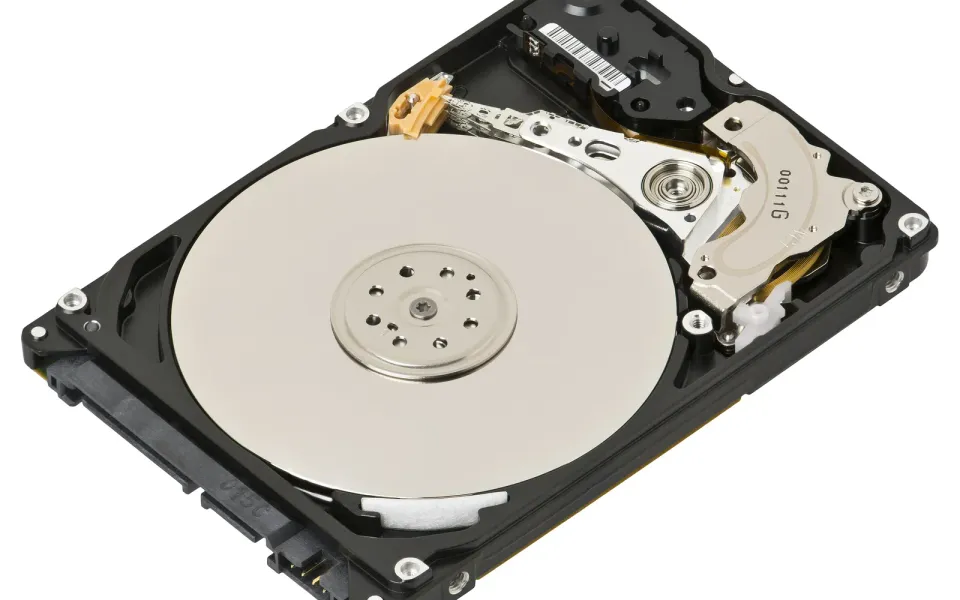
Updated October 2026. Steps, commands and menu paths checked against Microsoft Support and Microsoft Learn pages for Windows 11 on 23 October 2026.
Short answer: give the PC 10 to 15 minutes after a restart first, because Windows does a lot of catch-up work right after boot and after updates. If the disk is still pinned at 100%, press Ctrl + Shift + Esc, sort Task Manager by the Disk column and see what's on top. Nine times out of ten it's Windows Update, search indexing, an antivirus scan, a cloud sync app or a startup program. If nothing obvious is using it, the drive itself is the suspect, especially if it's an old spinning hard drive.
The steps below go from harmless to more involved. Do them in order and stop when the number drops.
Jump to:
- What 100% disk actually means
- Step 1: Wait out the after-boot rush
- Step 2: Task Manager and Resource Monitor
- Step 3: Windows Update
- Step 4: Search indexing
- Step 5: SysMain
- Step 6: Startup apps and clean boot
- Step 7: Malware scan
- Step 8: Space and page file
- Step 9: DISM and SFC
- Step 10: Check the drive
- Step 11: MSI mode fix
- When the fix is an SSD
- FAQ
What 100% disk usage actually means
The Disk percentage in Task Manager isn't how full your drive is. It's how busy it is, roughly the share of time the drive spent handling reads and writes. A drive can be half empty and still sit at 100% because something keeps asking it for data.
That's why the problem feels so random. You haven't opened anything, but Windows and the apps you installed are still working in the background: checking for updates, indexing files, syncing OneDrive or Google Drive, scanning for malware. On a fast NVMe SSD you barely notice. On a 5,400 rpm laptop hard drive, the same work can keep the disk maxed out for a long time, and the whole PC drags while it does.
Step 1: Wait out the after-boot rush
Right after you sign in, Windows loads startup apps, Defender checks things, the search index catches up and updates may be installing. A spike to 100% for the first few minutes is normal, and on a hard drive it can last a lot longer.
Restart properly (Start > Power > Restart, not Shut down), sign in, then leave it alone for 10 to 15 minutes while plugged in. If the disk settles after that, nothing is broken. It's a slow drive doing normal work, and the later steps can still cut that work down.
Step 2: Find the culprit in Task Manager and Resource Monitor
Press Ctrl + Shift + Esc to open Task Manager. On the Processes tab, click the Disk column header so the busiest process sits at the top. If you don't see a Disk column, right-click any column header and add it.
On the Performance tab, click your disk and watch the Active time graph for a minute. Short spikes are fine. A flat line at the top is the problem.
Task Manager only names the process, which is often just "Service Host" or "System". For more detail, press Win + R, type resmon and press Enter to open Resource Monitor. On the Disk tab, the "Processes with Disk Activity" list shows read and write speed per process, and "Disk Activity" shows the exact files being touched. Paths like C:\Windows\SoftwareDistribution or a OneDrive folder tell you far more than a process name.
What the usual names point to:
- Service Host: Windows Update or Delivery Optimization: update downloads and installs (Step 3)
- Microsoft Windows Search Indexer: search indexing (Step 4)
- Service Host: SysMain: the memory preloading service (Step 5)
- Antimalware Service Executable: Microsoft Defender scanning (Step 7)
- OneDrive, Google Drive, Steam, a browser: an app doing its own thing (Step 6)
- System, with heavy pagefile.sys activity: you're short on RAM (Step 8)
Step 3: Check Windows Update and Delivery Optimization
Go to Settings > Windows Update and see if something is downloading, installing or waiting for a restart. If it is, let it finish and restart.
Windows also uses Delivery Optimization, which can fetch update pieces from other PCs and share them out again. If you don't want your PC uploading to strangers, go to Settings > Windows Update > Advanced options > Delivery Optimization. Microsoft says you can turn Allow downloads from other devices off, or limit it to devices on your local network, and you'll still get updates straight from Microsoft. You can also cap the bandwidth on the same page.
If an update is stuck and the disk has been busy for hours with no progress, that's a different problem. My guide to fixing Windows Update stuck at 0% or 100% walks through it.
Step 4: Tame search indexing
Windows Search builds an index of your files so search results show up quickly. Microsoft notes the first full index can take a couple of hours, and after that it keeps updating in the background whenever files change.
Open Settings > Privacy & security > Search (on some builds it's called Searching Windows). Under Find my files, check which mode you're on:
- Classic indexes your Documents, Pictures and Music folders plus the desktop.
- Enhanced indexes the whole PC. Microsoft says it may use more system resources.
Switching from Enhanced to Classic is the easy win. You can also exclude folders that change all the time, like a downloads dump or a code project, using Customize search locations.
To test whether indexing is really the problem, open services.msc, find Windows Search and click Stop. If the disk calms down right away, you've found it. I'd still leave it running long-term, because search in File Explorer and Outlook depends on it.
Step 5: Test with SysMain turned off
SysMain is the service that used to be called Superfetch. Microsoft's description is that it "maintains and improves system performance over time", which in practice means it preloads apps you use often into RAM. On PCs with a hard drive and not much memory, that preloading can keep the disk busy.
Open services.msc, double-click SysMain, click Stop, and use the PC normally for a day. If things feel better, set Startup type to Disabled. If you don't notice any difference, set it back to Automatic and start it again. On an SSD there's usually no reason to touch it.
Step 6: Cut startup apps and try a clean boot
Every app that launches when you sign in grabs the disk at the same moment. Go to Settings > Apps > Startup and turn off anything you don't need right away. Task Manager's Startup apps page lists the same apps with a startup impact rating, which helps you spot the heavy ones.
Cloud sync apps and game launchers (OneDrive, Google Drive, Dropbox, Steam) can read and write a lot in the background. Pause them for an hour and watch the Disk column.
If you can't pin it on one app, do a clean boot. Search for msconfig, open System Configuration, go to the Services tab, tick Hide all Microsoft services, then click Disable all. On the Startup tab, open Task Manager and disable the startup items. Restart. If the disk is quiet now, turn things back on a few at a time until the problem returns. Microsoft has the full steps on its clean boot page, including how to undo it.
Step 7: Run a malware scan
Malware can eat disk and CPU, so rule it out. Go to Settings > Privacy & security > Windows Security > Virus & threat protection and run a Quick scan.
Also check whether you have two antivirus products running. A third-party suite plus Defender scanning the same files is a classic cause of heavy disk use. Pick one. Defender is fine for most people.
Step 8: Free up space and leave the page file alone
A nearly full system drive makes everything slower. Open Settings > System > Storage, clear Temporary files, and turn on Storage Sense so Windows cleans up on its own.
If Resource Monitor shows a lot of activity on pagefile.sys, your PC is running out of RAM and spilling over to the disk. It's tempting to turn the page file off. Don't. Microsoft's documentation explains that the system's commit limit is your RAM plus the page file, and if programs hit that limit you can get freezes and crashes. Leave it on System managed and close memory-hungry apps instead. If it keeps happening, more RAM is the proper fix.
Step 9: Repair Windows files with DISM and SFC
Corrupted system files can leave services looping forever. Microsoft's order is DISM first, then SFC.
Search for cmd, right-click Command Prompt and choose Run as administrator. Then run:
DISM.exe /Online /Cleanup-image /Restorehealth
sfc /scannow
DISM pulls clean copies of files from Windows Update, so stay online. It can take several minutes. Don't close the window while SFC is running. If it says it found and repaired corrupt files, restart and check the disk again.
Step 10: Check the drive itself
If nothing from Steps 2 to 9 explains it, start suspecting the hardware. A failing drive takes longer to answer each request, so the disk looks busy even under a light load.
Check drive health. Go to Settings > System > Storage > Advanced storage settings > Disks & volumes, pick the disk and open Properties. For NVMe SSDs, Windows shows estimated remaining life, available spare and temperature. Microsoft notes Windows only monitors NVMe drives here, not SATA SSDs or hard drives, so for those you'll need the drive maker's own tool.
Run chkdsk. In an admin Command Prompt:
chkdsk C: /scanThat's an online scan, so you can keep working. If it finds problems, run chkdsk C: /f. Because Windows is using C:, it'll offer to check the drive at the next restart. Say yes and restart. Microsoft's chkdsk page does warn that repeated full-surface scans with /r add write cycles on an SSD, so don't run that one on a schedule.
Look for Event ID 129. Open Event Viewer (eventvwr.msc), go to Windows Logs > System, choose Filter Current Log and type 129 in the Event ID box. Lots of these mean the storage controller keeps getting reset because the drive stops responding. That points at the drive, cable or controller rather than any app.
Whatever you find, back up your files now. If the drive is dying, that's the one step you can't do later.
Step 11: Older SATA PCs: the MSI mode fix
This one is narrow, so only try it if you saw those Event ID 129 errors. Microsoft published a support article (KB3083595) about some AHCI PCIe SSDs that couldn't complete reads and writes properly with Message Signaled Interrupt (MSI) mode on. That was due to a firmware bug in the drive, and it happened when the drive ran on Windows' built-in StorAHCI.sys driver. The symptom was exactly this: 100% disk under a light or no load, plus lag. The article dates from the Windows 10 era, and it doesn't apply to modern NVMe drives, which use a different driver.
To check if it could apply to you:
- Open Device Manager (
devmgmt.msc) and expand IDE ATA/ATAPI controllers. - Right-click the AHCI controller (usually Standard SATA AHCI Controller) > Properties > Driver tab > Driver Details. If
storahci.sysis listed, you're on the built-in driver. - On the Details tab, choose Device instance path and note the value.
Microsoft's fix was to open Registry Editor and go to HKEY_LOCAL_MACHINE\System\CurrentControlSet\Enum\PCI\<device instance path>\Device Parameters\Interrupt Management\MessageSignaledInterruptProperties, change MSISupported from 1 to 0, then restart. Make a restore point before you edit the registry. If nothing changes after the restart, set it back to 1. Checking the SSD maker's site for a firmware update is the cleaner long-term fix.
When the real fix is an SSD
Here's the honest bit. If your Windows 11 PC still boots from a spinning hard drive, you can do every step above and it'll still hit 100% regularly. Windows 11 does more background work than an old laptop drive can comfortably handle, and an SSD is the upgrade that makes the biggest difference on these machines.
Most laptops from the last decade take either a 2.5-inch SATA SSD or an M.2 drive. Check your exact model's manual or the maker's support page before buying, because the slot type matters. You can clone your current drive with the SSD maker's migration tool, or do a clean install. If you clone and your system drive is encrypted, have your BitLocker recovery key ready first, because hardware changes can trigger the recovery screen. Before you spend money on an older laptop, it's also worth a quick check of its battery health on Windows 11, since a worn battery might change your mind about upgrading it.
FAQ
Is 100% disk usage bad for my drive?
Not by itself. Drives are built to be busy. But if the disk is busy all the time with nothing running, it can be a sign the drive is failing, so check its health (Step 10) and keep a backup.
Why does my disk hit 100% right after startup?
Startup apps, Defender, search indexing and Windows Update all kick in when you sign in. A few minutes at 100% is normal, and it lasts longer on a hard drive. If it never settles, trim your startup apps (Step 6).
Should I disable SysMain and Windows Search for good?
Only if testing proves they're the cause. Stopping SysMain is low risk and you can turn it back on any time. I wouldn't disable Windows Search permanently, because search in File Explorer, Outlook and other apps relies on the index. Switching indexing from Enhanced to Classic is the better compromise.
Is it safe to turn off the page file to stop disk usage?
No. Microsoft explains that your commit limit is RAM plus the page file, and hitting that limit can freeze or crash programs. Keep it system managed. If the page file is busy all the time, you need more RAM or fewer apps open.
Does chkdsk fix 100% disk usage?
Only if file system errors are part of the problem. It won't stop Windows Update or indexing from using the disk. Run chkdsk C: /scan first, and use /f only if it finds errors.
Did the latest Windows 11 update cause this?
Possibly, for a day or two. After a big update, Windows often has cleanup and indexing work to finish. If the disk is still pegged a few days later, work through the steps above. If you're wondering whether the newest version is worth installing at all, see my take on Windows 11 26H2.



Comments ()