How to Check Laptop Battery Health on Windows 11
Windows 11 hides battery health, but one command reveals it. How to run a battery report, work out your health percentage, read cycle count and know when to replace.
Updated October 2026. Commands, Settings paths and manufacturer app steps checked against Microsoft Support, Microsoft Learn, Lenovo, HP, Dell and ASUS support pages on 24 October 2026.
Short answer: to check laptop battery health on Windows 11, you need one command, because Settings doesn't show a health percentage. Open Command Prompt, run powercfg /batteryreport, open the HTML file it creates, and compare Full charge capacity with Design capacity. Divide the first by the second and multiply by 100. That's your battery health. A laptop showing 38,000 mWh against a 50,000 mWh design capacity is at 76%.
That's the whole trick, but the report has a few traps, and your laptop maker's own app often tells you more. Here's how to read it properly.
Jump to:
- Why Settings won't show battery health
- Step 1: Create the battery report
- Step 2: Find the two capacity numbers
- Step 3: Work out the percentage
- Step 4: Cycle count
- Step 5: Capacity history and estimates
- Step 6: Your laptop maker's app
- Step 7: What drains it in Settings
- What's a good percentage?
- How to slow down battery wear
- FAQ
Why Settings won't show battery health
Go to Settings > System > Power & battery and you'll see your charge level, a graph of battery use and power options. What you won't find is anything like the "Maximum capacity" figure an iPhone shows. Microsoft's own advice on its Caring for your battery in Windows page is to generate a battery report from the command line if you want capacity details.
It helps to know what "health" means here. Lithium-ion batteries lose a little capacity every time they're charged and drained, and heat speeds that up. The charge percentage in your taskbar is always relative to what the battery can hold today. So 100% on a three-year-old laptop might be a lot less energy than 100% was on day one. Battery health is that gap.
Step 1: Create a battery report with powercfg
Microsoft's steps use an admin Command Prompt, so that's what I'd do:
- Click Start and type Command prompt.
- Right-click it, choose Run as administrator and click Yes.
- Type this and press Enter:
powercfg /batteryreportWindows replies with "Battery life report saved to" and a file path. Where it lands depends on the folder the prompt was in. From an admin prompt that's usually C:\Windows\system32\battery-report.html, which is an awkward place to dig around. From a normal prompt it's your user folder, as Dell's guide notes (C:\Users\your-name\battery-report.html).
I'd rather tell it exactly where to go. This saves the report straight to your desktop:
powercfg /batteryreport /output "%USERPROFILE%\Desktop\battery-report.html"If you use PowerShell or Windows Terminal, swap %USERPROFILE% for $env:USERPROFILE. The powercfg part is the same in both.
The powercfg reference on Microsoft Learn lists two more switches. /duration 7 limits the usage sections to the last few days, and Microsoft's own forum answers say the cap is 14 days. /xml writes XML instead of HTML, which is only useful if you want to feed the numbers into a script.
Step 2: Find Design capacity and Full charge capacity
Double-click the file and it opens in your browser. It looks like a wall of tables, but the bit you need is near the top, under Installed batteries:
- Design capacity is what the battery was built to hold when new, in milliwatt-hours (mWh).
- Full charge capacity is what the battery's controller thinks it can hold now.
- Cycle count is how many full charge cycles the battery has logged, if the battery reports it.
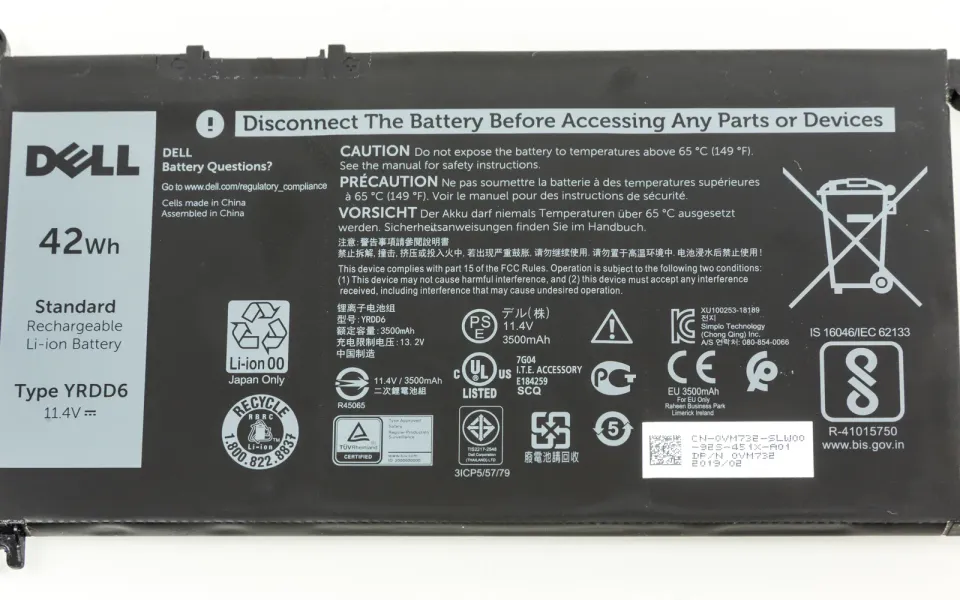
You'll also see the manufacturer, serial number and chemistry (usually LIon). The design number usually matches the label on the battery itself. The Dell pack in the photo at the top says 42 Wh, which would show up as roughly 42,000 mWh in the report.
If you see two batteries listed, your laptop has two packs (some older ThinkPads did). Add them up or check each one separately.
Step 3: Work out your battery health percentage
The maths is one line:
Battery health (%) = Full charge capacity ÷ Design capacity × 100Some real-world style numbers:
| Design capacity | Full charge capacity | Battery health |
|---|---|---|
| 56,000 mWh | 54,300 mWh | 97% |
| 50,000 mWh | 38,000 mWh | 76% |
| 42,000 mWh | 19,500 mWh | 46% |
Don't panic over a few points either way. This number comes from the battery's fuel gauge chip, and it's an estimate. HP says a brand-new battery's full charge capacity can differ from its design capacity by up to 10%, and it can move after a calibration or a firmware update. Watch the trend over months, not one reading.
Step 4: Check the cycle count
One cycle is 100% worth of discharge, not one plug-in. Using 50% today and 50% tomorrow adds up to one cycle. Many laptops are rated for somewhere between a few hundred and 1,000 cycles before capacity drops noticeably, and the exact figure is in your model's spec sheet or manual if the maker publishes it.
If the Cycle count field shows a dash, that doesn't mean zero. It means the battery firmware isn't passing that number to Windows. Updating the BIOS sometimes fixes it. If it doesn't, the maker's app in Step 6 often shows the count anyway.
Honestly, I'd treat cycle count as background info. Capacity is what decides how long you last away from a plug. ASUS says the same in its own battery FAQ: it doesn't decide replacements on cycle count alone.
Step 5: Look at capacity history and battery life estimates
Scroll down the report and three more sections are worth a look:
- Battery capacity history lists full charge capacity against design capacity over time. A steady slide is normal ageing. A sudden big drop is worth a closer look, especially on a newer laptop that's still under warranty.
- Battery life estimates shows how long the battery has lasted with your real use, in two columns: "At full charge" (today's battery) and "At design capacity" (what you'd get with a new one). The gap between them is battery wear turned into hours and minutes, which is easier to understand than mWh.
- Recent usage and Battery usage show the last few days of charging and draining. Handy if the laptop dies faster than the health number suggests, because then the problem may be software, not the battery.
Step 6: Cross-check in your laptop maker's app
The big laptop brands read the same battery data, and several turn it into a plain verdict. They also run tests Windows can't. If your laptop came with one of these apps, open it:
- Lenovo: open Lenovo Vantage, go to Device settings > Power. Lenovo's own support video shows battery health, current charge, full charge capacity, design capacity, temperature and charge cycles there. If health drops to Poor, Lenovo suggests running Battery Gauge Reset, which makes the gauge more accurate but won't bring lost capacity back.
- HP: run the battery check in HP Support Assistant, or the battery test in HP PC Hardware Diagnostics UEFI (press Esc at power-on, then F2). Results come back as Passed, Calibrate, Weak or Very Weak, or Replace. HP's battery testing and calibration guide explains each one.
- Dell: in Dell Optimizer go to Power > About my battery, or in Dell Power Manager open Battery Information. Health shows as Excellent, Good, Fair or Poor. You can also press F2 at boot to see battery health in the BIOS, or F12 > Diagnostics for a full test. Details are on Dell's battery health page.
- ASUS: open MyASUS, go to System Diagnosis and run the Battery problems check (Battery is also part of the full Hardware Check). If it reports an error or poor health, ASUS points you to its support team for a replacement.
- Microsoft Surface: the Surface app's Battery & charging page covers charging modes. For capacity numbers, Microsoft still points you to the battery report.
If the app and the report roughly agree, you can trust the number. If the app says Good and the report says 55%, run the maker's calibration or gauge reset, then generate a fresh report.
Step 7: See what drains the battery in Settings
A worn battery and a hungry app feel the same: the laptop dies early. Before you blame the battery, open Settings > System > Power & battery, expand Battery usage and set Battery levels to Last 24 hours or Last 7 days. Click a bar where the level fell fast and Windows lists the apps that used the most power in that window.
Browsers, video calls and games usually top the list, and that's expected. A sync app or updater you never open sitting near the top is not. Background disk work hits battery life too, so if your laptop also feels sluggish, my guide to 100% disk usage on Windows 11 covers the usual offenders, and a stuck Windows Update can keep the PC busy in the background too.
What is a good laptop battery health percentage?
There's no official cut-off that every brand uses, so here's how I'd read the number, alongside what Dell and HP say:
| Battery health | What it means in practice | What I'd do |
|---|---|---|
| 90–100% | Close to new. A newer battery can even read slightly above 100%. | Nothing. Check again in a few months. |
| 80–89% | Normal wear after a year or two of daily use. You may lose some runtime. | Turn on a charge limit if you're plugged in most of the day. |
| 60–79% | Clearly shorter runtime. Fine for a laptop that lives on a desk. | Price up a replacement and check your warranty. |
| Below 60% | Runtime is a fraction of new. Dell lists under 50% of original capacity as a sign to replace. | Replace it if you need the laptop away from a plug. |
One rule overrides the table. If the battery is swelling, the touchpad is lifting or the case is bulging, stop using it. Microsoft and Dell both say to stop using a swollen battery, and not to puncture or squeeze it. Unplug it, power it down and get it replaced by the manufacturer or a proper repair shop.
How to slow down battery wear
You can't reverse wear, but you can slow it. The biggest win for most people is a charge limit, because sitting at 100% on a charger all day is hard on lithium-ion cells. Microsoft suggests keeping the battery roughly between 20% and 80% when you can. Most big brands have a setting for it:
- Lenovo ThinkPad: Battery Charge Threshold in Lenovo Vantage, under Power, lets you set when charging starts and stops.
- Lenovo IdeaPad and Yoga: Conservation mode. The IdeaPad Slim 5 manual says it holds the charge at 75–80%. Some older models stop closer to 60%.
- ASUS: in MyASUS, Battery Health Charging (called Battery Care Mode on newer models) has three modes. Full Capacity charges to 100%. Balanced stops above 80% and resumes below 78%. Maximum Lifespan stops above 60% and resumes below 58%. ASUS recommends that one if the laptop is always on AC power.
- HP: business models have HP Battery Health Manager in the BIOS, with settings that include "Let HP manage my battery charging".
- Surface: Smart charging caps the battery at 80% when the laptop stays plugged in for long stretches, and some models let you set Limit to 80% in the Surface app.
Heat is the other big one. Don't charge on a bed or a pillow that blocks the vents, and don't leave the laptop in a hot car. If you're putting it away for a few weeks, Microsoft suggests storing it at about 40–60% charge, not full or empty. Phones follow the same rules, and if yours has slowed down at the plug, here's why a phone charges slowly and how to fix it.
For day-to-day runtime, turn on Energy saver (Windows 11 24H2 and later) or Battery saver (older versions) under Settings > System > Power & battery. You can set it to switch on at a battery level you choose. Setting Power mode to Best power efficiency on battery helps too. Neither touches battery health, but both stretch what you've got left. If you're deciding whether to install the newest feature update on an older laptop, I covered that in Windows 11 26H2: should you update?
FAQ
Can I see battery health in Windows 11 Settings?
No. Settings shows charge level, usage and power options, but not capacity or wear. Use powercfg /batteryreport or your laptop maker's app.
Is 80% battery health good for a laptop?
It's normal for a laptop a couple of years old. You'll get roughly four-fifths of the runtime it had new. Most people don't need to replace a battery at 80% unless the shorter runtime actually gets in the way.
Why is my full charge capacity higher than the design capacity?
New batteries often have a bit of extra headroom, and the gauge is an estimate. HP says the gap can be up to 10% on a new battery. A reading slightly over 100% is nothing to worry about.
Can calibrating the battery improve battery health?
It can change the number, but not the battery. Calibration and Lenovo's Battery Gauge Reset make the fuel gauge more accurate, so the reading may go up or down. Lost capacity doesn't come back.
Why does the battery report show a dash for cycle count?
The battery's firmware isn't sharing that value with Windows. Try a BIOS update, or check the cycle count in Lenovo Vantage, HP Support Assistant or your maker's diagnostics.
Is it bad to keep my laptop plugged in all the time?
Keeping it at 100% for months ages the battery faster, which is why Lenovo, ASUS, HP and Microsoft all ship charge-limit features. Turn one on and staying plugged in is fine.
If your report shows something odd, like a capacity that fell off a cliff in a single week, drop the numbers in the comments and I'll take a look.



Comments ()