How to Turn Off Sticky Keys on Windows 11 (Stop Pop-Up)
Sick of the Sticky Keys pop-up when you tap Shift five times? Turn off the Sticky, Filter and Toggle Keys shortcuts in Windows 11 Settings.
Updated: 20 November 2026. Checked against Microsoft Support's keyboard accessibility page and accessibility shortcuts list, plus the Windows Insider coverage from Windows Central, Windows Latest and The Register.
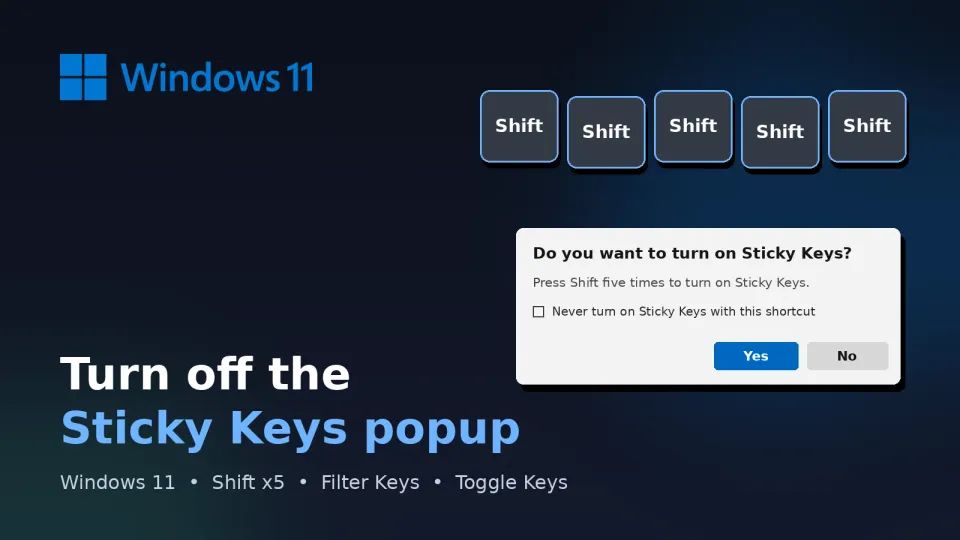
Short answer: press Windows + U to open Accessibility settings, choose Keyboard, open Sticky keys and turn off Keyboard shortcut for Sticky keys. Do the same for Filter keys and Toggle keys. After that, tapping Shift five times (or holding Right Shift or Num Lock) won't pop anything up in the middle of your game or your typing.
A quick note on how I wrote this. I didn't break my own keyboard to test every case, so I'm not claiming any hands-on results. I went through Microsoft's own support pages for the setting names and shortcuts, then read the recent Windows Insider coverage to see what is changing. Where a detail only comes from one outside source, I say so.
Jump to:
- What the pop-up is and why it appears
- Step 1: Open the keyboard accessibility settings
- Step 2: Turn off the Sticky Keys shortcut
- Step 3: Turn off Filter Keys and Toggle Keys shortcuts
- Step 4: Use the new never-ask-again checkbox (Insiders only, for now)
- Step 5: If it keeps coming back
- FAQ
What the pop-up is and why it appears
Sticky Keys is an accessibility feature that lets you press shortcuts like Ctrl + S one key at a time instead of holding them together. Microsoft's own page describes it as help for people who have trouble pressing two keys at the same time. It's genuinely useful for those who need it. The catch is that Windows switches on the offer when you tap Shift five times in a row, and that's very easy to do by accident, especially in games where Shift means sprint or a power move.
There are two siblings with the same trick. Microsoft's accessibility shortcut list gives all three:
| Feature | Shortcut that opens the prompt | What it does |
|---|---|---|
| Sticky Keys | Press Shift five times | Lets you press modifier keys one at a time |
| Filter Keys | Hold Right Shift for eight seconds | Ignores brief or repeated keystrokes |
| Toggle Keys | Hold Num Lock for five seconds | Plays a sound when you press Caps Lock, Num Lock or Scroll Lock |
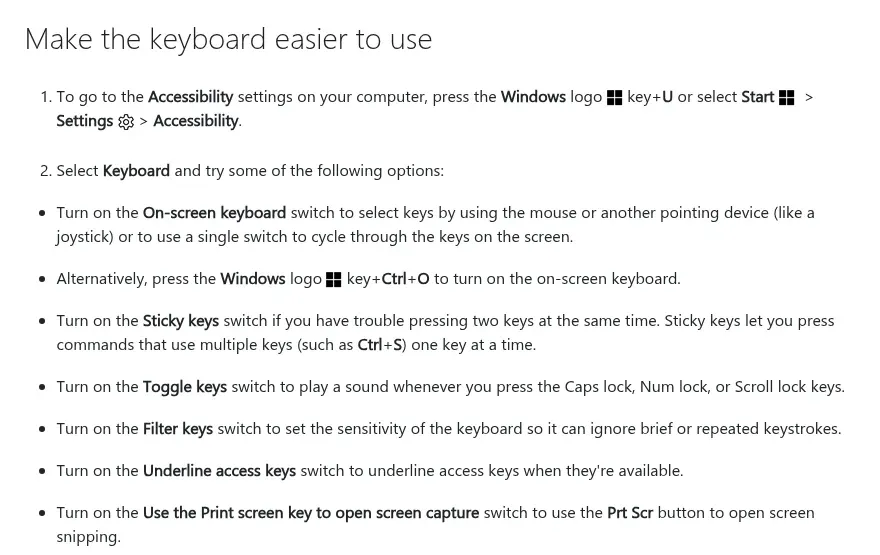
Here is the part of Microsoft's page that lists those switches:
Step 1: Open the keyboard accessibility settings
Microsoft gives two routes: press Windows logo key + U, or go to Start > Settings > Accessibility. Then select Keyboard. You'll see switches for the On-screen keyboard, Sticky keys, Toggle keys and Filter keys. Each of the last three can be expanded to show its own options.
Step 2: Turn off the Sticky Keys shortcut
Click the Sticky keys row to expand it. Make sure the main Sticky keys switch is Off, then turn off Keyboard shortcut for Sticky keys. That second toggle is the one that matters for the pop-up. Windows Central confirms this is the existing route: Settings > Accessibility > Keyboard > Sticky keys.
If you actually like Sticky Keys and just want it to behave, leave it on and look at the other options in the same panel instead, for example the one that turns it off when two keys are pressed at the same time, and the audio cue.
Step 3: Turn off Filter Keys and Toggle Keys shortcuts
Go back one level and repeat for the other two. Expand Filter keys and turn off Keyboard shortcut for Filter keys. Then expand Toggle keys and turn off its shortcut. Filter Keys is the one people often meet in a more annoying way: it can make the keyboard feel slow or ignore quick taps, because it deliberately ignores brief or repeated keystrokes. If your typing suddenly feels sluggish after holding Right Shift for a while, check that switch first.
Step 4: Use the new never-ask-again checkbox (Insiders only, for now)
Microsoft is adding an easier way. According to Windows Latest, Windows Central and The Register, the Sticky Keys and Filter Keys prompts in recent Insider builds get a checkbox, which Windows Latest quotes as Never turn on Sticky Keys with this shortcut. Tick it, click No, and the prompt stops appearing.
It's not on regular Windows 11 yet. Windows Latest says the change is in Experimental build 26340.9882 and Beta build 26320.9876, both released on November 6, 2026, and that it's a controlled rollout, so even some Insiders may not see it. The Register adds that Microsoft hasn't announced a general release date. So on a normal PC, use Steps 1 to 3 today. They do the same job, and Microsoft's engineers have said turning the shortcut off in Settings has always been possible.
Step 5: If it keeps coming back
- Check you changed the right switch. Turning the main Sticky keys switch off isn't enough. The pop-up comes from the separate keyboard shortcut toggle inside it.
- Repeat on every PC. One outside guide says Windows doesn't sync this preference between PCs, while another says Windows Backup can carry accessibility settings over. I haven't verified either, so check each machine.
- Work or school PCs. If the options are greyed out or change back, your organisation probably manages them. That's a question for your IT admin.
- Keyboard feels odd afterwards? If keys seem to repeat or lag, you may have switched on Filter Keys by holding Right Shift. Turn the main Filter keys switch off.
- Still triggering in a game? Remap the key in the game if it allows, or make sure the three shortcuts above are off before you launch.
Related guides: if you play on PC, my controller not detected on PC guide may help, and for another small Windows annoyance see how to customize the Windows 11 right-click menu. My Windows 11 100% disk usage guide links all my other Windows fixes. If your keys type twice instead, see my keyboard typing double letters on Windows 11 fix.
FAQ
How do I turn off Sticky Keys in Windows 11?
Press Windows + U, select Keyboard, open Sticky keys, and turn off both the Sticky keys switch and Keyboard shortcut for Sticky keys.
How do I stop the Shift five times pop-up?
Turn off Keyboard shortcut for Sticky keys under Settings > Accessibility > Keyboard > Sticky keys. Insider builds also add a never-ask-again checkbox to the prompt itself.
How do I turn off Filter Keys?
In the same Keyboard page, expand Filter keys and switch it off. Turn off its keyboard shortcut too so holding Right Shift for eight seconds doesn't bring it back.
Is the never-ask-again checkbox available on my PC?
Only if you're on a recent Windows Insider Beta or Experimental build and the feature has reached you. Microsoft hasn't given a date for stable releases.
Can I uninstall Sticky Keys?
I couldn't find a Microsoft source that documents removing it. It's built into Windows, so turning it off is the supported option.
Found a case where the pop-up still appears after all this? Tell me in the comments with your Windows build number and I'll look into it.
Comments ()