How to Customize the Windows 11 Right-Click Menu
Windows 11's November update lets you trim the right-click menu. How to use Customize menu, hide app extensions, and what to do if it's missing.
Updated: 11 November 2026. Checked against Microsoft's release notes for KB5127936 and KB5132061, the Windows Insider Blog post that introduced the new menu, and hands-on write-ups from Windows Latest, Neowin and Pureinfotech.
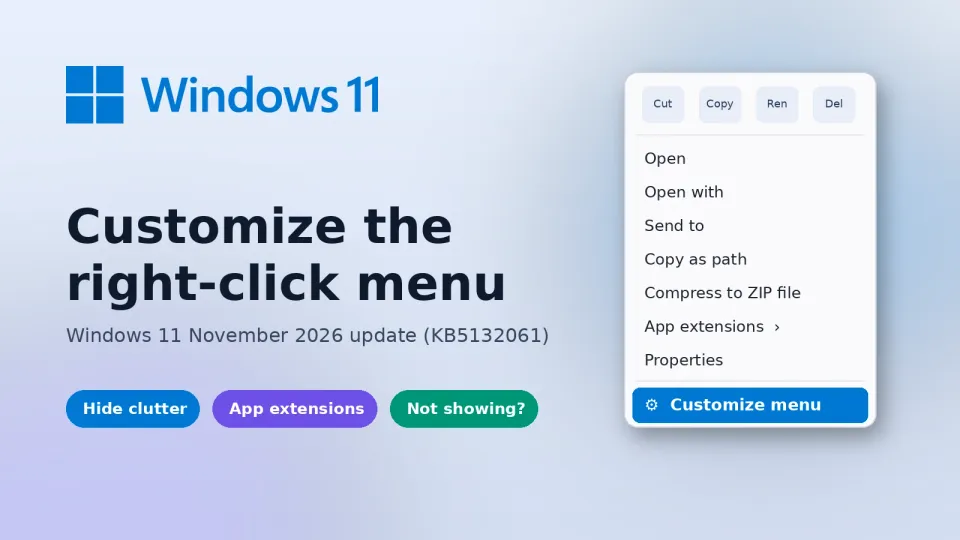
Short answer: once the November 2026 update (KB5132061) is on your PC, right-click any file and pick Customize menu at the very bottom. That opens Settings > Personalization > Context menu, where you can switch off Send to, Create shortcut and the rest, add Print, shove every app extension into one submenu, and lay Cut, Copy, Paste, Rename and Delete out as plain text like Windows 10 did. If there's no Customize menu entry yet, that's the gradual rollout, not a broken PC. You can wait, ask Windows Update for features sooner, or switch it on yourself with ViVeTool.
Honestly, this is the Windows 11 change I've wanted most since 2021. The right-click menu on a PC with a few years of apps on it turns into a tall list of things you never click, and every one of those extensions has to load before the menu shows up. A quick note on where my info comes from: the steps below are from Microsoft's own notes and from the people who have the new menu and have documented every toggle. I'm not going to describe screens I haven't seen, and where something is unofficial I'll say so plainly.
Jump to:
- What actually changed in the right-click menu
- Step 1: Check you have the November update
- Step 2: Open the Customize menu page
- Step 3: Turn file actions on or off
- Step 4: Push app extensions out of the way
- Step 5: Bring back the Windows 10 feel
- Step 6: Customize menu missing? Get the rollout sooner
- Step 7: Force it on with ViVeTool (optional)
- Step 8: Clean up entries the new page can't touch
- Which setting fixes which annoyance
- What I'd change first
- FAQ
What actually changed in the right-click menu
Microsoft first showed the new menu to Insiders in August, shipped it in the optional October preview (KB5127936), and folded it into the mandatory Patch Tuesday update on 10 November. In Microsoft's words, the menu is now "faster, simpler, and more customizable". The default layout has less on it, and a new Settings page decides what else shows up.
The speed part matters more than it sounds. The Windows Insider team put it bluntly: every app that adds its own options "can make the menu do extra work each time it opens." So hiding stuff isn't only about looks. Notebookcheck points out that when you tuck third-party extensions into a submenu, they only load when you open that submenu.
Here's what you can now do without touching the registry:
- Turn built-in commands like Send to, Create shortcut, Copy as path and Rotate image on or off.
- Add Print, which the Windows 11 menu never had at the top level.
- Choose which app extensions sit in the main menu, which go into an App extensions submenu, or hide that submenu completely.
- Show Cut, Copy, Paste, Rename, Delete and Share as normal text lines instead of the row of small icons.
- Move Properties to the very bottom, where it lived for about 25 years.
Step 1: Check you have the November update
Press Windows + R, type winver and press Enter. After KB5132061 you should see build 26300.9974 on Windows 11 26H2 or 26200.9974 on 25H2. If you installed the October optional preview instead, you're on 26300.9818 or 26200.9818, which also has the new menu code.
If the build is older, open Settings > Windows Update and click Check for updates. It needs a restart. Windows Latest says the download through Windows Update is around 1 to 1.5 GB, while the offline .msu from the Update Catalog is closer to 5 GB, so use Windows Update unless it keeps failing.
Two groups won't get it at all. Windows 11 24H2 Home and Pro stopped getting updates in October, and 23H2 only gets security fixes (KB5131087) with no new features. If you're on either, the menu change is one more reason to move to 25H2 or 26H2.
Step 2: Open the Customize menu page
There are two ways in:
- Right-click any file, folder or empty space on the desktop, then click Customize menu at the bottom of the menu.
- Or go to Settings > Personalization > Context menu directly.
Both land on the same page. Changes apply right away, so keep a File Explorer window open next to Settings and right-click something after each toggle. That's the fastest way to see what each switch really does on your PC, because the menu only shows commands that fit the item you clicked. Rotate image, for example, only appears on pictures.
Step 3: Turn file actions on or off
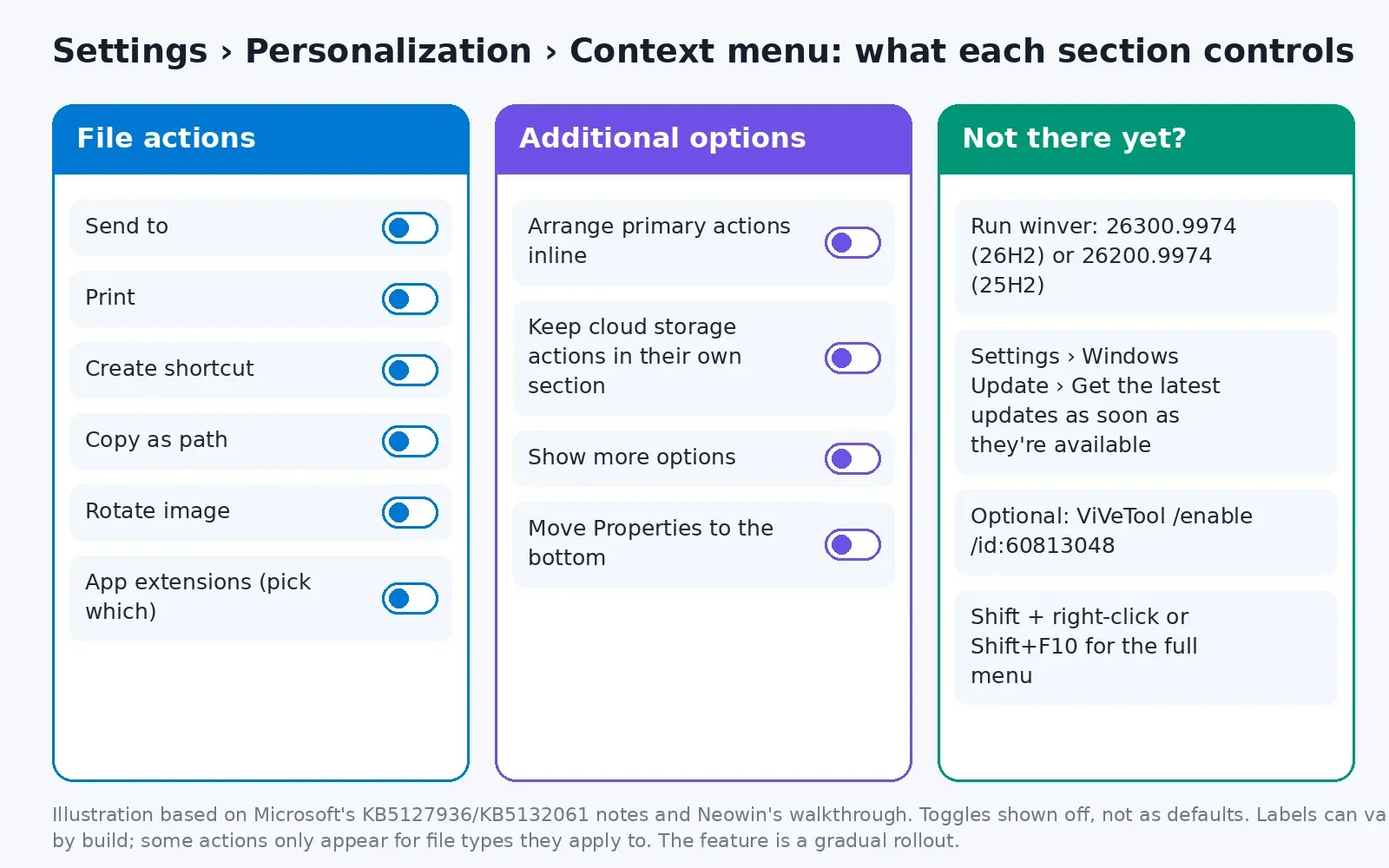
The first section, which Neowin's walkthrough calls File actions, is the one most people want. Here's what each switch covers:
- Send to: the old submenu for zipping, mailing or making a desktop shortcut. I'd leave it on only if you still use "Desktop (create shortcut)".
- Print: new to the Windows 11 menu. Handy for PDFs and photos, useless if you don't own a printer. (If yours keeps showing offline, I've got a separate printer offline fix guide.)
- Create shortcut: makes a shortcut next to the file.
- Copy as path: copies the full path. Worth keeping if you ever paste paths into PowerShell, a terminal or an upload box.
- Rotate image: adds Rotate left and Rotate right on image files.
Nothing here deletes anything. Switching a command off just hides it from the menu, and you can flip it back any time. If your lock screen has been stuck on the same Spotlight photo while you're tidying things up, here's how to get Windows Spotlight working again.
Step 4: Push app extensions out of the way
This is where the clutter really comes from. Archivers, cloud drives, code editors, GPU control panels and Notepad all want a line in your menu. Windows Latest counted 20 extra items on one of its test PCs before it cleaned things up.
On the Context menu page you can now pick, app by app, whether an extension shows up in the main menu or goes into the App extensions submenu. You can also hide that submenu entirely. My suggestion: keep the one or two you use daily (say, 7-Zip or "Open with Code") in the main menu, push everything else into the submenu, and only hide the submenu if you never touch any of them.
The submenu route is also the speed fix. Those extensions don't load until you hover over App extensions, so the menu itself pops up faster. If your right-click has been laggy for a while, this one change might be enough.
Step 5: Bring back the Windows 10 feel
The second section, Additional options, changes how the menu is laid out rather than what's in it:
- Arrange primary actions inline puts Cut, Copy, Paste, Rename, Share and Delete in the list as words, not icons. If you've spent years hunting for the tiny scissors icon, turn this on.
- Move Properties to the bottom puts Properties back where your muscle memory expects it.
- Keep cloud storage actions in their own section groups OneDrive, Google Drive or Dropbox commands together when you right-click inside a synced folder.
- Show more options controls the link to the older, longer menu. Neowin notes that "legacy" here means the earlier Windows 11 menu, not the Windows 10 one.
Turn on the first two and the menu feels a lot like Windows 10 again, just cleaner. You can still reach the full menu any time: Microsoft says to hold Shift while you right-click, and with a file selected, Shift + F10 opens it from the keyboard.
Step 6: Customize menu missing? Get the rollout sooner
This is the question I expect most people to have this week. You installed the update, rebooted, and there's still no Customize menu entry. That's normal. Microsoft lists the new menu under "gradual rollout", and Pureinfotech notes that features in these waves can take longer in some regions, such as Europe. Installing the update doesn't promise you the feature on day one.
What you can do without any tools:
- Confirm the build with
winver(Step 1). If it's lower, the update hasn't installed yet. - In Settings > Windows Update, turn on Get the latest updates as soon as they're available. Windows Latest suggests this to get optional updates and new features earlier.
- Restart once more, then right-click a file again. Also check Settings > Personalization for a Context menu entry, since the page can show up before you notice the menu link.
If none of that works, you're just not in the rollout yet. Waiting is the safe choice. It will reach you.
Step 7: Force it on with ViVeTool (optional)
If you can't wait, ViVeTool is a free, open-source command-line tool that flips hidden Windows feature flags. It's not a Microsoft tool, and it switches on something Microsoft hasn't rolled out to your PC yet, so do this at your own risk and make a restore point first. Windows Latest, Neowin and Pureinfotech all published the same feature IDs for the new menu:
- Download the latest ViVeTool from its GitHub releases page. Right now that's v0.3.4: pick ViVeTool-v0.3.4-IntelAmd.zip for Intel and AMD PCs or ViVeTool-v0.3.4-SnapdragonArm64.zip for Snapdragon laptops.
- Extract it to
C:\ViVeTool. - Right-click Start, open Terminal (Admin), and run:
cd C:\ViVeTool
.\vivetool /enable /id:60813048 - You should see "Successfully set feature configuration(s)." Restart and right-click a file.
- No luck? Some PCs need a second ID. Run
.\vivetool /enable /id:49453572,60813048and restart. Neowin needed this pair on its test machine. - Still nothing? The third combination is
.\vivetool /enable /id:49453572,60813048,61934903.
To undo it, run the same command with /disable instead of /enable and restart. One thing to know: these IDs change, and once Microsoft fully ships a feature the old IDs stop doing anything. If a command does nothing on your build, that's probably why. Don't start trying random IDs you find in comment sections.
Step 8: Clean up entries the new page can't touch
The new page handles Microsoft's commands and the newer style of app extension well. Some older apps still register their entries the old way, though, and those mostly live in the longer menu. For those:
- Check the app's own settings first. Archivers, code editors and Git clients usually have a "shell integration" or "add to context menu" option. Turning it off there survives app updates, which registry edits often don't.
- Use NirSoft's free ShellExView to see every shell extension, who made it, and disable the ones you don't need. Disabling an extension only hides the menu entry. The app keeps working.
- Leftovers from uninstalled apps can be removed in Registry Editor under keys like
HKEY_CLASSES_ROOT\*\shellandHKEY_CLASSES_ROOT\Directory\Background\shell. Right-click the key and choose Export before you delete anything, so you can double-click the .reg file to put it back.
What about the famous registry tweak that forces the full classic menu everywhere? It still circulates (an empty InprocServer32 key under HKEY_CURRENT_USER\Software\Classes\CLSID\{86ca1aa0-34aa-4e8b-a509-50c905bae2a2}), but it was never a supported setting, and I haven't found anyone confirming how it behaves alongside the new menu. With real settings now built in, I'd skip it. If you already added it years ago and Customize menu never appears, that old key is worth checking: deleting the {86ca1aa0-...} key and restarting Explorer undoes it.
Which setting fixes which annoyance
| What bugs you | Where to fix it | What to do |
|---|---|---|
| Menu is too long | Settings > Personalization > Context menu | Turn off file actions you never use |
| Menu is slow to open | Same page, app extensions | Move extensions into the App extensions submenu |
| Can't find Cut, Copy or Delete | Same page, Additional options | Turn on Arrange primary actions inline |
| Properties keeps moving | Same page, Additional options | Turn on Move Properties to the bottom |
| Need the full old menu once | Keyboard | Shift + right-click, or Shift + F10 on a selected file |
| No Customize menu entry | winver, then Windows Update | Check the build, turn on early updates, or wait |
| Old app entry won't go away | The app's settings or ShellExView | Disable its shell integration |
What I'd change first
If you only have two minutes, do three things. Send every app extension you don't use daily to the submenu, because that's both the clutter and the lag. Turn on inline primary actions, because the icon row is easy to misclick. And move Properties to the bottom. Leave Copy as path on if you ever work with files in a terminal. Everything else is taste.
Since this landed in the same update as Cloud rebuild, it's worth reading how Cloud rebuild lets you reinstall Windows 11 without a USB stick too. And if the update itself caused trouble, my guides on fixing a boot loop after a Windows update and a grayed-out Smart App Control switch (which KB5132061 also fixes) may help. Is your PC still slow even with a clean menu? Start with 100% disk usage on Windows 11.
Got the new menu yet, or still waiting on the rollout? Tell me in the comments which entry you were happiest to get rid of. I know which one I'd hide first: "Edit in Notepad" showing up on every image.
Related guides: if you're working through something similar, I've also covered whether to install Windows 11 26H2 and a laptop that overheats with a loud fan.
FAQ
How do I customize the right-click menu in Windows 11?
Install the November 2026 update (KB5132061), right-click any file and choose Customize menu, or open Settings > Personalization > Context menu. From there you can turn commands on or off, manage app extensions and change the layout.
Why don't I see Customize menu after the update?
Because Microsoft hands it out in waves. Plenty of PCs with KB5132061 installed still have the old menu. Run winver and look for 26300.9974 or 26200.9974, switch on "Get the latest updates as soon as they're available" in Windows Update, then reboot. Still nothing? Wait a few weeks, or use ViVeTool if you're comfortable with it.
Can I get the Windows 10 right-click menu back?
Close enough. In the new Context menu page, switch on Arrange primary actions inline and Move Properties to the bottom. When you want every last option, Shift + right-click (or Shift + F10 on a selected file) still opens the long menu.
Does hiding a context menu item uninstall the app?
Nope. You're only hiding a line in a menu. The app stays installed and works as before, and the same toggle brings the entry back.
Is ViVeTool safe to use?
Lots of people use it and the code is public on GitHub. The catch is that you're turning on something Microsoft hasn't given your PC yet, so bugs are on you. Make a restore point, stick to the IDs above, and if anything acts up, run the same command with /disable.
Comments ()