KB5127648 Broke Boot? Fixes for Windows 11 Oct Update
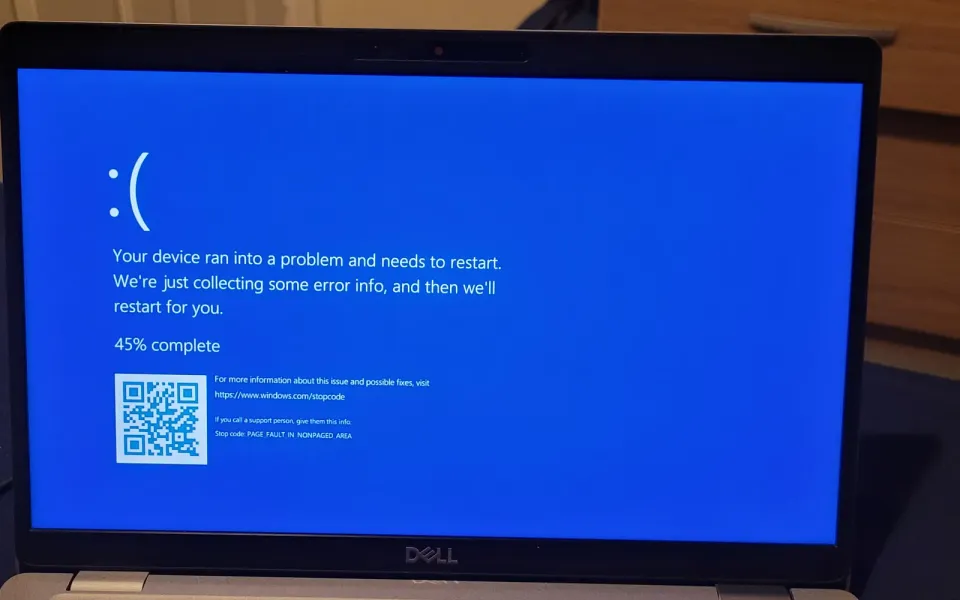
KB5127648 left some Windows 11 PCs, mostly Dell, HP and Lenovo business machines, stuck in recovery mode or a boot loop. Here's how to uninstall it from WinRE, revert it with DISM, rebuild the boot files and keep it from coming back.
Updated 26 October 2026. Checked against Microsoft's KB5127648 page, Windows release health and the vendor and community threads linked below.
Short answer: if KB5127648 left your Windows 11 PC in a boot loop or on a blue Recovery screen, get your BitLocker recovery key first, then open the Windows Recovery Environment and choose Troubleshoot > Advanced options > Uninstall Updates > Uninstall latest quality update. If that fails, revert the half-finished install from Command Prompt with DISM /Image:D:\ /Cleanup-Image /RevertPendingActions, rebuild the boot files with bcdboot, and pause updates once you're back in Windows.
KB5127648 is the October 2026 Patch Tuesday update for Windows 11 24H2, 25H2 and 26H2. Most PCs took it without a problem. A smaller group, mostly business laptops and desktops from Dell, plus some HP and Lenovo machines and a few kinds of virtual machine, came back from the restart unable to start Windows. Microsoft hasn't listed this as a known issue yet, so the fixes come from its general recovery docs and from admins who have already cleaned up dozens of machines. Here's the order I'd work through them, from least to most invasive.
Jump to:
- Which PCs are affected
- Step 1: Match your symptom
- Step 2: BitLocker key first
- Step 3: Get into WinRE
- Step 4: Uninstall the latest quality update
- Step 5: Safe Mode
- Step 6: Revert pending actions
- Step 7: Remove the package with DISM
- Step 8: Rebuild boot files
- Step 9: BIOS and firmware
- Step 10: Pause updates
- Virtual machines
- FAQ
Which PCs are affected by the KB5127648 boot loop?
According to Microsoft's KB5127648 page, the update came out on 13 October 2026 and moves PCs to OS builds 26100.9711 (24H2), 26200.9711 (25H2) and 26300.9711 (26H2). It bundles servicing stack update KB5127647, continues the Secure Boot certificate rollout, and turns on enforcement of a new NTLMv1 block. It's also the final update for 24H2 Home and Pro, which matters later if you roll it back.
The page lists three known issues: Smart App Control can't be switched on, a Remote Desktop error 0xC000000D with Administrator protection, and a USB Audio Class 1.0 problem. A boot failure isn't one of them, and the Windows 11 25H2 release health page had no matching entry when I checked on 26 October. That Remote Desktop error shares a number with the boot error some people see, but they're different problems.
The reports so far:
- In a Dell community thread, an admin says Dell Pro 14 Plus (PB14250) and Pro 14 Premium (PA14260) laptops went into recovery after the first reboot, with or without encryption, while older Latitude 7430, 7440 and 7450 units were fine.
- In a Microsoft Tech Community thread, one admin reports about 50 Dell laptops and desktops failing with a missing or damaged
\windows\system32\winload.efi. Others add OptiPlex Micro 7010 desktops stuck on "Your PC did not start correctly", plus HP and Lenovo machines. Several posters link it to older BIOS versions. - Some HP ZBook owners and others get a blue screen during the final restart, then a Recovery screen with error 0xc000000d.
Nobody has pinned down a single cause. The theories in those threads include the TPM measurements BitLocker relies on, a full 100 MB EFI partition, and Secure Boot or firmware state. For a home user, what matters is that the update can be removed, and every fix below is designed to get you back in without wiping the drive.
Step 1: Match your symptom
Different symptoms point to different steps, so find yours before you start typing commands.
| What you see | Likely cause | Start at |
|---|---|---|
| BitLocker recovery screen asking for a 48-digit key | Boot measurements changed during the update | Step 2 |
| "Automatic Repair" or "Your PC did not start correctly", over and over | Update didn't finish, or boot files are damaged | Steps 3 and 4 |
| Recovery screen, error 0xc000000d | Boot configuration damaged during the finalizing restart | Steps 4, 6 and 8 |
| "winload.efi is missing or contains errors" | Boot loader can't be loaded or verified | Steps 5 and 8 |
| INACCESSIBLE_BOOT_DEVICE blue screen | Storage controller mode changed in BIOS | Step 9 |
| VM shows a black screen and blinking cursor after POST | BIOS/MBR guest and the new boot manager | VM section |
If you see the BitLocker screen, or a key prompt at any later point, don't keep restarting and hoping. Find the key first.
Step 2: Find your BitLocker recovery key first
Many Windows 11 laptops sold in the last few years encrypt the drive automatically with device encryption or BitLocker, even if you never switched it on. Every recovery option below, including Safe Mode and Command Prompt, will ask for the key on an encrypted PC. Admins in the Tech Community thread say machines with keys on file could be rolled back, while machines without them were stuck in Automatic Repair.
Microsoft's BitLocker recovery key page explains where to look. The key is 48 digits. On another phone or computer, sign in at aka.ms/myrecoverykey with the Microsoft account used on the PC, or aka.ms/aadrecoverykey for a work or school account. Match the first eight characters of the Key ID on the blue screen. On 24H2 and later the recovery screen also shows a hint about which account holds the key. It might also be on a printout or a USB stick you saved, or with your IT team. Microsoft can't recreate a lost key.
I wrote a longer walkthrough here: BitLocker recovery key screen? How to find your key.
Step 3: Get into the Windows Recovery Environment
If the PC already shows a blue Recovery or Automatic Repair screen, choose See advanced repair options or Advanced options and you're in. If it just loops, Microsoft's Windows Recovery Environment page describes the forced method:
- Turn the PC on. When the manufacturer logo appears, hold the power button until it switches off.
- Do that a second time.
- On the third start, Windows should go into Automatic Repair. Choose Advanced options.
If WinRE won't load at all, boot from a recovery drive or from Windows 11 install media made with Microsoft's Media Creation Tool on another PC, and choose Repair your computer. Dell owners can also press F12 at startup to reach SupportAssist OS Recovery, though one admin says its repair options didn't help on the affected Dell Pro 14 units.
Step 4: Uninstall the latest quality update
This is the fix most people need, and it keeps your files and apps. In WinRE go to Troubleshoot > Advanced options > Uninstall Updates and pick Uninstall latest quality update. Monthly patches like KB5127648 count as quality updates. The other option, feature update, is for version upgrades such as 25H2 to 26H2, so leave it alone here.
Enter the BitLocker key if asked, let it finish, then restart. Microsoft's guide to uninstalling a Windows update covers the same path. When it works, the PC boots into the September build and you can go straight to Step 10. When it fails, it usually reports that the update couldn't be removed, and that's when the command-line steps come in.
Step 5: Try Safe Mode and remove it from Settings
Several admins with the winload.efi error got in through Safe Mode and removed the update from there. In WinRE choose Troubleshoot > Advanced options > Startup Settings > Restart, then press 4 or F4 for Safe Mode, as described in Microsoft's Safe Mode guide.
Once you're at the desktop, open Settings > Windows Update > Update history > Uninstall updates and remove the security update for KB5127648. If it isn't in that list, open Command Prompt as administrator and use the DISM commands from Step 7 with /Online in place of /Image:D:\. Don't bother with wusa /uninstall /kb:5127648. KB5127648 ships as a combined servicing stack and cumulative update, and Microsoft says wusa can't remove those.
Step 6: Revert pending actions with DISM
If the restart failed partway through installing, Windows can be left with unfinished work it retries on every boot. Reverting those pending actions is the standard Microsoft and Dell fix for a PC that won't boot after an update.
In WinRE open Troubleshoot > Advanced options > Command Prompt. First find the Windows drive, because in recovery it's often D: rather than C:. Try each letter until one shows a Windows folder:
dir C:\Windows
dir D:\Windows
If the drive is still locked, unlock it with your recovery key (type the 48 digits with the dashes):
manage-bde -unlock D: -RecoveryPassword 111111-222222-333333-444444-555555-666666-777777-888888Then run the revert, swapping in your drive letter:
DISM /Image:D:\ /Cleanup-Image /RevertPendingActionsDell's no-boot after Windows updates article uses this exact command. It's written for PowerEdge servers, but the command works the same on a laptop. Close Command Prompt, choose Continue to start Windows, and see what happens. The first boot can take a while as Windows backs out the changes.
Step 7: Remove the update package with DISM
If KB5127648 finished installing and the PC still won't start, remove the package directly. From the same Command Prompt, list the packages:
DISM /Image:D:\ /Get-Packages /Format:TableLook for an entry that starts with Package_for_RollupFix and has 9711 in its version, installed on or after 13 October. Copy its full name and remove it:
DISM /Image:D:\ /Remove-Package /PackageName:Package_for_RollupFix~31bf3856ad364e35~amd64~~26100.9711.x.xThe name above is a placeholder, so use the exact one from your list. Leave the servicing stack package alone, because servicing stack updates can't be removed and it isn't the problem. Restart afterwards.
Step 8: Rebuild the boot files with bcdboot
Error 0xc000000d and the winload.efi message both mean the boot manager couldn't load Windows. Microsoft's BCDBoot documentation covers rebuilding the EFI system partition from the copy inside Windows. First give that partition a drive letter:
diskpart
list volume
select volume 2
assign letter=S
exit
Pick the small FAT32 volume, usually 100 to 260 MB and labelled System, in place of "2". Then rebuild:
bcdboot D:\Windows /s S: /f UEFIThose docs also describe a /bootex switch tied to the boot manager changes for CVE-2023-24932, the same Secure Boot work this update continues. Some guides add it by default. I'd only try it if the plain command doesn't help. Running bcdboot after the DISM revert from Step 6 is the order that worked for people dealing with 0xc000000d.
Step 9: Check BIOS storage mode and firmware
One poster in the Tech Community thread found their storage mode had flipped from AHCI to RAID after the problem started. Windows can't see the drive if that setting changes from what it was installed with, and you get INACCESSIBLE_BOOT_DEVICE. Go into the BIOS (F2 on Dell, F10 on HP, F1 or F2 on most Lenovo models) and check the storage or SATA operation setting. Set it back to what it was, and if you're not sure, look at an identical working machine. Don't flip it as an experiment, because the wrong setting causes exactly that blue screen.
Several admins also noticed affected Dells were on older BIOS versions, such as 2.18.1.0 on a Dell 16 Pro. Nobody has proven that's the cause, but once you're back in Windows, install the latest BIOS and firmware from your PC maker's support site (Dell SupportAssist or Command Update, HP Support Assistant, Lenovo Vantage) before you let KB5127648 back on. It's cheap insurance, especially with the Secure Boot changes in play.
Step 10: Pause updates until Microsoft fixes it
Windows Update will reinstall KB5127648 at its next check unless you stop it. Go to Settings > Windows Update, choose Pause updates and pick a date. Microsoft lets you pause for up to 35 days. When the pause runs out, Windows installs the latest updates before you can pause again.
Keep in mind that this is a security update, so don't stay without it longer than you need to. Check the KB page and release health every week or so for a known-issue entry or a fixed release. If you're on 24H2 Home or Pro, there won't be a fixed 24H2 update, because support for those editions ended with this release. Your path forward is moving to 25H2 once your hardware is stable, which I covered in Windows 11 26H2: should you update?
If an update is stuck rather than breaking boot, that's a different problem: see Windows Update stuck at 0% or 100%.
Virtual machines: VMware BIOS guests and NVIDIA vGPU
Two VM-specific problems are going around, and neither matches the laptop symptoms above.
VMware BIOS/MBR guests. In a Broadcom VMware Workstation thread, Windows 11 24H2 guests set to legacy BIOS firmware with MBR disks hang at a black screen with a blinking cursor right after POST. UEFI guests are fine. The fixes there are restoring a snapshot from before the update, replacing bootmgr with the copy from install media, or converting the VM to UEFI with a GPT disk. Windows 11 officially expects UEFI anyway, so converting is the long-term answer.
Horizon VMs with NVIDIA vGPU. On the Omnissa community forum, admins describe Windows 11 desktops with NVIDIA vGPU drivers hanging at startup, at "Processing Group Policies" or at the sign-in screen. Safe Mode works and removing KB5127648 fixes it. One poster says Microsoft traced it to a lock wait in the sign-in screen's rendering and gave them a private Known Issue Rollback that resolved it. If you run VDI on vGPU, open a Microsoft support case and ask for that KIR instead of uninstalling across the whole pool.
FAQ
Is it safe to uninstall KB5127648?
Yes, as a short-term fix. Uninstalling it puts you back on September's build with your files and apps intact, but it also removes October's security fixes. Pause updates, keep an eye out for Microsoft's fix, and reinstall once it's out or your firmware is updated.
Will "Uninstall latest quality update" delete my files?
No. It only removes the most recent monthly update. Your documents, photos and installed apps stay. It isn't the same as Reset this PC, which you should avoid until you've tried every step here.
Why is my PC asking for a BitLocker recovery key after the update?
BitLocker locks the drive when it sees boot components or firmware state change in ways it doesn't expect, and an update that touches Secure Boot and the boot manager can trigger that. Enter the 48-digit key from your Microsoft account and the PC usually continues. If it loops back to the key screen every time, work through Steps 4 to 8.
Has Microsoft acknowledged the KB5127648 boot problem?
Not as of 26 October 2026. The KB page and release health dashboard list other known issues but nothing about boot loops or recovery mode. The reports come from Dell's community forum, Microsoft's Tech Community and admin forums, so watch those alongside the official pages.
Can I download KB5127648 manually later?
Yes. The Microsoft Update Catalog has the standalone package. Usually it's better to wait for the next cumulative update, since each one includes all the earlier fixes.
Still stuck?
Leave a comment with your PC model, BIOS version, the exact error on screen, and how far you got through these steps. If DISM or bcdboot gave an error message, paste the whole thing. Those details usually show which step to try next.


Comments ()