Smart App Control Grayed Out on Windows 11? Fix It
Smart App Control On is grayed out after KB5127648? Install KB5127936 on 25H2/26H2, or use Microsoft's registry workaround on 24H2.
Updated 11 November 2026. Checked against Microsoft's KB5127648 known-issue note, the KB5127936 preview release notes (builds 26200.9818 / 26300.9818), and BleepingComputer's write-up from 2 November. Since then I've added the November 10 security update, KB5132061.
Short answer: the October 13, 2026 security update KB5127648 left the Smart App Control On option grayed out if the feature was already off. PCs that already had it on were fine. On Windows 11 25H2 and 26H2, install the October 28 preview KB5127936 (or any later update), restart, then turn Smart App Control on in Windows Security. On 24H2, or if you can't get the preview yet, use Microsoft's two registry FeatureManagement Overrides and restart. You do not need to uninstall KB5127648. Update, 11 November: the regular November 10 security update KB5132061 now includes the fix, so on 25H2 and 26H2 a normal Windows Update is enough.
I dug into this after the BleepingComputer note landed on 2 November and Microsoft's own KB pages already had the resolution text. Below is the path I'd take on a home PC, plus the enterprise Group Policy option Microsoft published for IT admins.
Jump to:
- What's going on
- Who is actually affected
- Step 1: Confirm it's this bug
- Step 2: Install KB5127936 on 25H2 or 26H2
- Step 3: Registry workaround for 24H2 (or no preview)
- Step 4: Turn Smart App Control back on
- Step 5: Enterprise-only Group Policy packages
- Version cheat sheet
- What not to bother with
- FAQ
What's going on
Smart App Control sits in Windows Security under App & browser control. It uses Microsoft's app intelligence and code integrity checks, next to SmartScreen and Defender, to block apps that look malicious or untrusted. For a long time it was a one-way switch: turn it off and you needed a reset or reinstall to get it back. That changed earlier in 2026, so you can toggle it from the settings page without wiping the PC.
Then Patch Tuesday on 13 October shipped KB5127648 for Windows 11 24H2, 25H2 and 26H2 (builds 26100.9711, 26200.9711 and 26300.9711). Microsoft added a known issue that matches what people were seeing:
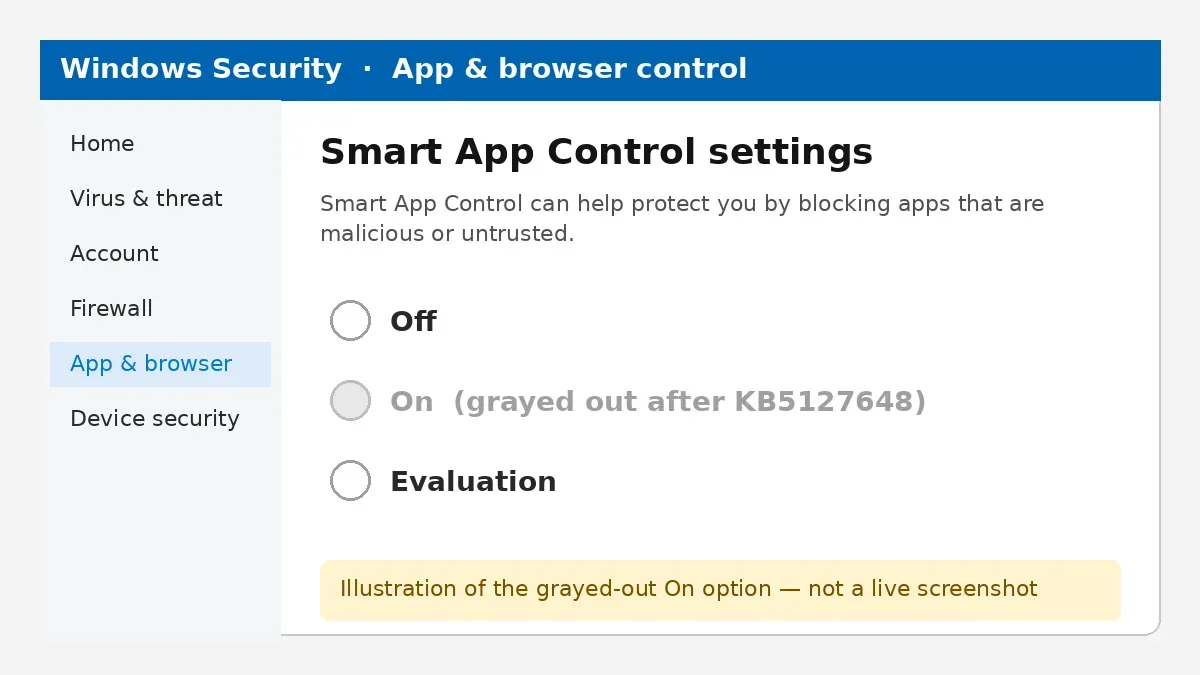
After installing this update, some devices might be unable to turn on Smart App Control in the Windows Security app if it has been turned off. On affected devices, the option to turn on Smart App Control might be grayed out. Devices where Smart App Control is already turned on are not affected and remain protected.
Two weeks later, the non-security preview KB5127936 (28 October, builds 26200.9818 and 26300.9818) listed the same bug as fixed under Smart App Control. Microsoft's service alert to admins, covered by BleepingComputer, says the issue is resolved by the October 28 updates and later. That same preview also fixed Always On VPN problems and an Edge launch change — I wrote a short news note on the VPN side at KB5127936 Always On VPN fix.
One catch: from October 2026, non-security preview updates only go to 25H2 and 26H2. 24H2 Home/Pro already hit end of updates with that October security patch, and 24H2 Enterprise/Education still get security updates but not these previews. So the clean fix and the registry workaround aren't interchangeable for every edition.
Who is actually affected
You're in the affected group if all of these are true:
- You're on Windows 11 24H2, 25H2 or 26H2
- KB5127648 (or a later cumulative that still carried the bug) is installed
- Smart App Control was off before that update
- In Windows Security → App & browser control → Smart App Control settings, On is grayed out
You're not affected if Smart App Control was already on when KB5127648 installed. Microsoft is clear that those devices keep protection as normal.
Also, Smart App Control can stay unavailable for reasons that have nothing to do with this bug. Microsoft's own FAQ lists managed work/school PCs, Developer Mode, Windows 11 in S mode, and PCs with optional diagnostic data turned off. If any of those apply, neither KB5127936 nor the registry commands will magically unlock the toggle — on a work PC that's your IT admin's call. The same "managed by your organization" leftovers from debloat tools can also hide Windows Spotlight, which I've covered in my Windows Spotlight not working fix.
| Situation | What to do |
|---|---|
| 25H2 or 26H2, can install optional updates | Install KB5127936 or later, restart, turn SAC on |
| 24H2 Home/Pro (no more previews) | Registry workaround below, or upgrade to 25H2/26H2 |
| 24H2 Enterprise/Education | Registry workaround, or Group Policy packages |
| Managed PC / S mode / Dev Mode / optional diagnostics off | Not this bug — check Microsoft's SAC FAQ / your admin |
| SAC was already On during KB5127648 | Nothing — you're fine |
Step 1: Confirm it's this bug
Before changing the registry, make sure you're looking at the October bug and not a policy or mode lock.
- Open Windows Security (search for it from Start).
- Go to App & browser control, then Smart App Control settings.
- If On is grayed out, open Settings → Windows Update → Update history and look for KB5127648.
- While you're there, check your version: Settings → System → About. Note whether it says 24H2, 25H2 or 26H2, and the OS build number.
If you have KB5127648 (or you're past it and still grayed out) and you're on a normal consumer PC with SAC simply off, continue. If About shows you're joined to a work or school, stop and ask IT.
Step 2: Install KB5127936 on 25H2 or 26H2
Update, 11 November 2026: you no longer need the optional preview. The November 10 Patch Tuesday update, KB5132061, carries everything from KB5127936, and Windows Latest's rundown of it lists the Smart App Control fix. Go to Settings → Windows Update → Check for updates, install it and restart. Afterwards, winver should show build 26200.9974 on 25H2 or 26300.9974 on 26H2. KB5132061 also covers 24H2, but only Enterprise and Education (build 26100.9974). On 24H2 Home and Pro, Step 3 is still the route.
This is the real fix Microsoft published. KB5127936 is a preview (optional) update, so Windows often won't install it on its own. After it installs you should be on build 26200.9818 (25H2) or 26300.9818 (26H2), or a later build once November's cumulative lands.
- Open Settings → Windows Update → Advanced options → Optional updates.
- Under Optional updates available, select the KB5127936 preview (or any newer cumulative that includes the same fix) and install it.
- Restart when Windows asks.
- Confirm the build under Settings → System → About.
- Jump to Step 4 and turn Smart App Control on.
If Optional updates is empty, check for updates once, wait a minute, and look again. You can also grab the standalone package from the Microsoft Update Catalog and install it with DISM — Microsoft's KB5127936 page has the exact MSU order for x64 and Arm64, including the checkpoint cumulative. I won't paste every hash here; use the catalog filenames from that page so you don't mix architectures.
Already applied the registry workaround below? Microsoft does not tell you to remove those values after the update. Leave them.
One more practical note on Optional updates: on some PCs the preview shows under Windows Update → Check for updates as a separate "Download and install" link rather than inside Advanced options. Either path is fine as long as the KB number is KB5127936 (or a later cumulative that lists the Smart App Control known-issue fix). After reboot, if About still shows .9711 builds, the preview didn't land — don't assume the toggle will unlock.
If Windows Update itself is stuck while you try this, walk through Windows Update stuck at 0% or 100% first, then come back.
Still on 24H2 and wondering whether to move up? See Windows 11 26H2: should you update? — 24H2 Home/Pro already stopped getting monthly security updates after the October patch.
Step 3: Registry workaround for 24H2 (or no preview)
Microsoft published this for devices that can't (or won't) take KB5127936 yet: mainly 24H2, and anyone still waiting on the preview. It adds two DWORD values under FeatureManagement Overrides. Exact commands from the KB5127648 known-issue section:
reg add "HKLM\SYSTEM\CurrentControlSet\Policies\Microsoft\FeatureManagement\Overrides" /v 2883193997 /t REG_DWORD /d 1 /f

reg add "HKLM\SYSTEM\CurrentControlSet\Policies\Microsoft\FeatureManagement\Overrides" /v 2850574478 /t REG_DWORD /d 1 /f
Warnings before you touch anything:
- You need an administrator account. Standard users can't write to HKLM.
- Create a system restore point first (search "Create a restore point"), or export the key. Microsoft's own note says to back up the registry and know how to restore it — see How to back up and restore the registry in Windows.
- Don't invent other Override values. Only these two IDs are in Microsoft's workaround.
- A restart is required. The toggle won't change until you reboot.
Do it from an elevated Command Prompt:
- Search for cmd, then choose Run as administrator. Approve the UAC prompt.
- Paste the first
reg addline and press Enter. You should see "The operation completed successfully." - Paste the second line and press Enter. Same success message.
- Close the window and restart the PC.
Prefer Registry Editor? Same values, just slower:
- Run regedit as administrator.
- Go to
HKEY_LOCAL_MACHINE\SYSTEM\CurrentControlSet\Policies\Microsoft. - If
FeatureManagementis missing, create that key, then createOverridesunder it. - Under Overrides, create two DWORD (32-bit) values named
2883193997and2850574478. Set each Value data to1. - Restart.
If BitLocker ever asks for a recovery key after a firmware or boot-related change (uncommon for this registry edit, but it happens after other Windows work), grab it with how to find your BitLocker recovery key before you panic.
Step 4: Turn Smart App Control back on
After KB5127936 or the registry reboot:
- Open Windows Security → App & browser control → Smart App Control settings.
- On should be selectable now. Choose it.
- If Windows offers Evaluation mode, that's the learning period where SAC watches what you run before it starts blocking. Use On when you want enforcement.
Once it's on, unfamiliar unsigned apps can get blocked. That's the point of the feature. If a tool you trust is blocked, you'll need an allow path from Microsoft's SAC docs or a signed build — don't disable SAC again just to run one installer unless you accept losing that protection until you re-enable it.
Step 5: Enterprise-only Group Policy packages
For IT-managed fleets that don't want the preview yet, Microsoft also ships two special Group Policy packages (both named under KB5074105 Feature Preview — IDs 261015_19222 and 261015_19221). Install both, set each policy to Enabled under Computer Configuration → Administrative Templates → {Group Policy name} → Windows 11, version 24H2, 25H2, then restart. One restores the ability to turn Smart App Control on; the other turns on extra logging for troubleshooting. Download links live in the known-issues section of the KB5127648 support page. Home users can ignore this section and use Steps 2–4.
Version cheat sheet
| Version | KB5127648 build | KB5127936 fix build | Best path |
|---|---|---|---|
| Windows 11 26H2 | 26300.9711 | 26300.9818 | Optional update KB5127936+ |
| Windows 11 25H2 | 26200.9711 | 26200.9818 | Optional update KB5127936+ |
| Windows 11 24H2 | 26100.9711 | — (no preview) | Registry Overrides, or upgrade |
Microsoft's KB5127648 page says the issue was resolved for 25H2 and 26H2 by updates released on and after 27 October 2026 (KB5127936). If you install that update or later, you do not need the workaround. If you're on 24H2 or still on a pre-October-27 build with the grayed toggle, use Option #1 (registry) or Option #2 (Group Policy) from that same page.
What not to bother with
A few things people try that don't fix this grayed-out toggle, based on how Microsoft described the bug:
- Uninstalling KB5127648. Unnecessary, and on 24H2 Home/Pro you lose your last security update.
- Resetting Windows Security or running the troubleshooter. This isn't a corrupted Defender UI. It's a FeatureManagement state the October update left behind.
- Turning Developer Mode off and on. Only relevant if Developer Mode itself is why SAC is locked — separate from KB5127648.
- Random "SAC enable" .reg files from forums. Stick to the two Override values Microsoft published. Extra keys under Code Integrity or AppLocker won't unlock this particular gray-out.
KB5132061 also lets you trim the right-click menu at last. See how to customize the Windows 11 right-click menu if it has grown too long.
Related guides: start with my guide to fixing 100% disk usage on Windows 11 for the wider Windows and PC picture. I've also covered reinstalling Windows 11 with Cloud Rebuild, no USB needed and what Windows 10's extension to October 2027 means.
FAQ
Do I need to uninstall KB5127648?
No. Microsoft's fix and workaround both assume the October security update stays installed. Uninstalling a security cumulative just to flip one toggle is a bad trade, and on 24H2 Home/Pro that October patch was the last one you'll get.
Will the November Patch Tuesday update include the fix?
Yes. KB5132061, released on 10 November 2026, includes everything from the October 28 preview, including the Smart App Control fix. Install it from Windows Update and restart. You should then see build 26200.9974 on 25H2 or 26300.9974 on 26H2 in winver. On 24H2 it only applies to Enterprise and Education, so Home and Pro still need the registry workaround in Step 3.
Is it safe to add those FeatureManagement Override values?
They're the values Microsoft published on the KB5127648 known-issue page, not a random forum tip. Still treat any HKLM edit seriously: admin rights, restore point, restart. Don't delete other Override values you didn't create.
Smart App Control was already on — am I broken?
No. Microsoft says devices that already had it on stay protected and aren't part of this known issue.
Why is On still grayed out after the fix?
Common leftovers: you didn't restart after the registry commands; you're on a work/school managed PC; Developer Mode is on; the PC is in S mode; or optional diagnostic data is off. Check those before running the commands a second time.
Does this relate to the KB5127648 boot problems?
Different issue. The SAC gray-out is a Windows Security UI/policy bug. Separately, some people hit boot trouble around the same October update — that's covered in KB5127648 boot loop fixes. You don't fix SAC by repairing BCD or uninstalling in WinRE.
If Bluetooth also misbehaved after a recent update, that's usually drivers or the Bluetooth service, not SAC — see Bluetooth not working on Windows 11.

Comments ()