Hey Siri Lights Up but Won't Answer? How to Fix It
Siri glows when you say Hey Siri, then nothing? Why it happens on iPhone and the fixes that work, from Pause Time to switching back to Siri Classic.
Updated: 11 November 2026. Checked against Apple Support's page If Siri isn't working on your iPhone or iPad, owner threads on r/iOS27, r/iOSBeta and the MacRumors forums, and BGR's 9 November report on Siri AI complaints.
Short answer: if you say "Hey Siri", the screen glows, and then nothing happens, the wake word worked. Your iPhone heard you. What failed is the next part, where Siri listens to the request, sends it off and answers. So the usual "retrain your voice" advice only fixes some cases. Start by checking whether Siri answers a typed request, then look at your connection and VPN, your audio output, the Siri Pause Time setting, and, on iOS 27, whether Siri AI or Siri Classic is the one letting you down.
I haven't run a lab test across a stack of iPhones, so I won't pretend I have. This guide is built from Apple's own troubleshooting page and from owners who've posted what they tried and what actually changed things. When something is a workaround rather than a real fix, I'll say so.
Jump to:
- Why Siri lights up and then goes quiet
- Step 1: Type to Siri to narrow it down
- Step 2: Check the connection and any VPN
- Step 3: Make sure Siri is allowed to talk
- Step 4: Check where the audio is going
- Step 5: Give Siri more time to listen
- Step 6: Turn Hey Siri off and set it up again
- Step 7: Check Siri language and downloads
- Step 8: On iOS 27, switch to Siri Classic
- Step 9: Restart, update and report it
- FAQ
Why Siri lights up and then goes quiet
Saying "Siri" or "Hey Siri" wakes a small on-device listener. That bit works even when everything else is broken, which is why you see the glow. After that, Siri has to catch the rest of your sentence, work out what you meant (on the device or on Apple's servers), and then show or speak a reply. A failure anywhere in that chain looks the same from the outside: a nice animation and silence.
On iOS 27 this has become a lot more common, and it's not just you. Back in June an iPhone 16 Pro Max owner on r/iOS27 asked whether anyone else found that new Siri "just straight up doesn't respond, even when the animation responds to your voice" around 80% of the time. He'd already retrained voice recognition. In a MacRumors thread about iOS 27.2 this month, one owner said Siri is "50-50" on even acknowledging "Hey Siri" and then "goes to sleep" halfway through a command. Someone else there described an Apple Watch on 27.2 stuck on a pulsing glow until they pressed a button.
Here's how the symptoms usually map to causes, so you can skip to the step that fits:
| What you see | Most likely cause | Go to |
|---|---|---|
| Glow, then nothing, every time | Connection, VPN or a stuck Siri service | Steps 1, 2 and 9 |
| Text reply appears, but no voice | Responses set to silent, or volume and output | Steps 3 and 4 |
| Glow vanishes while you're still talking | Siri thinks you've finished | Step 5 |
| Works sometimes, ignores you other times | Weak voice profile or blocked mics | Step 6 |
| "Uh oh, something's wrong" or long waits | Siri AI having trouble on Apple's side | Steps 7 and 8 |
Step 1: Type to Siri to narrow it down
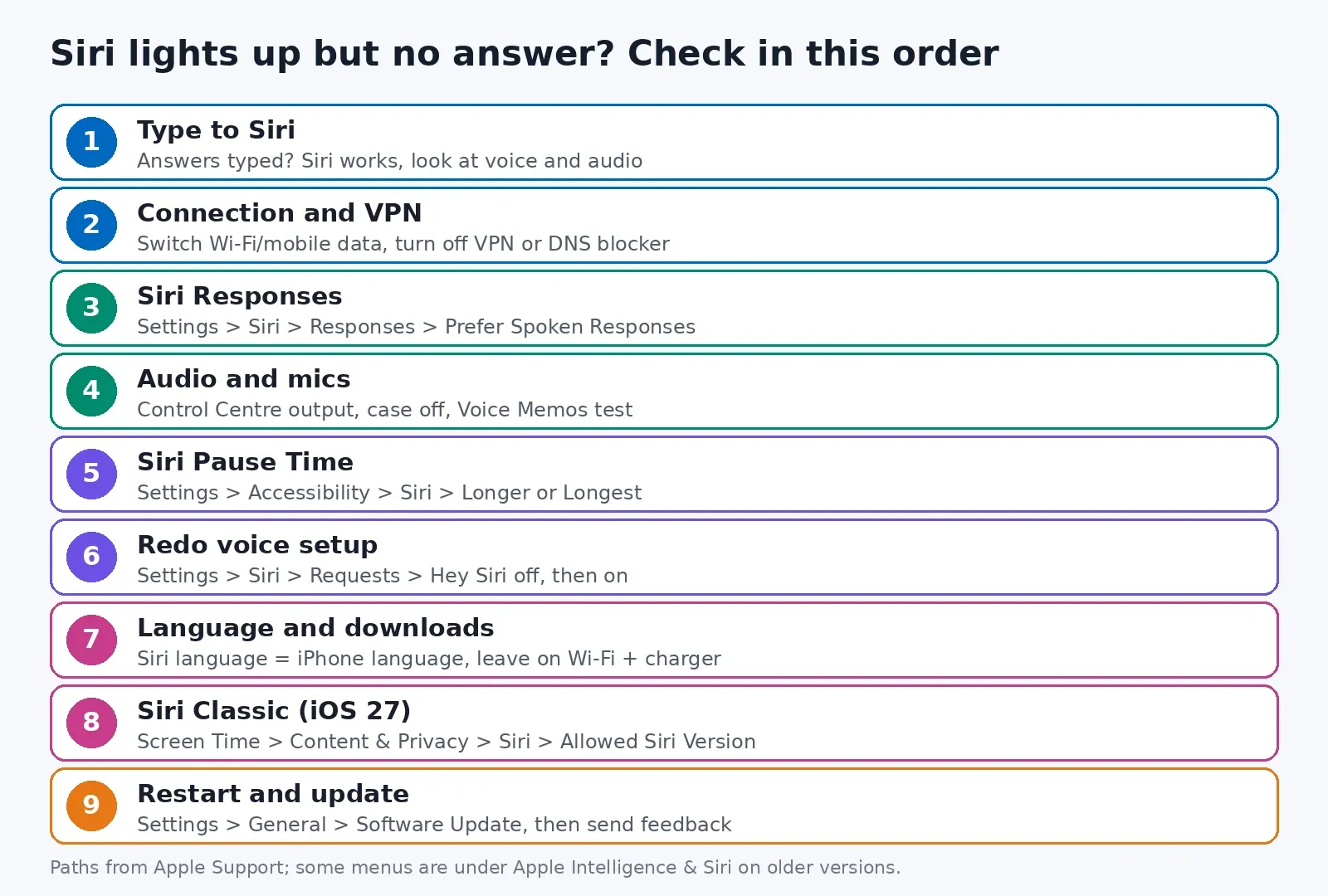
Ten seconds, and you'll know which half is broken. Apple's page mentions this one too, almost in passing: if Siri won't take spoken requests, type to it or use the button.
- On an iPhone with Apple Intelligence, double-tap the bottom of the screen to type to Siri. On other iPhones, turn on Type to Siri under Settings > Accessibility > Siri first, then press and hold the side button.
- Type something simple, like "what time is it".
Typed request answered? Then Siri's brain is fine and the problem is your voice getting in, or its voice getting out. Spend your time on Steps 3 to 6. Typed request ignored too, or you get an error? That's the network or Siri's servers, so do Step 2, then skip ahead to 8 and 9. (On iOS 27 there's also the Siri app, and typing in there tells you the same thing.)
Step 2: Check the connection and any VPN
Siri needs the internet for most requests. Apple says that when you're offline, Siri will usually tell you it's having trouble with the connection. In practice a slow or flaky connection often doesn't produce that message. You just get the glow and a long pause.
- Open a website in Safari. If it crawls, switch from Wi-Fi to mobile data, or the other way round, and try Siri again.
- Turn off any VPN or ad-blocking DNS profile for a minute under Settings > VPN. Apple notes that some VPN profiles might not allow Siri. I'd add a custom DNS that blocks tracking domains to that list as a suspect, since it can block servers Siri needs.
- If you use Screen Time limits, check Settings > Screen Time > Content & Privacy Restrictions to make sure Siri isn't restricted.
If Siri works the moment the VPN is off, you've found it. Check your VPN app for a split tunnelling or allowlist option, or just leave it off when you need Siri.
Step 3: Make sure Siri is allowed to talk
Quite a few "Siri won't answer" reports turn out to be Siri answering silently. It puts the reply on screen, but if your phone is in your pocket or you're across the room, it looks like nothing happened.
- Go to Settings > Siri > Responses. On some versions it's Apple Intelligence & Siri > Siri Responses.
- Choose Prefer Spoken Responses. The default, Automatic, often stays quiet when the phone is in silent mode.
- Ask Siri to "turn your volume up". Siri's voice volume is separate from your media volume, and it can end up very low.
One owner on r/iOS27 said Siri Classic stopped speaking answers after the iOS 27 update even with Prefer Spoken Responses already on. A reply in that thread pointed at ringer and volume levels. Another said turning the wake word off and on and redoing voice setup brought speech back. If yours is in the same spot, try those two before anything bigger.
Step 4: Check where the audio is going
If you have AirPods, a Bluetooth speaker or a car connected, Siri may be answering through that and not through your phone. Glance at Control Centre and look at the audio output tile. If it shows headphones or a car you're not using, switch it back to iPhone.
Then the mics. Apple's advice is to check nothing covers them, and the usual culprits are chunky cases and those stick-on wallet things. Quick test: record yourself in Voice Memos for five seconds and play it back. Sounds muffled, like you're in another room? That's what Siri gets. Pull the case off and try once. Feels silly, takes a minute.
Does it only fail when the phone's lying face down, or under a jacket? That's by design, oddly. Go to Settings > Accessibility > Siri and turn on Always Listen for "Siri" (or "Hey Siri"), which lets it respond even then.
Step 5: Give Siri more time to listen
This is the fix I'd try first if the glow shows up, you start talking, and it fades before you've finished. Siri decides you've stopped when you pause, and if you take a breath between "Hey Siri" and the actual request, it may give up before you start.
- Go to Settings > Accessibility > Siri.
- Under Siri Pause Time, pick Longer or Longest.
Honestly, it also helps to say the whole thing in one go, without the little pause most of us leave after the wake word. "Hey Siri, set a timer for ten minutes" in one breath works much better than "Hey Siri" and then waiting for the glow.
Step 6: Turn Hey Siri off and set it up again
This is the step every guide gives you, and it does fix the cases where Siri hears you only some of the time. It rebuilds your voice profile, which can drift after an update or if you set it up somewhere noisy.
- Go to Settings > Siri > Requests. On some versions it's Apple Intelligence & Siri > Talk & Type to Siri.
- Turn off "Siri" or "Hey Siri", wait a few seconds, and turn it back on.
- When the setup screen appears, tap Continue and say each phrase shown. Do it in a quiet room, in the voice you normally use with Siri, not a careful "talking to a robot" voice.
- Tap Done.
Be honest with yourself about what this can do, though. The r/iOS27 owner I mentioned had already retrained his voice and still got silence most of the time. If Siri lights up, it already recognised you. Retraining mostly helps when it doesn't light up reliably.
Step 7: Check Siri language and downloads
On iOS 27, the new Siri needs its language files and Apple Intelligence models on the phone. If they're missing or still downloading, Siri can act half-broken. A German owner on r/Applelntelligence said his settings were stuck on "Support for 'Siri' is being added. Siri will not be available until the update is complete" for weeks. Another owner said the glowing Siri came back once the Apple Intelligence downloads finished.
- Open Settings > Siri > Language and make sure it matches your iPhone's language under Settings > General > Language & Region.
- Leave the phone on Wi-Fi and charging for an hour or two so downloads can finish.
- If it stays stuck, one owner said switching the language and region and then force restarting made the files download again. That's a workaround, not an Apple fix, but it doesn't hurt to try.
Language support matters too. BGR notes that iOS 27.2 added Spanish, Korean, French, Japanese and Portuguese to Siri AI. If your language isn't on the list, you're on Siri Classic anyway, and Steps 1 to 6 are where to look.
Step 8: On iOS 27, switch to Siri Classic
Siri AI arrived with iOS 27 on supported iPhones (iPhone 15 Pro and newer) and is still labelled beta. Most of the "glow but no answer" reports I found are from people using it. Some errors seem to come from Apple's side. One r/iOSBeta tester kept getting "Uh oh, something's wrong, please try again" on both an iPhone 17 Pro Max and an iPad, even after a full restore, and suspected an account problem. Another said the errors stopped after he cut back his HomeKit camera activity zones, and he thinks his account was hitting a usage limit. I can't confirm that, but it's an interesting lead if you run a lot of cameras.
If you mostly use Siri for timers, calls, messages and the smart home, going back to Siri Classic is the most dependable fix right now. BGR describes the simple way: turn Siri off in Siri settings, turn it back on, and pick Siri Classic. You can also go to Settings > Screen Time > Content & Privacy Restrictions > Siri and set Allowed Siri Version to Siri Classic. You can switch back to Siri AI the same way later.
Is that giving up? A bit. But a voice assistant that answers one time in two isn't saving you any time, and I'd rather have the older one that works.
Step 9: Restart, update and report it
When Siri is stuck on every request, a restart clears it more often than you'd think. Turn the iPhone off fully and back on, not just lock and unlock. Then go to Settings > General > Software Update and install anything waiting. As of today the current releases are iOS 27.2.1 and iOS 26.7.3. I couldn't find Apple naming this exact bug in the release notes, so don't count on the update alone.
If none of this works, tell Apple, with details. On iOS 27, the Siri app has a thumbs-down button next to each reply that sends feedback, and one beta tester said it showed logs with an error message too. You can also use the Apple Feedback page. Write down your iPhone model, iOS version, Siri language, whether you're on Siri AI or Classic, and what you said. As a last resort, Settings > General > Transfer or Reset iPhone > Reset > Reset All Settings keeps your data but clears every setting, so you'll be re-entering Wi-Fi passwords afterwards.
If Siri hears you fine but gets things wrong, my guide on Siri setting the wrong alarm time covers the phrasing tricks. Other post-update annoyances are in an iPhone screen that's dim on wake and iOS 27 battery drain and heat.
Related guides: for general iPhone upkeep, start with my guide to freeing up iPhone storage without deleting photos. Low storage can also hold back the Apple Intelligence downloads from Step 7.
FAQ
Why does Siri light up but not respond?
The glow only proves your iPhone caught "Hey Siri". The request itself is a separate job. When that part dies, it's normally one of these: a bad connection or a VPN, replies set to silent, sound going to AirPods or the car, Siri cutting you off mid-sentence, or Siri AI just failing on iOS 27.
Why does Siri show the answer but not say it?
Siri's Responses setting is probably on Automatic, which stays quiet in silent mode. Go to Settings > Siri > Responses and choose Prefer Spoken Responses, then ask Siri to turn its volume up.
Why does Siri stop listening while I'm talking?
It thinks you've finished when you pause. Set Settings > Accessibility > Siri > Siri Pause Time to Longer or Longest, and say the wake word and request in one breath.
Does retraining Hey Siri fix it?
Only sometimes. It helps when Siri doesn't wake up reliably. If Siri already lights up every time, it already recognises you, so the problem is further along and retraining may not change anything.
Should I switch from Siri AI to Siri Classic?
If Siri AI keeps going quiet or showing errors and you mostly use Siri for basic tasks, yes. Turn Siri off and back on and choose Siri Classic, or set Allowed Siri Version in Screen Time. You can switch back whenever you like.
Got Siri working again with something that isn't on this list? Tell me in the comments, with your iPhone model, iOS version and whether you're on Siri AI or Classic. That's how lists like this get better.
Comments ()