Windows 10 ESU Enroll Button Missing? How to Fix
No Enroll now link for Windows 10 ESU? Check 22H2, KB5126256, your Microsoft account and work accounts, then force the eligibility check.
Updated: 13 November 2026. Checked against Microsoft's consumer ESU page, the KB5126256 support note, the Windows 10 release information page (latest build 19045.7846 from the 10 November update, KB5131096), and the long-running threads on Microsoft Q&A.
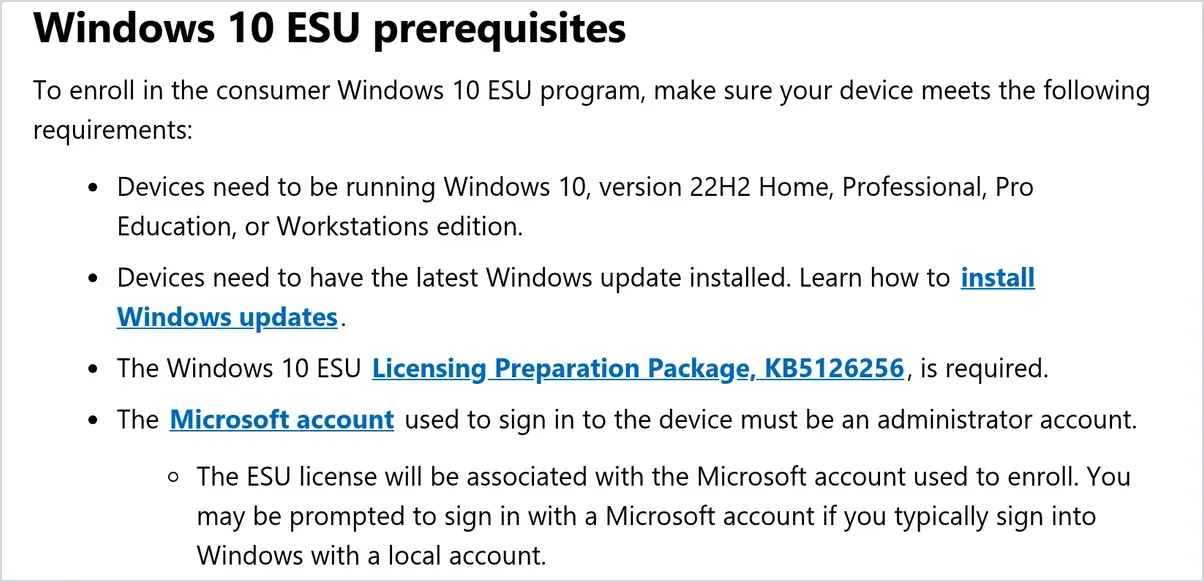
Short answer: the Enroll now link for Windows 10 Extended Security Updates only shows up when Windows decides your PC qualifies, and it gives you no reason when it decides you don't. Nine times out of ten it's one of five things. The PC isn't on 22H2. The ESU Licensing Preparation Package (KB5126256) hasn't installed yet. You're signed in with a local, child or non-admin account. An old work or school account is still attached. Or a privacy tool switched off the telemetry service Windows uses for the eligibility check. Fix the one that applies, restart, and the link usually turns up on the Windows Update page.
The good news first: you haven't missed the boat. Microsoft stretched consumer ESU by a year, so you can still enroll any time until 12 October 2027, and anyone already enrolled is covered until then without doing a thing. I covered the extension itself in Windows 10 updates extended to Oct 2027. This post is just about the annoying part, where you go to Windows Update and the button simply isn't there.
A note on where this comes from. I don't have a Windows 10 PC on my desk that refuses to show the button, so I'm not going to pretend I watched it appear. The steps below come from Microsoft's own requirements, its support notes, and the fixes that keep working for people on Microsoft's forums. Anything unofficial is marked as such.
Jump to:
- Why the Enroll now link is missing
- Step 1: Check your Windows 10 version and edition
- Step 2: Make sure you aren't already enrolled
- Step 3: Install the updates in the right order
- Step 4: Sign in with an admin Microsoft account
- Step 5: Remove old work or school accounts
- Step 6: Turn telemetry back on and recheck eligibility
- Step 7: If the wizard opens but fails
- Step 8: Still nothing? Your last options
- What ESU costs once the button is back
- FAQ
Why the Enroll now link is missing
There's no ESU sign-up website for home users. The only door is the link on Settings > Update & Security > Windows Update, and Microsoft says it appears only "if your device meets the prerequisites". The trouble is the page never tells you which prerequisite failed. So the fix is really a checklist, and it helps to know which check is most likely to be your problem before you start typing commands.
| What you see or have | Likely cause | Go to |
|---|---|---|
| Build doesn't start with 19045, or edition says Enterprise/Education | Wrong version or edition | Step 1 |
| Windows Update shows an ESU status line instead of a link | Already enrolled | Step 2 |
| No KB5126256 in update history, or "Pending restart" | Prep package missing | Step 3 |
| Local account, child account, or "Standard user" | Account not eligible | Step 4 |
| Anything listed under Access work or school | PC looks company-managed | Step 5 |
| You ran a privacy or "debloat" tool at some point | DiagTrack service disabled | Step 6 |
| Link shows but says "We can't enroll you right now" | Wizard or sign-in problem | Step 7 |
Step 1: Check your Windows 10 version and edition
Press Windows key + R, type winver and press Enter. You want Version 22H2, which shows as OS build 19045.something. After this month's update the newest build is 19045.7846, so if yours is far behind that, you're also missing updates (Step 3 deals with that).
Then open Settings > System > About and look at Edition. Consumer ESU covers Home, Pro, Pro Education and Pro for Workstations. If it says Enterprise or Education, the home link will never appear. Those editions get ESU through an organisation, not through Windows Update. This catches people who bought a cheap used laptop from an office clear-out, or who are still running a copy activated by a school or company volume licence. In that case the honest answer is Step 8.
On 21H2 or older? Run Windows Update until it offers 22H2. Microsoft still points people to the small enablement package (KB5015684) for the jump from 21H2, so it's usually a quick restart rather than a full reinstall.
Step 2: Make sure you aren't already enrolled
This one sounds silly, but it's on Microsoft's list: enrollment isn't offered on a device that already has an ESU licence. If you enrolled last year, or a family member did it on this PC under their account, the Windows Update page shows your ESU status instead of the button. That's the page working, not failing.
Microsoft's FAQ is clear that once any user on a PC enrolls, every other user on that PC is covered too. If you paid, the purchase also shows in your Microsoft account's Order history. And if you enrolled during the first year, you don't need to re-enroll for the extra year. Coverage rolled on to 12 October 2027 automatically.
Step 3: Install the updates in the right order
Order matters here, and it's the most common snag after account problems. Microsoft's KB5126256 note spells it out:
- A Windows 10 22H2 security update released on or after 14 October 2025 has to be installed first.
- Then the ESU Licensing Preparation Package (KB5126256) installs on top, and the PC restarts on its own.
Go to Settings > Update & Security > Windows Update, hit Check for updates, install everything, and restart even if Windows doesn't ask. Then click View update history and look for "Extended Security Updates (ESU) Licensing Preparation Package for Windows 10 (KB5126256)". If it's there, good. If it's not, check again after the restart, because Windows Update only offers it once the earlier security update is in.
Two things trip people up. First, KB5126256 doesn't enroll you and doesn't bring security updates by itself. It only gets the licensing parts ready, so seeing it installed and still no button doesn't mean it failed. Second, each newer prep package replaces the older ones. If you read an older guide that names a different KB number, that's why. Go with the newest one Microsoft lists, which is KB5126256 right now.
If Windows Update refuses to offer it, you can grab KB5126256 from the Microsoft Update Catalog, pick the x64 file for 22H2, and run it. If Windows Update itself is jammed at a percentage, sort that out first with my Windows Update stuck fix, then come back here.
Microsoft also shipped an out-of-band fix back in November 2025, KB5071959, because the enrollment wizard could fail on some PCs. Windows 10 updates are cumulative, so a PC that's current is already past it.
Step 4: Sign in with an admin Microsoft account
ESU ties the licence to a Microsoft account, and Microsoft's rules are strict about which one. It has to be an administrator on the PC, and it can't be a child account.
Open Settings > Accounts > Your info. Under your name you want to see your email address and the word Administrator. Here's what to do if you don't:
- Local account: Microsoft says you may get asked to sign in to a Microsoft account during enrollment. If the link isn't showing at all, click Sign in with a Microsoft account instead on the same page, restart, and look again. If you really want to stay local, another route is to add your Microsoft account as a second user, make it an admin, enroll from that user, then go back to your local one. Since everyone on the PC is covered once one user enrolls, that works out fine.
- Standard user: someone with an admin account has to change your account type under Settings > Accounts > Family & other users, or enroll from their own account.
- Child account: this is a case Microsoft calls out by name. A parent has to sign in on the child's PC with their own admin account and enroll from there. If the parent isn't a user on that PC yet, add them first.
One more thing Microsoft Q&A volunteers keep suggesting, and people keep saying it works: if you're already on a Microsoft account and nothing shows, switch to a local account and then back to the Microsoft account. It seems to refresh the link between the PC and the account. It costs you five minutes, so it's worth a shot before Step 6.
Step 5: Remove old work or school accounts
Consumer ESU is for personal PCs only. Microsoft won't offer it on PCs in kiosk mode, PCs joined to an Active Directory domain or Microsoft Entra, or PCs enrolled in device management (MDM). The awkward bit is that a work email you added years ago, maybe to open Teams or Outlook, can make a home laptop look managed. One person on Microsoft Q&A found that a work account using MDM was exactly why the button never appeared.
- Open Settings > Accounts > Access work or school.
- Click each account listed and choose Disconnect. If it says "Connected to [company] Azure AD" or shows an Info button with management details, that one matters most.
- Restart and check Windows Update again.
Don't do this on a laptop your employer actually owns or still needs to manage. Ask IT first. That machine shouldn't be on consumer ESU anyway. Also, Microsoft says a PC that's only Entra registered (the light "add a work account" link, not a full join) can still use consumer ESU. So if disconnecting would break something you need, try the other steps first.
Worth knowing: if a PC is already enrolled and later gets joined to a company or put under MDM, Microsoft suspends the home ESU enrollment until it stops being a work device.
Step 6: Turn telemetry back on and recheck eligibility
This is the fix for anyone who has ever run a privacy or "debloat" tool on Windows 10. Many of them disable the Connected User Experiences and Telemetry service (DiagTrack). The ESU eligibility check appears to rely on it, so with it off, the link never shows. The commands below come from the AskWoody community and get quoted on Microsoft Q&A and in most decent guides on this. Microsoft hasn't documented them as an official fix, so treat them as a well-tested workaround.
Open the Start menu, type cmd, right-click Command Prompt and choose Run as administrator. Then run these one at a time:
sc.exe config DiagTrack start= auto
sc.exe start DiagTrack
Restart. Then open an admin Command Prompt again and ask Windows to re-run the eligibility check:
cmd /c ClipESUConsumer.exe -evaluateEligibilityRestart once more and look at Windows Update. If you're curious what Windows decided, this shows the result values:
reg.exe query "HKCU\SOFTWARE\Microsoft\Windows NT\CurrentVersion\Windows\ConsumerESU"Microsoft doesn't publish what the numbers in ESUEligibility and ESUEligibilityResult mean, so don't read too much into them. What matters is whether the link turns up.
If it still doesn't, the same community fix adds a feature override before the check. This is a registry change, so make a restore point first:
reg.exe add "HKLM\SYSTEM\CurrentControlSet\Policies\Microsoft\FeatureManagement\Overrides" /v 4011992206 /t REG_DWORD /d 2 /fRestart, run the ClipESUConsumer.exe -evaluateEligibility command again, and restart one last time. If you want to undo the override later, swap add for delete and drop the /t and /d parts. One honest warning: this only makes Windows show the offer sooner. It can't make an ineligible PC eligible. If you're on Enterprise, a managed PC or a child account, fix that first or the wizard just fails at the end.
You'll also see posts telling you to create a ConsumerESU key by hand and set its values to "eligible". I'd skip that. Microsoft doesn't document those values, and the ClipESUConsumer check above writes them for you anyway.
Step 7: If the wizard opens but fails
Sometimes the link shows up fine, you click it, and you get "Something went wrong. We can't enroll you in Extended Security Updates right now. Close this window and try again." Or the window just flashes and closes. The message is generic, so again it's a checklist:
- Find my device: go to Settings > Update & Security > Find my device, click Change and turn it on (or off and on again if it's already on). Turn location on if it asks. Restart. Nobody has explained why this helps, but it's the fix that comes up most for this exact error on Microsoft's forums.
- Sign-in services: press Windows key + R, type
services.msc, and make sure Microsoft Account Sign-in Assistant and Credential Manager aren't disabled. Set them to Automatic or Manual and start them. - Network: try once on a different connection, like your phone's hotspot, and pause any third-party firewall that blocks outgoing traffic.
- Repair system files: in an admin Command Prompt run
DISM /Online /Cleanup-Image /RestoreHealth, wait for it to finish, then runsfc /scannow. Restart and try again. - Wait a day: some failures are on Microsoft's side. If everything above checks out, try again the next day before you do anything drastic.
Step 8: Still nothing? Your last options
If you've worked through everything above and the link still won't show, here's what's left, roughly in the order I'd try them:
- Check if the PC can just run Windows 11. Run Microsoft's PC Health Check app. If it passes, the Windows 11 upgrade is free and you don't need ESU at all. Enrolling doesn't block the upgrade either, so if the button does come back you can do both. If you go this way, my Windows 11 26H2 update guide covers which version to land on.
- Do an in-place repair install of Windows 10 22H2 using Microsoft's installation media, keeping your files and apps. It can fix deeper damage that DISM and sfc miss, and Microsoft Q&A answers point to a repair or, in stubborn cases, a clean install of 22H2 as the step after which the option finally appeared. Back up first and save your BitLocker recovery key if the drive is encrypted.
- Accept the PC isn't eligible. Enterprise and Education editions, and PCs still tied to an organisation, aren't getting consumer ESU however many commands you run. Ignore forum answers that tell you to buy a key from a reseller for a home PC. Consumer ESU only comes through Windows Update.
If ESU is off the table and Windows 11 isn't possible, that PC is now running without security patches. I'd keep it off banking and email, and start looking at either a replacement or a lighter OS for it. The ESU extension guide has my notes on both.
What ESU costs once the button is back
When the link does appear, Microsoft gives home users three ways in on the same screen:
- Free if you back up your PC settings to your Microsoft account with Windows Backup.
- 1,000 Microsoft Rewards points.
- A one-time $30 purchase, charged in local currency plus tax. Microsoft doesn't list a fixed rupee price. At about ₹94 to the dollar on 13 November 2026, that's roughly ₹2,820 before GST.
Whichever you choose covers you until 12 October 2027, and one licence works on up to 10 PCs on the same Microsoft account. On a second PC, sign in with the same account and pick Add device. In the European Economic Area the free route works a little differently. Staying signed in to Windows with your Microsoft account is enough, but if you stop signing in with it, ESU updates stop after up to 60 days.
Related guides: if your Windows PC has other problems while you're sorting this out, my 100% disk usage fix is where I keep the full list of Windows and PC fixes, and Windows Update stuck at 0% or 100% covers the update side.
FAQ
Is there a website where I can enroll in Windows 10 ESU instead?
No, not for home PCs. The consumer program only runs through the Enroll now link in Settings > Update & Security > Windows Update. Businesses buy ESU through volume licensing, which is a separate thing.
Is it too late to enroll in Windows 10 ESU?
No. Microsoft says you can enroll any time until the program ends on 12 October 2027. You just go without patches until you do, and once you're in, Windows Update catches the PC up on the security updates it missed.
I installed KB5126256. Why am I still not enrolled?
Because it only prepares the PC. Microsoft's own note says the package doesn't enroll the device or install any security updates. You still have to click Enroll now and finish the wizard.
Can I enroll with a local account?
You need a Microsoft account with admin rights to enroll, because that's where the licence lives. You can add one as a second user, enroll from it, and keep using your local account day to day. Once one user on the PC enrolls, every user on it is covered.
Is the ClipESUConsumer command safe to run?
It's a Windows program that ships with the ESU components, and the command just asks it to re-check eligibility. The DiagTrack change turns telemetry back on, which some people won't like. The registry override is the riskier part, so make a restore point first and delete it later if you'd rather not keep it.
Did one of these steps bring your button back, or are you stuck on a step I didn't cover? Leave a comment with your build number and what Settings > Accounts shows, and I'll try to help you narrow it down.

Comments ()