iPhone Screen Dim When You Wake It? Fixes for iOS 26/27
iPhone waking up too dark even with brightness up? Try these fixes for iOS 26 and 27, from Lock Screen widgets to Auto-Brightness and Attention Aware.
Updated: 10 November 2026. Checked against Apple's support pages on brightness and Auto-Brightness, Attention Aware features and heat protection, the iPhone User Guide, and owner threads on r/ios, r/iPhone15Pro and Apple Community.
Short answer: if your iPhone wakes up far too dark even though the brightness slider looks normal, lock it and wake it again. That usually snaps it back for the moment. For a longer fix, strip the widgets off your Lock Screen and switch the clock from the Glass style to Solid. Owners with this bug say that's what made it go away, and Apple hasn't put out a fix of its own.
I want to be upfront: I haven't reproduced this on a phone of my own, so nothing here comes from my own testing. What I've done is read Apple's support pages and go through the owner threads where people report what actually helped. When something is a workaround someone found rather than an official fix, I'll say so.
Jump to:
- Is it the dim-on-wake bug?
- Step 1: Lock it and wake it again
- Step 2: Update iOS
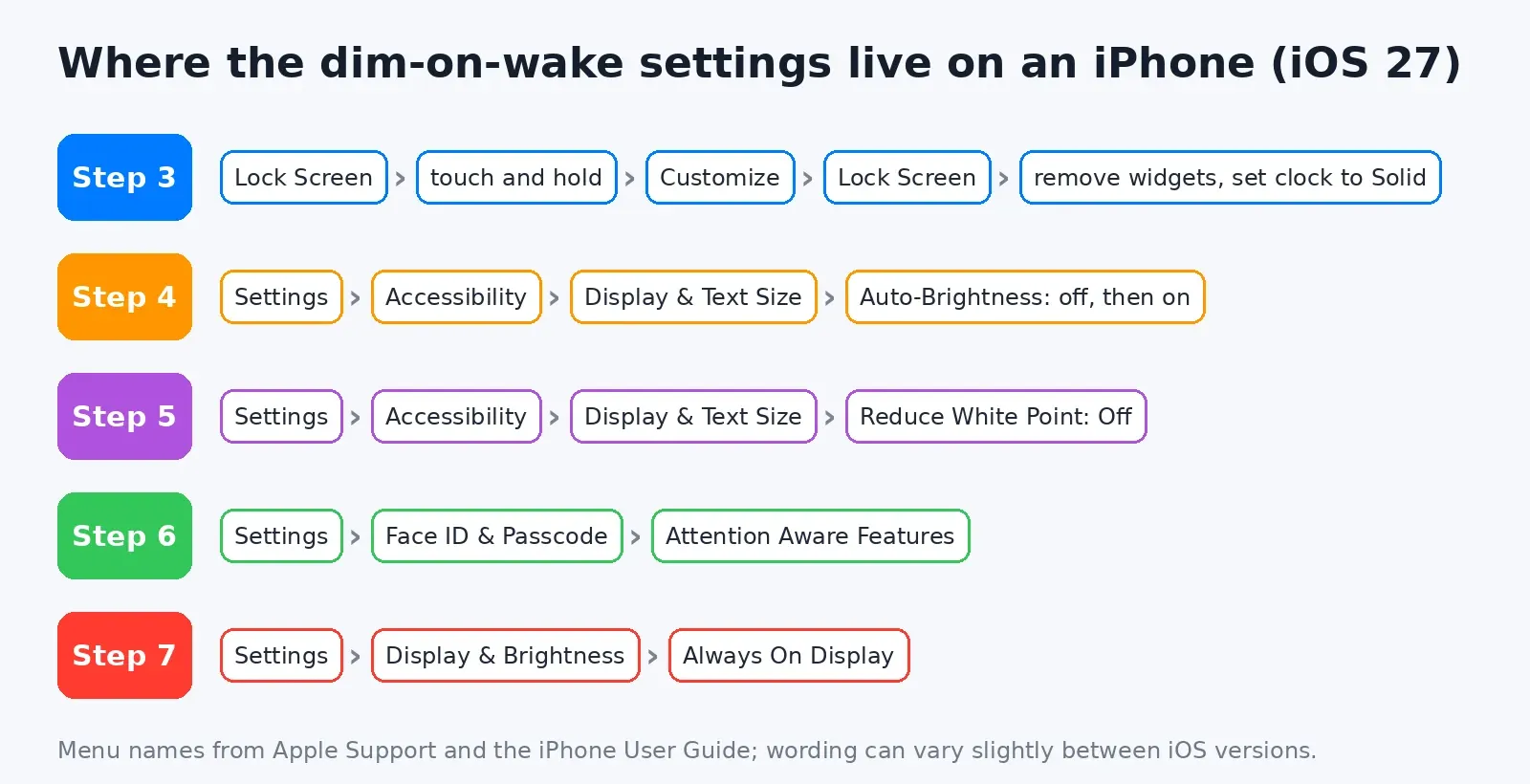
- Step 3: Remove Lock Screen widgets and use a Solid clock
- Step 4: Reset Auto-Brightness
- Step 5: Check Reduce White Point and Low Power Mode
- Step 6: Test Attention Aware Features
- Step 7: Try Always On Display off
- Step 8: Rule out heat
- Step 9: Restart, reset settings or contact Apple
- FAQ
Is it the dim-on-wake bug?
The version people complain about goes like this. You pick up the phone or press the side button, and the screen comes on looking like it's at 0%. Open Control Center and the slider says 50% or so. Moving it does nothing. Lock the phone, wake it again, and the brightness is back to normal.
A post on r/ios from January 2026 says exactly that, on an iPhone 15 Pro running iOS 26. Several people reply there with the same symptoms, and the thread is still getting replies months later. One owner said it was still happening on iOS 26.5 in July. Another said it went away after iOS 27, then came straight back once they put the Weather widget back on the Lock Screen. A separate r/iOS27 post from August described brightness dropping about 50% after every lock on an iPhone 16 Pro Max running a developer beta. That person said the next beta fixed it. So it isn't only the 15 Pro, but that model comes up again and again.
Before you change anything, it helps to know which kind of dim you've got, because a few normal iPhone features can look a lot like this bug:
| What you see | Most likely cause | Start at |
|---|---|---|
| Wakes very dark, slider looks normal, lock and wake fixes it | The dim-on-wake bug (often tied to Lock Screen widgets) | Steps 1 to 3 |
| Dim on wake, slider is actually low, it slowly climbs | Auto-Brightness misreading the room | Step 4 |
| Everything is dimmer than it should be, all the time | Reduce White Point, Zoom filter or Low Power Mode | Step 5 |
| Dims while you're reading, before Auto-Lock kicks in | Attention Aware Features | Step 6 |
| Stays at the dim locked look a beat too long on a Pro model | Always On Display handing off to the full screen | Step 7 |
| Dims or goes black while the phone feels hot | Heat protection | Step 8 |
| Screen goes fully black at random and the slider is at the bottom | A different iOS 27 bug | Step 9 |
Step 1: Lock it and wake it again
This is the quick fix, not a real one, but you'll use it until the proper fix works. Press the side button to lock, then wake the phone again. In the r/ios thread that's the one thing that reliably brings the brightness back.
Also open Control Center (swipe down from the top-right corner) and look at the slider. If it really is low, you're probably not dealing with this bug. Skip ahead to Step 4. If the slider sits at a normal level but the screen is clearly dark, keep going in order.
Step 2: Update iOS
Go to Settings > General > Software Update. As of 10 November 2026, the latest releases are iOS 27.2.1, and iOS 26.7.3 for phones that stay on iOS 26. You can read about what iOS 27.2.1 fixes here.
I'll be honest about what to expect. I couldn't find an Apple release note that names this brightness bug, so updating isn't a guaranteed fix. Some owners say iOS 27 helped and others say it didn't. Install the update anyway, since it carries security fixes. If the dim screen is still there afterwards, you've lost nothing and can move on.
Step 3: Remove Lock Screen widgets and use a Solid clock
This is the workaround that comes up most. One reply in the r/ios thread says it's well known on iPhone 15 Pro models and that removing every widget from every Lock Screen basically fixed it. Another owner went further. They removed the widgets and also changed the Lock Screen clock from the Liquid Glass style to a plain solid white, and that "completely solved it." Their guess was that the way the Lock Screen gets drawn clashes with Auto-Brightness. That's an owner's theory, not Apple's.
Here's how to try it:
- Unlock with Face ID, but stay on the Lock Screen. Touch and hold it until Customize appears.
- Tap Customize, then pick the Lock Screen side.
- Tap the minus button on each widget under the clock, and on the one above it, to remove them.
- Tap the clock and switch the style from Glass to Solid. Choose white or another plain colour.
- Tap Done. If you switch between several Lock Screens (for Focus modes, say), do the same on each one.
Give it a day of normal use. If the dim wakes stop, add your widgets back one at a time. That way you'll find out whether one of them, like Weather in that owner's case, is what sets it off. It's annoying to lose widgets, I know, but one problem widget is a lot better than none at all.
Step 4: Reset Auto-Brightness
Apple's own advice for brightness that isn't behaving is to switch Auto-Brightness off and back on. It lives under Settings > Accessibility > Display & Text Size > Auto-Brightness, not in the Display menu where most people look first.
If that doesn't help, try leaving it off for a few days. In the r/iPhone15Pro thread about iOS 26, a couple of owners said turning it off made the dim wakes stop. The catch is that you'll be adjusting brightness by hand, and Apple notes that turning Auto-Brightness off can use more battery. If you're already fighting iOS 27 battery drain, keep an eye on it.
One more thing that helps Auto-Brightness: keep the top edge of the screen clean. The ambient light sensor sits up there, and a thumb, a smudge or a badly cut screen protector can make the phone think the room is darker than it is.
Step 5: Check Reduce White Point and Low Power Mode
These won't cause the "lock and wake fixes it" version, but they make every screen dimmer and get mixed up with it all the time.
- Reduce White Point is in Settings > Accessibility > Display & Text Size. It tones down bright colours, and it's easy to switch on by accident with the Accessibility Shortcut (triple-click the side button). Make sure it's off, or set it lower.
- Zoom with a Low Light filter does a similar thing. Check Settings > Accessibility > Zoom.
- Low Power Mode cuts back on several things to save battery, display brightness included. If the battery icon is yellow, that's part of what you're seeing.
True Tone and Night Shift change the colour of the screen, not how bright it is. They can make it look duller, warmer especially, but they shouldn't make it go dark.
Step 6: Test Attention Aware Features
On iPhones with Face ID, the front camera checks whether you're looking at the screen. With Attention Aware Features on, Apple says the display won't dim until you stop paying attention. That's handy, but sunglasses, odd angles or a dirty camera can make it guess wrong.
To test it, go to Settings > Face ID & Passcode and turn off Attention Aware Features. You'll find the same switch under Settings > Accessibility > Face ID & Attention. An older Apple Community thread from the iOS 14 days has a reply suggesting this for the same "dim until I relock" complaint. It's a cheap thing to rule out. If it changes nothing after a day, switch it back on.
Step 7: Try Always On Display off
Most of the reports are on Pro models, and those have Always On Display. Apple explains that with Always On Display the screen can run as low as 1 Hz and dims when you lock the phone or leave it idle. Waking it has to bring the screen back up from that dim locked state.
Nobody has shown that Always On Display causes this bug. I'm suggesting it purely as an experiment. Go to Settings > Display & Brightness > Always On Display, turn it off for a day, and see if the dim wakes stop. If they don't, turn it back on.
Step 8: Rule out heat
This one isn't a bug. When an iPhone runs hot, it protects itself, and Apple lists "the display dims or goes black" among the changes you might see. Charging can also slow down, and the camera flash may be switched off for a while. Apple says iPhones are designed for 0 to 35°C (32 to 95°F). Navigation in a sunny car, a long gaming session or fast charging under a pillow can all push past that.
If the dimming only happens when the phone feels warm, it's probably heat. Let it cool, take off a thick case, and don't leave it charging in direct sun. If you see the temperature warning screen, Apple's advice is to turn the phone off and let it cool down somewhere shaded.
Step 9: Restart, reset settings or contact Apple
If none of that worked, go up the ladder:
- Force restart. Press and release volume up, press and release volume down, then hold the side button until the Apple logo shows up.
- Reset All Settings. Go to Settings > General > Transfer or Reset iPhone > Reset > Reset All Settings. This puts settings like display, Wi-Fi passwords, wallpaper and Lock Screens back to default, but keeps your photos, apps and messages. Don't tap Erase All Content and Settings by mistake, because that wipes the phone.
- Contact Apple Support through the Apple Support app or support.apple.com. Tell them your model, your iOS version, and that locking and waking brings brightness back. That detail points to software, not a failing screen.
One thing to keep separate: there's another iOS 27 complaint where the screen goes fully black at random while you're using it, and the slider turns out to be at the very bottom. People get it back by dragging brightness up in Control Center, or with a force restart. That's not the dim-on-wake bug, though Step 4 and the force restart above are still the place to start.
While your iPhone is in a fix-it mood, my guide to freeing up iPhone storage without deleting photos is worth a look too. A nearly full phone tends to cause its own oddities.
Another iOS 27 annoyance I keep seeing: Siri lighting up and then ignoring the request. If that's happening to you too, here's how to fix Hey Siri when it lights up but won't answer.
Related guides: two more from me that pair well with this one: fixing Siri setting the wrong alarm time and a Mac battery draining while asleep.
FAQ
Why is my iPhone screen dim when I wake it, even though brightness is up?
On iOS 26 and iOS 27, owners link it to Lock Screen widgets and the Glass clock style, especially on iPhone 15 Pro models. Locking and waking the phone fixes it for the moment. Removing the widgets and switching to a Solid clock has fixed it for good for several people.
Has Apple fixed the dim-on-wake bug?
Not officially. I couldn't find it named in any Apple release note up to iOS 27.2.1. Some owners say iOS 27 improved things, others still see it. Updating is worth doing, but don't expect it to fix this on its own.
Is my iPhone screen failing?
Probably not if locking and waking brings brightness back. Real hardware faults don't usually go away with a quick relock. If the screen flickers, shows lines or stays dim no matter what, get it checked by Apple.
Will turning off Auto-Brightness hurt battery life?
It can. Apple says turning off Auto-Brightness may increase power use, mostly because people leave brightness higher than they need. Keep it off only as long as you have to, or set the slider a bit lower by hand.
Does Reset All Settings delete my photos?
No. It only resets settings like Wi-Fi networks, wallpaper, Lock Screens and accessibility options. Your photos, apps and messages stay. Erase All Content and Settings is the option that wipes everything, so be careful which one you tap.
Still seeing it after all of this? Leave your iPhone model, your iOS version and which step you got to in the comments, and I'll help you narrow it down.

Comments ()