Windows 11 Cloud Rebuild: Reinstall Without USB
Cloud Rebuild reinstalls Windows 11 from Windows Update with drivers, no USB. Settings and WinRE steps, sanitize options, and when to skip it.
Updated: November 3, 2026. Checked against Microsoft Learn’s Cloud rebuild docs, the KB5127936 preview notes (builds 26200.9818 / 26300.9818), and Microsoft Support’s recovery-options page.
Short answer: Cloud Rebuild is a new Windows 11 recovery option that downloads a fresh Windows image and your device’s drivers from Windows Update, then reinstalls without a USB stick. It can run from Settings when Windows still boots, or from WinRE when it doesn’t. It reformats the system disk and removes local files, apps, and settings — so back up first. Right now it ships in the optional October 28, 2026 preview KB5127936 for Windows 11 25H2 and 26H2, and Microsoft is rolling it out gradually.
I went through Microsoft’s own steps end to end (Learn + the KB release notes + the Support recovery table) after Windows Central and PC Guide started covering this on 2–3 November. Below is the home-PC path I’d take, plus when I’d skip Cloud Rebuild and try something gentler first.
Jump to:
- What Cloud Rebuild actually is
- Cloud Rebuild vs Reset this PC
- Requirements and rollout
- Step 1: Back up before you touch anything
- Step 2: Confirm you have Cloud Rebuild
- Step 3: Start from Settings (when Windows still boots)
- Step 4: Start from WinRE (when Windows won’t boot)
- Step 5: Connect to the network in WinRE
- Step 6: Choose Remove files or Remove & sanitize
- Step 7: Let it finish, then go through OOBE
- When not to use Cloud Rebuild
- Troubleshooting common error codes
- FAQ
What Cloud Rebuild actually is
Microsoft’s Learn page describes Cloud Rebuild as a way to put a Windows 11 PC back into a clean, known-good state by doing a full OS reinstall. The important bit: it downloads the target Windows image and the device drivers from Windows Update. You don’t need USB installation media, a custom image from IT, or a healthy Windows install on the disk.
That last point is why this exists. Classic “Reset this PC” (and older Cloud Download) still lean on pieces of the installed system or a local recovery image. If boot is toast, those paths get awkward fast. Cloud Rebuild runs inside the Windows Recovery Environment (WinRE), so it can start after repeated boot failures.
After it finishes, the PC boots into the out-of-box experience (OOBE), same as a new machine. On Autopilot / Intune-managed devices, Microsoft says the PC can reconnect and re-provision automatically; OneDrive and Backup for Organizations can bring files and settings back after sign-in. On a home PC, you’re looking at a clean setup with whatever you restored from backup.
Secondary write-ups from Windows Central and PC Guide match that story: optional KB5127936, gradual rollout, no USB. Treat those as context; the steps below stick to Microsoft’s docs.
One practical difference from a classic Media Creation Tool wipe: you never leave WinRE to “go download an ISO on another PC.” The download happens on the broken (or soon-to-be-wiped) machine, over the network, with drivers fetched for that hardware. That’s also the risk: a thin mobile hotspot or a flaky Wi‑Fi link will make the download phase crawl or fail. Ethernet whenever you can.
Cloud Rebuild vs Reset this PC
Microsoft Support now lists Cloud Rebuild as option 6 on its recovery ladder, after troubleshooters, reinstall-in-place, uninstall update, Point-in-time restore, and Reset this PC. The Support blurb is blunt: use Cloud Rebuild if Reset this PC doesn’t fix the problem. It removes personal files, apps, and settings.
| Option | Where image comes from | Keeps your files? | Works if Windows won’t boot? | USB needed? |
|---|---|---|---|---|
| Reset this PC (Cloud Download / local) | Local recovery bits and/or cloud Windows image | Optional keep files | Sometimes awkward | No |
| Cloud Rebuild | Windows image and drivers from Windows Update | No — system disk reformatted | Yes, via WinRE | No |
| Media Creation Tool / USB install | ISO you download onto a stick | You choose during setup | Yes | Yes |
Honest take: if the PC still boots and you only need a soft reset, try Reset this PC → Keep my files first. Cloud Rebuild is the “I want a clean machine and I don’t have a USB stick handy” hammer — including the “won’t boot” case Reset can’t always reach cleanly.
Requirements and rollout
Before you chase the button, check these (from Microsoft Learn):
- Windows 11 on hardware that meets Windows 11 minimum requirements (TPM enabled is a common failure point — see the error codes section).
- Healthy WinRE. From an elevated Command Prompt:
reagentc /info. You want WinRE enabled. - Networking in WinRE. The OEM needs a compatible network driver in WinRE, and the PC must reach the internet from recovery. Ethernet is the easy path; Wi‑Fi is WPA-Personal (Microsoft’s troubleshooting note says WPA-2 Personal).
- KB5127936 or later on 25H2 / 26H2 for the consumer Settings entry to appear. Builds after install: 26200.9818 (25H2) or 26300.9818 (26H2), or newer once November’s cumulative lands. Microsoft is rolling features out gradually, so installing the KB does not guarantee the Rebuild PC button shows up the same day on every PC.
24H2 Home/Pro already stopped getting non-security preview updates in October 2026. If you’re still on 24H2 and wondering about moving up, I compared the versions in Windows 11 26H2: should you update?.
Same preview also fixed Always On VPN and the Smart App Control grayed-out bug — I covered those separately at KB5127936 Always On VPN fix and Smart App Control grayed out.
Step 1: Back up before you touch anything
Cloud Rebuild reformats the system disk. Microsoft’s warning is not soft language: all locally stored files, accounts, apps, and settings go away. Cloud copies in OneDrive (or similar) are fine; anything only on that PC is not.
- Copy Documents, Desktop, Downloads, Photos, and any project folders to an external drive or confirm they’re already in OneDrive / another cloud sync.
- Export browser bookmarks and note which apps you actually reinstall (license keys, authenticator backups, game launchers).
- If BitLocker is on, make sure you can find the recovery key before recovery gets weird — how to find your BitLocker recovery key.
- Keep the laptop on power. Microsoft repeatedly says not to interrupt download, install, or sanitization.
Skip this step and Cloud Rebuild will still work. You’ll just hate yourself afterward.
Also dump anything sitting in %LOCALAPPDATA% that apps don’t sync — game saves outside Steam Cloud, local email PST/OST files, VPN config exports, SSH keys under .ssh, and password-manager emergency kits. Cloud Rebuild will not prompt you file-by-file the way some Reset flows feel. It’s a disk-level reinstall.
Step 2: Confirm you have Cloud Rebuild
- Open Settings → Windows Update. Install everything pending, then check Advanced options → Optional updates for KB5127936 (or a later cumulative that includes Cloud Rebuild).
- If Optional updates is empty, hit Check for updates once and look again. Stuck updates? Walk through Windows Update stuck at 0% or 100% first.
- Restart, then open Settings → System → About and confirm you’re on 25H2 or 26H2 with a build at or above .9818.
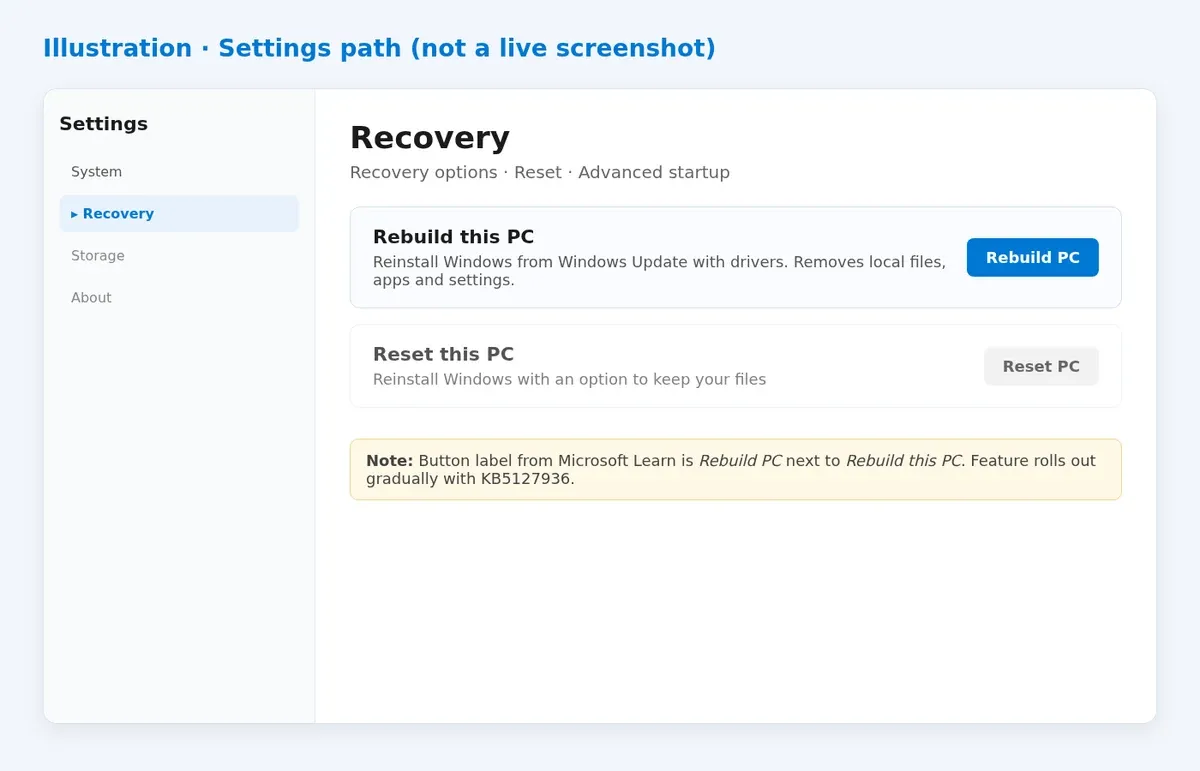
- Open Settings → System → Recovery. Look for Rebuild this PC with a Rebuild PC button. If it’s missing, you’re still waiting on the gradual rollout — don’t force random registry tricks; wait for the next cumulative or check again in a few days.
- While Windows still boots, run
reagentc /infofrom an elevated Command Prompt and confirm WinRE is enabled.
Step 3: Start from Settings (when Windows still boots)
This is Path A from Microsoft Learn.
- Go to Settings → System → Recovery.
- Next to Rebuild this PC, select Rebuild PC.
- The PC restarts into WinRE and starts the Cloud Rebuild flow. Continue at Step 5.
Step 4: Start from WinRE (when Windows won’t boot)
This is the headline case. After repeated boot failures, Windows should drop into WinRE on its own. You can also force it: hold the power button through two or three failed starts until you see the recovery environment (exact timing varies by OEM).
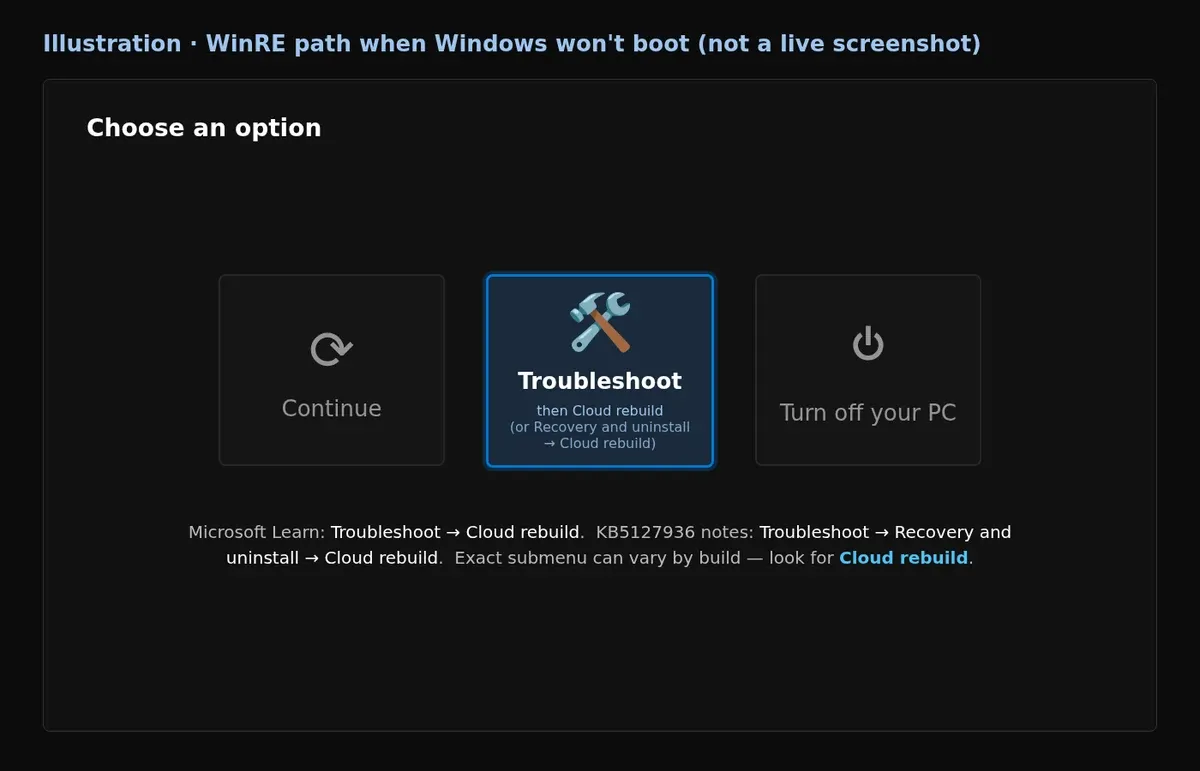
- On Choose an option, select Troubleshoot.
- Open Cloud rebuild. Microsoft Learn shows it directly under Troubleshoot. The KB5127936 release notes describe the path as Troubleshoot → Recovery and uninstall → Cloud rebuild. Menu nesting can differ by build — look for the words Cloud rebuild.
- Continue at Step 5.
If you’re here because of the October boot mess around KB5127648, also skim KB5127648 boot-loop fixes before you wipe — uninstalling the bad update from WinRE is still the smaller move when that fits.
Step 5: Connect to the network in WinRE
Cloud Rebuild has to talk to Windows Update. No network, no rebuild.
- Ethernet: plug in; Microsoft says the connection completes automatically.
- Wi‑Fi: pick a WPA-Personal network and enter the passkey. Enterprise / certificate Wi‑Fi is a different story — KB5127936 also starts rolling out reuse of saved Wi‑Fi profiles in WinRE for recovery scenarios, but don’t assume a captive portal café network will work.
Wait while Cloud Rebuild prepares: it contacts Windows Update for the target build and downloads networking drivers for the device. Then you’ll get the file-removal choice.
Step 6: Choose Remove files or Remove & sanitize
Microsoft offers two thoroughness levels:
| Choice | What it does | When I’d pick it |
|---|---|---|
| Remove files | Reformats and reinstalls. Faster. Specialized tools might still recover old data. | You’re keeping the PC. |
| Remove & sanitize files | Asks the storage hardware to securely erase targeted disks, then reinstalls. Slower. Irreversible. | Recycling, returning, selling, or handing the PC to someone else. |
If you pick sanitize and the PC has more than one disk, you’ll choose Windows disk only or All disks. Single-disk machines skip that screen.
Sanitize depends on the drive actually supporting the erase operation correctly. Microsoft says Windows requests the erase and reports what the hardware returns — it can’t independently prove the wipe. For regulated decommissioning, confirm with the OEM and use their tool if needed. Sanitize also needs the October 2026 non-security update (or later) for your Windows 11 version.
On the confirmation screens, check the shown Windows build, edition, and language, read the data-loss warning, then continue (Continue for remove-files, or Sanitize and install for sanitize).
Step 7: Let it finish, then go through OOBE
- If you chose sanitize, wait through Sanitizing data. The PC may look idle. Leave it on power. Do not hold the power button “to wake it.”
- Preparation → download → install will show progress. The device may restart on its own. Interrupting this can leave Windows unbootable; Microsoft’s recovery fallback then becomes a recovery drive, installation media, or OEM media.
- When it’s done, you land in OOBE. Set up region, account, and privacy options like a new PC.
- On Entra-joined / Intune / Autopilot devices, sign-in should pull policies, apps, Backup for Organizations settings, and OneDrive files per Microsoft’s managed-device flow.
- On a home PC, restore from your backup, reinstall apps, and run Windows Update once before you call it done.
When not to use Cloud Rebuild
Microsoft’s own recovery table puts Cloud Rebuild near the end for a reason. Try these first when they fit:
- Troubleshooters under Settings → System → Troubleshoot.
- Uninstall a recent update if the pain started right after Patch Tuesday.
- Point-in-time restore (Windows 11 24H2+) if you have a restore point from before the breakage.
- Reset this PC → Keep my files if Windows still boots and you just want a repair without losing Documents.
- In-place repair / Media Creation Tool USB when you already have a stick and want more control over partitions.
Also skip Cloud Rebuild if you don’t have a backup yet, if you’re on flaky hotel Wi‑Fi with no Ethernet, or if WinRE networking is known broken on your model (some OEM recovery images ship without usable NIC drivers — then USB media is still the honest answer).
Work or school PCs are a special case. If the device is Entra-joined and Intune-managed, your admin may have disabled local Cloud Rebuild through the Recovery CSP (EnableLocalRebuild). The WinRE entry can still show up and then error. Don’t fight that from home — ask IT, because a remote rebuild or Autopilot reset may already be the supported path.
Troubleshooting common error codes
From Microsoft Learn’s troubleshooting section:
- 0x800704C6 — no network. Cancel, go back to Troubleshoot → Cloud rebuild, connect Ethernet or a WPA-Personal Wi‑Fi network, retry.
- 0xc1900200 — doesn’t meet Windows 11 requirements. Most common: TPM off in firmware. Enable TPM / PTT / fTPM in UEFI, confirm with
tpm.msc, retry. - 0xc1900224 — a required driver isn’t on Windows Update. Talk to the OEM about publishing networking/storage drivers to WU, or fall back to OEM / USB install media.
- Sanitize failure — you can Try again, Skip sanitizing (reinstall without secure erase), or Copy log to a USB stick. Don’t skip sanitize if you’re disposing of the PC under a wipe policy; use an OEM erase tool instead.
If it fails mid-flight and Windows won’t boot, Microsoft points you at a recovery drive, installation media, or manufacturer recovery media. Collect logs from WinRE (X:\$Windows.~BT\Sources\Panther, X:\Windows\Logs\MoSetup, X:\Windows\Logs\Rebuild) if you plan to file Feedback Hub under the Cloud rebuild category.
If Cloud Rebuild saves you a trip to buy a USB stick, leave a comment with your build number and whether you came in from Settings or WinRE — useful for anyone still waiting on the gradual rollout. I’ll update this when Cloud Rebuild lands in a broad Patch Tuesday cumulative for 25H2/26H2.
The same November update also brings the new customizable right-click menu. Here's how to customize the Windows 11 right-click menu, and what to do if Customize menu hasn't shown up yet.
Related guides: I keep the main Windows and PC walkthrough in my guide to fixing 100% disk usage on Windows 11. You might also want my notes on a laptop that overheats with a loud fan or what Windows 10's extension to October 2027 means.
FAQ
Is Cloud Rebuild the same as Reset this PC’s Cloud Download?
No. Reset can keep files and still depends more on the existing install / recovery image. Cloud Rebuild always does a full reinstall from Windows Update with drivers, reformats the system disk, and is designed to run from WinRE when Windows won’t start.
Do I need a USB drive?
Not for Cloud Rebuild itself. You still want an external drive (or cloud backup) for your files before you start. If Cloud Rebuild fails badly, a USB installer becomes plan B.
Will OneDrive files survive?
Files already synced to OneDrive (or another cloud service) aren’t on the local disk Microsoft is wiping. Anything that never finished uploading is gone with the local copy — check sync status first.
Why don’t I see Rebuild this PC yet?
You need Windows 11 25H2 or 26H2 with KB5127936 (or later), and the feature is on a gradual rollout. Missing button usually means wait for the next cumulative or check Optional updates again — not a broken Settings page.
Can IT start Cloud Rebuild remotely?
Yes. Microsoft documents the Recovery CSP under ./Device/Vendor/MSFT/Recovery/CloudRebuild for enabling local/custom rebuilds and triggering an execute from Intune-style management. Home users can ignore the CSP section.
Is Remove & sanitize files enough before I sell a PC?
It’s the option Microsoft designed for recycle / return / reassign, and it’s irreversible. For strict compliance, confirm the drive’s sanitize support with the manufacturer; Windows reports what the hardware claims.


Comments ()