Laptop Overheating and Fan Always Loud? Fixes That Work
Laptop hot and the fan always loud? Find the busy app, pick a quieter power or fan mode, clean the vents and test the fan on Windows, Mac or Linux.
Updated: 9 November 2026. Steps checked against Microsoft's fan noise and power mode pages, Apple's Mac laptop temperature, fan noise, Power Modes, kernel_task, SMC and Apple Diagnostics articles, the overheating guides from Dell, ASUS, HP and Lenovo, and the power-profiles-daemon and TLP docs for Linux.
Short answer: a laptop fan that roars while you're exporting a video or playing a game is doing its job. A fan that stays loud while you're reading email means something is keeping the processor busy, the air can't get out, or the cooling hardware needs attention. Check those in that order. Open Task Manager (Windows), Activity Monitor (Mac) or top (Linux) and sort by CPU. Put the laptop on a desk instead of a bed. Then switch to a quieter power mode. Only after that should you clean vents or book a repair.
This guide covers Windows 11 (and 10), macOS and Linux, plus the fan modes Lenovo, HP, Dell and ASUS hide in their own apps. Everything here uses tools that come with the laptop or are published by its maker. I've left out "fan control" apps on purpose. Apple and ASUS both say third-party temperature apps shouldn't be used to diagnose hardware, and forcing a fan curve hides the cause instead of fixing it.
Jump to:
- Step 1: Decide if the fan noise is normal
- Step 2: Find what is keeping the CPU busy
- Step 3: Give the laptop room to breathe
- Step 4: Switch to a quieter power mode
- Step 5: Use your laptop maker's fan mode
- Step 6: Update the BIOS, drivers and OS
- Step 7: OS-specific fixes for Windows, Mac and Linux
- Step 8: Clean the vents and run a fan test
- Quick reference
- FAQ
Step 1: Decide if the fan noise is normal
Every laptop with a fan speeds it up as the chip heats up. Microsoft lists the usual reasons for a busy fan on its Surface laptops, and they apply to any brand:
- A warm room. Above about 25 °C (77 °F), Microsoft says the fan comes on sooner and spins faster.
- Charging. Until the battery is full, the laptop may need extra cooling.
- The first day after setup or a big update. Windows installs updates and syncs OneDrive, mail and calendars in the background. On a Mac, Apple says Spotlight indexing after a migration is a normal cause of fan noise.
- Heavy work. Games, video exports, compiling code, running a local AI model, or a browser with dozens of tabs.
The sound matters as much as the volume. A steady rush of air that rises and falls with load is fine. Grinding, rattling, whining or ticking is not. Microsoft calls those sounds abnormal, and Dell tells you to contact support if the fan grinds or sits at full speed with no load. If that's what you hear, skip to Step 8.
Also stop using the laptop and get it checked if it shuts itself off from heat, feels too hot to hold, or if the battery is swelling and lifting the case or keyboard. None of the settings below fix a failing battery.
Step 2: Find what is keeping the CPU busy
This is the fix more often than anything else, so do it before you touch a setting. You're looking for one app sitting near the top of the CPU list while you aren't asking it to do anything.
Windows 11 and 10
- Press Ctrl + Shift + Esc to open Task Manager. Click More details if you only see a short list.
- On Processes, click the CPU column header so the busiest process is on top. Check the GPU column too if your Task Manager shows it.
- Close anything you don't need. If it's an app you want to keep open but don't want hogging the CPU, right-click it on Windows 11 and choose Efficiency mode. That lowers its priority. Some system processes have the option greyed out.
- Open the Startup apps page in Task Manager and disable things that don't need to start with Windows. Fewer background apps means less idle heat.
The usual suspects are a browser (see how to stop Chrome using so much RAM), cloud sync after a big upload, Windows Update, and a full antivirus scan. If the disk is pinned at 100% too, my 100% disk usage fix for Windows 11 covers the indexing and update services that cause both.
Mac
- Open Activity Monitor (Applications → Utilities, or search for it with Spotlight).
- Click the CPU tab and sort by % CPU. Then look at the Energy tab, which shows which apps have cost the most power over time.
- Quit the app that's misbehaving. If it's a browser, close tabs before you quit the whole thing.
One process to leave alone is kernel_task. Apple says it shows high CPU when the Mac is reacting to heat. It holds the CPU back so the chip can cool down. It isn't the cause, and you can't fix anything by killing it. Look for whatever is making the Mac hot in the first place. mds_stores and mdworker are Spotlight indexing, and they usually calm down once indexing finishes.
Linux
Run top in a terminal (or htop if it's installed). Press P in top to sort by CPU. GNOME's System Monitor and KDE's System Monitor show the same list in a window. On a fresh install, a package manager running updates in the background or a file indexer can both keep the CPU busy for a while.
Step 3: Give the laptop room to breathe
This one sounds too basic to matter, but every maker puts it near the top. Laptops pull air in through the bottom or the keyboard and push it out the sides, back or hinge. A duvet, pillow or your lap blocks that airflow, and the fan spins harder to make up for it.
- Use the laptop on a hard, flat surface like a desk or table. Apple, Dell and ASUS all say this.
- Check where your exhaust vents are. ASUS notes that some slim models (its UX series, for example) blow hot air out at the screen hinge, so a closed lid or a wall right behind the hinge can trap it.
- Mind the room. Apple wants Mac laptops used between 10 and 35 °C (50 to 95 °F). ASUS gives 5 to 35 °C. Direct sun on the lid or a parked car will push you past that.
- A stand or cooling pad that lifts the base can help. ASUS suggests one for laptops. Don't expect it to fix a dusty heatsink, though.
Step 4: Switch to a quieter power mode
The power mode sets how hard the processor is allowed to boost. Higher boost means more heat, and more heat means more fan. Dropping one level usually costs you little speed in everyday apps.
Windows 11
Go to Start → Settings → System → Power & battery → Power mode. Microsoft's Surface guidance is to pick Balanced (called Recommended on some devices) for quieter fans. Best performance lets the laptop run hotter and louder. Best power efficiency goes further and limits background activity too. Microsoft notes that if Power mode is greyed out, you're on a custom power plan. Switch back to Balanced in Control Panel → System and Security → Power Options and the setting comes back.
Windows 10
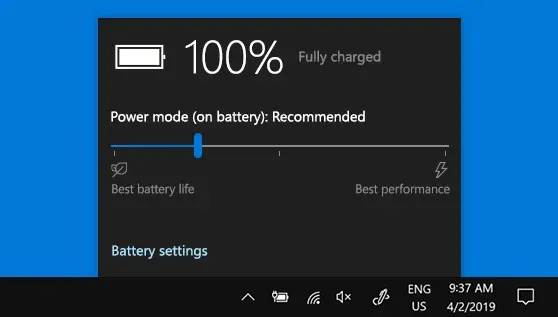
Click the battery icon on the taskbar and drag the power mode slider left, toward better battery. Microsoft says this slider depends on the PC maker, so not every Windows 10 laptop has it.
Mac
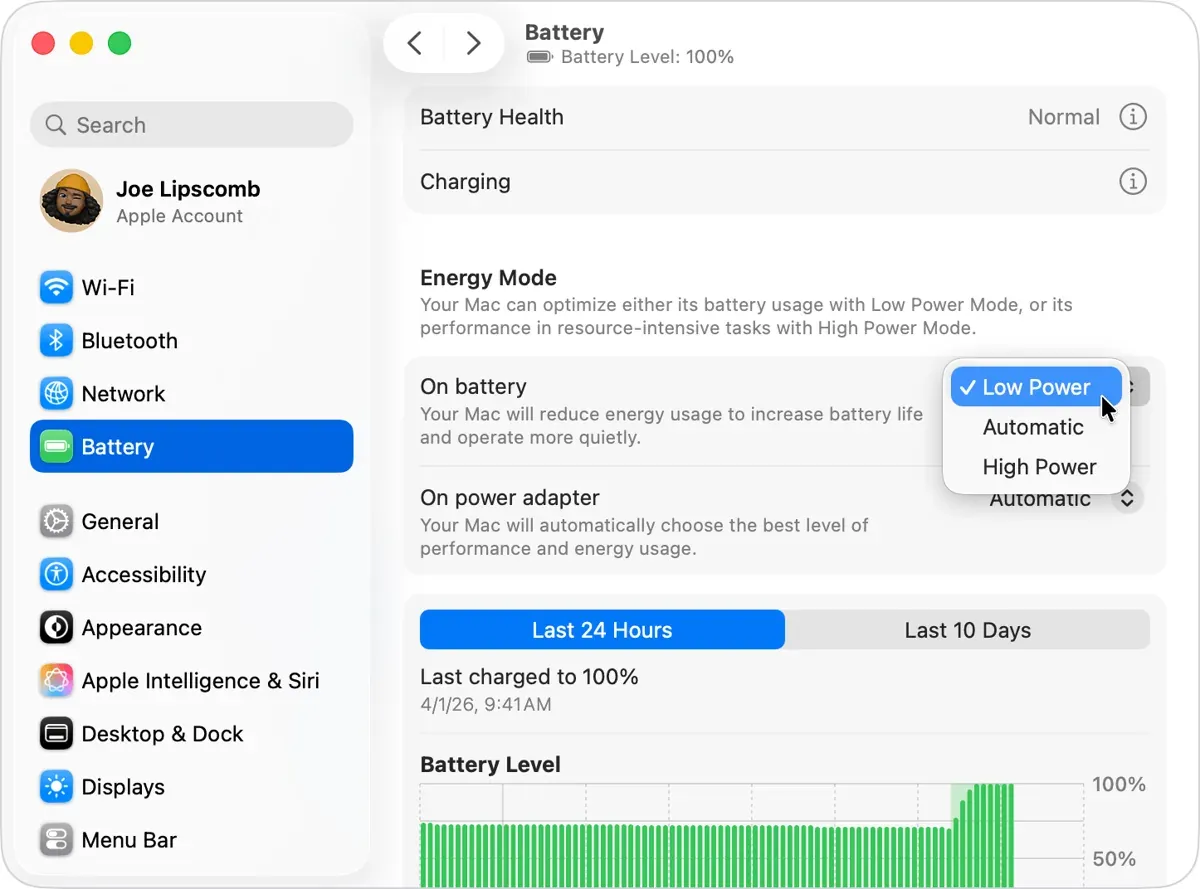
Open Apple menu → System Settings → Battery (on macOS Ventura or later). Under Energy Mode, set On battery or On power adapter to Low Power. Since macOS Sequoia 15.1, Apple says Low Power Mode also reduces fan noise on Macs with fans, but only on some models. These include MacBook Air and MacBook Pro models from 2024 or later, and 2021–2023 MacBook Pros with a Max chip. On older Macs it still saves energy, which means less heat. If you turned on High Power mode for a big export, turn it off when the export is done. Apple says High Power lets the fans run faster.
Linux
Ubuntu, Fedora and most GNOME or KDE desktops use power-profiles-daemon, which you can switch from the system menu or from a terminal:
powerprofilesctl get
powerprofilesctl set power-saver
The project's README describes three profiles: balanced (the default), power-saver, and performance. Performance only shows up on some hardware. Use powerprofilesctl set balanced to go back.
Step 5: Use your laptop maker's fan mode
This step gets skipped a lot. Most Windows laptops have a thermal or fan mode in the maker's own app, and it can override what Windows is set to. If someone left a gaming laptop in its performance mode, the fan will be loud even on the desktop.
| Brand | Where to find it | Quietest option | Coolest option |
|---|---|---|---|
| Lenovo | Lenovo Vantage or Lenovo PC Manager; shortcut Fn + Q on most models | Power Saving (Quiet) | Auto (Balance) for everyday use |
| HP | HP Command Center → Thermal Profile (supported models) | Quiet | Cool |
| Dell | Dell Optimizer (replaces Dell Power Manager) → Thermal Management; some BIOS setups too | Quiet | Cool |
| ASUS | MyASUS → Device Settings → Fan Profile / ASUS Intelligent Performance Technology; Fn + F on many models. ROG/TUF use Armoury Crate | Whisper | Standard (Performance cools harder but runs louder) |
| Microsoft Surface | Windows Power mode (Step 4) | Balanced / Recommended | Balanced / Recommended |
"Quiet" and "Cool" are different things, and people mix them up. Dell's guide is clear about it. Quiet lowers fan and processor speed, so the laptop gets quieter but the case can get warmer. Cool raises the fan speed to keep the surface cooler, so it gets louder. If your complaint is noise, pick Quiet. If it's heat (a hot palm rest, throttling, shutdowns), pick Cool and put up with the noise until you've done Step 8. Dell also warns that if a fan has failed, its thermal management option is disabled. A greyed-out thermal setting on a Dell is a clue in its own right.
Lenovo's Auto (Balance) mode switches between performance and quiet depending on what you're doing. On Lenovo laptops I'd leave it there and use Fn + Q to drop to Quiet for calls or late-night reading.
Step 6: Update the BIOS, drivers and OS
Fan curves live in the BIOS/UEFI firmware, so a firmware update can change how the fan behaves. Dell and ASUS both put BIOS, driver and Windows updates on their first-line overheating checklist. Apple's first tip for a hot Mac laptop is to install every software update.
- Windows: run Windows Update, then the maker's updater (Lenovo Vantage, HP Support Assistant, Dell SupportAssist or Dell Command Update, MyASUS → System Update). Let it handle the BIOS update. Keep the charger plugged in and don't shut down mid-flash.
- Dell (and other Intel laptops): Dell lists a missing or outdated Intel Dynamic Tuning driver as a known cause of fan and heat problems on Intel-based laptops. Get it from the maker's driver page for your model, not a random download site.
- Graphics drivers: a bad GPU driver can keep the graphics chip busy at idle. Use the laptop maker's driver or the version from Intel, AMD or NVIDIA.
- Mac: System Settings → General → Software Update.
- Linux: update through your distro, and install firmware updates through
fwupd(GNOME Software or KDE Discover show them) where your laptop maker supports it.
Step 7: OS-specific fixes for Windows, Mac and Linux
Windows: check the cooling policy and processor cap
Windows power plans have two settings that affect the fan, and Microsoft documents them in its processor power policy notes. System cooling policy has two values. Active speeds up the fan before slowing the processor. Passive slows the processor first. Maximum processor state caps how hard the CPU can run as a percentage. To find them, open Control Panel → Power Options → Change plan settings → Change advanced power settings → Processor power management.
Many modern laptops hide these because the maker's firmware or thermal app handles cooling. If they aren't there, use Step 5 instead. If they are, setting System cooling policy to Passive on battery makes the laptop slow down before it gets loud. Set it back to Active if you see throttling in games.
You can also do it from an admin Command Prompt. This sets the current plan to Passive on battery and Active when plugged in:
powercfg -setdcvalueindex SCHEME_CURRENT SUB_PROCESSOR SYSCOOLPOL 0
powercfg -setacvalueindex SCHEME_CURRENT SUB_PROCESSOR SYSCOOLPOL 1
powercfg -setactive SCHEME_CURRENT
I wouldn't set Maximum processor state below about 90% as a permanent fix. It will make the laptop quieter, but it also hides a problem you should find in Steps 2 and 8.
Mac: restart, or reset the SMC on Intel
If the fans keep running fast on a Mac that isn't busy and has plenty of airflow, Apple's advice depends on the chip:
- Apple silicon (M1 and later): close and open the lid, or restart. Apple says the SMC resets automatically on these Macs when you restart, so there's no key combination to learn.
- Intel Mac with a T2 chip (most 2018–2020 models): shut down, then hold Control (left) + Option (left) + Shift (right) for 7 seconds, add the power button for another 7 seconds, release, wait, and power on.
- Older Intel MacBooks without T2: shut down, hold Shift + Control + Option (all on the left) plus the power button for 10 seconds, release, and power on.
Apple lists "fans are running fast" and "Mac laptop gets too warm" as two of the problems an SMC reset can fix on Intel Macs. For an old Intel MacBook that also drains its battery overnight, my Mac battery drain while asleep guide covers the sleep side of it.
Linux: read the sensors and don't stack power tools
To see real temperatures and fan speeds, install lm-sensors and let it detect your chips (Debian/Ubuntu commands shown; Fedora uses dnf):
sudo apt install lm-sensors
sudo sensors-detect
sensors
On Intel laptops, Intel's thermald daemon uses the chip's power-capping features to keep temperatures in check. Check that it's running with systemctl status thermald, and install it from your distro if it's missing.
One common mistake: running two power managers at the same time. The TLP docs warn that installing TLP from its PPA removes Ubuntu's default power-profiles-daemon. Pick one (TLP or power-profiles-daemon, plus thermald on Intel) and don't layer CPU-governor scripts on top. If you switched an old Windows laptop to Linux, my Linux Mint vs Ubuntu vs Zorin OS comparison notes which ones are lighter on older hardware.
Step 8: Clean the vents and run a fan test
If the laptop is a couple of years old and the fan is loud even at idle with nothing in Task Manager, dust is the likely cause. Dust packs into the cooling fins between the fan and the vent, so the fan has to spin harder to push the same air. ASUS adds that smoke residue makes this worse, because it's sticky and catches dust.
Cleaning safely
- Shut the laptop down fully (not sleep) and unplug the charger and everything else.
- Look at the intake and exhaust vents on the bottom, sides, back or hinge.
- Use a can of compressed air in short bursts from a little distance. Hold the can upright so liquid doesn't spray out. Dell and ASUS both say this. Wipe around the vents with a dry microfiber cloth.
- Don't use a workshop air compressor. ASUS says it has seen compressors damage fan blades.
If the dust is inside past the vents, or the laptop is out of warranty and you're thinking about fresh thermal paste, that means opening the case. ASUS recommends its service centre for internal cleaning. On a laptop under warranty, I'd use the maker's service too, because opening it yourself can affect coverage depending on the brand and where you live.
Run the maker's fan diagnostic
- Dell: run the SupportAssist fan test, or the built-in ePSA diagnostics at boot.
- ASUS: MyASUS → System Diagnosis → Diagnostic Tool → tick Fan → Checkup.
- HP and Lenovo: both ship hardware diagnostics through their support apps (HP PC Hardware Diagnostics, Lenovo Vantage / Lenovo Diagnostics). Check the support page for your model.
- Mac: Apple Diagnostics. On Apple silicon, shut down, hold the power button until Options appears, then hold Command-D. On Intel, hold D (or Option-D) at startup. Write down any reference code for the repair desk.
If the diagnostic flags the fan, or the fan grinds, rattles, or runs at full speed with no load after all of the above, that's a repair. Dell lists exactly those symptoms as the point to contact support.
Quick reference
| What you notice | Likely cause | Try first |
|---|---|---|
| Loud only during games, exports or big downloads | Normal cooling under load | Nothing; let it finish. Use a quieter mode if it bothers you |
| Loud at idle, one app high in the CPU list | Runaway process or browser tab | Close it; Efficiency mode on Windows 11; trim startup apps |
| Loud on the bed or sofa, fine on a desk | Blocked intake or exhaust vents | Hard, flat surface; a stand that lifts the base |
| Loud since you changed a setting or game mode | Performance / Ultra mode left on | Windows Power mode to Balanced; maker app to Quiet/Balanced |
| Mac shows high kernel_task | macOS throttling because it's hot | Find the real heat source; check airflow; restart |
| Intel Mac fans fast with nothing running | SMC stuck | Reset the SMC |
| Older laptop loud at idle, nothing in Task Manager | Dust in the vents or fins | Compressed air through the vents; service if it's inside |
| Grinding, rattling or ticking | Failing fan bearing or debris in the fan | Run the fan diagnostic; book a repair |
| Shuts off when hot | Cooling can't keep up | Stop heavy use, clean vents, run diagnostics, get service |
Related guides: if you're working through something similar, I've also covered customizing the Windows 11 right-click menu and what Windows 10's extension to October 2027 means. Console player? My PS5 overheating fix covers the same airflow problem on a PS5.
FAQ
Is it bad if my laptop fan is always running?
Not by itself. Plenty of laptops idle with the fan ticking over quietly, and ASUS says some models keep it stopped until they hit a set temperature, so "always on" and "never on" can both be normal. The real question is whether it gets loud when you're just typing. If it does, go back to Step 2. Full speed with nothing running, or any grinding, means it's time for the diagnostic in Step 8.
Why is my laptop fan loud when it's charging?
A battery warms up as it charges, and Microsoft's Surface page says the fan may kick in more until it hits 100%. Plug in at 5% and launch a game and you've got two heat sources fighting for one little fan. Give it twenty minutes on the charger first. If the cells are old, check the battery health on Windows 11; a worn pack is worth knowing about anyway.
Why does the fan keep running when the laptop is asleep?
Sleep isn't off. Per the ASUS FAQ, the CPU and GPU keep ticking in sleep mode, so if you closed the lid mid-game the fan stays on until the heat bleeds away. For a bag, hibernate or shut down. Warm when you pull it out later? Then something woke it, and that's a separate hunt.
Does a cooling pad actually help?
Depends on the laptop. Flip yours over: if there are big intake grilles underneath, propping up the back gives them space, and that's why ASUS mentions pads and stands. Plenty of thin models breathe mostly through the keyboard or sides, and for those a pad barely matters. No pad will rescue a heatsink full of fluff, though, or a tab chewing a whole core.
Should I use a fan control app to make it quieter?
I don't, and I wouldn't start there. Apple and ASUS both tell you not to judge hardware by third-party temperature apps, which read sensors inside the chip rather than the case you touch. If you slow the fan by force, the heat doesn't go anywhere; the chip just throttles or runs hotter. The Quiet or Whisper mode from your maker was built for your exact cooler, so try that first.
How hot is too hot for a laptop?
There isn't one number that works for every laptop, and the makers don't publish chip limits as a target for users. Use the signs instead. Shutting off from heat, a case too hot to rest your hands on, or performance falling off a cliff under steady load means it's running too hot. Apple also says the case is much cooler than what internal sensors report, so a high reading in a monitoring app isn't proof of a fault.
Still loud after all eight steps? Drop your brand, model and OS in the comments with whatever sits at the top of the CPU list, and I'll take a look.

Comments ()