PS5 Overheating or Shutting Off? Fix It Before GTA 6
PS5 throwing heat warnings or switching off mid-game? Here's how to fix airflow, clean out the dust and spot a repair job, ahead of GTA 6 on 19 November.
Updated 11 November 2026. Checked against Sony's PS5 manuals and support pages, iFixit's PS5 guides and Rockstar's GTA 6 release details today. Room temperature limits added on 11 November 2026 from Sony's PS5 safety guide and instruction manual.
Short answer: if your PS5 throws a "too hot" warning or just switches itself off mid-game, the cause is nearly always airflow. Give it 10 cm (about 4 inches) of space on every side, get it out of the cabinet, take the side covers off and vacuum the dust, and put the covers back properly. If it still shuts down after that, it's a repair job, and Sony's repair tool is the next stop. One thing people miss: Sony rates the PS5 for rooms between 5 °C and 35 °C, so on a hot afternoon the room itself can be the problem.
I'm writing this now because posts about PS5s cutting out and flashing heat warnings have been piling up on X this week, and GTA 6 lands on 19 November 2026. If your console is going to struggle with a big open-world game, better to find out and fix it in the next three weeks than on launch night.
Jump to:
- Is it actually overheating?
- Step 1: Turn it off and let it cool
- Step 2: Give it room to breathe
- Step 3: Clean the dust out
- Step 4: Check the covers and your M.2 SSD
- Step 5: Rule out power and HDMI problems
- Step 6: Update the console and the game
- What temperature is too hot for a PS5?
- Step 7: When it's a repair job
- Symptoms and fixes (table)
- FAQ
Is it actually overheating?
A PS5 doesn't show you a temperature reading anywhere, so you have to go by what it does. These are the signs Sony and repair shops point to:
- An on-screen warning that the console is too hot. Sony's manuals say that if you keep playing while that message is up, the console can become "non-operational". Take it seriously.
- It powers off by itself during heavy games, then turns back on fine after a break.
- The fan is suddenly a lot louder than it used to be. Some fan noise during demanding games is normal, Sony says so on its console noise page. A jump compared with how it sounded a year ago is the clue.
One thing that trips people up: the pulsing red "overheating" light you'll read about online is a PS4 thing. On a PS5 the light bar only shows white, blue or orange, according to Sony's power indicator page. If yours is blinking white or stuck on blue, that's a frozen console, not a heat warning, and the fix is different (unplug it, wait three minutes, plug it back in).
Step 1: Turn it off and let it cool
When the heat warning shows up, don't push through to the next save point. Sony's instructions are simple: turn the console off and wait until it cools down.
- Save if the game lets you do it quickly, then press the PS button and go to Power > Turn Off PS5.
- Wait for the light to go out completely before you touch the cable.
- Leave it off. iFixit suggests giving it about an hour. I'd use that time to do Step 2 and Step 3, since you need it cold and unplugged for those anyway.
Use Turn Off, not Rest Mode. Rest Mode keeps parts of the console powered for downloads and charging, which is the opposite of what you want right now.
Step 2: Give it room to breathe
This is the fix that matters most, and the one people skip because it means moving furniture. The PS5 pulls cool air in and pushes hot air out through the vents at the back, and Sony asks you not to block the side or back vents. Sony's manuals and support pages ask for:
- At least 10 cm (4 in) of clear space around the console, including from the wall behind it.
- No closed cabinets. That TV unit with a glass door is a heat trap. An open shelf is fine. A closed one isn't.
- Nothing on top of it or over it. No cloth covers, no stacked game boxes, no router sitting on the vents.
- Not on a thick carpet or bed, where the intake gets smothered.
- Use the stand or the feet that came with it. Lying flat directly on a surface, without the included feet, cuts off airflow underneath.
Also think about what's around it. A PS5 squeezed next to a set-top box, a soundbar and a router is breathing everyone else's hot air. If your room gets hot in summer (anyone playing in Delhi in May knows), the console has less headroom to begin with, so the spacing matters even more.
Standing it up or laying it down both work, Sony supports both. The original PS5 came with a stand that does either job. On the Slim and Pro the vertical stand is sold separately, so don't balance one upright on its bare edge.
Step 3: Clean the dust out
If your PS5 is a few years old and has never been opened, there's dust in it. Sony actually designed for this: the side covers come off without tools, and the manuals tell you to vacuum the dust that collects underneath them.
- Turn the console off (Power > Turn Off PS5), unplug the power cable and every other cable, and let it cool.
- Lay it on a soft cloth so you don't scratch it. Remove the stand or the feet first.
- Take the cover off. On every model you lift the edge slightly to release the clips and slide it off. The exact direction differs between the original, Slim and Pro, so check the manual for your model number (it's on the back label, something like CFI-1215 or CFI-2015).
- Vacuum gently with a low-powered vacuum and a narrow nozzle: the vents, the fan intake and, on the original model, the two dust catchers. Those are two small holes Sony built in specifically so dust collects there and can be vacuumed out.
- Clip the cover back on until you hear it click all the way round.
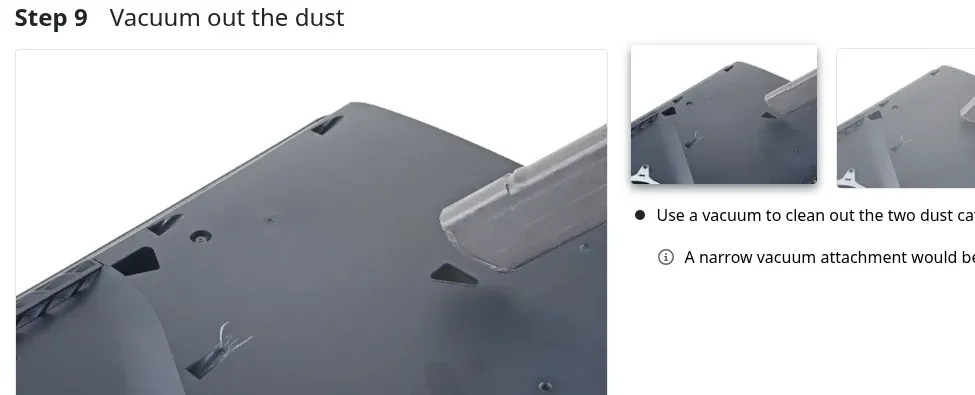
A few don'ts, because this is how people wreck consoles. Don't use a powerful shop vac pressed hard against the fan. Don't spin the fan up with compressed air (hold the blades still if you use it at all). And don't unscrew anything beyond the covers unless you know what you're doing, that's where warranties end.
Once it's clean, check the vents at the back aren't clogged with pet hair too. That's the exhaust, and if it can't get out, nothing else you do helps.
Step 4: Check the covers and your M.2 SSD
Two easy-to-miss things here.
Covers. Sony is clear that you should never run the PS5 without its covers, and that covers fitted badly can cause overheating. The covers are part of how air is channelled through the console. A cover that's half-clipped, or a third-party "cooling" faceplate with odd vent patterns, can mess that up. If the problem started after you swapped covers, put the originals back and test.
The M.2 SSD. If you added extra storage, Sony requires it to have a heatsink or a heat-transfer sheet (or both). A bare SSD isn't supported. Sony's manuals specifically say to check that the SSD's heat-dissipation parts haven't come loose if the console is overheating. Open the expansion slot cover and make sure the heatsink is still stuck on and the slot cover is screwed back down. If you bought extra storage for GTA 6 because of its file size, which I covered in how to free up space for GTA 6, this is worth a 30-second look. My NVMe vs SATA SSD guide covers what kind of drive is actually worth buying.
Step 5: Rule out power and HDMI problems
Not every "it turns itself off" is heat. If it shuts down even when the console is cool, or it happens on the home screen, check these before blaming the fan:
- HDMI Device Link. This lets your TV and PS5 turn each other on and off. If the TV goes to sleep, it can take the PS5 with it. Go to Settings > System > HDMI and turn off Enable HDMI Device Link for a day to test.
- The power cable and socket. The PS5 uses a standard two-pin figure-8 cable (IEC C7). A loose plug or a cheap, worn extension board can cut power for a split second, which looks exactly like a random shutdown. Plug it straight into the wall and try a different cable if you have one.
- A blinking white or solid blue light means it froze rather than overheated. Unplug, wait three minutes, plug back in. If it keeps happening, boot into Safe Mode (hold the power button until the second beep, about seven seconds, then connect the controller by USB and press PS) and use the option to reinstall system software. Sony walks through this on its Safe Mode page.
Step 6: Update the console and the game
Updates won't fix dust, but they're free and they rule things out. Go to Settings > System > System Software > System Software Update and Settings and install anything waiting. Then check the game itself for a patch. If only one game ever shuts the console down and everything else runs fine, that game may simply be the heaviest thing you own, which tells you the cooling is marginal and Steps 2 to 4 are where to look.
If the shutdowns happen alongside lag spikes in online games, that's two separate problems. My high ping and lag fix guide handles the network side.
What temperature is too hot for a PS5?
Sony's PS5 manual lists an operating temperature of 5 °C to 35 °C (41 °F to 95 °F). That's the air in the room, not the console. Above that, the fan is pushing hot air over hot parts, and there's only so much it can do.
This matters a lot in India. In May and June, plenty of rooms without AC sit above 35 °C in the afternoon, and a console that was fine all winter can start throwing warnings without anything being wrong with it.
- Check the room. A cheap digital thermometer next to the console tells you more than guessing. If it reads over 35 °C, fix the room before you open the console.
- Keep it out of the sun. Sony's safety guide warns against direct sunlight and heat sources. A TV unit next to a sunny window counts.
- Cool the room, not the console. A ceiling fan or AC running in the room does more than any clip-on console fan.
- If the warning keeps coming back, Sony's safety guide says to turn the console off, let it cool, and check that the heat dissipation parts on an added M.2 SSD are fitted properly.
If the room is under 35 °C, the console has space on every side, it's clean, and it still overheats, then it really is the console. That's when the repair step below comes in.
Step 7: When it's a repair job
If you've given it space, cleaned it, refitted the covers and it still overheats or shuts off in normal conditions, stop there. Something inside needs looking at, and you can make it worse.
The common culprit people mention is the thermal compound on the main chip. The PS5's processor uses liquid metal instead of normal thermal paste, as iFixit notes in its guides. Liquid metal conducts electricity, so if it ends up somewhere it shouldn't, it can short components on the board. That's why repair shops warn against redoing it at home. This isn't a weekend YouTube project.
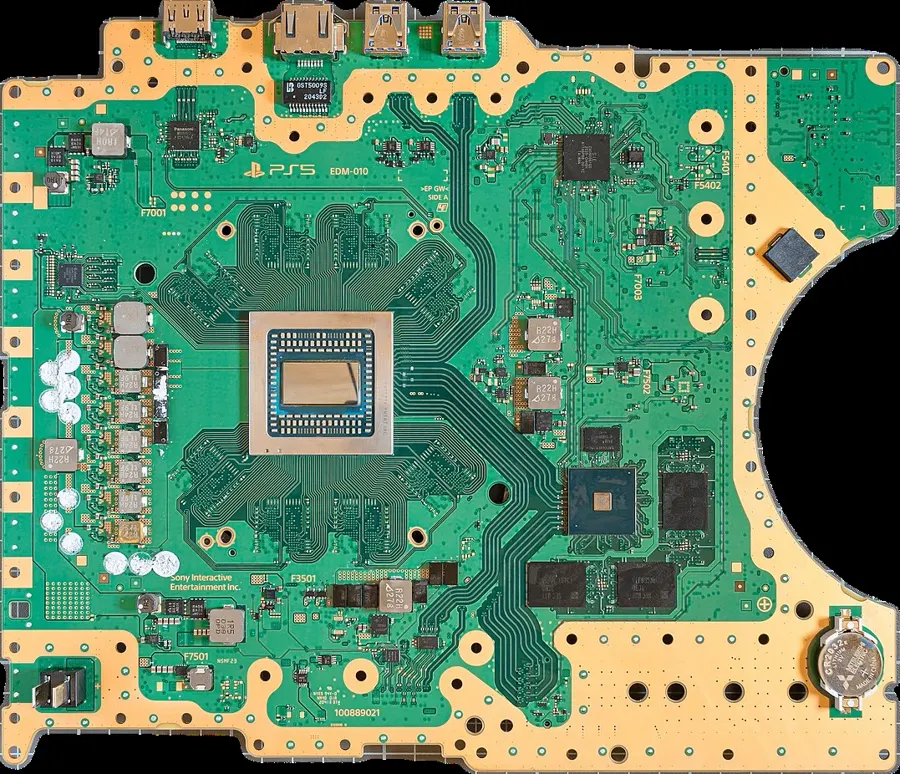
What to do instead:
- Check whether you're still under warranty. Sony's PS5 power issues page links to its PlayStation Repairs tool, which lists "turns off while playing" as a problem you can report.
- If you're out of warranty, go through Sony's repair service or a reputable local shop that has done PS5 liquid-metal repairs before. Ask them directly. A shop that has never done one is learning on your console.
- Back up your saves first. PS Plus cloud saves or a USB drive both work.
Honestly, if you're three weeks out from GTA 6 and your console needs a repair, book it now. Turnaround times only get longer closer to a big launch.
Symptoms and fixes
| What you see | Most likely cause | Try this |
|---|---|---|
| "Too hot" message on screen | Blocked airflow or dust | Turn off, cool down, then Steps 2 and 3 |
| Shuts off mid-game, fine after a break | Overheating | Steps 2, 3 and 4 |
| Fan much louder than it used to be | Dust build-up | Step 3 |
| Shuts off when the TV turns off | HDMI Device Link | Step 5 |
| Shuts off even when cool or on the home screen | Power cable, socket or a fault | Step 5, then Step 7 |
| Blinking white or solid blue light | Frozen system | Unplug for 3 minutes, Safe Mode |
| Still overheating after cleaning and spacing | Internal cooling fault | Step 7 (repair) |
If your PS5 started shutting off only recently and none of this sorted it, tell me your model number and what it does in the comments. It helps other people spot patterns too.
Related guides: two more from me that pair well with this one: a laptop that overheats with a loud fan and Crimson Desert DLC crashes. And if you were planning a PS5 desk setup around Sony's new speakers, note that the Pulse Elevate speakers have been delayed.
FAQ
How do I know if my PS5 is overheating?
The PS5 shows an on-screen warning when it gets too hot. Other signs are sudden shutdowns during demanding games and a fan that's much louder than it used to be. There's no temperature readout on the console itself.
Can I check my PS5's temperature?
No. Sony doesn't show the temperature anywhere in the PS5's menus, so you have to go by the warning message and how the console behaves. What you can check is the room. Sony rates the console for 5 °C to 35 °C, so a thermometer next to it is the closest thing to a readout you'll get.
Is it bad to stand the PS5 vertically?
No, Sony supports both vertical and horizontal. Use the official stand or feet and keep 10 cm of space around it either way.
How often should I clean my PS5?
Sony doesn't give a fixed schedule. Check under the covers every few months if you have pets, carpet or a dusty room, and whenever the fan starts sounding louder than usual.
Will GTA 6 overheat my PS5?
A healthy PS5 with good airflow is built to run its heaviest games. A console that's already borderline with dust or a closed cabinet is more likely to struggle with a big new game, so fix airflow before 19 November.
Should I replace the liquid metal myself?
No. Liquid metal conducts electricity and can short the board if it spills. Use Sony's repair service or an experienced shop.
Does a cooling fan stand help?
Sony's manuals don't call for one. Space, a clean console and properly fitted covers are what its manuals ask for. Some add-on fans block the vents they're meant to help, so I'd skip them.
Comments ()