How to Fix High Ping and Lag in Online Games
High ping, spikes or rubber-banding? Find out whether it's Wi-Fi, background uploads, a far server or bufferbloat, then fix it in this order on PC, PS5, Xbox and phone.
Updated 11 November 2026. Checked against Riot Games' network troubleshooting pages for VALORANT and League, Microsoft's Delivery Optimization and pathping documentation, PlayStation's connection guide, Valve's CS2 patch notes and the Bufferbloat project's SQM guides. GeForce NOW figures added on 11 November 2026 from NVIDIA's system requirements page and its network troubleshooting article.
Short answer: high ping is usually one of four things. You're on Wi-Fi, something else in the house is uploading, you're connected to a far-away server, or your router's queue fills up the moment the line gets busy (that last one is called bufferbloat). Turn on your game's network stats, plug in a cable for one match, pause downloads and cloud sync, and check you're on the nearest server region. Do those four and most "my game lags" problems are either fixed or narrowed down to your ISP. Streaming through GeForce NOW or another cloud service? Then your ping to their data centre matters more than any speed test, so use the test inside the app (Step 10).
Below is the order I'd go in, and how to tell real network lag apart from low frame rate, which feels similar but has a different fix.
Jump to:
- Ping, jitter, packet loss or FPS?
- Match your symptom
- Step 1: Turn on network stats
- Step 2: Server and region
- Step 3: Ping your router, then the internet
- Step 4: Try Ethernet
- Step 5: Stop background traffic
- Step 6: Bufferbloat and SQM
- Step 7: VPNs and network reset
- Step 8: Router restart and firmware
- Step 9: Go to your ISP
- Step 10: If you play on GeForce NOW or another cloud service
- What not to bother with
- FAQ
Ping, jitter, packet loss or FPS?
These get lumped together as "lag", but they're different problems:
- Ping (or RTT, round-trip time) is how long a message takes to get to the game server and back, in milliseconds. High but steady ping makes everything feel late. You get shot after you've already ducked behind cover.
- Jitter is how much that number jumps around. A steady 60 ms is often nicer to play on than something that swings between 20 and 150.
- Packet loss is data that never arrives. That's the rubber-banding, the shots that don't register, other players teleporting.
- Low FPS is your PC or console not keeping up. It looks choppy, and it can feel like lag, but no router setting will fix it. For a single-player example, see my Phantom Blade Zero crash and stutter fixes.
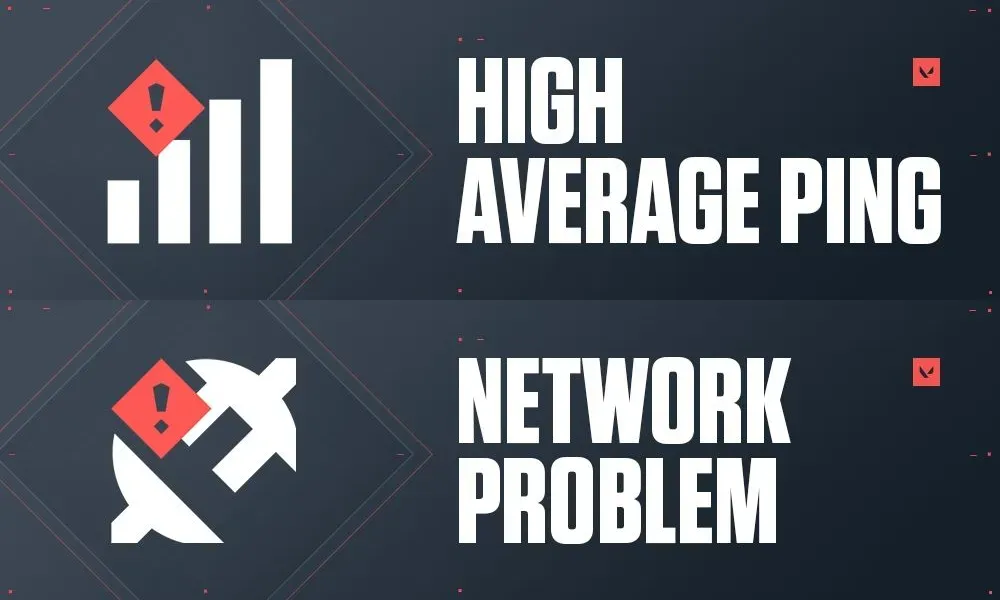
Riot's own support page on high latency and disconnections makes the same split: delayed movement and rubber-banding point to the connection, while choppy, stuttering visuals send you to its low-FPS guide instead. VALORANT even has separate warning icons for each. Its network instability explainer shows "High Average Ping" and "Network Problem" for the network side, plus "Low Client FPS" for your machine and "Low Server FPS" for Riot's end.
Most of what follows works for any online game on PC, PlayStation, Xbox or phone, including Fortnite, CS2, Call of Duty, Apex, League and BGMI. Where a step is specific to one platform, I say so.
Match your symptom
Figure out which one you've actually got before you start changing settings:
| What you notice | Most likely cause | Start at |
|---|---|---|
| Ping is high all the time, even late at night | Wrong or distant server region, or bad routing | Step 2 |
| Ping jumps whenever someone streams, uploads or a console updates | Bufferbloat or background traffic | Steps 5 and 6 |
| Rubber-banding and missed shots, ping looks normal | Packet loss, often Wi-Fi | Steps 3 and 4 |
| Only one game lags, others are fine | That game's servers or its route | Step 2 |
| Lag only in the evening | ISP congestion at peak hours | Step 9 |
| Choppy picture, ping and loss look fine | Low FPS, not the network | Your game's graphics settings |
Step 1: Turn on your game's network stats
You can't fix what you can't see, and the number on a speed test website isn't the number that matters. You want the game's own view of the connection, while you're actually playing.
- VALORANT: under Settings > Video > Stats, set Network RTT and the incoming and outgoing packet loss options to show as text or a graph. Riot says high-quality wireless and most wired connections "should have near-zero packet loss at all times".
- CS2: go to Settings > Game > Telemetry and set Show Ping and Show Packet Loss/Misdelivery to Always. Valve added this telemetry HUD in early 2024 and removed the old
cq_netgraphcommand in the same update. - Xbox: Settings > General > Network settings > Test network speed & statistics shows latency and packet loss.
- PS5: Settings > Network > Connection Status > Test Internet Connection.
Most other big shooters have a similar option buried in their HUD or performance settings. Play a full match with it on and note two things: the usual number and the worst spikes. Those are what you'll compare against after each change.
Step 2: Check the server and your region
Before you touch your own network, rule out the game. Check the game's status page (Riot uses status.riotgames.com, PlayStation and Xbox have their own) and search the game's subreddit for the last hour. If a whole region is lagging, you can't fix that from home.
Then check which server you're on. Distance alone puts a floor under your ping. If you're in India and a match puts you on Singapore instead of Mumbai, you'll see a higher number no matter how good your connection is. Riot's server select page lists Mumbai as a VALORANT server for the region, and many other games let you pin a region in matchmaking settings. US players have the same issue at a smaller scale, for example getting dropped onto a West Coast server from the East Coast.
If ping is high in one game and normal in another, it's very likely that game's server or the route to it, not your house.
Step 3: Ping your router, then the internet
This is the test that tells you whether the problem is inside your home or outside it, and it takes five minutes. On Windows, open Command Prompt and find your router's address with ipconfig. It's the "Default Gateway", often 192.168.0.1 or 192.168.1.1. Then run:
ping -n 100 192.168.1.1
ping -n 100 1.1.1.1
On a Mac or Linux, use ping -c 100 instead. Swap in your own gateway address. Look at the summary at the end: how many packets were lost, and the minimum, maximum and average times.
Your router should answer in a few milliseconds with nothing lost. If you're losing packets or seeing spikes on the router test, the problem is inside your home: Wi-Fi, a cable or the router itself. If the router test is clean but 1.1.1.1 isn't, the trouble is further out.
To see where, run pathping 1.1.1.1. Microsoft's pathping documentation explains it lists each hop and then sends 100 queries to every router on the path, so expect it to sit there computing for a minute or two. One thing that trips people up: a router in the middle that shows loss doesn't matter if the hops after it are fine. Microsoft notes that routers can drop pings addressed to themselves "but this loss doesn't affect their ability to forward traffic". Loss that starts at a hop and continues all the way to the end is the real thing.
Step 4: Play one match on Ethernet
Riot puts this first in its fix list for a reason. Wireless connections, it says, "can be affected by distance, interference, and other devices using the same network." A cable takes all of that out of the picture.
Even if you don't plan to stay wired, run one long cable for one match as a test. If the spikes disappear, you know Wi-Fi is the problem and can decide how to fix it properly. If nothing changes, stop blaming Wi-Fi and go to Step 5.
If a cable really isn't possible:
- Use the 5 GHz (or 6 GHz) band rather than 2.4 GHz if you're within a room or two of the router. It's usually far less crowded, especially in apartment buildings.
- Move the router out of a cupboard or off the floor, and away from the microwave.
- A mesh node or powerline adapter close to the console or PC can help, but test it. Some add their own delay.
- On a PS5 Pro, PlayStation's connection guide suggests trying with and without Multi-Link Operation if you have connection problems.
Phones and tablets are always on Wi-Fi or mobile data, so for mobile games the router placement and band matter more. Standing next to the router for one match is a quick test.
Step 5: Stop background downloads and uploads
A game barely uses any bandwidth. What hurts it is something else on the same line filling it up, and upload is usually the smaller pipe on a home plan. One phone backing up photos, a laptop syncing to OneDrive or a console pulling a 100GB patch can push ping up by a lot while your speed test still looks fine.
The usual offenders, and where to find them:
- Windows updates: Settings > Windows Update > Advanced options > Delivery Optimization. According to Microsoft, turning off "Allow downloads from other devices" stops your PC from downloading from or uploading to other PCs. You can also cap the bandwidth used for background downloads and uploads there. Microsoft notes those limits only cover automatic downloads, not ones you start yourself.
- Steam: Settings > Downloads has "Allow downloads during gameplay". Leave it off if you play online games, and set a schedule for auto-updates so they run while you sleep.
- Cloud sync: pause OneDrive, Google Drive, Dropbox or iCloud while you play.
- Other people: a 4K stream or video call on another device. Not your fault, but it'll still show up in your ping. Step 6 is the proper fix for that.
Open Task Manager (Ctrl + Shift + Esc) and sort the Processes tab by the Network column to see what on your PC is actually using the connection. If ping steadies the moment something stops, you've found it.
Step 6: Test for bufferbloat and turn on SQM
This is the fix most guides skip, and it's the one I'd most want people to know about. When your connection is busy, a lot of routers let a huge queue of data build up and your game's packets wait in line behind it. That's bufferbloat. A normal speed test won't show it, because it measures how fast data moves, not how long you wait.
To check for it, run the Waveform bufferbloat test. It pings while your line sits idle, then keeps pinging while it maxes out your download and upload, and hands you a letter grade at the end. Cloudflare's speed test shows something similar if you look at the loaded latency numbers. Say you get 20 ms idle and 200 ms under load. There's your answer: the game falls apart every time your sister opens Netflix because the router is letting a queue pile up.
What fixes it is a router setting. Depending on the brand it's called SQM (Smart Queue Management), smart queues, or adaptive QoS. The trick is that the router deliberately caps your traffic slightly under the real line speed, so the queue never gets long. OpenWrt has SQM built in, and the Bufferbloat project keeps notes on which routers and firmware can do it. People usually start at about 90% of their measured speeds, re-run the test, and nudge it up or down. Yes, you lose a little top speed. I'd take that trade for a steady ping every time.
Bad news if you're using the box your ISP gave you, though. Lots of the fibre routers Indian ISPs hand out don't have this setting anywhere. Then it's either your own router plugged in behind theirs, or asking the ISP to put their unit in bridge mode.
Step 7: Turn off VPNs and reset the network stack
Riot is blunt here: VPNs and proxies "frequently cause connection problems and must be turned off to troubleshoot". A VPN adds another server to the path, which usually means more distance, not less. Turn yours off, including any "gaming VPN" or ping booster, and test again.
If the connection still feels flaky on one PC only, reset the network settings. On Windows 11 that's Settings > Network & internet > Advanced network settings > Network reset, which reinstalls your adapters and puts settings back to default (you'll need to re-enter Wi-Fi passwords). Riot also suggests renewing your IP and flushing DNS from Command Prompt with ipconfig /release, ipconfig /renew and ipconfig /flushdns, then restarting. And update your network adapter driver from the PC or motherboard maker's site, not just Windows Update.
Now, DNS. Every lag guide on earth says change it. Riot does have "connect to a public DNS server" (1.1.1.1 or 8.8.8.8) on its list, and that's fair if your ISP's DNS is slow or keeps failing to find servers. But think about when DNS actually gets used: once, when your PC looks up the server's address. After that the game talks to that address directly. So your in-match ping stays exactly where it was. If you'd like to switch anyway, my Private DNS guide for Android covers phones.
Step 8: Restart and update the router
Power off your modem and router, wait at least 30 seconds, and turn them back on. Riot recommends the same 30-second wait. If you have a separate modem or fibre box (ONT), bring that up first, then the router, then your console or PC.
If your console isn't lagging but switching itself off mid-match, that's usually heat rather than your network. My PS5 overheating and shutting off guide covers that.
While you're at it, log in to the router and check for a firmware update. Routers that have been running for months without a restart, or on years-old firmware, do strange things. If your router is old enough that it no longer gets updates, it may also be the reason for bufferbloat in Step 6.
Port forwarding and NAT type are a separate issue. They decide whether you can connect to other players and join parties, not how fast your connection is. If you're stuck with a strict NAT on a connection that uses CGNAT (common on Jio, Airtel and many US fixed wireless plans), my CGNAT guide explains what's going on.
Step 9: Take your results to your ISP
If you've done the tests on a cable, with nothing else running, and you still see loss or big spikes past your router, it's time to call your ISP. Riot's VALORANT team notes that when a wired connection doesn't help, the problem "is commonly physical damage to your ISP's cables."
Go in with evidence, not "my game lags." Tell them:
- The pathping or tracert output from Step 3, showing where the loss starts.
- That you tested on Ethernet with other devices off.
- The times it happens. Lag only in the evening points at congestion on their side.
Support teams take that seriously in a way they don't take a screenshot of a speed test. If they keep brushing you off and the problem is specific to their network, switching ISPs is sometimes the only real fix. In a lot of Indian cities, the difference between two fibre providers on the same route can be big.
Step 10: If you play on GeForce NOW or another cloud service
Cloud gaming flips the problem around. Your PC, TV or phone is only showing a video stream, so the number that matters is your ping to the streaming company's data centre, not to the game server. A 300 Mbps plan won't help much if that round trip is long or jumpy.
NVIDIA is unusually specific about what GeForce NOW needs, so I'll use it as the example:
- Latency: under 80 ms to an NVIDIA data centre is the minimum. NVIDIA recommends under 40 ms for the best experience.
- Bandwidth: at least 15 Mbps for 720p at 60 fps, and 25 Mbps for 1080p at 60 fps.
- Connection: a cable or a 5 GHz Wi-Fi network. NVIDIA says 2.4 GHz Wi-Fi isn't recommended.
- Test inside the app: in GeForce NOW, open Settings, leave Server Location on Auto and hit Test network. NVIDIA's support article points you to this test rather than a general speed test site.
- VPN off: NVIDIA's troubleshooting steps also tell you to turn off any VPN or proxy, for the same reason as Step 7.
If the in-app test comes back over 80 ms, the earlier steps still apply, just in a different order. Get on a cable or 5 GHz first, then deal with uploads and bufferbloat. If it's still high after that, you're probably just a long way from the nearest data centre, and nothing on your side fixes distance.
What not to bother with
- Ping booster apps that promise lower ping. Most are VPNs with a gaming logo. They can help in the rare case where your ISP's route to a server is unusually bad, but they can't beat the physical distance to the server, and Riot asks you to turn them off when troubleshooting.
- Registry tweaks and "TCP optimisers". A lot of these are years old and were written for older versions of Windows. Most modern games use UDP anyway.
- Paying for faster internet to fix ping. A 1 Gbps plan won't help if the problem is Wi-Fi, a busy upload or a distant server. Fix bufferbloat first. Then see if you still need the upgrade.
More guides on Gaming & PC hardware:
- Steam Crashing on Launch With AMD Radeon? Fix It
- Controller Not Detected on PC? Steam, Xbox, PS5
- NVMe vs SATA SSD: Does It Matter for Gaming?
- Steam Deck vs ROG Xbox Ally X vs Legion Go S (2026)
- Steam Deck Black Screen After Update: How to Roll Back
- PS5 Overheating or Shutting Off? Fix It Before GTA 6
- GTA 6 Is 212GB on PS5: How to Free Up Space
- Phantom Blade Zero Crashing on PC? Fixes That Work
- Crimson Desert DLC Crashing or Not Showing? How to Fix
- Enshrouded Crashing or Saves Missing? 1.0 Fixes
- Should You Wait for RAM Prices to Drop? (2026)
- Buy a GPU Now or Wait? 2026 Prices by Tier
- Budget PC Build 2026: Beat the RAM Prices With AM4
FAQ
What is a good ping for online games?
Lower is better, and steady matters as much as low. Under about 50 ms feels snappy in fast shooters, and most games stay playable up to around 100 ms. CS2's telemetry HUD flags ping as poor above 100 ms by default. Above that, you'll notice the delay.
Why is my ping high when my internet is fast?
Because speed and latency measure different things. Speed is how much data moves per second; ping is how long one message takes. Distance to the server, Wi-Fi interference and bufferbloat all raise ping without lowering your speed test result. Cloud gaming is the extreme case. GeForce NOW can have plenty of bandwidth and still feel laggy if you're more than 80 ms from NVIDIA's nearest data centre.
Does Ethernet really lower ping?
It often lowers the spikes more than the average. A cable removes interference and the delays that come with weak Wi-Fi signal. That's why both Riot and most other game support pages tell you to try a wired connection first.
Can changing DNS reduce ping in games?
No, not the ping you see in a match. DNS only turns a server name into an address. A faster DNS can make connecting quicker, and Riot suggests a public DNS when connections fail, but it doesn't change the route your game data takes.
Why does my game lag only at night?
Evenings are when everyone in your area is online, so ISP networks are busiest then. If your router test is clean and the lag starts past your router mostly at peak hours, that points at ISP congestion. Record the times and show them to your ISP. Big launches make it worse on the game's side too. After WoW Forever's record launch, Blizzard had to cut the player population in its most crowded zones.
Still lagging?
Leave a comment with the game, your platform, whether you're on Wi-Fi or cable, and what the router and 1.1.1.1 ping tests showed. I'll help where I can and add any patterns I see to this guide.
Comments ()