Linux Mint vs Ubuntu vs Zorin OS for Old Windows 10 PCs
Reviving an old Windows 10 PC? Linux Mint 22.3, Zorin OS 18.1 and Ubuntu 26.04 compared on RAM needs, support dates, Windows feel and price.
Updated 11 November 2026. Versions, support dates and hardware requirements checked against linuxmint.com, Ubuntu's 26.04 LTS release notes and release-cycle page, and Zorin's technical details and system requirements pages. Driver steps checked against Linux Mint's installation guide and Zorin's NVIDIA driver help page.
Short answer: for most old Windows 10 laptops and desktops, I'd install Linux Mint 22.3 Cinnamon, or the Xfce edition if the machine has 4 GB of RAM or less. Pick Zorin OS 18.1 Core if you want something that looks and behaves the most like Windows out of the box. Pick Ubuntu 26.04 LTS only if the PC has 6 GB of RAM or more and you want the newest kernel and the biggest pool of online help. Whichever you choose, open its driver tool once after installing so graphics and Wi-Fi get the right driver.
All three are free, all three run only on 64-bit Intel or AMD PCs, and all three will run happily from a USB stick before you commit, so you can try every one of them this weekend without touching Windows. If you're still deciding whether to leave Windows 10 at all, my Windows 10 updates extended to October 2027 post covers the free ESU route and how long it actually buys you.
Jump to:
- Quick comparison table
- Linux Mint: the safe default
- Zorin OS: the most Windows-like
- Ubuntu: newest, but heaviest
- Which one for your PC
- Step 1: Check your PC is 64-bit
- Step 2: Back up and note your Windows key
- Step 3: Make a bootable USB
- Step 4: Try it live before installing
- Step 5: Install alongside or instead of Windows
- Step 6: Check drivers on first boot
- FAQ
Quick comparison table
| Linux Mint 22.3 | Zorin OS 18.1 Core | Ubuntu 26.04 LTS | |
|---|---|---|---|
| Released | 13 January 2026 | 15 April 2026 (18.0: 14 October 2025) | 23 April 2026 (26.04.1 is the current ISO) |
| Based on | Ubuntu 24.04 LTS | Ubuntu 24.04 LTS | Its own base, Linux 7.0 kernel |
| Free updates until | April 2029 | At least June 2029 | April 2031 (ESM with Ubuntu Pro to 2036) |
| Minimum RAM (official) | 2 GB (4 GB recommended) | 2 GB | 6 GB for the main desktop |
| Disk space (official) | 20 GB (100 GB recommended) | 15 GB (Core) | 25 GB |
| CPU | 64-bit | 1 GHz dual-core, 64-bit Intel/AMD | 2 GHz dual-core or better |
| Desktop | Cinnamon, Xfce or MATE | GNOME with Windows-like layouts; Lite uses Xfce | GNOME 50 (flavours like Xubuntu, Lubuntu for weaker PCs) |
| Price | Free | Core free; Pro $47.99 one-time (about ₹4,500) | Free; Ubuntu Pro free for personal use on a few machines |
| Windows .exe support | Install Wine yourself | Built-in optional Windows App Support | Install Wine yourself |
| Best for | Most old PCs and first-time switchers | People who want it to look like Windows 11 or 10 | Newer old PCs (6 GB+) and people who want the latest kernel |
The INR figure is a straight conversion at roughly ₹95 to the dollar; Zorin sells Pro in USD and adds local tax at checkout, so your final number will move a little.
Linux Mint: the safe default
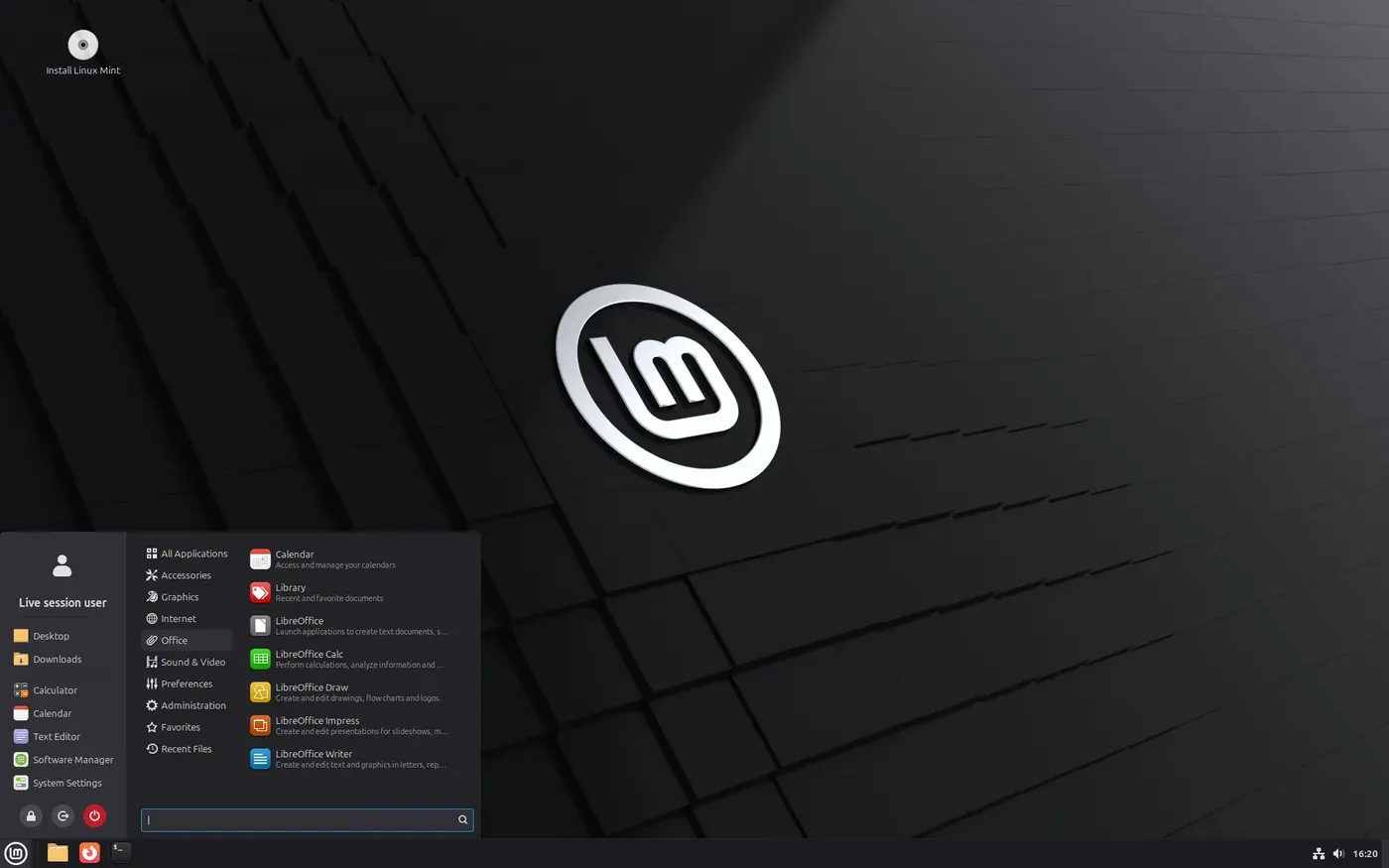
Mint is the one I point people to first, and the reason is boring in a good way. The Cinnamon desktop has a Start-style menu bottom-left, a taskbar, a system tray, and windows that minimise and maximise where you expect. Nothing about it asks you to learn a new way of working on day one.
The current release is 22.3 "Zena", out since 13 January 2026 and supported until April 2029. It ships Cinnamon 6.6 with a redesigned menu, a new System Information tool, and Timeshift for system snapshots, which is the closest thing Linux has to Windows System Restore and genuinely useful on a machine you're still learning.
The bit that matters for an old PC is the choice of desktop. Mint officially needs 2 GB of RAM and recommends 4 GB. On a 4 GB laptop with a hard drive, I'd take the Xfce edition over Cinnamon; it's the same Mint underneath with a lighter desktop on top. MATE sits in between.
One thing to know before you install: Mint's next big release, Linux Mint 27 "Adrien", is planned for Christmas 2026 on the Ubuntu 26.04 base. The project dropped the "23" name in October, and there won't be point releases after it. If you install 22.3 now, you're covered until 2029 anyway, and Mint has offered in-place upgrade tools between major versions before, so there's no reason to wait.
The weak spot is hardware that's brand new rather than old. Mint 22.3 runs kernel 6.14, with a newer 6.17 kernel available as an update, so very recent Wi-Fi chips can lag behind Ubuntu 26.04's 7.0 kernel. On a Windows 10-era machine that's rarely an issue.
Zorin OS: the most Windows-like
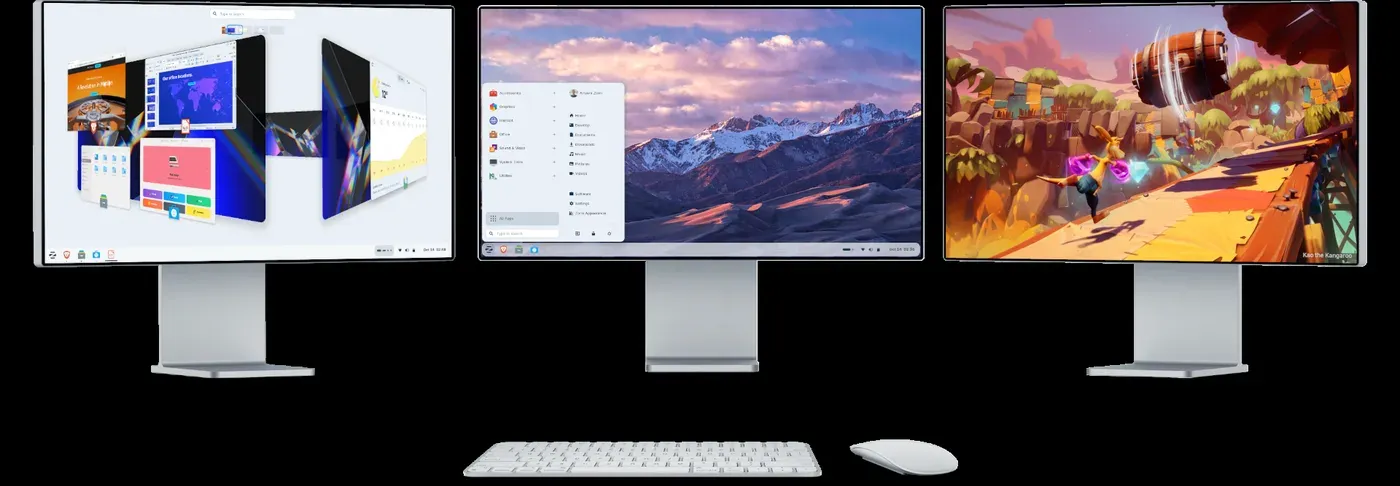
Zorin exists for exactly this crowd. The free Core edition includes four layouts, including a Windows-like one, so the taskbar, Start menu and system tray land where a Windows 10 user's hands already go. It's also the only one of the three with a built-in, optional Windows App Support feature for .exe and .msi installers. That runs through a compatibility layer, so plenty of Windows software won't work, but for small utilities it saves you a trip to the terminal.
Zorin OS 18.1 came out on 15 April 2026, sits on Ubuntu 24.04 LTS with kernel 6.17, and Zorin says it will support version 18 until at least June 2029. Minimum specs are a 1 GHz dual-core 64-bit CPU, 2 GB of RAM and 15 GB of disk for Core. There's also a Lite edition with the Xfce desktop, which is the one I'd use on a slow 4 GB machine.
Is Pro worth $47.99? Honestly, for an old PC, no. Pro adds eight more layouts (including macOS-like and Windows 11-like), a bundle of creative and productivity apps, and email install support. Those apps are mostly free open-source tools you could install yourself. Buy it if you want to support the project or you really want the Windows 11 look; Zorin lets you upgrade Core to Pro in place later, so there's no penalty for starting free.
The trade-off is that Zorin's Core desktop is GNOME-based, which is heavier than Mint's Xfce. On a 4 GB laptop the Core edition can feel sluggish; that's what Lite is for.
Ubuntu: newest, but heaviest
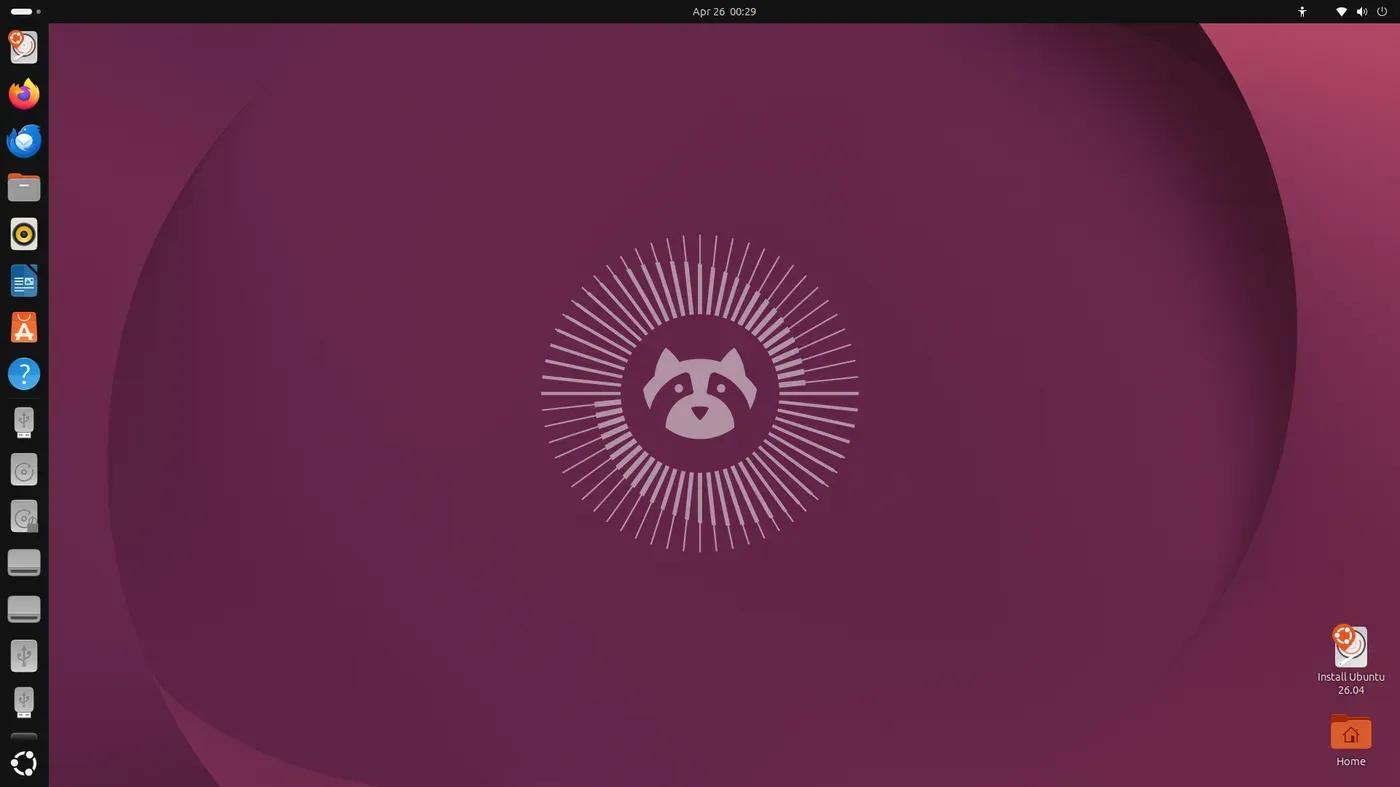
Ubuntu is the base the other two are built on, and it's the best-supported Linux desktop on the planet: almost every Linux how-to you'll find online assumes Ubuntu first. Ubuntu 26.04 LTS "Resolute Raccoon" arrived on 23 April 2026 with GNOME 50 and Linux 7.0, and it gets standard updates until April 2031. Turn on the free Ubuntu Pro tier for personal use and security coverage stretches to 2036.
The catch is right in Canonical's own release notes. Ubuntu Desktop 26.04 now asks for a 2 GHz dual-core processor, 6 GB of RAM and 25 GB of free storage "for a comfortable experience". That's higher than many Windows 10 machines ever shipped with. Canonical itself says that on weaker systems you should use a flavour such as Xubuntu or Lubuntu, which run on 2 GB or more.
I'd also mention the default desktop feels different from Windows. GNOME puts apps behind an Activities overview and a dock on the left. You can get used to it, but someone who just wants their old laptop to "work like before" will be happier on Mint or Zorin.
Where Ubuntu wins: a 2018 to 2020 PC with 8 GB or more, or a laptop where Windows 11 refused to install only because of TPM or CPU rules. That's newer hardware than people assume, and Linux 7.0 handles it well.
Which one for your PC
- 2 to 4 GB RAM, hard drive, 10+ years old: Linux Mint Xfce, or Zorin OS Lite. Swap the hard drive for a cheap SATA SSD if you can; it makes a bigger difference than any distro choice. My 100% disk usage on Windows 11 post explains why spinning drives choke modern systems.
- 4 to 8 GB RAM, SSD: Linux Mint Cinnamon, or Zorin OS Core if you want the Windows look and the .exe helper.
- 8 GB+ RAM, blocked from Windows 11 by TPM or CPU rules: any of the three. Ubuntu 26.04 gives you the newest kernel and the longest support.
- A 32-bit-only PC: none of these. All three are 64-bit only.
- You want to keep Windows around for one app: dual-boot, or run the other way round and keep Windows in a virtual machine. My Proxmox vs Hyper-V vs VirtualBox guide covers VirtualBox, which runs on all three distros.
Gamers should know that Steam runs on all three, and Proton covers a lot of Windows games. Games with kernel-level anti-cheat are the usual exception, so check before you wipe Windows if that's what you play.
Step 1: Check your PC is 64-bit
On Windows 10, open Settings, then System, then About, and look at System type. You want "64-bit operating system, x64-based processor". While you're on that page, note the installed RAM, because it decides which edition you grab.
If it says 32-bit operating system but an x64-based processor, the hardware is fine; Windows was just installed in 32-bit mode.
Step 2: Back up and note your Windows key
Copy Documents, Pictures, Desktop and Downloads to an external drive or cloud storage. Export browser passwords or sign in to browser sync. If you might ever go back to Windows, most Windows 10 PCs store the licence in the firmware, so a clean Windows reinstall usually activates itself, but it costs nothing to check that your Microsoft account shows the device first.
Step 3: Make a bootable USB
Download the ISO from the official site only: linuxmint.com, zorin.com or ubuntu.com. The Ubuntu 26.04.1 desktop ISO is 5.9 GB on Canonical's download page, so use an 8 GB or larger stick for any of them. Write the ISO with a tool such as balenaEtcher or Rufus on Windows. This wipes the USB stick, not the PC.
Step 4: Try it live before installing
Restart, open the boot menu (often F12, F9, Esc or F2, depending on the maker), and boot from the USB. All three start a live session that runs from the stick without installing anything. Check the things that break most often on old laptops: Wi-Fi, sound, brightness keys, the touchpad, sleep, and your printer. A live session runs slower than an installed system, so don't judge speed here, judge hardware support.
Zorin's help pages note that Macs with Apple's T2 chip need extra setup and Apple silicon Macs can't run it natively, so this guide really is for Intel and AMD PCs.
Step 5: Install alongside or instead of Windows
Each installer offers to install alongside Windows (dual-boot) or erase the disk. If the drive is small, say 128 GB, I'd erase and go all in rather than cramp both systems. After the install, run the update manager first, then set up Timeshift snapshots on Mint or a backup tool on Zorin or Ubuntu before you start customising.
If your Wi-Fi works in the live session but not after updates, or the connection says it's up with no internet, the fixes overlap with Windows more than you'd think; my Wi-Fi connected but no internet guide's router and DNS steps still apply.
Related guides: start with my guide to setting up Pi-hole and WireGuard on a Raspberry Pi for the wider home lab picture. I've also covered hosting a Minecraft server behind CGNAT and setting up a Jellyfin home media server.
Step 6: Check drivers on first boot
Most hardware just works on all three, because the drivers ship inside the Linux kernel. On older PCs the exceptions tend to be NVIDIA graphics and the odd Wi-Fi card, and each distro has a tool that finds the right driver for you. Linux Mint's own install guide lists this as one of the first things to do after installing.
- Linux Mint: Menu → Administration → Driver Manager. Tick the recommended driver, click Apply Changes and restart. If you're offline, Mint asks for the install USB so it can pull the driver from there.
- Zorin OS: Zorin Menu → System Tools → Software Updater. When it finishes checking, click Settings… → Additional Drivers, pick the recommended NVIDIA driver (not a Server one), Apply Changes, restart.
- Ubuntu: open Software & Updates and use the Additional Drivers tab, or run
sudo ubuntu-drivers installin a terminal.
Zorin's help page warns that Secure Boot can stop the NVIDIA driver from loading after install. If the driver says it's installed but the desktop still feels like basic graphics, that BIOS setting is the next thing I'd look at. Get the driver sorted and reboot before you start installing apps.
FAQ
Which Linux is best for an old laptop that came with Windows 10?
Linux Mint for most people, because it's light, familiar and supported until 2029. Use the Xfce edition on 4 GB of RAM or less. Zorin OS is the better pick if you want the closest Windows look. Whichever you go with, run its driver tool once after installing (Step 6).
Can Ubuntu 26.04 run on 4 GB of RAM?
It can install, but Canonical lists 6 GB as the minimum for a comfortable desktop and recommends Xubuntu or Lubuntu for weaker machines. On 4 GB I'd choose Mint Xfce or Zorin Lite instead.
Should I wait for Linux Mint 27?
No. Mint 27 "Adrien" is planned for Christmas 2026, but Mint 22.3 is supported until April 2029, so you can install it now and upgrade later when you choose.
Is Zorin OS Pro worth paying for?
Not for reviving an old PC. Core has the Windows-like layout and Windows App Support for free. Pro ($47.99 one-time) mainly adds extra layouts, bundled apps and install support.
Can I run Windows programs on Linux Mint, Zorin or Ubuntu?
Some, through Wine-based compatibility layers. Zorin builds this in as Windows App Support; on Mint and Ubuntu you install Wine yourself. Microsoft Office desktop apps and games with kernel anti-cheat are the usual problems, so check your must-have apps first.
Will Linux make my old PC faster than Windows 10?
Often it feels quicker on light desktops like Xfce, especially with limited RAM, but a slow hard drive stays slow. If the PC still has an HDD, an SSD upgrade helps more than anything else.
If you've already moved an old Windows 10 machine to one of these, tell me in the comments which one and what hardware it's on. It helps other readers pick.

Comments ()