Wi-Fi Connected but No Internet on Windows 11
Windows 11 says No internet, secured? Find out whether it's the PC or the network, then work through the fixes from DNS flush to network reset.
Updated October 2026. Steps and menu paths checked against Microsoft Support for Windows 11 on 22 October 2026.
Short answer: "Connected, no internet" means your laptop reached the router but the router (or your DNS) isn't getting it online. First check whether other devices on the same Wi-Fi work. If they don't, restart the modem and router, because the problem is your connection, not Windows. If only the PC is stuck, open Command Prompt as administrator and run ipconfig /release, ipconfig /renew and ipconfig /flushdns, then try a public DNS server. That clears it up more often than anything else.
If it doesn't, work down the steps below in order. They go from quick and harmless to the bigger hammer, so you don't reset things you didn't need to.
Jump to:
- What "No internet, secured" means
- Step 1: PC or network?
- Step 2: Restart the router properly
- Step 3: Renew IP and flush DNS
- Step 4: Check for a 169.254 address
- Step 5: Switch DNS
- Step 6: Proxy and VPN leftovers
- Step 7: Reset Winsock and TCP/IP
- Step 8: Wi-Fi driver
- Step 9: Network reset
- FAQ
What "No internet, secured" actually means
Windows checks your connection by quietly requesting a tiny test file from a Microsoft server. If the Wi-Fi link is up but that request gets no answer, the icon shows a globe or a small warning and the network says "No internet, secured". The "secured" part just means you joined a password-protected network. It doesn't tell you anything is wrong with your password.
So the real fault sits somewhere between your PC's network settings and your internet provider. The usual suspects, roughly in order of how often they're to blame:
- The ISP connection is down, or the modem has lost its link
- The router didn't hand your PC a proper IP address
- DNS isn't answering, either your ISP's or one set by an old app
- A leftover proxy or VPN setting
- A Wi-Fi driver that broke after an update
- A hotel, airport or office login page that hasn't popped up
Step 1: Check if it's the PC or the network
Grab your phone, turn off mobile data, and open a website on the same Wi-Fi. This one test decides where to look.
- Phone also has no internet: the problem is the router or the ISP. Go to Step 2 and skip the Windows fixes for now.
- Phone works fine: the problem is on the PC. You can jump to Step 3.
If you're on public Wi-Fi, open any plain website in your browser. A login or "accept terms" page may be waiting. Windows usually opens it for you, but not always.
Step 2: Restart the modem and router properly
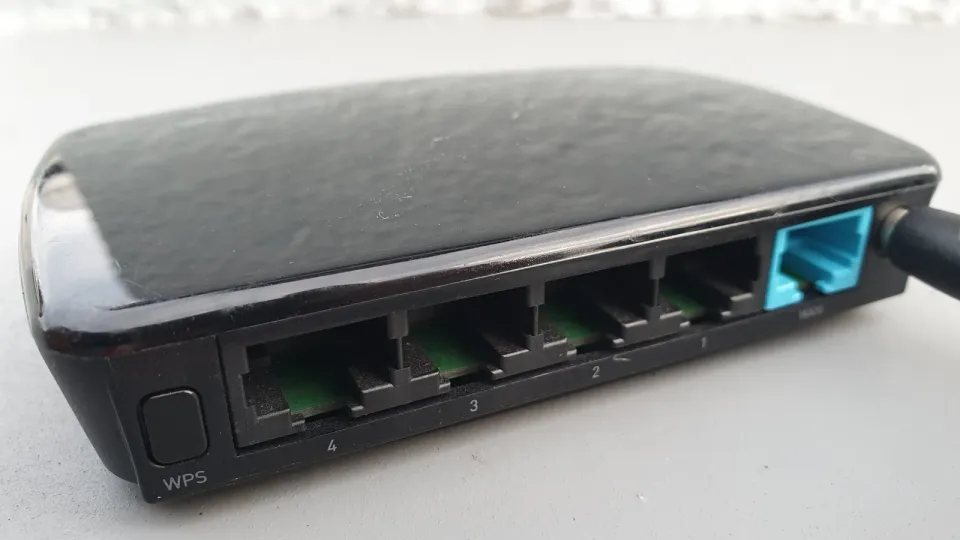
Unplug the power from the router and the modem (or the single box, if your ISP gave you a combined one). Wait at least 30 seconds, plug the modem back in first, wait until its lights settle, then plug in the router. Give it a couple of minutes before testing.
If every device is still offline after that, check your ISP's outage page or app from mobile data, or call them. Whether you're with Comcast, AT&T, Starlink, Jio, Airtel or a local provider, an outage or an unpaid bill looks exactly like this from your side. No Windows fix will help until they sort it out.
Step 3: Renew your IP and flush DNS
Search for Command Prompt, choose Run as administrator, and run these one at a time:
ipconfig /release
ipconfig /renew
ipconfig /flushdns
This asks the router for a fresh address and clears any cached DNS answers that went bad. Your Wi-Fi drops for a second during /release, which is normal. Before going further, also try the simple stuff Microsoft suggests: turn Wi-Fi off and on, or forget the network under Settings > Network & internet > Wi-Fi > Manage known networks and join it again.
Step 4: Check for a 169.254 address
Run ipconfig and look at the IPv4 Address under your Wi-Fi adapter.
- Starts with 169.254: Windows never got an address from the router. Restart the router, and if it keeps happening, make sure DHCP is turned on in the router's settings. If the router has MAC filtering or a device limit, your PC may be getting refused.
- Looks normal (like 192.168.x.x or 10.x.x.x): the PC is on the network fine. Note the Default Gateway and run
pingfollowed by that address. Replies mean the router's reachable, so the problem is further out, usually DNS.
A quick extra check: run ping 1.1.1.1. If that gets replies but websites still won't load, it's almost certainly DNS, which is the next step.
Step 5: Switch to a public DNS server
Your ISP's DNS servers go down more often than you'd think, and an old ad blocker or VPN app can leave a dead DNS address behind. Setting a public one rules all that out.
- Open Settings > Network & internet > Wi-Fi > Manage known networks and select your network (on most PCs you can also use Hardware properties on the Wi-Fi page).
- Next to DNS server assignment, select Edit and switch to Manual.
- Turn on IPv4 and enter a preferred and alternate DNS, for example Cloudflare
1.1.1.1and1.0.0.1, Google8.8.8.8and8.8.4.4, or Quad99.9.9.9. - Save, then try a website.
If you run Pi-hole or AdGuard Home at home and it went down, this is also why everything stopped. I explain the trade-offs in my Pi-hole vs AdGuard Home comparison, including why you should always have a fallback DNS.
Step 6: Turn off proxy and VPN leftovers
Go to Settings > Network & internet > Proxy and turn off anything under Manual proxy setup unless you know you need it. Some "free VPN" and download-manager apps set a proxy and don't clean it up when uninstalled.
If you use a VPN, disconnect it and quit the app fully. A VPN that's half-connected can block all traffic while Wi-Fi still looks fine. Tailscale or WireGuard users can check that the tunnel isn't set to route all traffic through an exit node that's offline. There's more on that in my Tailscale vs WireGuard post.
Step 7: Reset Winsock and TCP/IP
This rebuilds Windows' network stack without touching your Wi-Fi passwords. In an admin Command Prompt:
netsh winsock reset
netsh int ip reset
Restart the PC afterwards. Microsoft's own guide runs these before the ipconfig commands. I put them later only because they need a restart.
Step 8: Reinstall or roll back the Wi-Fi driver
If the trouble started right after a Windows or driver update, the driver is a strong suspect. Download your laptop's Wi-Fi driver from the maker's support site first (HP, Lenovo, Dell, ASUS, Acer and so on) using your phone or another PC and a USB stick, so you have a backup.
- Open Device Manager and expand Network adapters.
- Right-click your Wi-Fi adapter (usually Intel, Realtek, MediaTek or Qualcomm) and choose Properties.
- On the Driver tab, try Roll Back Driver if it's available.
- If not, right-click the adapter, choose Uninstall device, tick the option to remove the driver, and restart. Windows reinstalls a driver at boot, or you can install the one you downloaded.
If the update itself is the thing that's stuck, my guide to fixing Windows Update stuck at 0% or 100% walks through that separately.
While you're in the adapter's Properties, open Power Management and untick "Allow the computer to turn off this device to save power". That setting is behind a lot of "no internet after waking from sleep" complaints.
Step 9: Use network reset
This is the last resort. Go to Settings > Network & internet > Advanced network settings > Network reset, select Reset now and confirm. Windows removes and reinstalls every network adapter and puts settings back to default, then restarts.
Two side effects worth knowing: you'll have to rejoin Wi-Fi networks, and VPN clients or virtual switches (like Hyper-V's) may need reinstalling. Your home network might also come back marked as Public, which is fine for security but hides the PC from other devices on the network.
Still stuck?
Try the built-in Network and Internet troubleshooter in the Get Help app (search for "Get Help" from Start). It runs most of the checks above automatically. And if the laptop works on every other Wi-Fi except yours, look at the router instead: update its firmware, try the other band (2.4 GHz vs 5 GHz), or check whether its parental controls or device limit are blocking the PC.
If you found a cause I haven't listed, drop it in the comments with your laptop model. Those reports are what make guides like this better.
FAQ
Why does my laptop say connected but no internet when my phone works?
The problem is on the laptop, usually a bad IP address, broken DNS settings, a leftover proxy or VPN, or a driver issue. Start with ipconfig /release, /renew and /flushdns, then switch to a public DNS server.
Does "No internet, secured" mean my password is wrong?
No. If the password were wrong, you wouldn't connect at all. "Secured" only means the network uses encryption. The PC joined it fine but can't reach the internet through it.
Can a Windows update cause no internet on Wi-Fi?
Yes, usually through a driver change. Roll back the Wi-Fi driver in Device Manager, or install the latest driver from your laptop maker's site. A network reset also helps after big upgrades.
Will network reset delete my files?
No. It only resets network adapters and their settings. You'll need to reconnect to Wi-Fi networks and possibly reinstall VPN software, but your files and apps stay put.
What is the best DNS for fixing no internet?
Any reliable public resolver works. Cloudflare (1.1.1.1), Google (8.8.8.8) and Quad9 (9.9.9.9) are the common choices. If switching fixes it, your old DNS was the problem.


Comments ()