Proxmox vs Hyper-V vs VirtualBox for a Home Lab
Proxmox VE, Hyper-V and VirtualBox compared for a home lab: licence, type-1 vs type-2, OS support, clustering and which free option fits.
Updated 11 November 2026. Versions and prices checked the same day on Proxmox's download and pricing pages, Microsoft Learn Hyper-V docs and the Microsoft Store, and Oracle VirtualBox downloads and Licensing FAQ. The VirtualBox and Hyper-V section uses Oracle's VirtualBox 7.2 user guide.
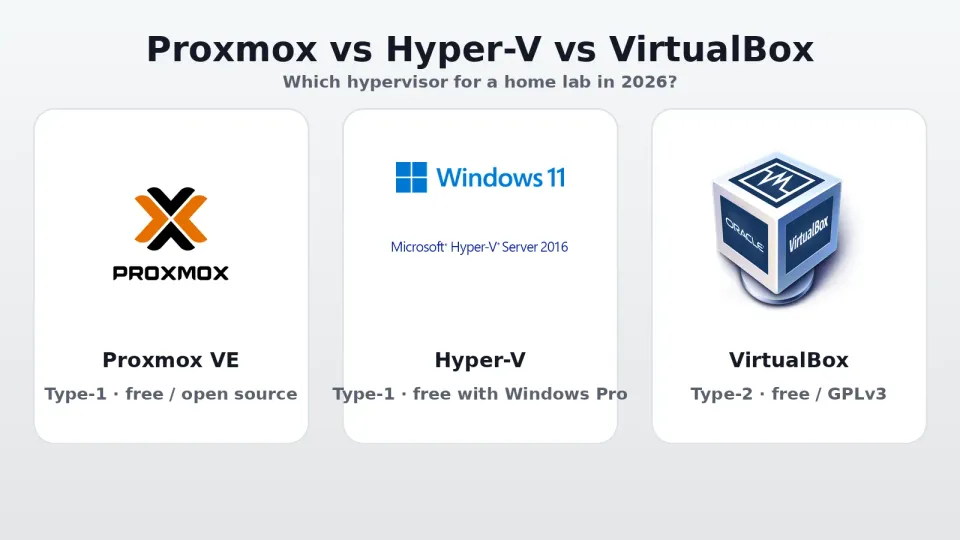
Short answer: for a dedicated home-lab box you leave on 24/7, pick Proxmox VE. It's a free type-1 hypervisor with a web UI, KVM virtual machines, LXC containers, snapshots, backups and clustering built in. Pick Hyper-V if your lab is mostly Windows Server, Active Directory or Microsoft tooling and you already run Windows 11 Pro or Windows Server. Use VirtualBox when you just need a few VMs on the desktop you're already sitting at — not as the core of an always-on lab. If you go with VirtualBox on Windows 11, check the Hyper-V section below first, or it may run in a much slower mode.
I haven't timed boot speeds or run synthetic benchmarks for this piece. The comparison below uses only what Proxmox, Microsoft and Oracle publish: licence terms, hypervisor type, guest support, management tools and the features that actually matter when you're leaving VMware or starting a lab from scratch.
Jump to:
- Quick comparison
- Proxmox VE
- Microsoft Hyper-V
- Oracle VirtualBox
- VirtualBox and Hyper-V on the same PC
- Licence and cost
- Which should you pick?
- FAQ
Quick comparison
| Proxmox VE | Hyper-V | VirtualBox | |
|---|---|---|---|
| Hypervisor type | Type-1 (bare metal, KVM) | Type-1 (Windows hypervisor) | Type-2 (runs on a host OS) |
| Current release checked | 9.2 (ISO 9.2-1, 21 May 2026) | Built into Windows 11 / Windows Server 2025 | 7.2.22 (20 Oct 2026) |
| Host OS | Replaces the OS (Debian-based ISO) | Windows 11 Pro/Enterprise/Education, or Windows Server | Windows, macOS, Linux, Solaris |
| Management | Web UI on port 8006, CLI, API | Hyper-V Manager, PowerShell, Windows Admin Center | Desktop GUI; no built-in web UI |
| VMs | Yes (QEMU/KVM) | Yes | Yes |
| Containers | LXC (built in) | Windows containers via Docker/WSL separately | No first-class LXC |
| Snapshots / checkpoints | Yes | Checkpoints | Yes |
| Clustering / HA | Yes (multi-master, live migration) | Yes on Windows Server with Failover Clustering | No |
| Built-in backup | Yes (+ Proxmox Backup Server) | Export / Replica / third-party | Export / clone |
| Best fit | Dedicated always-on home lab | Windows / Microsoft-heavy lab | Desktop learning and quick tests |
One line the table can't show: Proxmox and Hyper-V on Server are meant to own the machine. VirtualBox shares the machine with whatever else you have open. That alone decides most home-lab choices.
Proxmox VE
Proxmox Virtual Environment is an open-source platform built on Debian, KVM and LXC. You download the ISO from proxmox.com, boot it on a spare PC or mini PC, and it becomes the host OS. After install you open https://your-ip:8006 in a browser and manage everything from there — no separate Windows console app required.
As of 6 November 2026, the current ISO is Proxmox VE 9.2-1, released 21 May 2026. The 9.2 notes highlight a dynamic load balancer, more SDN options and finer CPU-model controls. Features that matter for a home lab are already there at every subscription level: KVM VMs, LXC containers, snapshots, live migration, clustering, ZFS/LVM/Btrfs/Ceph storage options, a distributed firewall and a REST API.
Licensing is the part people get wrong. The software itself is free. A paid subscription unlocks the Enterprise repository and (on Basic/Standard/Premium) ticket support. Home labs can stay on the public no-subscription repository forever, or buy the Community plan (€120 per occupied CPU socket per year) for the stable Enterprise repo without enterprise support. Proxmox's pricing page is clear: every feature — HA, live migration, backup, SDN — works without a paid plan. Plans differ by support and update channel, not by feature locks.
Best for: a dedicated mini PC or old server that runs Pi-hole, Jellyfin, game servers, test VMs and containers side by side.
If you already self-host, pair this with a Jellyfin media server and a Tailscale or WireGuard VPN so you can reach the lab from outside without opening ports.
Microsoft Hyper-V
Hyper-V is Microsoft's type-1 hypervisor. On a desktop it ships inside Windows 11 Pro, Enterprise and Education — not Home. On a server it is a role in every edition of Windows Server 2025. Microsoft's own overview splits the two: Hyper-V in Windows is for development and testing; Hyper-V in Windows Server adds live migration, Failover Clustering, Hyper-V Replica, shielded VMs and the rest of the enterprise stack.
Hardware needs, per Microsoft Learn: a 64-bit CPU with SLAT, VM Monitor Mode extensions, at least 4 GB of RAM, and virtualization enabled in firmware (Intel VT-x or AMD-V). You turn it on with Turn Windows features on or off, or:
Enable-WindowsOptionalFeature -Online -FeatureName Microsoft-Hyper-V -AllThen reboot and open Hyper-V Manager. Windows 11 also has Quick Create for fast lab VMs.
The catch for home users is the host licence. Hyper-V itself isn't sold separately, but you need a Pro (or higher) Windows licence on the host. Microsoft Store prices I've verified earlier this autumn: Windows 11 Pro is $199.99 in the US store and ₹16,515 (incl. GST) in India. If your PC already came with Pro, Hyper-V costs nothing extra. Windows 11 Home users have to upgrade first — there is no Hyper-V role on Home.
Guest support is broad for Windows and solid for many Linux distros through Microsoft's supported list. Nested virtualization works for nested labs. For a pure Microsoft learning path (AD, Intune, ConfigMgr, Windows Server), Hyper-V is the path of least resistance because the tooling assumes it.
Best for: Windows Server / AD practice labs, or anyone who already lives in Hyper-V Manager and PowerShell.
Oracle VirtualBox
VirtualBox is a type-2 (hosted) hypervisor. It installs on top of Windows, macOS or Linux and runs guests in windows on your desktop. The current release as of 6 November 2026 is 7.2.22 (maintenance release, 20 October 2026).
Licensing, from Oracle's Licensing FAQ: the base package is GPLv3 — free to use, modify and redistribute under GPL terms. Guest Additions are also GPLv3. The optional Extension Pack (USB 2.0/3.0 support, RDP, disk encryption, PXE boot, and similar) is free under the Personal Use and Educational License (PUEL) for personal and educational use. Commercial use of the Extension Pack needs an Oracle Enterprise licence; personal-use redistributing of the Extension Pack isn't allowed.
What VirtualBox does well is getting a beginner to a running guest in minutes: pick an ISO, click through the wizard, take a snapshot before you break something. What it doesn't do is clustering, a web UI for remote management, or the kind of always-on reliability you want from a lab server. Performance also shares the host OS — close Chrome, your IDE and a dozen tabs if you care about the guest.
Best for: learning VMs on a laptop you already use, testing an ISO before you wipe a machine, or a one-off nested experiment. Not the core of a 24/7 home lab.
VirtualBox and Hyper-V on the same PC
This one catches a lot of Windows 11 users. If Hyper-V, or anything built on Microsoft's hypervisor, is switched on, VirtualBox doesn't refuse to start. It runs on top of Hyper-V instead, and Oracle's own manual warns that this can mean significant performance degradation. The giveaway is a green turtle on the CPU icon in the VM window's status bar.
- Oracle's fix is to turn off Hyper-V Platform, Virtual Machine Platform and Windows Hypervisor Platform in Turn Windows features on or off, then reboot.
- On newer Windows builds, Core Isolation and Memory Integrity use the hypervisor too, so the turtle can stay until those are off as well.
- WSL 2 needs Virtual Machine Platform, so turning that off breaks WSL 2 on the same PC.
I wouldn't switch off Memory Integrity on a daily-driver PC just to make VirtualBox faster. That trade-off is a big reason I'd put an always-on lab on its own box with Proxmox, or stay with Hyper-V if the PC already runs Windows 11 Pro.
Licence and cost
| Product | Free to run? | Optional paid piece | Rough paid cost (checked 6 Nov 2026) |
|---|---|---|---|
| Proxmox VE | Yes (all features) | Community / Basic / Standard / Premium subscription per occupied CPU socket | Community €120 (~$135 / ~₹12,700); Basic €370; Standard €550; Premium €1,100 per socket/year. No-subscription repo stays free. |
| Hyper-V (Windows 11) | Yes, with Pro/Enterprise/Education | Windows 11 Pro host licence if you don't already have it | Windows 11 Pro ~$199.99 / ₹16,515 (Microsoft Store). Hyper-V role itself: $0. |
| Hyper-V (Windows Server) | Included with Server licence | Windows Server licence; Datacenter gives unlimited Windows Server guest rights | Depends on Server edition and cores — check Microsoft licensing for your case. |
| VirtualBox base | Yes (GPLv3) | — | $0 |
| VirtualBox Extension Pack | Yes for personal / educational use (PUEL) | Enterprise licence for commercial use | Personal: $0. Commercial: Oracle Store / sales (Enterprise Named Workstation User perpetual, min. quantity applies). |
Euro amounts above are list prices from Proxmox's shop. The USD and INR figures are approximate conversions from mid-market rates on 6 November 2026 (~$1.12 and ~₹106 per euro; ~₹95 per dollar) — your card will charge the live rate plus any VAT.
For most home labs the real cost is electricity and the hardware, not the hypervisor licence. Proxmox and VirtualBox can stay at $0. Hyper-V is $0 if Pro is already on the box.
Which should you pick?
Here's the decision I'd make:
- Dedicated mini PC or old tower for an always-on lab → Proxmox VE. Install the ISO, enable the no-subscription repo (or Community if you want the Enterprise channel), and build from the web UI.
- Mostly Windows Server, AD, Intune, ConfigMgr practice → Hyper-V on Windows 11 Pro or Windows Server. Stay in Microsoft's tooling.
- Just trying VMs on the laptop you use every day → VirtualBox. Skip the Extension Pack unless you need USB passthrough or RDP, and stay inside PUEL if you're not commercial.
- Leaving VMware Workstation / ESXi Free → Proxmox for a lab server (it even has an ESXi import path); Hyper-V if your job is Microsoft-centric; VirtualBox only as a temporary desktop stand-in.
You can mix them. Plenty of people run Proxmox on the lab box and keep VirtualBox on a laptop for throwaway tests. VirtualBox is also a safe way to try a desktop Linux before you install it; my Linux Mint vs Ubuntu vs Zorin OS guide covers which one suits an older PC. Nested virtualization on Proxmox or Hyper-V also lets you run another hypervisor inside a guest when you need to practise that.
Once the hypervisor is up, the next useful pieces on this blog are the Pi-hole + WireGuard Raspberry Pi guide, hosting a Minecraft server behind CGNAT, and the Linux TCP patch notes if you run Linux guests or hosts — start at CVE-2026-98432: check and patch.
Related guides: two more from me that pair well with this one: setting up AdGuard Home and Pi-hole vs AdGuard Home.
FAQ
Is Proxmox really free for a home lab?
Yes. Proxmox VE is open source and every feature works without a paid subscription. Without a subscription you use the public no-subscription repository for updates. The optional Community subscription (€120 per occupied CPU socket per year) only adds the Enterprise repository; it does not unlock features.
Can I run Hyper-V on Windows 11 Home?
No. Microsoft documents Hyper-V for Windows 10/11 Professional and Enterprise (and Education on Windows 11). Home editions don't get the Hyper-V role. Upgrade to Pro, or use VirtualBox / a separate Proxmox box instead.
Is VirtualBox OK for an always-on server?
It'll run, but it's the wrong tool. VirtualBox is a type-2 hypervisor meant for desktop use. For a machine that should just sit there and host VMs, a type-1 option (Proxmox or Hyper-V on Server) is more appropriate: less host-OS overhead, a proper management UI for remote access, and features like clustering when you outgrow one box. On a Windows 11 host with Hyper-V features or Memory Integrity turned on, it will also fall back to the slower Hyper-V mode covered above.
Proxmox vs Hyper-V for Linux guests?
Both run Linux guests. Proxmox is Linux-native (Debian + KVM) and also gives you LXC containers next to full VMs, which is handy for lightweight services. Hyper-V supports many Linux distributions through Microsoft's supported guest list and shines when the rest of your lab is Windows.
Do I need the VirtualBox Extension Pack?
Only if you want the extras it adds — USB 2.0/3.0 controllers, VirtualBox RDP, disk encryption, PXE boot with E1000, and similar. The base package is enough for everyday learning VMs. Personal and educational use of the Extension Pack is free under Oracle's PUEL; commercial use needs a paid Enterprise licence.
What hardware do I need to start?
A machine with hardware virtualization enabled in firmware, an SSD, and enough RAM for the host plus every guest you want to run at once. Microsoft asks for at least 4 GB for Hyper-V hosts; for a Proxmox box with several services, 16 GB or more is a more realistic floor. Wired Ethernet beats Wi-Fi for anything you leave on.
Comments ()