How to Set Up AdGuard Home (Raspberry Pi, Docker, Windows)
Install AdGuard Home on a Raspberry Pi, in Docker or on Windows, then set upstream DNS, blocklists and your router so every device is covered.
Updated October 2026. Commands and ports checked against AdGuard Home's GitHub README, the official Docker Hub page and the v0.107.79 release notes on 22 October 2026.
Short answer: the fastest way to set up AdGuard Home on a Raspberry Pi or any Linux box is AdGuard's own install script, which puts it in /opt/AdGuardHome and registers it as a service. On a machine that already runs Docker, use the official adguard/adguardhome image. On Windows, download the zip and run AdGuardHome.exe -s install from an admin terminal. Then open port 3000 in your browser, finish the wizard, and point your router's DNS at the device.
I've split this into the three install methods, then the parts that are the same for all of them. Pick the one that matches your hardware and skip the others.
Jump to:
- What you need
- Step 1: Fixed IP
- Step 2: Install (Pi, Docker, Windows)
- Step 3: Setup wizard
- Step 4: Upstream DNS and blocklists
- Step 5: Router DNS
- Step 6: Test it
- Common problems
- FAQ
Before you start: what you need
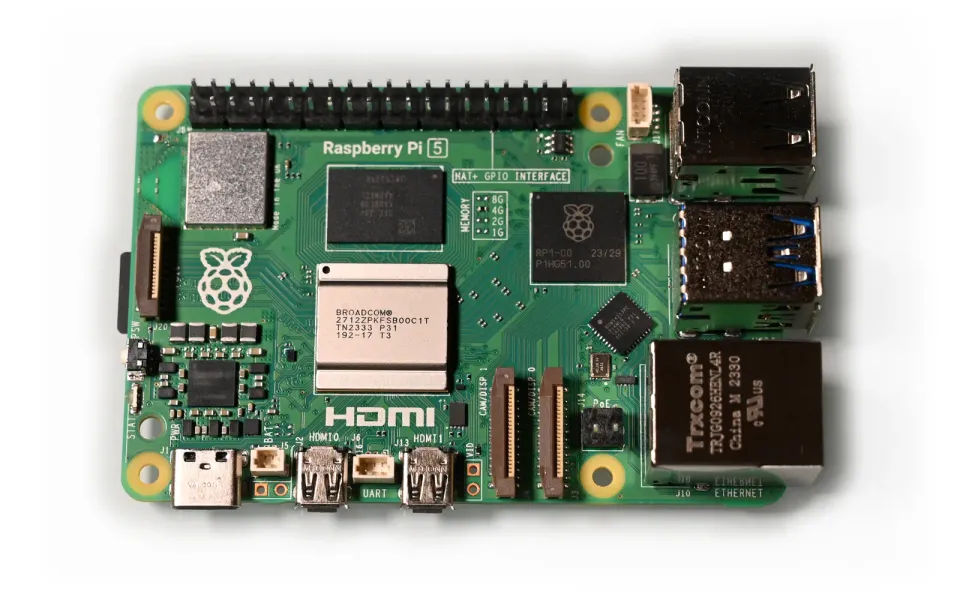
- A device that stays on. A Raspberry Pi is the classic choice. Any Pi from the 3 onwards is plenty for a home, and AdGuard Home publishes builds for arm64 and armv7. An old laptop, a mini PC or a NAS that runs Docker also works.
- Access to your router's admin page, so you can change the DNS server it hands out.
- A terminal (SSH into the Pi, or PowerShell on Windows) and about ten minutes.
If you haven't decided between this and Pi-hole yet, read my Pi-hole vs AdGuard Home comparison first. Don't run both on the same machine: they both want port 53, and only one can have it.
Step 1: Give the device a fixed IP address
Your router is going to send every DNS query to this device, so its address can't change. The cleanest way is a DHCP reservation in the router (often called "Address Reservation" on TP-Link, "Reserved IP" on Netgear, or "Manually Assigned IP" on ASUS). Pick the device by name or MAC address and lock it to something like 192.168.1.2.
If your router can't do reservations, set a static IP on the device itself. I covered how to do that on Raspberry Pi OS in my Pi-hole + WireGuard Raspberry Pi guide, and the same steps apply here.
Step 2: Install AdGuard Home
The current stable release is v0.107.79 (August 2026). All three methods below install that version or newer.
Option A: Raspberry Pi or Linux (install script)
SSH into the Pi and run AdGuard's official script:
curl -s -S -L https://raw.githubusercontent.com/AdguardTeam/AdGuardHome/master/scripts/install.sh | sh -s -- -vIt detects your CPU, downloads the right build, unpacks it into /opt/AdGuardHome and installs it as a system service, so it starts again after a reboot. I like reading a script before piping it into a shell, and this one is short enough to skim on GitHub first if you feel the same way.
To control the service later:
sudo /opt/AdGuardHome/AdGuardHome -s status
sudo /opt/AdGuardHome/AdGuardHome -s restart
Option B: Docker
Create two folders for config and data, then run the container. This is a trimmed version of the official command, with just plain DNS, the web UI and the setup port:
mkdir -p ~/adguard/work ~/adguard/conf
docker run --name adguardhome \
  --restart unless-stopped \
  -v ~/adguard/work:/opt/adguardhome/work \
  -v ~/adguard/conf:/opt/adguardhome/conf \
  -p 53:53/tcp -p 53:53/udp \
  -p 80:80/tcp -p 3000:3000/tcp \
  -d adguard/adguardhome
Add -p 443:443/tcp -p 443:443/udp for DNS-over-HTTPS and -p 853:853/tcp for DNS-over-TLS if you'll use them. If you want AdGuard Home to be your DHCP server too, use --network host instead of port mappings. Docker's host networking only works on Linux hosts, not Docker Desktop.
One thing that trips people up on Ubuntu and other distros with systemd-resolved: it already listens on port 53, so the container fails to start. AdGuard's Docker page fixes it by creating /etc/systemd/resolved.conf.d/adguardhome.conf with:
[Resolve]
DNS=127.0.0.1
DNSStubListener=no
then pointing /etc/resolv.conf at the real file and restarting the resolver:
sudo mv /etc/resolv.conf /etc/resolv.conf.backup
sudo ln -s /run/systemd/resolve/resolv.conf /etc/resolv.conf
sudo systemctl reload-or-restart systemd-resolved
Auto-update is disabled inside Docker. To update, docker pull adguard/adguardhome, stop and remove the old container, and run the same command again. Your settings live in the mounted folders, so nothing is lost.
Option C: Windows
Download AdGuardHome_windows_amd64.zip (or the arm64 one for Snapdragon laptops) from the releases page and unzip it somewhere permanent, like C:\AdGuardHome. Open PowerShell as administrator in that folder and run:
.\AdGuardHome.exe -s installThat registers it as a Windows service. Allow it through Windows Firewall when asked, at least on private networks. Honestly, I'd only do this on a PC that's on all the time. If the PC sleeps, every device on your network loses DNS until it wakes up.
Step 3: Run the setup wizard
Open http://<device-ip>:3000 in a browser. The wizard asks three things:
- Admin web interface: leave it on all interfaces, port 80, unless something else on the device already uses port 80. If it does, pick 8080.
- DNS server: all interfaces, port 53.
- Username and password for the dashboard. Use a real password; anyone on your Wi-Fi can reach this page.
After that, the dashboard lives at http://<device-ip> (or with :8080 if you changed it).
Step 4: Pick upstream DNS and blocklists
Go to Settings > DNS settings. Upstream servers are where AdGuard Home sends the queries it doesn't block. I prefer encrypted upstreams, so your ISP doesn't see every lookup:
https://dns.cloudflare.com/dns-query
https://dns.quad9.net/dns-query
Pick "Parallel requests" or "Load-balancing" below that list. Either is fine for a home.
Then go to Filters > DNS blocklists. The default AdGuard DNS filter is a sensible start. Add one or two more from "Add blocklist > Choose from the list" if you want, but don't pile on ten. Huge lists mostly add false positives, and then you spend your evening unblocking shopping sites for family members.
Step 5: Point your router at AdGuard Home
In your router's LAN or DHCP settings, set the primary DNS server to the AdGuard Home device's IP. On TP-Link it's usually under Advanced > Network > DHCP Server, on Netgear under Advanced > Setup > LAN Setup, and on ASUS under LAN > DHCP Server. Menus move around between firmware versions, so search your model if it's not there.
Two tips:
- Leave the secondary DNS empty or set it to the same IP. If you put 8.8.8.8 there, devices will happily use it and skip your blocking.
- ISP routers sometimes lock DNS. If yours does, you can use AdGuard Home's own DHCP server instead (turn off DHCP on the router first), or set DNS manually on your main devices.
Devices pick up the new DNS when they renew their lease. Reconnecting to Wi-Fi forces it.
Step 6: Check that blocking works
On a PC, open a terminal and run:
nslookup doubleclick.netThe "Server" line should show your AdGuard Home IP, and the answer should be 0.0.0.0 (or no address). Then open the Query Log in the dashboard. You should see your devices' requests appearing live. If you only see one client, check that the router really is handing out the new DNS.
Common problems
- "Address already in use" on port 53. Something else owns it: Pi-hole, systemd-resolved or dnsmasq. Stop that service, or use the resolved fix above.
- Every device shows as the router's IP. Your router is forwarding DNS instead of handing out AdGuard's address. Set DNS in the DHCP section, not the WAN section.
- A site or app broke. Find the blocked domain in the Query Log and click Unblock. That adds an allow rule for it.
- It works at home but not on mobile data. That's expected. For blocking away from home, put it behind a VPN; my Tailscale vs WireGuard post covers both options.
If your router's DNS setting is hidden somewhere odd, tell me the model in the comments and I'll try to find it.
FAQ
Is AdGuard Home free?
Yes. AdGuard Home is free and open source. It's a different product from AdGuard's paid apps and its AdGuard DNS service.
Can AdGuard Home run on a Raspberry Pi Zero?
AdGuard publishes ARM builds that cover older and smaller Pis, and DNS filtering is light work. For a typical home it's enough, though a Pi 3 or newer with wired Ethernet is more reliable.
Does AdGuard Home block YouTube ads?
Mostly no. YouTube serves ads from the same domains as the videos, so DNS blocking can't separate them without breaking playback. It does block a lot of ads and trackers in other apps and websites.
How do I update AdGuard Home?
For script and Windows installs, the dashboard shows an Update Now button when a new release is out, and it keeps a backup of the old version. For Docker, pull the new image and recreate the container.
Can I run AdGuard Home and Pi-hole together?
Not on the same device with default settings, since both need port 53. You can run them on separate devices, but for a home network one is enough.

Comments ()