Best Local LLM for Your GPU VRAM (Nov 2026)
Which local LLM fits 8GB, 12GB, 16GB or 24GB of VRAM? Real Ollama sizes for Qwen 3.5, Gemma 4 and gpt-oss, plus how to check it runs 100% on GPU.
Updated: 12 November 2026. Model sizes are the default 4-bit downloads listed on ollama.com/library tag pages, checked today, along with the "usage" range Ollama now shows next to each size. Ollama behaviour comes from its official context length, FAQ and hardware support docs. The current release is v0.40.16. GPU prices are from my GPU buy-or-wait guide published earlier today.
Short answer: with 8GB of VRAM, run Qwen 3.5 9B. With 12GB, Gemma 4 12B. With 16GB, OpenAI's gpt-oss 20B. With 24GB, Qwen 3.6 27B, or Gemma 4 31B if you care more about writing and images than code. Each of those fits fully on the card at Ollama's default settings, and "fully on the card" matters more than anything else in this post.
I wrote a separate guide on the best Ollama models for 8GB RAM PCs with no GPU. This is the other half: you have a graphics card and want to know what fits it. Model names are confusing, a "9B" model can be a 6GB or an 18GB download depending on the version, and most lists online ignore the memory a model needs on top of its download size. So I went through the actual tag pages and sorted everything by VRAM tier.
Jump to:
- Why VRAM decides everything
- The best local LLM for each VRAM tier
- Step 1: Check how much VRAM you actually have
- Step 2: Pick a model that leaves headroom
- Step 3: Run it and confirm "100% GPU"
- Step 4: Squeeze in more context without spilling
- AMD, Intel and Mac notes
- My take
- FAQ
Why VRAM decides everything
A local model runs fast when all of it sits in your graphics card's memory. Once it doesn't fit, Ollama puts the rest in system RAM and your CPU does part of the work. It still runs, but it slows down a lot, because data keeps crossing the PCIe bus. Ollama's own docs say it plainly: for best performance, avoid offloading the model to the CPU.
The download size isn't the whole bill, either. The model also needs room for its context, the "KV cache" that holds your conversation. Windows and your browser keep some VRAM for themselves too. That's why Ollama's tag pages now show a range. Qwen 3.5 9B is a 6.6GB download, but the page lists it as 6.6GB to 7.6GB in use. Gemma 4 E4B is the same 6.6GB download but goes up to 9.5GB, because of its audio and vision parts.
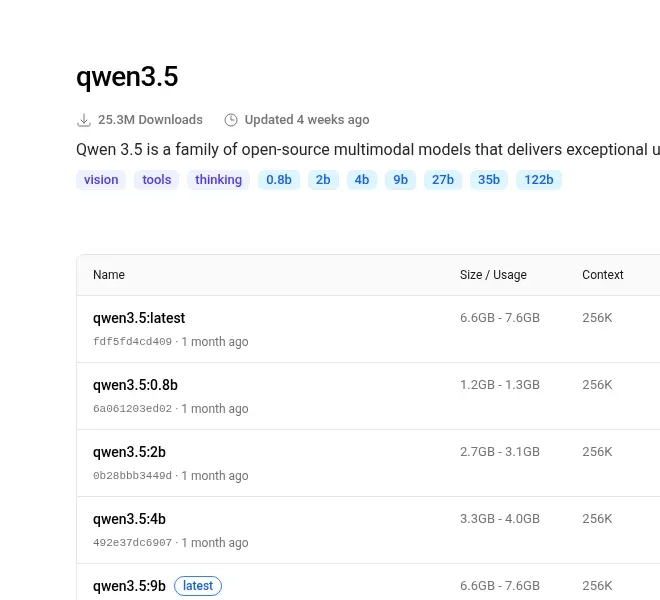
My rule of thumb: leave 1 to 2GB free. On an 8GB card, a model in the 5 to 7GB range is the sweet spot. On 16GB, stay around 14GB or under.
The best local LLM for each VRAM tier
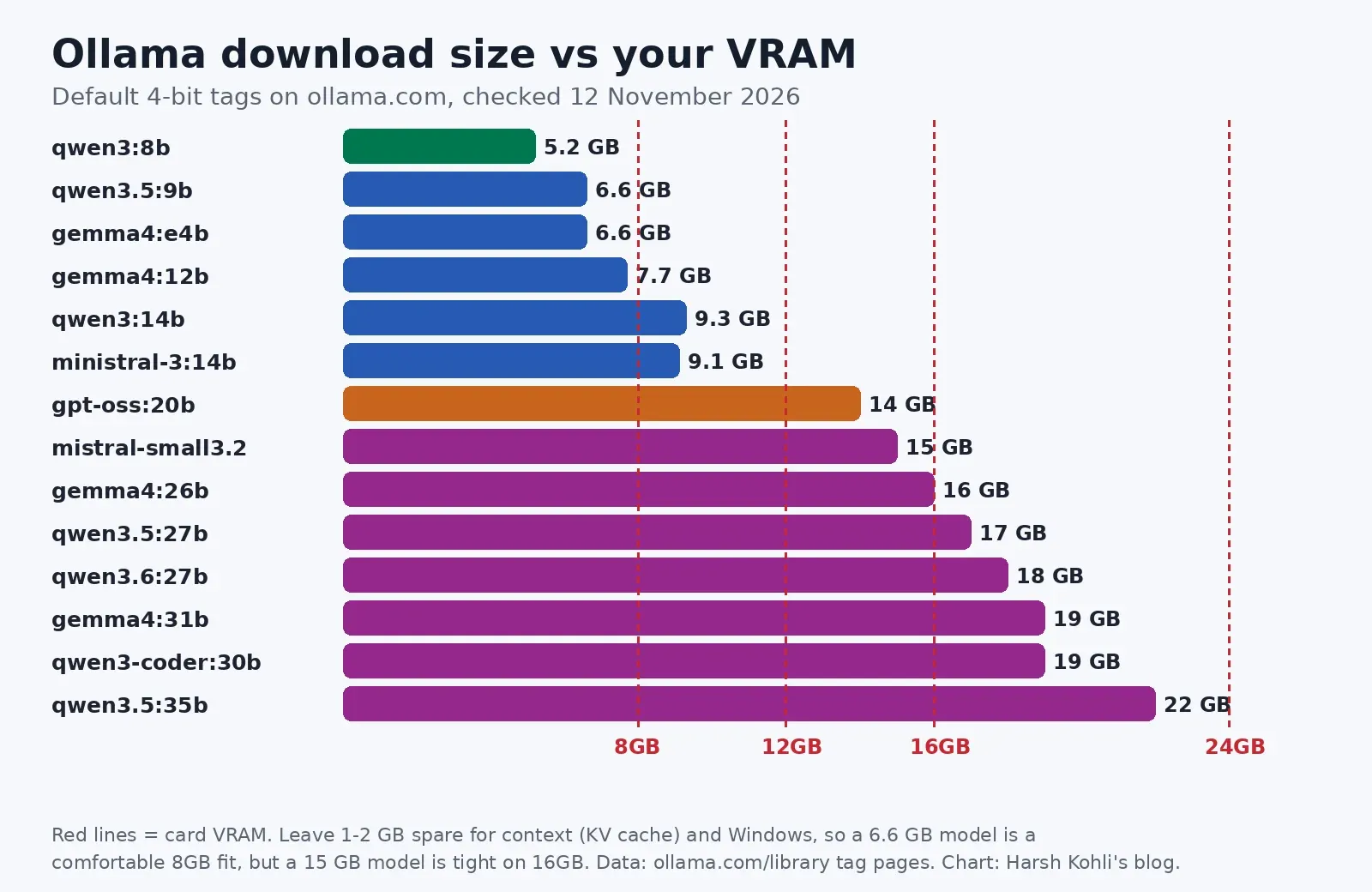
These are the default 4-bit tags, which is what you get when you type ollama run with no extra suffix. "Usage" is Ollama's own range where the page lists one. I haven't benchmarked these myself, so there are no tokens-per-second numbers here. Speed depends too much on your card, driver and context length for a borrowed number to mean much. The test that matters is in Step 3.
| VRAM | Best pick | Download (usage) | Also good | Example cards (launch / now) |
|---|---|---|---|---|
| 8GB | qwen3.5:9b | 6.6GB (6.6-7.6GB) | qwen3:8b 5.2GB, deepseek-r1:8b 5.2GB, ministral-3:8b 6.0GB | RTX 5060: $299 / $450-535, ₹55,000-60,000 |
| 12GB | gemma4:12b | 7.7GB (7.7-8.0GB) | qwen3:14b 9.3GB, ministral-3:14b 9.1GB, phi4 9.1GB | Arc B580: $249 / $330-350, ₹43,000; RTX 5070: $549 / $715-900, ₹1,10,000 |
| 16GB | gpt-oss:20b | 14GB | mistral-small3.2 15GB (tight), gemma4:12b with long context | RX 9060 XT 16GB: $349 / $620-680, ₹65,500; RTX 5060 Ti 16GB: $429 / $790-830, ₹92,800 |
| 24GB | qwen3.6:27b | 18GB (18-19GB) | gemma4:31b 19GB (19-20GB), qwen3-coder:30b 19GB, deepseek-r1:32b 20GB | No current-gen 24GB card; RTX 4090 and 3090 are previous-gen |
Indian prices are the lowest listings from late October to this week, GST included. Card prices have gone up every month since August, and the GPU guide has the full breakdown.
8GB: Qwen 3.5 9B
This is the one I'd install first on an RTX 5060, RTX 4060 or RX 9060 XT 8GB. It handles text and images, it can call tools, it has a thinking mode, and its tag page lists a 256K context window. At 7.6GB of peak usage it's close to the edge, though. If Ollama starts splitting it onto the CPU, drop to qwen3:8b (5.2GB) or deepseek-r1:8b (5.2GB, which is DeepSeek's reasoning style distilled into Qwen 3). Both leave plenty of room. I'd skip Gemma 4 E4B on 8GB. Its download looks small, but Ollama says it can use up to 9.5GB.
12GB: Gemma 4 12B
Google's 12B fits a 12GB card with real room to spare (8GB at most), and it handles images too. If you mostly want plain text and reasoning, qwen3:14b (9.3GB) is the step up in size. Note its default page lists a 40K context, not 256K. phi4 fits too, but its 16K context is short for 2026.
16GB: gpt-oss 20B
OpenAI's open-weight model is a 14GB download with a 128K context and tool use. It's the biggest model that fits a 16GB card without much fuss. mistral-small3.2 (24B, 15GB) technically fits, but it leaves almost no space for context. Gemma 4 26B and Qwen 3.5 27B both go past 16GB once you count usage, so they'll split onto the CPU. If you really want one of those, the Gemma 4 26B is a mixture-of-experts model with about 4B active parameters, and those generally put up with a CPU split better than dense models do. Just expect it to be slower.
24GB: Qwen 3.6 27B
Qwen 3.6 is the newest family here. Ollama's listing describes it as a big upgrade over earlier Qwen models in agentic coding, and there's a separate qwen3.6:27b-coding tag at the same 18GB. If you mostly write or analyse documents rather than code, gemma4:31b at 19-20GB is the other strong pick. One catch: Ollama raises its default context from 4K to 32K once it sees 24GB or more of VRAM, and that bigger context eats memory. Still, both models leave headroom on a 24GB card.
Step 1: Check how much VRAM you actually have
Don't go by the box. Laptops with the same GPU name ship with different amounts of memory.
- Windows: open Task Manager (Ctrl + Shift + Esc), go to Performance, click your GPU, and read Dedicated GPU memory. Ignore "Shared GPU memory". That's system RAM.
- Nvidia, any OS: run this in a terminal:
nvidia-smi --query-gpu=name,memory.total,memory.used --format=csvCheck memory.used with your normal apps open. If Chrome and a game launcher are already holding 1.5GB, that's 1.5GB your model can't use.
Step 2: Pick a model that leaves headroom
Find your VRAM row in the table and take the best pick. Then open that model's tags page on ollama.com and check the usage figure, not just the download size. If the top of the usage range is within about 1GB of your total VRAM, go one size down. A smaller model fully on the GPU nearly always beats a bigger one split with the CPU for day-to-day chat.
Also pick for the job. For code, the Qwen 3.6 coding tag or qwen3-coder:30b on 24GB. For reasoning and maths, the DeepSeek R1 distills. For reading screenshots and photos, Qwen 3.5 or Gemma 4, since both list vision.
Step 3: Run it and confirm "100% GPU"
If you don't have Ollama yet, grab it from ollama.com/download. Then pull and run your model, for example:
ollama run qwen3.5:9bAsk it something, then open a second terminal and run:
ollama psLook at the PROCESSOR column. 100% GPU is what you want. Something like 48%/52% CPU/GPU means part of the model spilled into system RAM. That's your cue to close other GPU-heavy apps, cut the context, or go one model size down. The CONTEXT column shows how much context Ollama actually gave the model.
For a speed number from your own machine, start the model with ollama run qwen3.5:9b --verbose. Ollama prints the eval rate in tokens per second after each answer. That number is far more useful than any chart, mine included.
Step 4: Squeeze in more context without spilling
Below 24GB of VRAM, Ollama gives models just 4K tokens of context by default. That's fine for chat, but too short for long documents or coding tools. Ollama suggests at least 64K for agents and coding. You can raise it in the Ollama app's settings slider, or start the server with:
OLLAMA_CONTEXT_LENGTH=32768 ollama serve(On Windows, set OLLAMA_CONTEXT_LENGTH as a user environment variable and restart Ollama from the tray.) More context means more VRAM, so recheck ollama ps afterwards.
To claw some of that memory back, quantize the KV cache. Ollama's FAQ says OLLAMA_KV_CACHE_TYPE=q8_0 uses about half the memory of the default f16, with a very small quality loss, and it works when Flash Attention is on. Ollama turns Flash Attention on automatically where the hardware supports it. The setting applies to every model, not just one. I'd stick with q8_0. The q4_0 option saves more, but the docs warn the quality loss becomes more noticeable at long context.
AMD, Intel and Mac notes
- AMD on Windows: Ollama's ROCm list for Windows currently covers the RX 7000 series (7600 up to 7900 XTX) but not the RX 9000 cards. RX 9070 and 9060 XT owners on Windows get GPU acceleration through Ollama's Vulkan backend instead, which comes with normal AMD drivers. On Linux, ROCm v7 supports the RX 9070 XT, 9070 and 9060 XT directly.
- Intel Arc: also runs through Vulkan. The B580's 12GB for $249 at launch makes it the cheapest 12GB card here, even at today's $330-350.
- Nvidia: needs driver 550 or newer, and GTX 900 and 10-series cards need 570 or newer.
- Macs: there's no separate VRAM. Apple Silicon shares memory between CPU and GPU, so a 16GB Mac can't hand all 16GB to a model, because macOS and your apps draw from the same pool. Plan for less than the full amount. Ollama uses Metal automatically.
Prefer clicking to typing commands? LM Studio on Windows does all of this through an app, and it shows an estimate of whether a model will fit your GPU before you download it.
My take
Honestly, most people asking "what's the best local LLM" should be asking "what's the biggest model that fits fully on my card". Fit beats size. A 9B model running fully on an 8GB card feels a lot better in daily use than a 27B model limping along half on the CPU. And with 16GB cards now selling for $620 and up (₹65,000 and up in India), I wouldn't buy a GPU just for local AI right now. Use the card you have, pick from its row, and if a local model can't do the job, the free plans of ChatGPT, Gemini and Claude are still there.
Related guides: Best Ollama models for 8GB RAM PCs (no GPU), Run DeepSeek or Llama locally with LM Studio, and Proxmox vs Hyper-V vs VirtualBox for a home lab if you want your models on an always-on box.
FAQ
What is the best local LLM for 8GB VRAM?
Qwen 3.5 9B (qwen3.5:9b, a 6.6GB download using up to 7.6GB). If it spills onto the CPU on your card, use Qwen 3 8B or DeepSeek R1 8B, both 5.2GB.
Can I run a 27B or 30B model on 16GB of VRAM?
It will run, but not fully on the GPU. Qwen 3.5 27B lists 17-20GB of usage and Gemma 4 26B 16-19GB, so Ollama splits them with system RAM and they slow down. gpt-oss 20B (14GB) is the better fit for 16GB.
How do I know if Ollama is using my GPU?
Run ollama ps while a model is loaded. The PROCESSOR column should say 100% GPU. A CPU/GPU split means the model or its context doesn't fit.
Does more context use more VRAM?
Yes. Ollama defaults to 4K context below 24GB of VRAM and 32K at 24-48GB. Raising it with OLLAMA_CONTEXT_LENGTH needs more memory, which you can partly offset with OLLAMA_KV_CACHE_TYPE=q8_0.
Do AMD Radeon RX 9000 cards work with Ollama?
Yes. On Linux, through ROCm v7. On Windows, Ollama's ROCm list doesn't include RX 9000 yet, so those cards run through the Vulkan backend, which needs no extra setup on Windows.
What card are you running, and which model ended up at 100% GPU for you? Drop it in the comments. Real results from readers are the best way to fill in what the tag pages can't tell you.
Comments ()