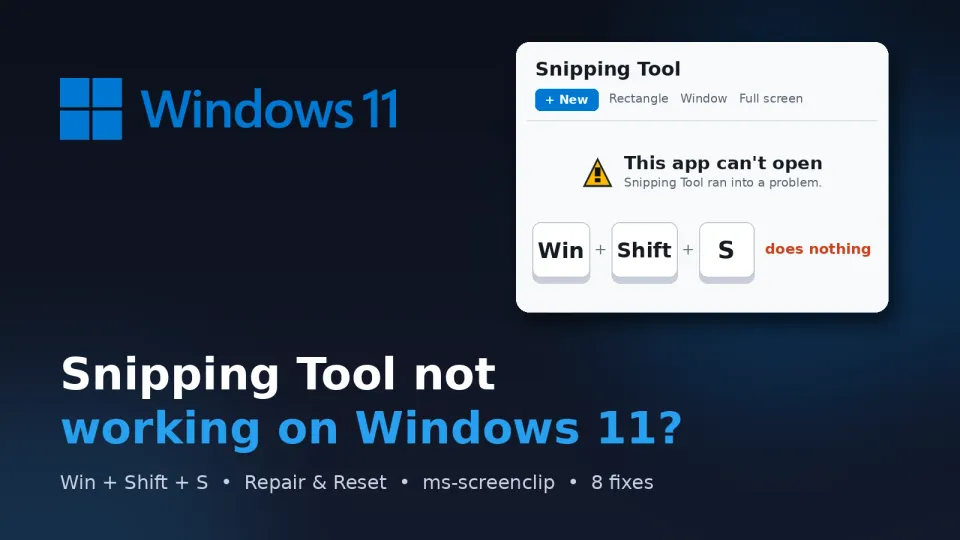
Snipping Tool Not Working on Windows 11? 8 Fixes
Snipping Tool or Win + Shift + S not working on Windows 11? Fix notifications, ms-screenclip, Repair/Reset, re-register or reinstall it.
Updated: 24 November 2026. Checked against Microsoft Support's Snipping Tool page, its keyboard shortcuts list, the Repair apps page, Microsoft Learn's Store app troubleshooting guide and its TabletShell policy reference.
Short answer: open Snipping Tool from Start first. If it opens and New works, the app is fine and your shortcut is the problem, so check the Windows key, the Print Screen setting and the app's notifications. If the app won't open, shows "This app can't open" or closes straight away, go to Settings > Apps > Installed apps > Snipping Tool > Advanced options, click Terminate, then Repair, then Reset. Still broken? Re-register it with one PowerShell line, or reinstall it from the Microsoft Store.
How I put this together: Snipping Tool works on my PC right now, so I haven't reproduced every error below and I'm not going to pretend I did. The menu paths come from Microsoft's own pages, the PowerShell commands come from Microsoft Learn, and the symptoms come from Microsoft Q&A threads where people describe this exact problem. Where a tip only comes from other users, I say so.
Jump to:
- Which fix do I need?
- What each symptom usually means
- Step 1: Check the keys and the Print Screen setting
- Step 2: Turn Snipping Tool notifications back on
- Step 3: End the app and update it
- Step 4: Repair or reset Snipping Tool
- Step 5: Fix the ms-screenclip default
- Step 6: Re-register it with PowerShell
- Step 7: Reinstall Snipping Tool
- Step 8: Check for a policy blocking it
- FAQ
Which fix do I need?
Answer three quick questions and the picker gives you the two to four steps I'd try first, in order. It only reads your answers in the page. Nothing gets sent anywhere.
Runs only in your browser. Nothing is sent anywhere.
What each symptom usually means
"Snipping Tool not working" covers a few different failures, and they don't share a fix. Here's how I'd sort them before touching anything.
| What you see | Likely cause | Start with |
|---|---|---|
| Win + Shift + S does nothing, but the app opens from Start | Windows key locked, another app holding the shortcut, or a stuck shell | Step 1 |
| Screen dims and you can snip, but no preview pops up | Snipping Tool notifications or Do not disturb turned off | Step 2 |
| Print Screen does nothing, Win + Shift + S works | Print Screen setting off, or a screenshot app has the key | Step 1 |
| "This file does not have an app associated with it" | The ms-screenclip link has no default app | Steps 5 and 4 |
| "This app can't open", freezes or closes by itself | Damaged app data or a half-finished update | Steps 3, 4 and 6 |
| Snipping Tool missing from Start | App uninstalled or not registered for your account | Steps 6 and 7 |
| Work laptop, nothing opens at all | A policy that blocks Snipping Tool | Step 8 |
One clue worth knowing. According to Technobezz's testing, when Windows can't use Snipping Tool, Win + Shift + S opens an older, smaller bar with the words "Draw a shape to create a screen snip" instead of the usual capture bar with camera and video buttons. That older bar still copies a snip to the clipboard, but it doesn't save a file. If that's what you get, skip straight to Steps 4 to 7.
Step 1: Check the keys and the Print Screen setting
Before blaming the app, make sure the key press actually reaches Windows.
- Press Win + E. If File Explorer doesn't open, your Windows key is blocked, not Snipping Tool. Lots of gaming keyboards have a Win Lock or Game Mode key (often an Fn combo) that disables it. Turn that off.
- Press the shortcut slowly: hold Win and Shift, then tap S. A worn or sticky key can drop one of the three.
- For the Print Screen key, open Settings > Accessibility > Keyboard and check Use the Print Screen button to open screen snipping. On current Windows 11 builds it's on by default. When it's off, PrtScn copies the whole screen to the clipboard without showing anything, which looks exactly like "nothing happened" until you paste.
- Close other screenshot tools, such as Greenshot, ShareX, Lightshot, or the capture features in keyboard and GPU software, and try again. These apps can claim PrtScn for themselves.
- Restart the PC. It's boring advice, but it reloads the shell parts that listen for the shortcut.
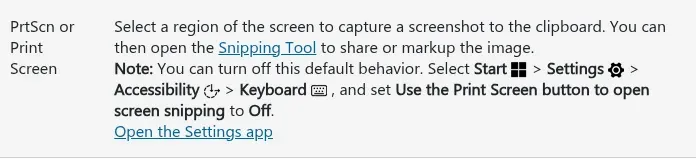
Two shortcuts I use as a quick test: Win + PrtScn saves a full-screen shot straight to Pictures > Screenshots, and Win + Shift + R starts a video snip. If those work but Win + Shift + S doesn't, the shortcut is being intercepted somewhere. If your Start menu or search is also acting up, fix that first with my Start menu and search not working guide, because the same shell problem often breaks both.
Step 2: Turn Snipping Tool notifications back on
This is the one that catches people out. Win + Shift + S copies your snip to the clipboard, and the little preview in the corner that you click to edit or save is a notification. Turn off notifications and the snip still happens, but you never see it.
- Press Win + Shift + S, drag a box, then open Paint and press Ctrl + V. If the snip pastes, the capture works and only the preview is missing.
- Open Settings > System > Notifications. Make sure the main Notifications switch is on.
- Scroll to the app list, turn on Snipping Tool, then click it and turn on Show notification banners.
- On the same Notifications page, turn off Do not disturb and check its automatic rules. Do not disturb can switch itself on during games, full-screen apps or set hours.
Snips you take from inside the app (with New) are saved to your Screenshots folder automatically, according to Microsoft. If you'd rather save every Win + Shift + S snip too, open Snipping Tool, go to See more > Settings and check the automatic save option there.
Step 3: End the app and update it
A frozen background copy of Snipping Tool can block new snips. Windows has a button that ends it properly.
- Open Settings > Apps > Installed apps and type snipping in the search box.
- Click the three dots next to Snipping Tool and choose Advanced options.
- Click Terminate. While you're on this page, check that Background apps permissions isn't set to Never, if your PC shows that option.
- Open the Microsoft Store, go to Library and click Get updates. Snipping Tool is a Store app, so this is where its fixes arrive.
- Run Settings > Windows Update > Check for updates as well, then restart.
If the Store itself hangs on "Downloading" or "Queued", press Win + R, type wsreset.exe and press Enter. It clears the Store cache and reopens the Store, and then you can try the update again.
Step 4: Repair or reset Snipping Tool
This is Microsoft's official fix for any Store app that won't open properly, and it's the one I'd reach for first when the app itself is broken.
- Go back to Settings > Apps > Installed apps > Snipping Tool > Advanced options.
- Click Repair and wait for the check mark. Repair tries to fix the app without touching its data.
- Test Snipping Tool. If it still fails, click Reset on the same page and confirm.
- Restart the PC, then test again.
Reset wipes the app's data, so settings like your custom save folder go back to the defaults. Your old screenshots are normal image files in your Pictures folder and stay where they are. If Repair or Reset is missing or greyed out, jump to Step 6.
A note on error 0x803F8001 and "This app can't open": back in November 2021, an expired Microsoft certificate broke Snipping Tool on Windows 11 21H2, and Microsoft fixed it with update KB5008295. You'll still see old guides telling you to change your clock. Don't. That bug is long gone, and on a current Windows 11 PC the error usually means damaged app data, which Repair, Reset or Step 6 handles.
Step 5: Fix the ms-screenclip default
Win + Shift + S and the Print Screen key open Snipping Tool through a link type called ms-screenclip. If that link has lost its default app, you'll get "This file does not have an app associated with it", which several people on Microsoft Q&A have reported.
- Open Settings > Apps > Default apps.
- Scroll to the bottom and click Choose defaults by link type.
- Type screenclip in the search box.
- Under MS-SCREENCLIP, pick Snipping Tool. If Snipping Tool isn't in the list, it isn't installed or registered for you, so go to Step 6 or 7.
Step 6: Re-register it with PowerShell
Microsoft Learn's guide for broken Store apps suggests re-registering the package, which repairs missing entries without downloading anything. Snipping Tool's package name is Microsoft.ScreenSketch, not "SnippingTool", which is why some older commands find nothing.
Open Windows PowerShell normally. Don't use "Run as administrator", because Microsoft notes that an elevated window registers the app to the admin account instead of yours. First check that the package is there:
Get-AppxPackage -Name Microsoft.ScreenSketchIf that prints details, re-register it:
Get-AppxPackage -Name Microsoft.ScreenSketch | ForEach-Object { Add-AppxPackage -DisableDevelopmentMode -Register "$($_.InstallLocation)\AppxManifest.xml" }If the first command prints nothing, the app isn't registered for your account. Open PowerShell as administrator and run Get-AppxPackage -Name Microsoft.ScreenSketch -AllUsers. If that finds it, close the admin window, open a normal one, and run:
Add-AppxPackage -RegisterByFamilyName -MainPackage Microsoft.ScreenSketch_8wekyb3d8bbweThen open Snipping Tool from Start and try Win + Shift + S again. If neither command finds the package, it's gone from the PC, so reinstall it.
Step 7: Reinstall Snipping Tool
Uninstalling is safe here. Snipping Tool is a free Microsoft app and you can get it back in a minute.
- In Settings > Apps > Installed apps, click the three dots next to Snipping Tool and choose Uninstall.
- Restart the PC.
- Install it again from the Snipping Tool page on the Microsoft Store (product ID 9MZ95KL8MR0L).
If the Store won't cooperate, winget can pull the same Store package from a normal Terminal window:
winget install --id 9MZ95KL8MR0L --source msstoreThe first time you use the msstore source, winget asks you to accept the Store's terms. Type Y and it carries on. After it finishes, redo Step 5 so the shortcut points at the fresh copy.
Step 8: Check for a policy blocking it
Windows has a policy called Do not allow Snipping Tool to run. Microsoft's policy reference says that when it's enabled, Snipping Tool won't run, and it exists for both users and the whole computer. Companies and schools sometimes switch it on, and some "privacy" or debloat scripts set the same registry value.
- Work or school PC: ask your IT team. If they've blocked it on purpose, a repair won't change anything, and trying to get around it can break their rules.
- Your own PC (Pro, Enterprise or Education): press Win + R, type
gpedit.msc, and open User Configuration > Administrative Templates > Windows Components > Tablet PC > Accessories. Set Do not allow Snipping Tool to run to Not Configured. Check the same path under Computer Configuration. - Windows 11 Home: there's no gpedit, so look in Registry Editor under
HKEY_CURRENT_USER\Software\Policies\Microsoft\TabletPCandHKEY_LOCAL_MACHINE\Software\Policies\Microsoft\TabletPC. If aDisableSnippingToolvalue is set to 1 on your own PC, delete it and restart. Back up the registry first.
If you've done all eight steps and Snipping Tool still won't start, other built-in apps are probably broken too. Check whether Calculator or Photos open. If they don't either, the problem is bigger than one app, and a Windows repair install is the next step. My Windows & PC fixes series covers the usual suspects.
Related guides: if the Windows key itself is acting up, my keyboard typing double letters fix covers keyboard software and Filter keys. For another Store app that hangs instead of opening, see new Teams stuck on loading.
FAQ
Why is Win + Shift + S not working on Windows 11?
Nine times out of ten it's one of three things: a gaming keyboard has locked the Windows key, some other screenshot app grabbed the shortcut, or Snipping Tool's notifications are off. That last one is sneaky, since the snip still gets copied. Try Win + E, then paste into Paint and see what you get.
Where do Snipping Tool screenshots go?
Anything you capture with New inside the app lands in Pictures > Screenshots on its own. Win + Shift + S puts the snip on your clipboard. Win + PrtScn skips the editor and drops a full-screen shot in that same Screenshots folder.
How do I fix "This app can't open" in Snipping Tool?
Open the app's Advanced options page in Settings and hit Terminate, then Repair, then Reset. Test after each one. No luck? Re-register Microsoft.ScreenSketch with the PowerShell line in Step 6, or just uninstall it and grab it from the Store again.
Will resetting Snipping Tool delete my screenshots?
Nope. Reset only clears the app's settings. Your saved screenshots are ordinary PNG files in your Pictures folder, and they don't get touched.
How do I reinstall Snipping Tool without the Microsoft Store?
Use winget: winget install --id 9MZ95KL8MR0L --source msstore in a normal Terminal window. Heads up, it still downloads the Store package, so you need to be online.
Comments ()