Windows 11 Start Menu or Search Not Working: 8 Fixes
Windows 11 Start menu not opening or Search blank? Restart Explorer, remove tweak apps, re-register Start with PowerShell, rebuild the index.
Updated: 21 November 2026. Checked against Microsoft Learn's Troubleshoot Start menu errors guide, Microsoft's Search indexing in Windows page, the KB5132061 release notes and recent threads on Microsoft Q&A.
Short answer: press Ctrl + Shift + Esc to open Task Manager, restart Windows Explorer, then use Restart (not Shut down) on the PC. If Start still won't open, uninstall any Start-menu tweaking app, then re-register Start from a normal (non-admin) PowerShell window with the command in Step 5. If the Start menu opens but Search is blank, jump to Step 6.
How I put this together: I don't have a PC with a broken Start menu in front of me, so I'm not claiming I tested every step on one. I went through Microsoft's own troubleshooting pages, checked each command and menu path against them, and read through recent threads from people who hit the problem. When a tip comes from a forum poster rather than Microsoft, I say so.
Jump to:
- Which fix matches what you see
- Step 1: Restart (not shut down) and test another way in
- Step 2: Restart Explorer and the Start processes
- Step 3: Install pending updates
- Step 4: Remove Start menu tweak apps
- Step 5: Re-register the Start menu
- Step 6: Fix blank or empty Search
- Step 7: Repair system files with DISM and SFC
- Step 8: Roll back an update or test a new account
- FAQ
Which fix matches what you see
"Start isn't working" can mean a few different things, and they point at different fixes. Here's how I'd sort them before you start.
| What you see | Most likely cause | Start with |
|---|---|---|
| Start does nothing when you click it or press the Windows key | Start process stuck or crashed | Steps 1 and 2 |
| Start flashes open and closes, or shows a critical error | Start package broken, or an update or tweak app clashing with it | Steps 4, 5 and 8 |
| Start opens, but typing gives a blank white box or no results | Windows Search or its index | Step 6 |
| Began right after you installed a Windows update | Update clashing with a driver or app | Steps 3 and 8 |
| You use ExplorerPatcher, Start11 or a similar tool | Unsupported customization | Step 4 |
| Settings or the taskbar also misbehave | Damaged system files | Step 7 |
| Works on a new account but not yours | Profile-level problem | Steps 5 and 8 |
If the whole desktop is black rather than just Start, that's a different problem, and my black screen with a cursor guide is the better place to begin.
Step 1: Restart (not shut down) and test another way in
Open the power menu and choose Restart. I put this first because it's free, and because Shut down and Restart aren't the same thing on a Windows PC with fast startup on. A restart is the one that starts everything fresh. Honestly, a lot of "Start is dead" threads end right here.
If Start is still dead, find out how dead it is. Try these:
- Press Ctrl + Esc. It's another way to open Start.
- Press Win + R. If the Run box opens, Windows itself is fine and only Start is stuck.
- Press Win + I for Settings. If Settings won't open either, skip ahead to Step 7, because that points at wider damage than just the Start menu.
Step 2: Restart Explorer and the Start processes
The Start menu runs as its own process, StartMenuExperienceHost.exe, and the taskbar and desktop live in explorer.exe. Restarting them is quick and doesn't touch your files.
- Press Ctrl + Shift + Esc to open Task Manager. (If nothing happens, press Ctrl + Alt + Del and pick Task Manager.)
- On the Processes tab, find Windows Explorer, right-click it and choose Restart. Your taskbar will vanish for a second and come back.
- Still no luck? Open the Details tab, find
StartMenuExperienceHost.exe(andSearchHost.exeif Search is the problem), right-click and choose End task. Windows starts them again the next time you open Start.
Microsoft's own guide says that if a Start process isn't running for your user, or keeps dying, the next thing to check is the Application log in Event Viewer for Event IDs 1000 and 1001 from StartMenuExperienceHost.exe. You don't have to do that, but if you do find those events, you've confirmed the Start process is crashing and not just hanging.
Step 3: Install pending updates
Microsoft's checklist for Start problems begins with one question: is the PC on the latest feature and monthly update? Go to Settings > Windows Update and install whatever is waiting, then restart. (If Settings won't open, use Win + I or search from the Run box with ms-settings:windowsupdate.)
One caveat. As of 21 November 2026, the release notes for the November security update, KB5132061, list only an install-failure problem under known issues and don't mention the Start menu or Search. I also couldn't find a Start-specific acknowledgement from Microsoft for this month. So I wouldn't blame November's update automatically. Look at the timing on your own PC: if Start broke right after a specific update, Step 8 is for you.
A note for work PCs. Microsoft documented a separate case, KB5072911, where Start, Explorer, Settings and the taskbar can fail on some enterprise or virtual desktop setups when updates are installed before a user's first sign-in. Microsoft says it's unlikely on personal PCs and that it's addressed in updates released from 23 June 2026 (KB5095093) onward. If you're on a managed or VDI machine, ask your IT team instead of running the commands in that article yourself.
Step 4: Remove Start menu tweak apps
If you use anything that changes how Start or the taskbar looks (ExplorerPatcher, Start11 or something similar), take it out and restart before you do anything else. Microsoft's Release Health notice for an earlier update said third-party UI customization apps often use unsupported methods and can stop Start from opening, with ExplorerPatcher named as one affected app. The advice then was to uninstall the tool or contact its developer.
This isn't just old news. ExplorerPatcher's own support page, last checked on 6 November 2026, says Windows 11 builds 26xxx.8474 and later (May 2026) removed the code behind the Windows 10 Start menu, so the version you get from ExplorerPatcher is a rebuild and not Windows' own. If you still want to use it, they say to update to version 71.1 first. If Start won't open at all, they suggest starting Explorer without it and switching the Start menu style back to Windows 11 (default).
My view: if your Start menu is broken, a tweak app is the first thing I'd remove. You can put it back once Start works.
Step 5: Re-register the Start menu
This is the main fix from Microsoft's documentation, and it's the one that works when the Start package is installed but isn't registered properly for your account. You need a PowerShell window that is not running as administrator. Microsoft is explicit about that: run as admin and the package gets registered to the administrator account instead of yours.
- Press Ctrl + Shift + Esc to open Task Manager, then choose Run new task (in Windows 11 it's in the top bar, or under the File menu on older layouts).
- Type
powershell, make sure Create this task with administrative privileges is unticked, and press OK.
Then run these two commands, one at a time. First, check that Start is installed for your user:
Get-AppxPackage -Name Microsoft.Windows.StartMenuExperienceHostIf you get details back with Status : Ok, the package is there. Now re-register it:
Add-AppxPackage -Path "C:\Windows\SystemApps\Microsoft.Windows.StartMenuExperienceHost_cw5n1h2txyewy\AppxManifest.xml" -Register -DisableDevelopmentModeRestart the PC and test Start.
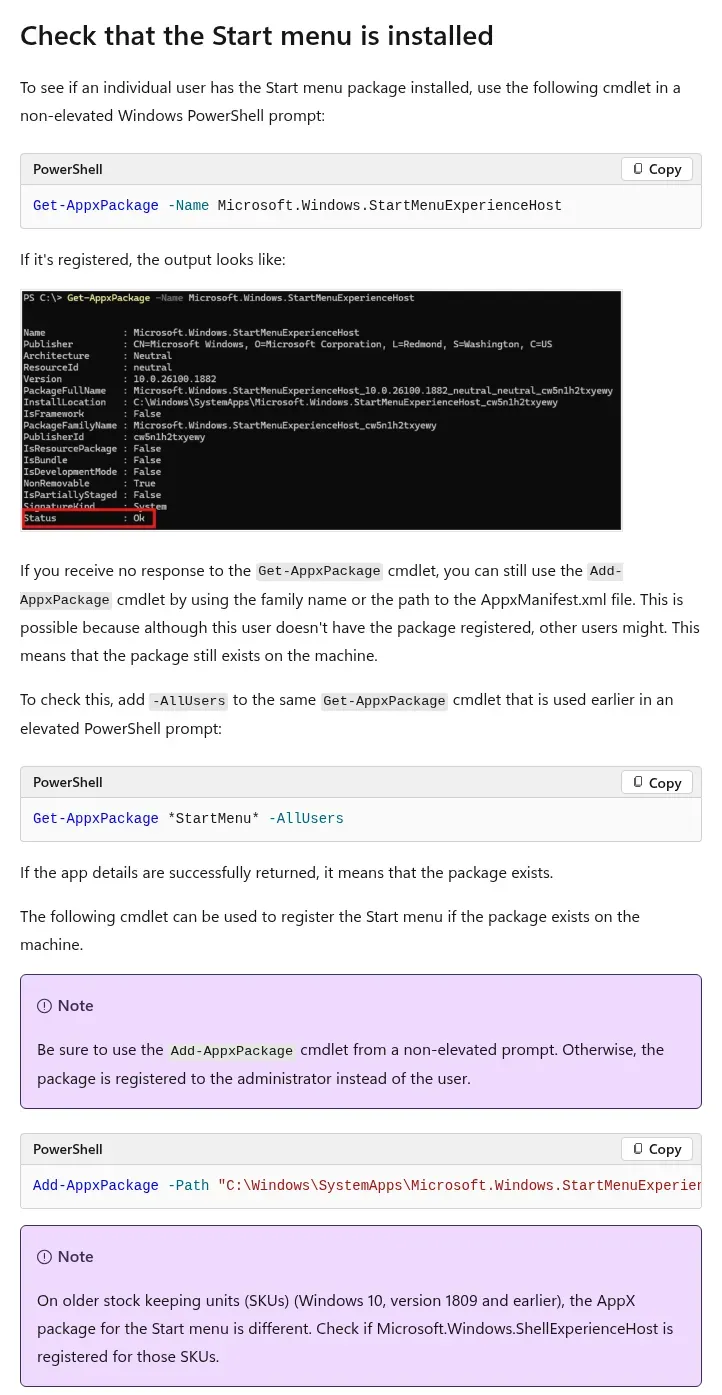
If Get-AppxPackage returns nothing for your account, Microsoft says you can still run the register command, because another user on the PC may have the package. To check whether it exists on the machine at all, use an elevated PowerShell and run Get-AppxPackage *StartMenu* -AllUsers.
Microsoft also warns that if the Start package isn't installed for any user, there's no supported way to install it by hand. In that case the fastest route is reverting to a known-good state: roll back the update, reset the PC, or restore from a backup (see Step 8).
One more option that forum posters mention is resetting the package with Get-AppxPackage Microsoft.Windows.StartMenuExperienceHost | Reset-AppxPackage. It doesn't always help. In one Microsoft Q&A thread about Start crashing on Windows 11 25H2, the poster tried SFC, DISM and both Reset-AppxPackage commands with no luck, and the re-register command didn't help them either. The thing that worked in that thread was rolling back the update that triggered it (KB5068861 at the time). So treat re-registering as a strong first try, not a guarantee.
Step 6: Fix blank or empty Search
If Start opens fine but typing gives you a white box or nothing at all, the problem is in Windows Search. A Microsoft Q&A user reported exactly that on 31 October 2026: the search box opened, but the panel was just white. Work through these in order.
- Restart the search service. Press Win + R, type
services.msc, find Windows Search, right-click it and choose Restart (or Start if it's stopped). - Run the Search and Indexing troubleshooter. Go to Settings > System > Troubleshoot > Other troubleshooters and look for Search and Indexing. Choose the option that matches, such as "Can't start a search or see results". On some builds Microsoft has been moving troubleshooters into the Get Help app, so if it isn't listed, that's why.
- Rebuild the index. Go to Settings > Privacy & security > Search (on some builds it's labeled Searching Windows), open Advanced indexing options, select Advanced, and under Troubleshooting choose Rebuild. Confirm, and let the PC sit plugged in. Microsoft says the first indexing pass can take up to a couple of hours, and results will be incomplete until it finishes.
While you're in that Search settings page, you'll see two modes under Find my files: Classic (indexes Documents, Pictures, Music and the desktop) and Enhanced (indexes the whole PC). Enhanced finds more, but it gives the indexer a lot more to chew through, so if your search is slow rather than empty, Classic is worth a try.
Step 7: Repair system files with DISM and SFC
If Settings or the taskbar also misbehave, or none of the above worked, check Windows' own files. Open Terminal (Admin) or run cmd as administrator from Task Manager's Run new task (this time tick the admin box), and run these one at a time:
DISM /Online /Cleanup-Image /RestoreHealth
sfc /scannow
DISM can sit at the same percentage for a while, so don't close it. When SFC finishes, restart and test Start again. In the Microsoft Q&A thread I mentioned above, these two didn't fix that particular crash, so don't be surprised if you still need Step 8.
Step 8: Roll back an update or test a new account
Uninstall the update that broke it. If Start died right after an update, go to Settings > Windows Update > Update history > Uninstall updates, pick the most recent one and uninstall it, then restart. Microsoft's guide lists rolling back the update as the way back to a known-good setup, and in the Q&A thread above it was the thing that actually fixed it. Pause updates for a week or two afterward so it doesn't reinstall straight away.
Test a new account. Go to Settings > Accounts > Other users > Add account, create a local test user, sign in and check Start. If it works there, Windows is fine and your profile is the problem. Copy your files to the new account (or back them up) and use that one going forward.
Last resorts. Boot into Safe Mode, or use msconfig for a clean boot, to see whether a third-party driver or app is the cause, as Microsoft suggests. If nothing works, back up your files and use Settings > System > Recovery > Reset this PC, choosing to keep your files. My guide on rebuilding Windows 11 from the cloud without a USB drive covers the other route.
Related guides: my Windows 11 100% disk usage fix links all my other Windows guides. If the lock screen or Spotlight wallpaper is also acting up, see my Windows Spotlight guide, and if an update is the culprit, my stuck Windows Update fix may help. If the whole taskbar locks up, not just Start, see my Windows 11 taskbar frozen or not responding fix. If Win + Shift + S or the Snipping Tool app stops working too, see my Snipping Tool not working fix.
FAQ
Why is my Windows 11 Start menu not opening?
The usual causes are a stuck or crashed Start process, a Start menu tweak app, a recent update, or a Start package that isn't registered correctly for your account. Restarting Explorer and the PC fixes the simple cases. The re-register command in Step 5 covers most of the rest.
Is the November 2026 update breaking Start?
I couldn't find that. As of 21 November 2026, the KB5132061 release notes list only an installation issue, and I didn't find a Microsoft acknowledgement of a Start or Search bug for this month. If your problem began right after an update, rolling it back (Step 8) is still a reasonable test.
Is it safe to re-register the Start menu?
The command comes from Microsoft's own documentation and doesn't delete your files. Run it from a PowerShell window that isn't elevated, or the package gets registered to the administrator account instead of yours.
Why does Start open but Search shows a blank white box?
That points at Windows Search rather than the Start menu itself. Restart the Windows Search service, run the Search and Indexing troubleshooter, and rebuild the index (Step 6). Give the rebuild time to finish before you test it.
Can ExplorerPatcher or Start11 break the Start menu?
Yes. Microsoft has said third-party UI customization apps use unsupported methods and can stop Start from opening, and ExplorerPatcher's own page has a section on Start and Search problems. Removing the tool is the quickest test.
If Start still won't open after all eight steps, leave a comment with your Windows build (press Win + R, type winver) and what changed just before it broke. I'll try to help you narrow it down.
Comments ()