Wi-Fi Disconnects After Sleep on Windows 11? 9 Fixes
Wi-Fi drops after sleep on Windows 11? Check Modern Standby with powercfg /a, keep Wi-Fi on in standby, fix adapter power settings and drivers.
Updated: 23 November 2026. Checked against Microsoft Support's Fix Wi-Fi connection issues in Windows page, Microsoft Learn's Modern Standby vs S3 and power policy docs, and Intel's power settings and disconnect articles.
Short answer: run powercfg /a first. If it says your PC uses Standby (S0 Low Power Idle), that's Modern Standby, and Windows may be dropping Wi-Fi on purpose while the lid is shut. Set Network connectivity in Standby to Enable and the problem often goes away. On older S3 sleep PCs, the usual culprits are the adapter's power settings and a stale driver, so the fix there is the laptop maker's own Wi-Fi driver and BIOS.
How I put this together: I didn't sit and recreate every laptop's sleep bug, and I'm not going to pretend I did. The menu paths and commands come from Microsoft's and Intel's pages linked above. The order of the steps is mine, based on which fixes keep coming up as the ones that actually worked in Microsoft Q&A and Intel Community threads. Where Microsoft and Intel disagree (and they do, on one checkbox), I'll say so.
Jump to:
- Which fix do I need?
- Quick workaround: get Wi-Fi back without a restart
- Step 1: Check which sleep type your PC uses
- Step 2: Keep Wi-Fi connected in Modern Standby
- Step 3: Stop Windows from powering off the adapter
- Step 4: Set Wireless Adapter power saving to Maximum Performance
- Step 5: Turn off Fast Startup
- Step 6: Install your laptop maker's Wi-Fi driver and BIOS
- Step 7: Roll back the driver after a bad update
- Step 8: Read the sleep and WLAN reports
- Step 9: Reset the network stack
- FAQ
Which fix do I need?
Three questions, and the picker below tells you which steps to start with. You'll need the answer from powercfg /a for the first one, which takes ten seconds (it's in Step 1). If you can't be bothered yet, pick "I haven't checked" and it'll send you there.
Which fix do I need?
Runs only in your browser. Nothing is sent anywhere.
And if you'd rather read a table than click things, this is roughly how I'd split it:
| What happens after wake | Most likely cause | Start with |
|---|---|---|
| Wi-Fi was off during sleep, takes a while to come back | Modern Standby set to disconnect | Steps 1 and 2 |
| No networks listed at all until you restart | Adapter didn't power back up | Steps 3, 6 and 7 |
| Connected, but "No internet" | Stale IP/DNS or driver state | Quick workaround, then Steps 6 and 9 |
| Adapter vanishes from Device Manager or shows a yellow warning | Driver or firmware bug | Steps 6, 7 and 5 |
| Only happens on battery, fine when plugged in | Battery power plan settings | Steps 2 and 4 |
| Started right after a Windows or driver update | New driver doesn't like sleep | Step 7 |
Quick workaround: get Wi-Fi back without a restart
Before fixing it for good, here's how to skip the reboot when it happens. Go to Settings > Network & internet > Advanced network settings, find your Wi-Fi adapter, click Disable, wait a few seconds, then Enable. That re-initializes the adapter, which is basically what the restart was doing for you.
Microsoft's own guide also suggests restarting the WLAN service: press Win + R, type services.msc, find WLAN AutoConfig, right-click it and choose Restart. If you get "No internet" rather than no Wi-Fi, an admin Command Prompt with ipconfig /release, ipconfig /renew and ipconfig /flushdns is worth a shot too.
If the disable/enable trick works every time, that's useful info. It tells you the hardware's fine and Windows or the driver just isn't waking the adapter properly. Steps 2 to 7 are aimed at exactly that.
Step 1: Check which sleep type your PC uses
This is the step most guides skip, and I think it's why so many people end up toggling settings that don't exist on their laptop. Windows PCs sleep in one of two ways:
- Modern Standby (S0 Low Power Idle). Found on most thin laptops sold in the past few years. The PC never fully sleeps; it idles at very low power and can stay online or drop off the network, depending on settings.
- S3 sleep. The traditional kind, more common on desktops and older laptops. Almost everything powers down, Wi-Fi included, and has to reconnect on wake.
To check, open Command Prompt or Terminal and run:
powercfg /aLook at the first lines under "The following sleep states are available on this system". If you see Standby (S0 Low Power Idle) Network Connected, you have Modern Standby and it keeps Wi-Fi on during sleep. Network Disconnected means Modern Standby is set to drop the network. Standby (S3) means the old-style sleep.
Microsoft's Modern Standby vs S3 page explains that Modern Standby systems can either stay connected or disconnect during standby. On S3, a short wait after wake is normal. A wait that never ends isn't.
Step 2: Keep Wi-Fi connected in Modern Standby
If powercfg /a showed S0 Low Power Idle, this is the setting I'd change first. It's called Network connectivity in Standby, and it has three values:
- Enable: stay connected while asleep.
- Disable: drop the network during standby.
- Managed by Windows: Windows decides, and only some background apps get network access.
The fastest way is two commands in an admin Command Prompt. The first is for battery, the second for plugged in:
powercfg /setdcvalueindex scheme_current sub_none F15576E8-98B7-4186-B944-EAFA664402D9 1
powercfg /setacvalueindex scheme_current sub_none F15576E8-98B7-4186-B944-EAFA664402D9 1
powercfg /setactive scheme_current
Use 0 instead of 1 for Disable and 2 for Managed by Windows if you want to go back. If you'd like a dropdown instead, run powercfg -attributes F15576E8-98B7-4186-B944-EAFA664402D9 -ATTRIB_HIDE, then open Control Panel > Power Options > Change plan settings > Change advanced power settings and look for "Networking connectivity in Standby".
On a work laptop, this may be locked. Microsoft's power policy docs list two Group Policy settings for it, "Allow network connectivity during connected-standby" (on battery and plugged in), under Computer Configuration > Administrative Templates > System > Power Management > Sleep Settings. The docs also note the restriction currently applies to WLAN only, which fits the "Ethernet's fine, Wi-Fi isn't" reports. If IT set it, ask them; don't fight the policy.
The honest trade-off: a laptop that stays online in standby uses more battery overnight. If it's mostly plugged in, I wouldn't worry about it. If you live on battery, you could set Enable for plugged in only and leave battery on Managed by Windows.
Step 3: Stop Windows from powering off the adapter
This is the fix everyone mentions, and it's in Microsoft's own troubleshooting guide as Step 10:
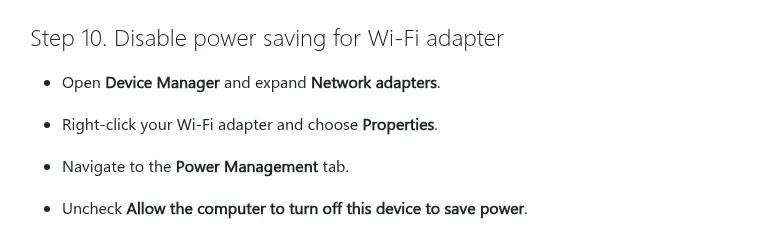
- Press Win + X and open Device Manager.
- Expand Network adapters, right-click your Wi-Fi adapter (Intel, Realtek, MediaTek, Qualcomm and so on), and choose Properties.
- Open the Power Management tab and untick Allow the computer to turn off this device to save power.
- Click OK, put the PC to sleep for a few minutes, and wake it.
Two catches. First, on many Modern Standby laptops the Power Management tab simply isn't there. That's normal, not a broken driver, and it's why Step 2 comes first. I'd skip the registry tweaks floating around that bring the tab back by switching off Modern Standby. They change how the whole laptop sleeps, which is a bigger change than this problem deserves.
Second, Intel disagrees with Microsoft here. Intel's power settings article says this checkbox only affects how Windows and the driver power the device down during suspend and hibernation, not Wi-Fi power saving itself, and Intel recommends leaving it ticked. My take: treat it as a test. Untick it, try a few sleep cycles, and if nothing changes, tick it again.
Step 4: Set Wireless Adapter power saving to Maximum Performance
This one's the actual Wi-Fi power-saving setting Intel talks about. Go to Control Panel > Power Options > Change plan settings > Change advanced power settings, expand Wireless Adapter Settings > Power Saving Mode, and set it to Maximum Performance (on laptops you'll see separate On battery and Plugged in values).
Intel notes newer Windows builds may hide this option. If it's missing, the same thing works from an admin Command Prompt:
powercfg /setacvalueindex scheme_current 19cbb8fa-5279-450e-9fac-8a3d5fedd0c1 12bbebe6-58d6-4636-95bb-3217ef867c1a 0
powercfg /setdcvalueindex scheme_current 19cbb8fa-5279-450e-9fac-8a3d5fedd0c1 12bbebe6-58d6-4636-95bb-3217ef867c1a 0
powercfg /setactive scheme_current
Here 0 is Maximum Performance and 3 is Maximum Power Saving. Intel's own advice is to leave power settings at their defaults unless you have a reason, and it warns Maximum Performance on battery drains it faster. A Wi-Fi card that won't come back after sleep counts as a reason, in my book, but if this step doesn't help, put it back.
Step 5: Turn off Fast Startup
Fast Startup isn't sleep, but it's related. When you "shut down", Windows actually hibernates the system core, so a driver that got into a bad state can carry over to the next boot. If your Wi-Fi only stays fixed after a Restart and not after Shut down and power on, this is a good suspect.
- Open Control Panel > Power Options > Choose what the power buttons do.
- Click Change settings that are currently unavailable.
- Untick Turn on fast startup (recommended) and click Save changes.
Boot will be a few seconds slower. If the option isn't there at all, hibernation is switched off on your PC, so Fast Startup already is too.
Step 6: Install your laptop maker's Wi-Fi driver and BIOS
On laptops, this is where I'd put most of my hope. Sleep and wake involve the BIOS, the chipset driver and the Wi-Fi driver all agreeing with each other, and a generic driver from Windows Update doesn't always play nicely with a laptop maker's sleep setup.
- Go to your laptop maker's support page (Dell, HP, Lenovo, ASUS, Acer, Microsoft Surface and so on), enter the model or serial number, and install the latest BIOS/UEFI, chipset and wireless drivers listed for it.
- Check Settings > Windows Update > Advanced options > Optional updates for driver and firmware updates as well.
- If you built the PC yourself or added a Wi-Fi card, get the driver from the card's maker (Intel's Driver & Support Assistant, for example).
That's also Intel's own order of advice in its "keeps disconnecting" article: a clean install of the latest driver, BIOS update, no pending Windows updates, then test another network or router. In one Intel Community thread about an AX201 dropping on sleep, the Intel moderator's advice was to use the laptop maker's driver rather than Intel's generic one. That threw me at first, but it makes sense: the OEM package is the one tested against that laptop's BIOS.
Step 7: Roll back the driver after a bad update
If this started right after Windows Update installed something, go back a version:
- In Device Manager, open your Wi-Fi adapter's Properties and go to the Driver tab.
- Check the Driver Date and Driver Version. If the date matches when the problem began, click Roll Back Driver.
- Pick a reason, confirm, and restart.
If Roll Back Driver is greyed out, there's no older driver saved. Download the previous version from your laptop maker's page instead and install it over the top. Windows Update may try to push the newer driver again later, so keep an eye on it.
Step 8: Read the sleep and WLAN reports
If nothing so far has worked, stop guessing and let Windows tell you what happened. Three built-in reports help:
netsh wlan show wlanreport(admin) builds an HTML report of the last three days of Wi-Fi sessions, disconnects and errors. It's saved toC:\ProgramData\Microsoft\Windows\WlanReport\wlan-report-latest.html. Look for disconnect reasons that line up with the times you closed the lid.powercfg /sleepstudyworks on Modern Standby PCs and savessleepstudy-report.htmlin the current folder. It lists each standby session and which devices or drivers kept the system busy.powercfg /systemsleepdiagnosticscreates a report of sleep and wake transitions, handy on S3 machines too.
Microsoft's Wi-Fi guide also points out that the WLAN report's Network Adapters section shows a Problem number if the driver failed to load, which maps to a Device Manager error code. If you end up contacting your laptop maker, attach these reports. They'll get you past the "have you tried restarting" stage faster.
Step 9: Reset the network stack
Microsoft calls network reset the last thing to try, and I agree. Go to Settings > Network & internet > Advanced network settings > Network reset, click Reset now, and confirm. Windows removes and reinstalls your network adapters and puts their settings back to defaults, then restarts.
Be aware that you'll have to re-enter Wi-Fi passwords, and VPN clients or virtual switches (Hyper-V, VirtualBox) may need reinstalling. Known networks may also come back as Public. If you only want to clear out the TCP/IP side, Microsoft's lighter option is netsh winsock reset and netsh int ip reset in an admin Command Prompt, then a restart.
If you've done all nine steps and it still happens on every network, including a phone hotspot, I'd stop blaming Windows. A USB Wi-Fi adapter for a few days is a cheap way to find out if the built-in card is failing, and if it is, the laptop maker's warranty is the next call.
Related guides: If Wi-Fi reconnects but pages won't load, my Wi-Fi connected but no internet on Windows 11 guide covers the DNS and IP side. On some Intel cards, odd load failures trace back to a different setting entirely, covered in some sites won't load on Intel Wi-Fi. Bluetooth dropping too? Try Bluetooth not working on Windows 11. And if staying connected in standby has you worried about battery, here's how to check laptop battery health on Windows 11.
FAQ
Why does my Wi-Fi disconnect when my laptop goes to sleep?
Mostly because it's meant to save power. On S3 sleep the Wi-Fi card is switched off completely. On Modern Standby, Windows can be set to drop the network during standby. The problem is only when it doesn't come back properly after wake, which is usually a driver, BIOS or power setting issue.
Where is the Power Management tab for my Wi-Fi adapter?
Device Manager > Network adapters > your Wi-Fi adapter > Properties. On many Modern Standby laptops the tab doesn't appear, which is expected. Use the Network connectivity in Standby setting in Step 2 instead.
Will keeping Wi-Fi connected in sleep drain my battery?
Somewhat, yes. Staying connected in standby lets apps sync in the background, which uses power. Setting Enable only for plugged in, and leaving battery on Managed by Windows, is a reasonable middle ground.
Why does Wi-Fi work after Restart but not after Shut down?
Fast Startup. Shut down saves part of the system to disk and reloads it on boot, while Restart starts fresh. Turning Fast Startup off (Step 5) makes them behave the same.
Is a network reset safe?
It won't touch your files, but it removes saved Wi-Fi networks and adapter settings and can break VPN software until it's reinstalled. That's why I leave it for last.
If your laptop does something odd that isn't covered here, like the Wi-Fi only fails after sleeping on battery for more than an hour, send me the model and what powercfg /a shows through the contact page. Patterns like that usually point at one specific setting.


Comments ()