Some Sites Won't Load on Wi-Fi? Check Intel ICPS (IPv6)
Sites resetting on your Intel laptop but fine on your phone? Test for the Intel ICPS IPv6 bug, then turn it off or swap in Intel's build on Windows 11.
Updated: 9 November 2026. Checked against Intel's ICPS uninstall article (000093451), Intel's ICPS download page and Clean Uninstall Utility, Microsoft's IPv6 configuration guidance, the public ICPS flow-label bug report and its workaround page, an Intel Community thread and The Register's report.
Short answer: if some websites throw "connection reset" on your Intel laptop, OneDrive or OneNote keeps failing, and the exact same sites load fine on your phone, check for Intel Connectivity Performance Suite (ICPS). Some laptop makers' builds of it break IPv6 connections partway through. IPv4 isn't touched, which is why the problem looks so random. You can test for it in about a minute, and the fix is either turning ICPS off or swapping the maker's build for Intel's own.
I want to be upfront about where this comes from. I don't own an affected laptop, so I haven't reproduced it myself. What's below is pieced together from Intel's official support pages, Microsoft's networking docs and a very detailed public bug report by a Samsung Galaxy Book owner, backed up by an ASUS owner on Intel's forum and covered by The Register in October. Neither Intel nor Microsoft has published an advisory, so I've stuck to what's documented and marked the parts that aren't.
Jump to:
- Step 1: Check if your symptoms match
- Step 2: See if ICPS is installed and running
- Step 3: Run the IPv6 reset test
- Step 4: Quick fix: turn off the ICPS services
- Step 5: Or replace the OEM build with Intel's own
- Step 6: Stop Windows Update putting it back
- Step 7: Not ICPS? Prefer IPv4 instead of disabling IPv6
- FAQ
What ICPS is, and why it breaks some sites
ICPS is Intel's "network optimizer". It prioritises traffic and is bundled on many Evo and vPro laptops with Intel Wi-Fi 6, 6E and Wi-Fi 7 cards. Intel's support staff describe it as "added value software" that OEMs ship to enhance the wireless experience. Your Wi-Fi driver is a separate package, so ICPS isn't needed for Wi-Fi or Bluetooth to work.
The bug lives in its traffic-control driver. Per the public bug report, the driver sends the first packet of a connection with a normal IPv6 flow label, then rewrites that label to zero on every packet after it. Big edge networks such as Microsoft's Azure Front Door use the label to decide which server handles a connection. Once the label changes, the rest of the connection lands on a server that never saw it start, and that server resets it.
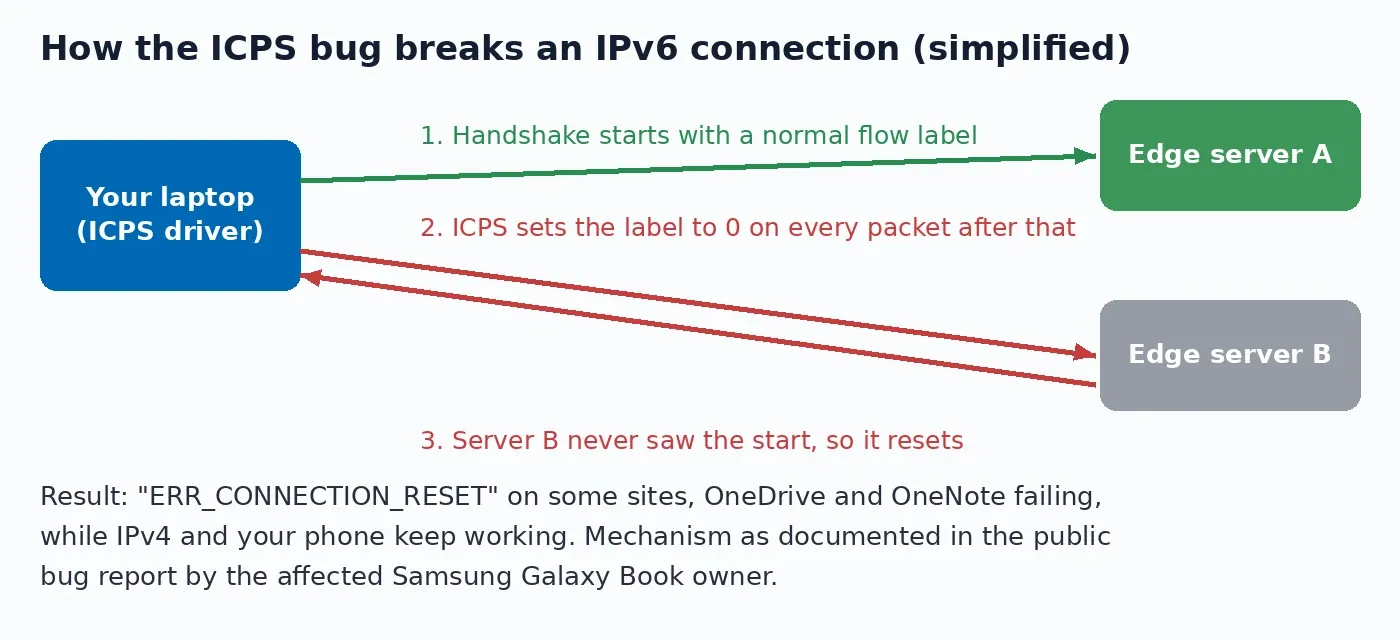
Microsoft's services got hit hardest in that report, but they weren't alone. The ASUS owner on Intel's forum saw roughly 40 to 60 percent of IPv6 HTTPS connections to an AWS CloudFront site reset in Chrome, Edge and curl.exe, over both Wi-Fi and Ethernet, while IPv4 stayed solid.
These are the builds people have reported so far:
| ICPS build | Where it was seen | Reported result |
|---|---|---|
| 40.25.926.0 app (driver packages 40.25.926.173) | Samsung Galaxy Book (Core Ultra 7 256V, Wi-Fi 7 BE201), arrived via Windows Update | IPv6 resets to Microsoft 365, OneDrive, OneNote, Teams, Azure |
| 40.25.725.165 | ASUS laptop (Intel Community thread) | 40 to 60% of IPv6 HTTPS connections to a CloudFront site reset; gone after removal |
| 4.1025.x | Earlier OEM builds named in the bug report | Listed among builds that showed the bug |
| 50.26.623.243 (Intel generic) | Same Samsung laptop, retested 7 Oct 2026 | 169 of 170 IPv6 connections fine, flow label kept |
| 50.26.917.261 (Intel generic, current) | Intel's download page today | No public test results I could find yet |
Step 1: Check if your symptoms match
This bug has a very particular pattern, and it's worth checking before you start removing software. You're a likely match if most of these are true:
- It's a Windows laptop with an Intel Wi-Fi card. Samsung, ASUS, Lenovo, HP and Dell all ship ICPS on some models.
- Some sites fail with
ERR_CONNECTION_RESETor "This site can't be reached", and a reload sometimes works. - The OneNote desktop app says "We can't get to your notebooks right now", or shows empty notebooks marked "Up to date". OneDrive or Microsoft 365 sign-in fails now and then.
- The same sites work on your phone on the same Wi-Fi, and OneNote on the web works.
- Your ISP gives you IPv6. Most big fibre and mobile ISPs do now, including Comcast, AT&T, T-Mobile, Jio and Airtel, so plenty of people have it without knowing.
If your laptop says "No internet, secured" and nothing loads at all, that's a different problem. My Wi-Fi connected but no internet guide is the better starting point there.
Step 2: See if ICPS is installed and running
The quick look: open Settings > Apps > Installed apps and search for "Intel Connectivity". If "Intel Connectivity Performance Suite" shows up, keep going.
For a firmer answer, open PowerShell (no admin needed) and run these two lines from the bug report's workaround page:
Get-CimInstance Win32_SystemDriver -Filter "Name='INTCCoSvc'" | Select-Object Name, StartMode, State
Get-Service IDBWM, 'Intel Connectivity Network Service', IntelConnectService -ErrorAction SilentlyContinue
If INTCCoSvc shows State: Running, the traffic-control driver is active. That's the part that rewrites the flow label. To see which build you have, run this in an admin PowerShell:
pnputil /enum-drivers | Select-String icps -Context 1,3Write the version down. A 40.x or 4.1025.x number means you're on one of the OEM builds from the table above.
Step 3: Run the IPv6 reset test
This is the step I'd never skip, because it tells you for sure before you change anything. curl.exe comes with Windows 10 and 11. In PowerShell, run:
1..10 | ForEach-Object { curl.exe -6 -sS -o NUL -w "%{http_code}`n" https://api.onedrive.com/ }The -6 forces IPv6. A healthy laptop prints ten status codes, such as 302. An affected one prints errors like Recv failure: Connection was reset for some or all of the ten. If curl can't connect over IPv6 at all, your network has no IPv6. In that case this bug can't be your problem, so skip to Step 7.
Run the same test on another computer on your network if you have one. If it passes there and fails on the Intel laptop, you've found your answer.
Step 4: Quick fix: turn off the ICPS services
This is the fastest fix, and it's easy to undo. Open PowerShell as administrator and paste this in:
sc.exe config INTCCoSvc start= disabled
sc.exe stop INTCCoSvc
foreach ($s in 'IDBWM', 'Intel Connectivity Network Service', 'IntelConnectService') {
  Set-Service -Name $s -StartupType Disabled -ErrorAction SilentlyContinue
  Stop-Service -Name $s -Force -ErrorAction SilentlyContinue
}
Note the space after start=. sc.exe is fussy about it. Restart, then run the Step 3 test again. You should get ten clean status codes, and OneNote should catch up within a minute or so. If a notebook still shows an error, close it and reopen it from OneDrive.
You lose ICPS's traffic prioritisation, and that's all. Wi-Fi and Bluetooth keep working. To undo it later, the workaround page lists the original start types:
sc.exe config INTCCoSvc start= demand
Set-Service IDBWM -StartupType Manual
Set-Service 'Intel Connectivity Network Service' -StartupType Automatic
Set-Service IntelConnectService -StartupType Manual
On a work laptop managed by IT, ask them first. A company VPN or management tool may not like services being switched off under it.
Step 5: Or replace the OEM build with Intel's own
If you'd rather keep ICPS, replace your laptop maker's build with Intel's generic one. Intel's article 000093451 covers the removal:
- Open Command Prompt as administrator and run
pnputil /enum-drivers >c:\icps.log. - Open
c:\icps.log, press Ctrl+F and search for "icps". Note eachoem#.inflisted asicpsComponentoricpsExtension. Don't touch anything else. - Run
pnputil /delete-driver oem#.inf /uninstallfor each one, with your own numbers in place of #. The bug report suggests doing the component entries first and the extension last. Your Wi-Fi may drop for a second while that runs. - Uninstall "Intel Connectivity Performance Suite" from Settings > Apps, then restart.
- Download the current package from Intel's ICPS download page, check its SHA512 against the one Intel lists, and install it.
A few caveats here. Today that page offers 50.26.917.261, released in September 2026, and it only supports Windows 11, since Intel dropped Windows 10 with this release. The build that tested clean in the bug report was the earlier 50.26.623.243. I haven't found anyone testing 50.26.917.261 for this bug, so run the Step 3 test afterwards and don't assume. If it still fails, go back to Step 4. On Windows 10, Step 4 is the way to go.
If the installer stops with "Failed Uninstallation - Uninstallation of old Intel(R) Connectivity Performance Suite versions was not successful", Intel's answer is the ICPS Clean Uninstall Utility. Restart first, run it as administrator, look for "Result: SUCCESS", and restart again before you reinstall. Be warned that it starts removing things as soon as you click Yes on the UAC prompt.
One more thing: Intel staff told the ASUS owner that ICPS from Intel is "most of the time only fully compatible with the OEM version" on bundled machines. That's another reason I'd lean towards Step 4 if you don't actually use ICPS features.
Step 6: Stop Windows Update putting it back
This is the annoying bit. In the bug report, the broken OEM build reached the laptop through Windows Update, and it was still in Microsoft's Update Catalog as of 20 October. So it can come back after you remove it.
- Disabled services (Step 4): after big updates, rerun the Step 2 check. If
INTCCoSvcis running again, run the Step 4 block again. - Windows 11 Pro: in the Group Policy Editor (
gpedit.msc), go to Computer Configuration > Administrative Templates > Windows Components > Windows Update > Manage updates offered from Windows Update and turn on "Do not include drivers with Windows Updates". It blocks every driver from Windows Update, not just this one, so you'd need to get graphics and Wi-Fi drivers from your laptop maker or Intel yourself. I'd only use it if ICPS keeps coming back. - Company laptops: IT can block the specific driver in Intune or WSUS, which is cleaner than either option above.
Step 7: Not ICPS? Prefer IPv4 instead of disabling IPv6
If ICPS isn't installed, or the Step 3 test still fails after Step 4, something else on the IPv6 path is to blame. It could be your router, your ISP or another network filter driver, such as a VPN or security suite. The tempting move is to untick IPv6 in your adapter settings. Microsoft specifically says not to do that, because some Windows components expect IPv6 to be there.
What Microsoft recommends instead is telling Windows to prefer IPv4. Run this in an admin Command Prompt, then restart:
reg add "HKEY_LOCAL_MACHINE\SYSTEM\CurrentControlSet\Services\Tcpip6\Parameters" /v DisabledComponents /t REG_DWORD /d 0x20 /fTo check it worked, run ping bing.com. You should see an IPv4 address come back. To undo it, set the value back to 0. Microsoft also warns that values other than 0 or 32 (0x20) can break the Routing and Remote Access service, so don't experiment with other numbers.
Treat this as a stopgap while you work out the real cause. If it fixes things, try another device on the same network with IPv6, restart the router, and check for a router firmware update. A VPN client on the laptop is worth a look too, and my Always On VPN fix covers one recent Windows VPN problem.
Things that won't help with the ICPS bug, according to the bug report: signing out of Office, clearing the OneNote cache, repairing or reinstalling Office, resetting the network stack and switching DNS. If you've already tried all of those, you're in good company.
Related guides: two more from me that pair well with this one: Pixel Wi-Fi dropping on Android 17 and setting up AdGuard Home.
FAQ
Is it safe to disable Intel Connectivity Performance Suite?
Yes, for most people. It only handles Intel's traffic prioritisation. Your Wi-Fi and Bluetooth drivers are separate packages, and they keep working with ICPS off. The Step 4 commands can be reversed with the undo block.
Will disabling IPv6 fix it?
It'll hide the symptom, but I wouldn't do it. Microsoft advises against disabling IPv6 because parts of Windows rely on it, and you'd be switching it off for everything to work around one driver. Fix ICPS itself, or use the prefer-IPv4 setting from Step 7 as a temporary measure.
Has Intel or Microsoft fixed this?
Not publicly. Intel's newer generic build tested clean in the bug report, but as of late October there was no advisory and no fixed build through the laptop makers' channels. The reporter says Microsoft's Azure networking engineers confirmed the mechanism in writing, but Microsoft hasn't said anything public or given a date.
Why do the same sites work on my phone?
Your phone doesn't run the ICPS driver. Many sites also fall back to IPv4 or ignore the flow label, which is why Google and Cloudflare sites often load fine while Microsoft 365 breaks. A write-up on Thank You for Patching notes that Google, Cloudflare and Akamai didn't seem to mind.
Does this affect Ethernet too?
It can. The ASUS owner on Intel's forum reported the resets on both Wi-Fi and Ethernet, because ICPS filters traffic at the network level rather than inside the Wi-Fi driver.
Tried this and still getting resets? Leave your laptop model, ICPS version and Windows build in the comments, plus what the Step 3 test printed, and I'll help you narrow it down.
Comments ()