Pixel Wi-Fi Keeps Dropping on Android 17: What to Try
Pixel Wi-Fi dropping since Android 17? Find which kind of drop you have, then try these fixes in order, from Adaptive connectivity to router settings.
Updated: 9 November 2026. Checked against Google's Fix Wi-Fi connection problems and Connect to Wi-Fi networks help pages, the Android 17 QPR3 beta release notes, Google Issue Tracker report 570412115, 9to5Google's write-up of the Adaptive connectivity toggles, and owner threads on r/GooglePixel.
Short answer: if your Pixel's Wi-Fi started cutting out after Android 17, first turn off Auto-switch to mobile network under Adaptive connectivity. That one switch has fixed it for a lot of owners. If it doesn't help, the cause is usually one of three things: a saved network that's gone bad, a router feature (802.11r or Wi-Fi 7 MLO) that Android 17 doesn't get along with, or a reconnect bug that Google has fixed in beta but not yet in a stable release.
I don't have an affected Pixel in front of me, so none of this comes from my own testing. I've put it together from Google's help pages and release notes, the bug reports people have filed, and the threads where owners say what actually worked for them. Where something is a workaround rather than an official fix, I'll say so.
Jump to:
- Which kind of drop do you have?
- Step 1: Restart and check your build
- Step 2: Turn off Auto-switch to mobile network
- Step 3: Forget the network and check MAC privacy
- Step 4: Reset Bluetooth and Wi-Fi
- Step 5: Rule out apps, VPNs and Private DNS
- Step 6: Check the router (802.11r and MLO)
- Step 7: Won't reconnect after the screen goes off?
- Step 8: Report it to Google
- FAQ
Which kind of drop do you have?
"Wi-Fi keeps dropping" covers a few different bugs, and the fix depends on which one you've got. Spend a minute on this before you start resetting things, because the full reset in Step 4 wipes every saved network and every paired Bluetooth gadget.
The Android 17 reports I found fall into roughly four groups. One r/GooglePixel post from July describes Wi-Fi dropping every few minutes on every network (office, cafes, home) while mobile data stays fine. PhoneArena covered a Pixel 7a owner whose Wi-Fi switched itself off and on every 20 to 30 seconds. A Pixel 8 owner filed an Issue Tracker report in October: after the Android 17 QPR1 update the phone refused his WPA3 network with "Verify password", even though the password was right. And Google's own QPR3 Beta 1 notes list a bug where Wi-Fi doesn't reconnect after the phone has been asleep.
| What you see | Most likely cause | Start at |
|---|---|---|
| Drops every few minutes on every network, mobile data takes over | Adaptive connectivity deciding your Wi-Fi is "poor" | Step 2 |
| Wi-Fi toggles itself off and on every 20-30 seconds | Corrupted Wi-Fi settings after the update | Steps 3 and 4 |
| Only one network drops; others are fine | Saved profile, MAC privacy or that router | Steps 3 and 6 |
| "Verify password" on a network that worked before | 802.11r (Fast Transition) on a Wi-Fi 6 router | Step 6 |
| Unstable on a new Wi-Fi 7 router | Multi-Link Operation (MLO) | Step 6 |
| Fine while in use, offline after the screen has been off a while | Background reconnect bug (fixed in QPR3 beta) | Step 7 |
| Connected, but "No internet" | Router, ISP, captive portal, VPN or DNS | Step 5 |
One quick test helps too. Google's help page suggests trying the same Wi-Fi from another device, and your Pixel on a different network. If your laptop drops on the same router as well, the phone probably isn't to blame. If the Pixel drops everywhere, it's the phone.
Step 1: Restart and check your build
Boring, but it's where Google's own checklist starts. Hold the power button (on newer Pixels, Power and Volume Up together), tap Restart, then turn Wi-Fi off and on once. Make sure Airplane mode is off too.
Then note your build number under Settings > About phone > Build number, and check Settings > System > Software updates. Fair warning on timing: as of 9 November, Google still hadn't published a November Pixel update. The October 6 release (patch level 2026-10-05) was the newest stable build, even though the November Android security bulletin went out on 2 November. So "install the latest update" may not change anything this week. Check again once the November build reaches your phone.
The build number is also useful later if you file a bug report or post in a forum. "Pixel 8, CP3A.260905.009" gets you real answers. "My Wi-Fi is broken" doesn't.
Step 2: Turn off Auto-switch to mobile network
This is the one I'd try first. Since Android 16 QPR3, Pixels have split Adaptive connectivity into two toggles, and both are on by default:
- Auto-switch to mobile network: "Ensures connectivity when Wi-Fi is poor or unavailable. Data charges may apply."
- Optimize network for battery life: picks whichever connection it thinks will save battery.
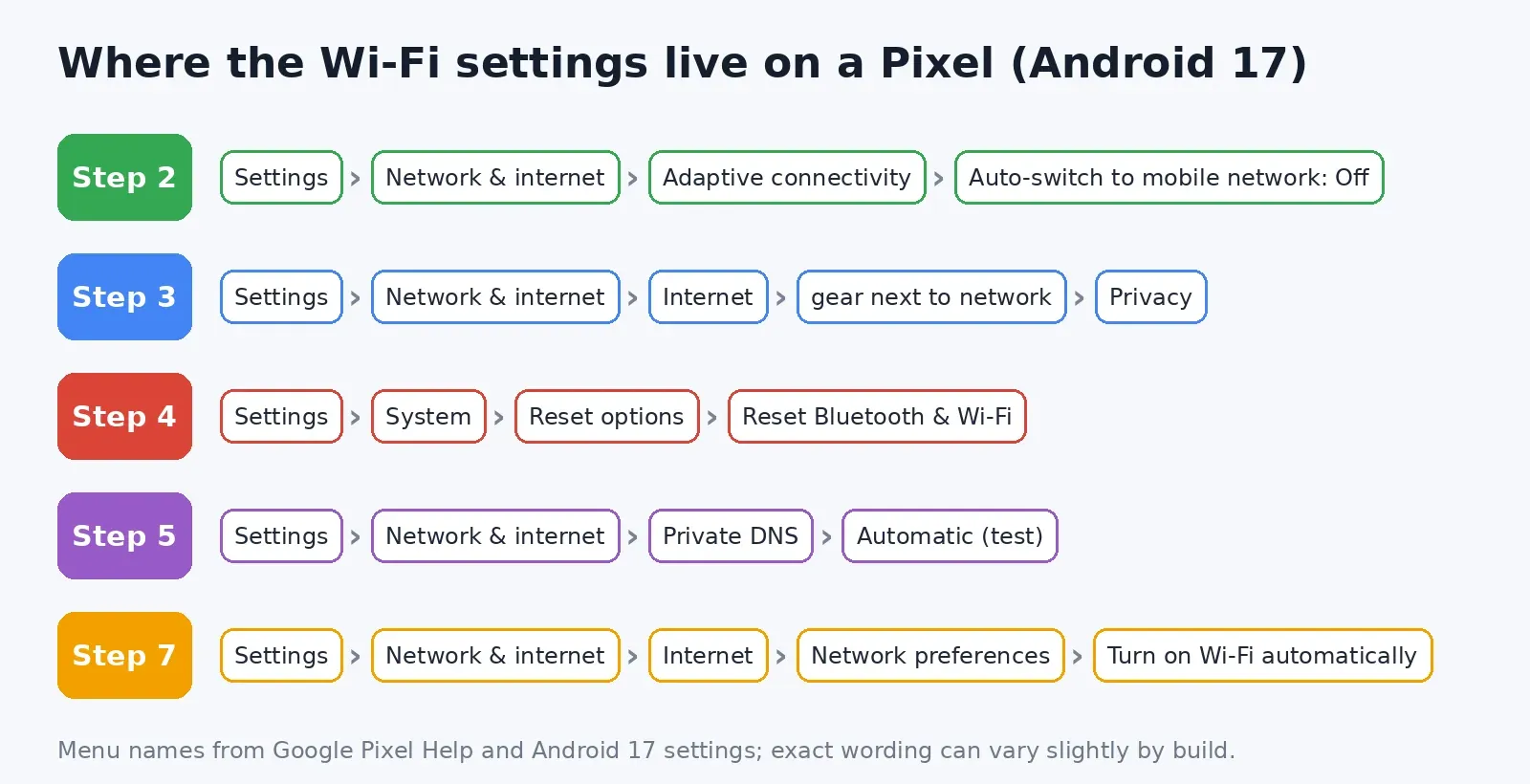
Go to Settings > Network & internet > Adaptive connectivity and turn off Auto-switch to mobile network. If the drops continue for a day, turn off the battery one as well.
One r/GooglePixel commenter explained why the name is misleading. Turning it off doesn't stop your phone from ever using mobile data. It stops the Wi-Fi "quality" checks, so a Wi-Fi link the phone has decided is weak doesn't get dropped every few minutes. If your symptom is drops on every network while mobile data works perfectly, this matches. It costs nothing to try, and you can switch it back on later.
On older builds with a single "Use adaptive connectivity" switch, turn that off instead.
Step 3: Forget the network and check MAC privacy
If only one network misbehaves, rebuild that saved profile before you reset everything:
- Open Settings > Network & internet > Internet.
- Touch and hold the network, then tap Forget.
- Tap it again and enter the password.
While you're there, tap the gear next to the network and open Privacy. Pixels connect with a randomized MAC address by default, which is a sensible privacy feature. But routers that use MAC filtering, fixed IP reservations, parental controls or some mesh band-steering can treat the phone as a new device and kick it off. On a home network you trust, switching that one network to Use device MAC is a reasonable test. Leave public Wi-Fi on randomized.
Step 4: Reset Bluetooth and Wi-Fi
This is the fix Google's Pixel Community team suggested in the July thread, and it's what fixed the Pixel 7a whose Wi-Fi was switching off and on every 20 to 30 seconds. Go to Settings > System > Reset options > Reset Bluetooth & Wi-Fi and confirm.
Know what you're giving up first. It deletes every saved Wi-Fi network and password, plus every paired Bluetooth device (earbuds, watch, car). It doesn't touch your photos, apps or accounts, and it isn't a factory reset. Have your Wi-Fi passwords to hand before you tap it.
Don't confuse it with Reset mobile network settings. That one is for cellular problems, and on its own it won't help a Wi-Fi drop. It isn't a cure-all either: in the same PhoneArena story, another owner had tried everything and was still stuck. If the reset doesn't fix it, move on rather than repeating it.
Step 5: Rule out apps, VPNs and Private DNS
Google's help page recommends safe mode for this. Open the power menu, touch and hold Restart until the safe mode prompt appears, and tap OK. Safe mode switches Airplane mode on, so turn it off and reconnect to Wi-Fi. If the drops stop, a downloaded app is the likely cause. Restart to leave safe mode, then remove recent apps one at a time.
The usual suspects are VPN apps, ad blockers that run as a local VPN, "Wi-Fi booster" apps and some security suites. Also check Settings > Network & internet > Private DNS. If it's set to a custom hostname and you see "Private DNS server cannot be accessed", the phone can treat the Wi-Fi as having no internet and move you to mobile data. Set it to Automatic for a day and see if things settle. My Private DNS guide covers which hostnames are reliable.
If you're connected but every page says "No internet", that's a different problem from dropping. Restart the router and modem (Google suggests unplugging for 15 seconds). On cafe or airport Wi-Fi, look for the sign-in page.
Step 6: Check the router (802.11r and MLO)
If your Pixel is fine everywhere except home, the router settings are worth a look. Two features come up again and again in Android 17 reports.
802.11r (Fast Transition / fast roaming). In Issue Tracker 570412115, a Pixel 8 on Android 17 QPR1 (build CP3A.260905.009) couldn't join a WPA3 network on a Wi-Fi 6 OpenWrt router. The router logs showed the key install failing, and the phone just said "Verify password". With 802.11r turned off, the phone connected straight away. The reporter says a Pixel 8a did the same, and that both phones worked with an older non-Wi-Fi 6 access point on the same network. Google's triage marked the report obsolete when the reporter, a user rather than a developer, didn't attach a bug report. So don't wait on that ticket for a fix. On most routers, 802.11r is under the wireless or mesh settings as "Fast Roaming", "Fast Transition" or "802.11r". Turn it off and see if the Pixel connects. You only really need it for moving between mesh nodes during a call.
Wi-Fi 7 MLO. A Pixel 10 Pro Fold and Pixel 9 Pro XL owner on r/GooglePixel described constant random drops since Android 17. One reply, from another Pixel 9 Pro XL owner, put their own instability down to joining their new Wi-Fi 7 router's MLO network. Wi-Fi 7 routers from TP-Link, ASUS, Netgear, eero and others usually set up MLO as a separate network name or a toggle. Try joining a regular (non-MLO) network, or turn MLO off for a day.
Other router-side things worth a minute:
- Update the router or mesh firmware. Some ISP-supplied boxes update themselves, but many don't.
- If the 2.4 GHz and 5 GHz (and 6 GHz) bands share one network name, try a separate 5 GHz name. That stops the phone being pushed between bands.
- If the network uses "WPA2/WPA3 mixed" mode, try plain WPA2 as a test. It's a step down in security, so only keep it if it clearly fixes things.
Change one setting at a time and give each a day. If you change three things at once and it works, you won't know which one fixed it.
Step 7: Won't reconnect after the screen goes off?
This one has an official fix, but it's only in beta so far. Google's notes for Android 17 QPR3 Beta 1 (2 October 2026) include: "Wi-Fi fails to automatically reconnect during background wakes when hardware PNO scans fail or are unsupported" (Issue #551970385). PNO (preferred network offload) is the low-power scan that finds your saved networks while the screen is off. The symptom is that your phone works fine while you're using it, then shows no Wi-Fi after sitting idle, and toggling Wi-Fi brings it back.
Until that fix reaches stable builds, a few settings help the phone find networks on its own. They're under Settings > Network & internet > Internet > Network preferences:
- Turn on Turn on Wi-Fi automatically.
- Make sure Location and Wi-Fi scanning are on. Google notes that auto Wi-Fi won't work with Location off, Battery Saver on, hotspot on or background scanning off.
Should you join the beta to get the fix? I wouldn't for this alone. Beta builds bring their own bugs. Google also says that leaving the beta before the matching stable release normally means wiping the phone. QPR3 Beta 3 (29 October) does fix one more Wi-Fi bug, WPA-Enterprise PEAP connections failing, which matters for office and campus networks. If you're on Android 17 QPR1, my Pixel lag fix covers the same choice between waiting and switching to beta for the stutter bug.
Step 8: Report it to Google
If none of this works, report it properly so it counts. Google's Issue Tracker staff ask for a bug report taken right after the drop happens. To take one, turn on Developer options (tap Build number seven times), enable Bug report shortcut, then use Take bug report from the power menu. Bug reports contain a lot of personal data, so only share them through Google's own channels. You can also reach Pixel support by chat or phone from the Pixel Help Center. If your Pixel is still under warranty and drops Wi-Fi on every network even after a reset, ask about a hardware check.
If your Pixel also has Wi-Fi Calling problems, the Wi-Fi Calling fixes overlap with some of these steps. If it's your Windows laptop that shows "No internet" instead, see my Windows 11 Wi-Fi guide.
On a Samsung phone instead? Galaxy owners are seeing their own run of connection drops after the latest update, and I've covered those in a separate guide: One UI 9 Wi-Fi or mobile data dropping on Galaxy phones.
Related guides: two more from me that pair well with this one: sites that won't load because of Intel ICPS and IPv6 and the One UI 9 XML Access Denied loop.
FAQ
Is Pixel Wi-Fi dropping a known Android 17 bug?
Partly. Google has listed and fixed specific Wi-Fi bugs in the QPR3 betas: the background reconnect bug and the PEAP enterprise bug. It hasn't published a general "Wi-Fi drops" fix for stable Android 17. Many reports seem to come from Adaptive connectivity or router features rather than one single bug.
Will turning off Adaptive connectivity hurt battery life?
Slightly, maybe. That's what the battery toggle is for. Most people only need to turn off Auto-switch to mobile network and can leave the battery option on. If you do turn both off, keep an eye on battery use for a few days.
Does Reset Bluetooth & Wi-Fi delete my data?
No. It only removes saved Wi-Fi networks and paired Bluetooth devices. Photos, apps, messages and accounts stay. You'll need your Wi-Fi passwords and will have to re-pair accessories.
Should I downgrade to Android 16?
I wouldn't. Going back means flashing an older image and wiping the phone, and you'd be running without the latest security patches. Try the steps above and wait for the fixes to reach stable builds.
Why does only my home Wi-Fi drop?
That usually points to the router rather than the phone: 802.11r, MLO, one network name shared across bands, MAC filtering, or old firmware. Go through Step 3 and Step 6.
Still dropping after all of this? Leave your Pixel model, build number, router model and which step you got to in the comments, and I'll help you narrow it down.
Comments ()