New Teams Stuck on Loading or Sign-In Loop? 8 Fixes
New Teams stuck loading or in a sign-in loop on Windows 11? Repair or reset it, clear the MSTeams cache, then fix stale work accounts.
Updated: 19 November 2026. Checked against Microsoft Learn's pages on clearing the Teams client cache, fixing Teams sign-in errors and uninstalling the Teams client, Microsoft Support's can't reconnect to Teams page, and the fixes Microsoft Q&A moderators keep handing out for the new Teams app.
Short answer: if the new Teams app on Windows 11 sits on the loading screen forever, or keeps throwing you back to the sign-in page, the problem is nearly always local to your PC. Quit Teams completely, then go to Settings > Apps > Installed apps > Microsoft Teams > Advanced options and try Repair, then Reset. If that doesn't do it, clear the cache folder by hand. A sign-in loop that survives both usually comes down to a stale work account in Windows itself, and that's Step 5.
A quick way to tell which camp you're in: open teams.microsoft.com in Edge or Chrome and sign in. If the web version loads fine, your account and Microsoft's servers are OK and the desktop app is the thing to fix. If the web version is broken too, skip ahead to Step 2, because no amount of cache clearing will help.
How I wrote this: I haven't had new Teams lock up on a machine of mine, so I'm not going to pretend I have. What's below is Microsoft's own documented fix list plus the steps that come up again and again in Microsoft Q&A threads, put in the order I'd try them, safest first. Most people are done by Step 4.
Jump to:
- Which fix matches what you see
- Step 1: Quit Teams properly and restart
- Step 2: Rule out an outage or network block
- Step 3: Repair, then reset the Teams app
- Step 4: Clear the new Teams cache folder
- Step 5: Fix a sign-in loop in Windows accounts
- Step 6: Check WebView2 and your clock
- Step 7: Uninstall and reinstall new Teams
- Step 8: Test another Windows profile or call IT
- FAQ
Which fix matches what you see
"Stuck on loading" covers a few different things, and they don't all have the same fix. Here's how I'd match the symptom to a starting point. The error codes in the table come straight from Microsoft's sign-in errors page.
| What you see | Likely cause | Start at |
|---|---|---|
| Teams logo or spinner that never finishes | Damaged local app data or cache | Step 1, then Steps 3 and 4 |
| Blank white or grey window | Cache, or the WebView2 runtime Teams runs on | Step 4, then Step 6 |
| Signs in, then asks you to sign in again, forever | Stale account token stored in Windows | Step 5 |
| Error 0xCAA82EE2 or 0xCAA82EE7 | No internet, or a network blocking Microsoft's sign-in | Step 2 |
| Error 0xCAA20004 | Your organisation's Conditional Access policy | Step 8 (it's on IT's side) |
| Web Teams is broken as well | Outage or an account problem, not your PC | Step 2 |
Step 1: Quit Teams properly and restart
Closing the Teams window with the X doesn't close Teams. It keeps running in the background, and if it's wedged, reopening it just brings back the same stuck window. So quit it for real:
- Find the Teams icon in the notification area next to the clock (click the small arrow if it's hidden).
- Right-click it and choose Quit.
- Press Ctrl + Shift + Esc to open Task Manager and check nothing called Microsoft Teams is still listed under Processes. If it is, select it and click End task.
- Restart the PC, not just Teams. A restart also clears out any half-installed Teams update, which is a common reason it hangs right after an update.
Then open Teams and give it a couple of minutes on the first launch before you decide it's still stuck.
Step 2: Rule out an outage or network block
Teams loading forever can simply mean Microsoft is having a bad day. Microsoft 365 had a big outage last week that took down Outlook and Teams at the same time, and I covered what to do while Microsoft 365 is down back then. If coworkers are seeing the same thing, it's almost certainly the service, and the only real fix is to wait.
For a work or school account, your admin can see live status in the Microsoft 365 admin center under Health > Service health. For a personal account, the web check from earlier is the fastest test.
If it's just you, check the network. Microsoft's sign-in errors page says codes 0xCAA82EE2 and 0xCAA82EE7 mean you should make sure you have internet access and that nothing between you and Microsoft is blocking the connection. In practice that's usually a VPN, a strict firewall, a hotel or office Wi-Fi login page you haven't clicked through, or a custom DNS or ad blocker filtering Microsoft's domains. Turn the VPN off, try a phone hotspot for a minute, and see if Teams loads. If your PC says it's connected but nothing loads anywhere, my Wi-Fi connected but no internet fix is the better place to start.
Step 3: Repair, then reset the Teams app
This is Microsoft's own first method for new Teams, and it's the one I'd try before poking around in folders. New Teams is a Store-style app, so Windows has built-in Repair and Reset buttons for it.
- Quit Teams as in Step 1.
- Open Settings > Apps > Installed apps and type Microsoft Teams in the search box.
- Click the three dots (...) next to Microsoft Teams and pick Advanced options. If you still see an old "Teams classic" entry, ignore it. You want the new one.
- Scroll to the Reset section. Click Repair first. Repair tries to fix the app without touching your data.
- Open Teams. Still stuck? Go back and click Reset, then confirm.
Microsoft's note on Reset is worth reading before you click: it deletes the app data, including any personalization settings you set up. Your chats, files and meetings are stored in Microsoft's cloud, so they come back after you sign in. What you lose is local stuff like your theme and notification preferences.
Step 4: Clear the new Teams cache folder
If Reset didn't help, or the Advanced options page won't open, clear the cache by hand. This is Microsoft's second documented method, and it's more targeted than people think.
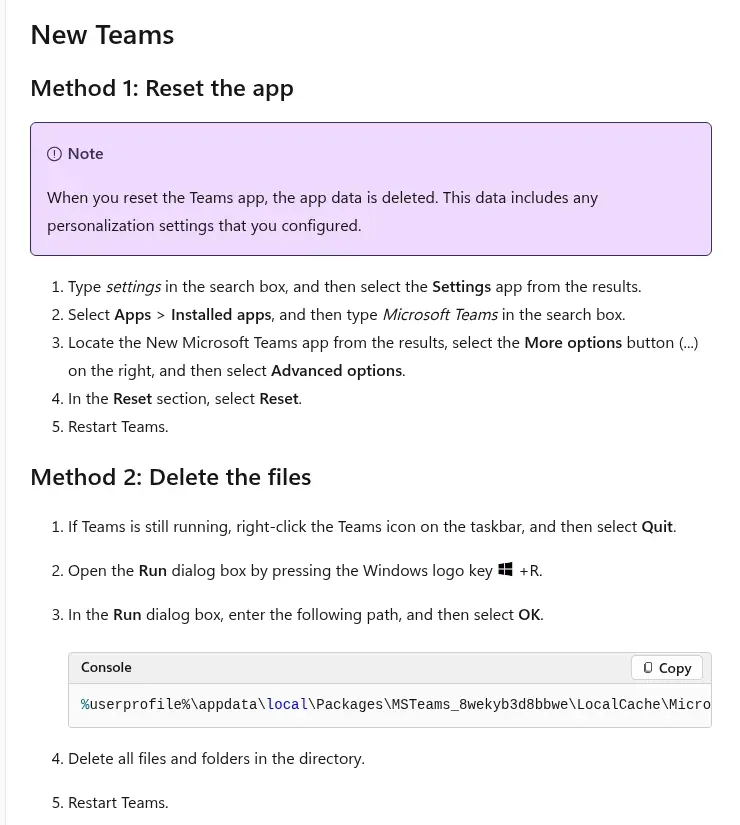
- Quit Teams from the notification area and check Task Manager like in Step 1.
- Press Win + R to open the Run box.
- Paste this path and press Enter:
%userprofile%\appdata\local\Packages\MSTeams_8wekyb3d8bbwe\LocalCache\Microsoft\MSTeams - Press Ctrl + A to select everything inside that folder, then delete it.
- Start Teams again. The first launch is slower than usual because Teams has to rebuild the files.
One warning I'd take seriously. Some older forum answers tell you to delete the whole MSTeams_8wekyb3d8bbwe folder. Don't. Other users in those same threads report it removed files the app needs to start, leaving them with a Teams that won't open at all. Only empty the MSTeams folder at the end of that path. If Windows says a file is in use, Teams is still running somewhere, so end it in Task Manager and try again.
Also worth knowing: Microsoft says clearing the cache isn't the fix for missing messages, chat history that won't load or wrong unread counts. It wipes the logs support would need. Use it for the app not starting or loading, which is exactly the problem here.
Step 5: Fix a sign-in loop in Windows accounts
When Teams accepts your password and then asks for it again, round and round, the cause is usually not Teams. New Teams signs in through Windows' own account system (the same one Outlook and OneDrive use), and if the token Windows has saved for your work account has gone stale, every Microsoft app keeps tripping over it. If the new Outlook keeps asking for your password at the same time, that's a strong sign this is your problem.
On your own PC where you added a work or school account yourself:
- Quit Teams and Outlook.
- Open Settings > Accounts > Access work or school.
- Click the work account Teams uses and choose Disconnect, then confirm.
- Restart the PC, open Teams and sign in fresh. Windows will offer to add the account back, which is fine.
Two cautions. If the PC belongs to your employer, or the entry says it's connected to your organisation's Azure AD or Microsoft Entra domain, leave it alone. Disconnecting a managed device can unenroll it and lock you out of company resources, so that one is for IT to handle. And while you're in Accounts, check Settings > Accounts > Email & accounts for an old copy of the same work account and remove it if it's a duplicate.
If you're on a personal Microsoft account, signing out of Teams (click your profile picture, then Sign out) and back in is the step Microsoft Support suggests first when Teams can't reconnect.
Step 6: Check WebView2 and your clock
New Teams draws its window using Microsoft Edge WebView2, a built-in browser engine you never open yourself. If WebView2 is damaged or missing, you can end up with an empty white frame where Teams should be. Microsoft hasn't written up a Teams-specific WebView2 fix, so treat this as a likely suspect to rule out, not a confirmed cause.
- Open Settings > Apps > Installed apps and search for WebView2.
- Find Microsoft Edge WebView2 Runtime, click the three dots and pick Modify. Let it repair.
- If it isn't listed at all, download the Evergreen runtime from Microsoft's WebView2 page and install it.
- Restart, then open Teams.
While you're there, glance at the clock. Sign-in tokens have an expiry time, and a PC that's hours or days out can fail sign-in in odd ways. Go to Settings > Time & language > Date & time, turn on Set time automatically and Set time zone automatically, and click Sync now.
Step 7: Uninstall and reinstall new Teams
If none of that worked, a clean reinstall is the next move. Signing back in afterwards restores everything stored in the cloud.
- Quit Teams.
- Go to Settings > Apps > Installed apps, click the three dots next to Microsoft Teams and choose Uninstall.
- If it won't uninstall from there, Microsoft documents a PowerShell command for removing new Teams for your own user without admin rights. Open PowerShell and run:
Get-AppxPackage *MSTeams* | Remove-AppxPackage - Restart the PC.
- Install Teams again from the Microsoft Store or Microsoft's Teams download page, then sign in.
For IT folks fixing a shared or managed PC: Microsoft's bulk installer, teamsbootstrapper.exe, removes new Teams for every user with teamsbootstrapper.exe -x and installs the latest build for all users with teamsbootstrapper.exe -p, both from an admin Command Prompt.
Step 8: Test another Windows profile or call IT
Still stuck after a clean reinstall? Make a quick test user under Settings > Accounts > Other users > Add account, sign in as that user and open Teams. If it loads there, something in your own Windows profile is broken, and the Microsoft Q&A volunteers usually end up suggesting moving to a fresh profile at this point.
On a work account, this is also where you stop and hand it over. Microsoft lists error 0xCAA20004 as a Conditional Access problem, which means a policy your organisation set is blocking the sign-in, and only an admin can change that. Send IT the exact error code, the time it happened and whether teams.microsoft.com works in the browser. That saves a lot of back and forth.
Related guides: if your PC is also crawling while Teams loads, my Windows 11 100% disk usage fix is worth a look, and it links all my other Windows guides. If Windows Hello sign-in broke around the same time, see Windows Hello PIN not working. If Discord is the app that won't get past its update screen, see my fix for Discord stuck on Checking for updates. If OneDrive is stuck on Processing changes, see my OneDrive sync stuck fix.
FAQ
Why is new Teams stuck on the loading screen?
Usually because something stored locally on your PC got damaged, often after an update or a crash. Repair or Reset in Settings, or emptying the MSTeams cache folder, sorts it out most of the time. If the web version is stuck as well, it's Microsoft's side.
Will clearing the Teams cache delete my chats?
No. Chats, files and meeting recordings live in Microsoft's cloud. Clearing the cache or resetting the app only wipes local data, so you'll sign in again and redo settings like your theme.
Why does Teams keep asking me to sign in?
Most of the time it's a stale work account token saved in Windows, not Teams itself. Disconnecting and re-adding the account under Access work or school fixes it on a personal PC. On a company laptop, ask IT instead.
Is it safe to delete the MSTeams_8wekyb3d8bbwe folder?
I wouldn't delete the whole thing. Microsoft's instructions only empty the LocalCache\Microsoft\MSTeams folder inside it, and people who wiped the parent folder have reported Teams refusing to start afterwards.
Does Teams work in a browser if the app is broken?
Yes. Go to teams.microsoft.com in Edge or Chrome and sign in with the same account. It's a decent stopgap for chats and meetings while you fix the app.
If you hit an error code that isn't in my table, or Teams is still spinning after Step 7, leave it in the comments with your Windows version and whether it's a work or personal account, and I'll take a look.
Comments ()