New Outlook Keeps Asking for Password? 8 Fixes
New Outlook keeps asking for your password on Windows 11? Clear stale tokens, Credential Manager and OneAuth, and repair the WAM sign-in plug-in.
Updated: 15 November 2026. Checked against Microsoft's support pages for Microsoft 365 sign-in problems and adding accounts to Outlook for Windows, plus recent new Outlook threads on Microsoft Q&A.
Short answer: when the new Outlook keeps asking for your password on Windows 11, your password is almost never the problem. Outlook is holding a stale sign-in token, or the Windows component that hands it tokens is broken. Check that the password works in Outlook on the web, then remove the account and add it back. If the prompt comes back, clear the cached credentials and the token folders, and repair the Windows sign-in plug-in. That order fixes most loops without touching your mail.
This one is extra common right now. Microsoft 365 was down for more than a day from November 12, and Microsoft says it restored the last customers on Saturday, November 14 (incident MO1550821). A lot of apps lost their sign-in session during that mess and haven't recovered cleanly. If you're still seeing "Trying to connect" rather than a password box, read my Microsoft 365 outage post first.
A quick note on how I wrote this: I haven't broken my own Outlook to film each step, so I won't claim I watched every fix work. The steps come from Microsoft's own support pages and the answers Microsoft's support staff keep giving in recent Q&A threads. Where something is a workaround rather than an official fix, I say so.
Jump to:
- Quick checker: which password loop do you have?
- Step 1: Test the password in Outlook on the web
- Step 2: Remove the account and add it back
- Step 3: Clear saved credentials in Credential Manager
- Step 4: Reset the new Outlook local data
- Step 5: Clear the OneAuth, IdentityCache and TokenBroker folders
- Step 6: Repair the Windows sign-in plug-ins (WAM)
- Step 7: Work account? Check dsregcmd /status
- Step 8: Gmail, Yahoo, iCloud and IMAP accounts
- FAQ
Quick checker: which password loop do you have?
Find the line that sounds like your problem and start at that step. You probably won't need all eight.
| What you see | Likely cause | Start at |
|---|---|---|
| Prompt started after you changed your password | Windows is still offering the old one | Steps 1 and 3 |
| Prompt started during or after the November Microsoft 365 outage | Stale token left over from the outage | Steps 2 and 5 |
| Blank or stuck sign-in window, or prompts that come and go | Broken Windows sign-in plug-in, often after antivirus touched it | Step 6 |
| "You'll need to sign in again" on a work or school account | Device sign-in (PRT) problem or a stale work account in Windows | Step 7 |
| An old or deleted account keeps coming back | Corrupt new Outlook profile data | Step 4 |
| "Please create an app password" or a Yahoo, iCloud or IMAP account rejecting a correct password | The provider wants browser sign-in or an app password | Step 8 |
Step 1: Test the password in Outlook on the web
Before you clear anything, make sure the account itself is fine. Open a browser and sign in at outlook.com for a personal Microsoft account, or outlook.office.com for a work or school account. Microsoft's own answer to this exact question starts here too.
If the web sign-in fails, nothing on your PC will help. Reset the password, or ask your IT team if it's a work account. If it works, your mailbox and password are healthy and the problem is the sign-in cache on Windows, which is what the rest of this guide fixes.
One warning while you're at it. After the outage, Microsoft flagged an active phishing campaign with fake emails claiming that messages "blocked during the outage" would be deleted unless you clicked to restore them. A real Outlook password prompt comes from the app or from a Microsoft sign-in page, never from a link in an email. Don't type your password into anything you reached from a mail like that.
Step 2: Remove the account and add it back
This is the quickest fix and it doesn't delete any mail. For a Microsoft 365, Outlook.com or Exchange account, the mail lives on the server and downloads again.
- Open the new Outlook and go to Settings (the gear icon, or View > View settings on newer builds).
- Select Accounts > Email accounts (it may say Your accounts).
- Click Manage next to the account that keeps asking, then Remove.
- Close Outlook fully. Check Task Manager and end any leftover Outlook process.
- Reopen it and add the account again with Add account.
If the prompt stays away after a restart, you're done. If it's back within a day, carry on.
Step 3: Clear saved credentials in Credential Manager
Windows keeps passwords and tokens for Office apps in Credential Manager. After a password change, an old entry can keep getting offered, rejected, and offered again, which looks exactly like a loop.
- Close Outlook and every other Office app, including Teams.
- Search the Start menu for Credential Manager and open Windows Credentials.
- Under Generic Credentials, expand and Remove the entries that mention Office (they usually start with
MicrosoftOffice16), Outlook, OneAuth, or your email address. - Restart the PC, open Outlook and sign in once.
Microsoft's Office reset guide includes this same Credential Manager cleanup. Your other Office apps will ask you to sign in once more afterwards. That's expected.
Step 4: Reset the new Outlook local data
The new Outlook keeps its local profile in a folder called Olk. If that data is corrupt, you get loops, "something went wrong" screens, or a deleted account that keeps reappearing. Resetting it removes your accounts from the app (not from the server), so you'll add them again afterwards.
Pick one of these, easiest first:
- Repair, then Reset from Settings. Go to Settings > Apps > Installed apps, find Outlook (new), click the three dots and choose Advanced options. Try Repair first. If that doesn't help, use Reset, which wipes the app's local data.
- The clear-state command. Close Outlook, press Win + R, and run
olk.exe --clearLocalState. Microsoft's support staff give this command in several Q&A answers. It isn't documented on a main support page, so treat it as a known workaround. - Delete the folder by hand. Close Outlook (end it in Task Manager too), open
%localappdata%\Microsoftand renameOlktoOlk.old. Renaming instead of deleting gives you a way back. Outlook builds a fresh folder the next time it opens.
Step 5: Clear the OneAuth, IdentityCache and TokenBroker folders
If the prompt survives Steps 2 to 4, the stale token is probably in the shared sign-in cache that Outlook, Teams and the other Office apps all use. These folders are safe to clear. Windows and Office recreate them, and you just sign in again.
- Close Outlook, Teams and all Office apps.
- Press Win + R, type
%localappdata%\Microsoftand press Enter. - Rename (or delete the contents of) these folders:
OneAuth,IdentityCacheandTokenBroker. - Restart Windows and sign in to Outlook again.
Microsoft lists these exact folders, along with the broker's package folder under %localappdata%\Packages, as the places where Microsoft 365 apps keep sign-in data. In a recent new Outlook authentication loop thread, clearing them was the main fix suggested. If you're on a work PC, check with IT before you do this, since some companies manage these caches themselves.
Step 6: Repair the Windows sign-in plug-ins (WAM)
Office apps don't sign in on their own. They ask Windows, through a component called Web Account Manager (WAM), which runs on two built-in packages: Microsoft.AAD.BrokerPlugin for work and school accounts and Microsoft.Windows.CloudExperienceHost for personal Microsoft accounts. Microsoft's sign-in troubleshooting article says security software can block, break or even remove them. When that happens you get blank sign-in windows, stuck prompts, or prompts that come and go.
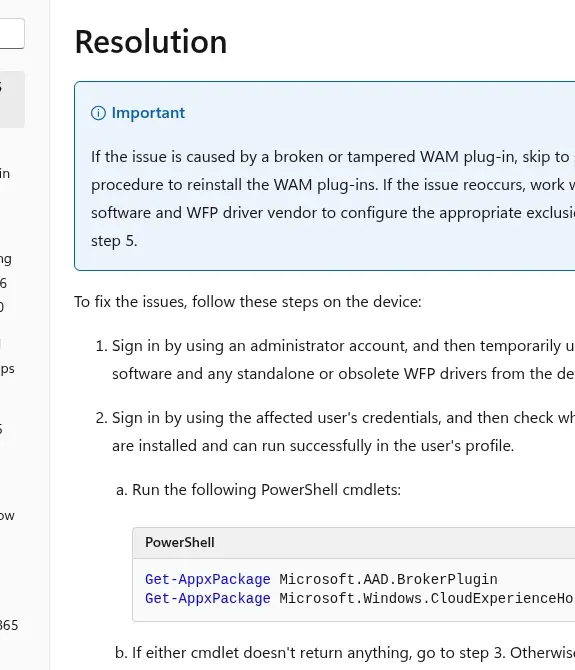
Do this while signed in to Windows as the user who has the problem. Microsoft notes the plug-ins are installed per user, so one account on a PC can be broken while another works.
First, check that both packages exist. Open PowerShell and run:
Get-AppxPackage Microsoft.AAD.BrokerPlugin
Get-AppxPackage Microsoft.Windows.CloudExperienceHost
If either command returns nothing, or the packages are there but broken, re-register them with Microsoft's commands:
Add-AppxPackage -Register "$env:windir\SystemApps\Microsoft.AAD.BrokerPlugin_cw5n1h2txyewy\Appxmanifest.xml" -DisableDevelopmentMode -ForceApplicationShutdown
Add-AppxPackage -Register "$env:windir\SystemApps\Microsoft.Windows.CloudExperienceHost_cw5n1h2txyewy\Appxmanifest.xml" -DisableDevelopmentMode -ForceApplicationShutdown
You can see whether this is your problem before you run anything. Open Event Viewer, go to Windows Logs > Application, and look for AppModel-State warnings that mention Microsoft.AAD.BrokerPlugin_cw5n1h2txyewy with an error code starting -2147. Microsoft says those mean the plug-ins are broken or were tampered with. If it keeps coming back after an antivirus scan, the fix is an exclusion for those packages in your security software, and Microsoft's article lists the exact folders.
Step 7: Work account? Check dsregcmd /status
For work and school accounts, Outlook leans on the PC's own sign-in to Microsoft Entra ID. If that's broken, no amount of retyping helps. Open Command Prompt and run:
dsregcmd /statusLook at AzureAdPrt in the SSO State section. If it says NO, Windows doesn't have a valid Primary Refresh Token, and Microsoft's support staff point to that as a cause of repeated Outlook prompts. That one is usually for IT to fix, so send them the output.
On a personal PC where you added a work account yourself, look in Settings > Accounts > Access work or school. If you see an old or duplicate entry for that account, select it, choose Disconnect, then add the account in Outlook again. Microsoft warns that disconnecting a workplace-joined account signs every app on that Windows session out of it. On a company-managed laptop, ask IT before you disconnect anything they set up.
Step 8: Gmail, Yahoo, iCloud and IMAP accounts
Non-Microsoft accounts loop for a different reason. Many providers block normal passwords in mail apps, so Outlook keeps asking for one the server will never accept.
- Yahoo and iCloud: the new Outlook now signs in through your browser. Microsoft's Yahoo and iCloud pages walk through it. Microsoft says iCloud no longer needs app-specific passwords in the new Outlook. If you still get the old password box, update Outlook, restart it, then remove and re-add the account.
- Gmail: remove the account and add it back so Outlook sends you to Google's own sign-in page. When removing a Gmail account, the new Outlook asks whether to remove it from this device only or everywhere, and picking the full removal clears the saved login.
- Other IMAP providers: if you see "Please create an app password for Outlook on your email provider's site", Microsoft's add-account page says to generate one in your provider's security settings and paste it in place of your normal password.
If none of this works and your mailbox is on an on-premises Exchange server, Microsoft's own advice is that classic Outlook is the more reliable choice for now. Both versions can run side by side.
Related guides: all my Windows fixes are listed at the bottom of Windows 11 100% disk usage fix. If you send mail from your own domain, read why Outlook.com is bouncing email without DMARC records. And if Windows Update is stuck too, here's my Windows Update stuck fix. If Windows itself won't take your PIN at sign-in, my Windows Hello PIN fix covers the Ngc folder reset and TPM checks. If Teams is the app stuck on loading or looping at sign-in, see my new Teams stuck on loading fix. Discord looping on Update failed instead? Here's my Discord update loop fix. OneDrive stuck on Processing changes or Sync pending instead? Here's my OneDrive sync fix.
FAQ
Why does the new Outlook keep asking for my password?
Usually it's a stale sign-in token, not a wrong password. Outlook gets its tokens from Windows, and when that cache is out of date or the Windows sign-in plug-in is broken, it keeps asking. Removing and re-adding the account, then clearing Credential Manager and the OneAuth and IdentityCache folders, fixes most cases.
Will removing my account from the new Outlook delete my emails?
Not for Microsoft 365, Outlook.com, Exchange, Gmail or IMAP accounts. Those keep your mail on the server, and it syncs back when you add the account again. POP accounts that download mail only to the PC are different, so back up first if you use POP.
Is it safe to delete the OneAuth and IdentityCache folders?
Yes. They only hold cached sign-in data, and Windows and Office rebuild them the next time you sign in. Renaming them instead of deleting gives you an easy undo. On a work PC, check with IT first.
Did the Microsoft 365 outage cause my Outlook password prompts?
It may have. The outage broke sign-in sessions for a lot of users, and some apps kept a stale token after Microsoft fixed it. Microsoft says the incident is resolved, so if prompts continue, follow Steps 2 and 5. And never sign in through a link in an email about "blocked" outage messages, because Microsoft warned that's a phishing campaign.
Do I need an app password for Gmail or iCloud in the new Outlook?
Normally no. The new Outlook uses browser sign-in for Gmail, Yahoo and iCloud. App passwords are mainly for other IMAP providers or older setups that show the "create an app password" message.
Comments ()