USB Device Not Recognized on Windows 11? 8 Fixes
USB device not recognized on Windows 11? Swap the port and cable, read the Device Manager code, reinstall the device, and stop USB power saving.
Updated: 22 November 2026. Checked against Microsoft Support's Fix USB-C problems in Windows and Error codes in Device Manager in Windows pages, plus recent Microsoft Q&A and Reddit threads.
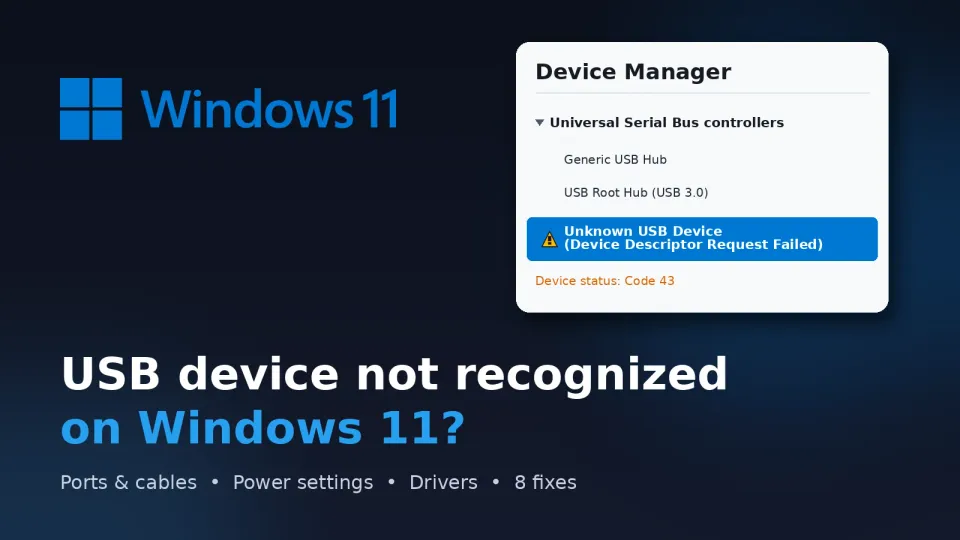
Short answer: unplug the device, plug it straight into a different port on the PC (not a hub, dock or monitor port), and try a cable you know carries data. If Windows still says "USB device not recognized", open Device Manager, right-click the entry with the yellow warning sign, pick Properties, and read the code under Device status. Then uninstall that device and use Action > Scan for hardware changes. If it keeps coming back, turn off USB power saving (Steps 5 and 6) and get the chipset driver from your PC maker (Step 7).
How I put this together: I don't have a failing USB stick or a broken port in front of me right now, so I'm not going to pretend I tested every step on one. I checked each menu path against Microsoft's own pages and read through the Microsoft Q&A and r/WindowsHelp threads where people hit this. If a tip comes from forum users instead of Microsoft, I'll say that.
Jump to:
- What the error is telling you
- Step 1: Try another port, cable and no hub
- Step 2: Do a real shutdown and power cycle
- Step 3: Read the error code in Device Manager
- Step 4: Uninstall the device and scan for hardware changes
- Step 5: Turn off USB selective suspend
- Step 6: Stop Windows from powering off USB hubs
- Step 7: Update chipset and USB drivers
- Step 8: Check USB-C, power and port warnings
- FAQ
What the error is telling you
Microsoft's wording is blunt: the last USB device you connected malfunctioned, and Windows doesn't recognize it. In plain terms, Windows noticed something was plugged in, but the device never answered properly when Windows asked what it was. That can be the cable, the port, power, a driver, or the device itself. The table below is my shortcut for where to start.
| What you see | Most likely cause | Start with |
|---|---|---|
| "USB device not recognized" pop-up, device dead | Cable, port, hub, or a stuck controller | Steps 1 and 2 |
| Unknown USB Device (Device Descriptor Request Failed) | Device didn't identify itself (often cable, power or port) | Steps 1, 2 and 4 |
| Yellow warning with Code 43 | A driver reported that the device failed | Steps 3 and 4 |
| Works at first, then drops after idle or sleep | USB power saving | Steps 5 and 6 |
| No USB device works in any port | Chipset or USB controller driver | Steps 2 and 7 |
| "USB device might need more power" | The port can't supply enough current | Step 8 |
Step 1: Try another port, cable and no hub
Boring, I know, but this is where Microsoft's own advice starts too, and it settles a surprising number of cases. Work through it in this order:
- Unplug the device, wait a few seconds, and plug it back in.
- Move it to a different port directly on the PC. On a desktop, use a port on the back of the case, since those sit on the motherboard. Front-panel ports go through an internal cable.
- Take hubs, docks, extension cables and monitor USB ports out of the chain for now.
- Swap the cable. A lot of cheap USB cables only charge and don't carry data, and Microsoft points out that not every USB-C cable supports every feature. Use the one that came with the device if you still have it.
- Plug the device into another computer. If it fails there too, the device or the cable is the problem, not Windows.
- Plug something you know works (a mouse or a flash drive) into the port that failed. If that also fails, the port or controller is the suspect.
Step 2: Do a real shutdown and power cycle
A USB controller can get stuck in a bad state, and a normal restart doesn't always clear it. Microsoft's Surface guide for USB-C problems says to unplug the device, shut down, then press and hold the power button for about 20 seconds before starting again. That exact button trick is for Surface, but the idea works anywhere: cut the power completely.
- Unplug the USB device.
- Select Start > Power > Shut down.
- On a desktop, switch off or unplug the power cable for about a minute. On a laptop, unplug the charger. This tip comes from forum users rather than a Microsoft page, but it's harmless and it often helps.
- Start the PC, sign in, and plug the device back in.
One thing worth knowing: with Fast Startup turned on, Shut down doesn't fully reset Windows the way Restart does. If the device only fails after a shutdown and works after a restart, people on r/WindowsHelp report that turning off Fast Startup helps. You'll find it in Control Panel under Power Options > Choose what the power buttons do. Select Change settings that are currently unavailable, then clear Turn on fast startup.
Step 3: Read the error code in Device Manager
Microsoft's fix for the "USB device not recognized" notification is to read the error code first and then follow what it means. Here's how:
- Select Start, type device manager, and open Device Manager.
- Look for the device marked with a yellow exclamation point. A failed USB device usually sits under Universal Serial Bus controllers as Unknown USB Device, but check Other devices too.
- Right-click it and select Properties. The code is shown under Device status.
The ones you're most likely to meet:
- Code 43: "Windows has stopped this device because it has reported problems." Microsoft says a driver told Windows the device failed. Do Step 4, and if it keeps happening, check with the device maker.
- Code 10: "This device cannot start." Microsoft's advice is to update the driver from the Driver tab. One note here: USB audio gear (USB Audio Class 1.0 headsets, DACs and mics) hit a Code 10 bug after September's updates. Microsoft fixed it in the November 10 update, which I covered in my Windows USB audio bug fix post.
- Code 28: "The drivers for this device are not installed." Step 4 reinstalls the driver. If Windows asks for one, get it from the device maker's website.
- Code 45: just means the device isn't connected right now. Nothing to fix.
Step 4: Uninstall the device and scan for hardware changes
This is Microsoft's "reinstall the device driver manually" fix. It forces Windows to start fresh with the device:
- In Device Manager, right-click the problem device (for example, Unknown USB Device).
- Select Uninstall device and confirm.
- On the menu bar, choose Action > Scan for hardware changes. Windows should detect the device again and reload its driver.
- If nothing happens, unplug the device, restart the PC, and plug it in again.
If every port is acting up, people on forums also uninstall each USB Root Hub and host controller entry under Universal Serial Bus controllers and then restart. Windows puts them back by itself at boot. Be careful with that version on a desktop, though. Your USB keyboard and mouse can stop working until the restart, so keep it for when the single-device uninstall doesn't help.
Step 5: Turn off USB selective suspend
USB selective suspend is a power-saving setting. It lets Windows put idle USB ports to sleep, and some devices don't wake up properly afterwards. If your device works at first and then disappears after a few minutes, or after the PC sleeps, this is a good suspect.
- Select Start, type edit power plan, and open Edit power plan.
- Select Change advanced power settings.
- Expand USB settings > USB selective suspend setting.
- Set it to Disabled. On a laptop there are separate On battery and Plugged in values, so change both.
- Select Apply, then OK, and reconnect the device.
On some laptops that use Modern Standby, the USB settings branch doesn't show up in this window at all. If yours is missing, go straight to Step 6. And if turning it off changes nothing, switch it back on, because it does save battery.
Step 6: Stop Windows from powering off USB hubs
Device Manager has its own power switch for each USB hub, and it can cause the same kind of drop-out:
- Right-click Start and open Device Manager.
- Expand Universal Serial Bus controllers.
- Right-click USB Root Hub (there may be several, so do each one) and select Properties.
- On the Power Management tab, clear Allow the computer to turn off this device to save power, then select OK.
Not every hub has a Power Management tab, and that's fine. Windows 11 also has USB battery saver in Settings > Bluetooth & devices > USB, which stops USB devices while the screen is off. If your device only fails after the screen turns off, try switching that off too.
Step 7: Update chipset and USB drivers
When no USB device works anywhere, or the trouble started right after a big update, the USB controller driver is the likely cause. That driver usually comes with your chipset package.
- Open Settings > Windows Update, select Check for updates, and install what it finds.
- Go to Advanced options > Optional updates. If Driver updates lists something for your USB controller or chipset, select only that one and choose Download and install. These aren't installed automatically.
- Restart, even if Windows doesn't ask you to.
- If Windows Update has nothing, get the chipset driver from your laptop maker's support page (Dell, HP, Lenovo, ASUS and so on) or your motherboard maker's page. Search by your exact model.
If USB broke right after a driver update, open the controller's Properties in Device Manager and check the Driver tab. Use Roll Back Driver if it's available. And skip the "driver updater" apps that pop up in search ads. Windows Update and the maker's own site are the safe routes.
Step 8: Check USB-C, power and port warnings
Windows 11 shows its own notifications for USB-C trouble. If one popped up, read it, because it usually points straight at the cause. Microsoft lists messages like USB device might need more power, Use different USB port and USB device functionality might be limited. Here's what they mean in practice:
- Needs more power: plug the device into its own power adapter if it has one, use a powered hub, or run the laptop on its charger. Bus-powered external hard drives are the usual culprits here.
- Use a different port or limited functionality: the port doesn't support the feature the device wants, such as Thunderbolt, USB4 or display output. Check your PC's spec sheet to find which USB-C port supports it.
- Not getting notifications at all? Open Settings > Bluetooth & devices > USB and make sure Connection notifications is on, so Windows can tell you what went wrong next time.
If you've worked through all eight steps and the device still fails on every port and on another PC, it's most likely dead. If it's under warranty, contact the maker before buying a replacement. And if it's a flash drive or external disk with data you need, don't keep plugging it in over and over. Stop and get help with recovery.
Related guides: my Windows 11 100% disk usage fix links all my other Windows guides. If the device is a gamepad, see controller not detected on PC. And for wireless gear, my Bluetooth not working on Windows 11 fix covers the Bluetooth side.
FAQ
What does "USB device not recognized" mean?
Windows saw a device connect, but the device didn't identify itself correctly or reported a problem, so Windows can't load it. The cause can be the cable, the port, power, a driver or the device itself. Start with Step 1.
How do I fix Unknown USB Device (Device Descriptor Request Failed)?
Try another port directly on the PC and a different data cable, do a full shutdown with the power removed, then uninstall the Unknown USB Device in Device Manager and choose Action > Scan for hardware changes (Steps 1, 2 and 4).
What is Code 43 on a USB device?
Microsoft describes Code 43 as "Windows has stopped this device because it has reported problems." A driver told Windows the device failed. Reinstall it with Step 4, and if it comes back, check the device on another PC and contact its maker.
Why does my USB device disconnect after a few minutes?
Usually power saving. Turn off USB selective suspend in your power plan (Step 5) and clear "Allow the computer to turn off this device to save power" on each USB Root Hub (Step 6).
Why did all my USB ports stop working at once?
When every port fails together, it's usually the USB controller or chipset driver, not the devices. Do a full power cycle (Step 2), then install the chipset driver from Windows Update optional updates or your PC maker's site (Step 7).
If your USB device still isn't recognized after all eight steps, leave a comment with the device, the port you used and the code Device Manager shows. I'll try to help you narrow it down.
Comments ()