Nvidia Driver Writing to Your SSD? How to Check and Fix
Nvidia 621.14 and 621.24 can make NVDisplay.Container.exe rewrite a log on your SSD nonstop. Check it in Resource Monitor and stop it.
Updated: 20 November 2026. Checked against NVIDIA's 621.24 release notes (RN-08399-621.24_v01), NVIDIA's driver pages for 621.01 and 621.24, the 621.12 hotfix note, AMD's 26.11.1 and 26.11.2 release notes, and the GeForce forum and r/pcmasterrace reports behind this bug. NVIDIA still hadn't acknowledged it when I published.
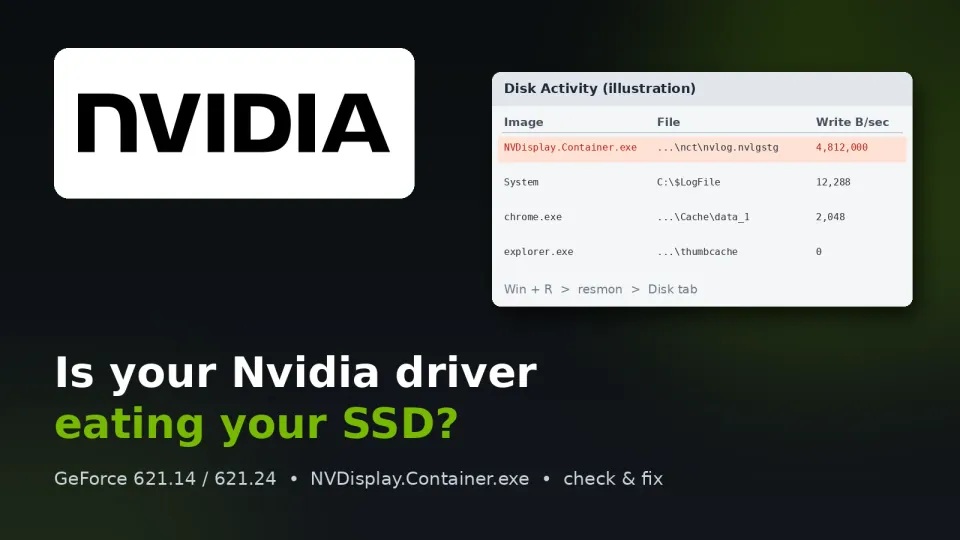
Short answer: if you're on Nvidia driver 621.14 or 621.24, press Win + R, type resmon, open the Disk tab and look for NVDisplay.Container.exe writing to a file called nvlog.nvlgstg while your PC sits idle. If it's there and the numbers keep ticking, the lasting fix right now is a clean install of driver 621.01. Stopping the NVIDIA Display Container LS service and deleting that log buys you a few hours, but it comes back.
Not every PC with these drivers does this. Plenty of people on 621.24 check and find nothing at all, so please check before you rip your driver out. It takes two minutes.
How I put this together: I don't have numbers of my own here, and I'm not going to pretend I do. The measurements below come from the people who found the bug on NVIDIA's own feedback threads, plus XDA, Windows Latest, TechSpot and igor'sLAB, who looked into it. The steps are ordered from "just look" to "change something", so you can stop as soon as you have an answer.
Jump to:
- What is going on
- Which fix should you pick
- Step 1: Check which Nvidia driver you have
- Step 2: Catch NVDisplay.Container.exe in Resource Monitor
- Step 3: Measure what actually reaches the SSD
- Step 4: Reset the log file for quick relief
- Step 5: Roll back to driver 621.01 with a clean install
- Step 6: Stop the new driver coming straight back
- Step 7: Last resort, set the service to Manual
- Step 8: Watch for Nvidia's real fix
- On an AMD Radeon card instead?
- FAQ
What is going on
Every Nvidia driver installs a background service called NVIDIA Display Container LS. Its process is NVDisplay.Container.exe, and it's the plumbing behind the NVIDIA Control Panel and the NVIDIA App. It keeps a binary log at:
C:\ProgramData\NVIDIA Corporation\nvtopps\nct\nvlog.nvlgstgStarting with Game Ready driver 621.14 (early November), some people noticed that service rewriting that log over and over instead of just adding to it. The first detailed report, on NVIDIA's 621.14 feedback thread, came from a user with an RTX 4070 Super on Windows 11 25H2: about 515 MB written by that one process in five minutes at idle, against under 2 MB on a clean install of 621.01 on the same PC. Someone on 621.24, released 12 November, reported roughly 30 GB an hour. XDA's Abhinav Raj found Task Manager crediting the process with 1.4 TB of write I/O after five days on 621.24.
Two things worth keeping in proportion. First, a process's write counter isn't the same as what lands on the flash. In that first report the whole C: drive took about 270 MB in the same five minutes the process counter showed 515 MB, though the SSD's own SMART counter did agree with Windows on the 270. Second, the rewrite gets heavier as the file grows, so long sessions are worse than short ones. Either way, it's endurance spent on a log nobody asked for, and SSDs aren't cheap right now.
Here's the part that bugs me. NVIDIA's 621.24 release notes list no open issues at all. Not this one, not anything:
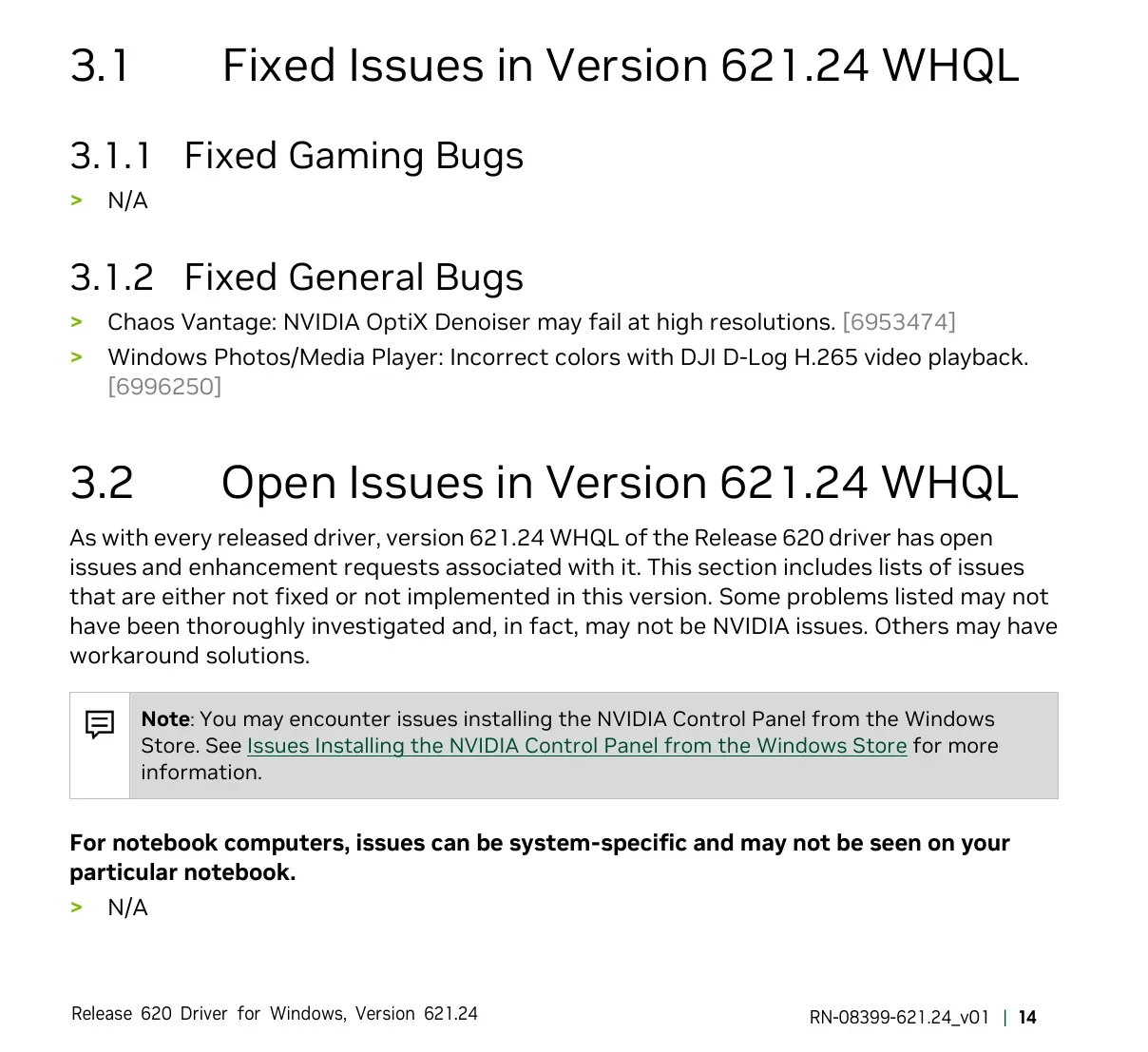
This has happened before, which is oddly reassuring. In 2021 the same process kept writing to a different file in the same folder (nvtopps.db3), and NVIDIA fixed it in driver 471.96 under bug 3350171. So a fix in a future driver is likely. Until then, you work around it.
Which fix should you pick
| Option | Stops the writes? | What it costs you | Good for |
|---|---|---|---|
| Reset the log (Step 4) | Cuts them for a while (one measured drop of about 91%), then they creep back | Nothing, but you have to repeat it | Staying on 621.24 for a new game |
| Clean install of 621.01 (Step 5) | Yes, per several users | Loses the newest game profiles; RTX 50 owners may get the video freeze bug back | Most RTX 40, 30 and 20 owners |
| Service set to Manual (Step 7) | Yes, completely | NVIDIA Control Panel and NVIDIA App won't open | PCs whose display settings never change |
| Wait for Nvidia (Step 8) | Not yet | Writes keep piling up meanwhile | PCs where Step 2 shows nothing |
Step 1: Check which Nvidia driver you have
The reports cover 621.14 and 621.24. You can find your version three ways:
- NVIDIA App: open the Drivers tab. The installed version is at the top.
- NVIDIA Control Panel: Help > System Information, then look at Driver version.
- Terminal: open PowerShell or Command Prompt and run the line below. The driver version sits in the header.
nvidia-smiOn anything older than 621.14 (621.01 or earlier) you can stop reading, this bug isn't yours. If your disk is still busy, my 100% disk usage fix for Windows 11 goes through the usual suspects.
Step 2: Catch NVDisplay.Container.exe in Resource Monitor
Task Manager will tell you the disk is busy. It won't tell you which file. Resource Monitor will:
- Close games, browsers and anything else heavy. Video pages in a browser reportedly make it worse, so close those too.
- Press Win + R, type
resmonand press Enter. - Open the Disk tab.
- Under Processes with Disk Activity, tick the box next to NVDisplay.Container.exe. That filters the panel below to just that process.
- Open the Disk Activity panel and click the Write (B/sec) column to sort it.
If nvlog.nvlgstg keeps showing up with a steady write rate every few seconds while you're doing nothing, you've got it. Reports range from about 1.4 MB/s to around 5 MB/s. A few KB now and then is normal logging and nothing to worry about.
For a running total, Task Manager can help too. Go to the Details tab, right-click any column header, choose Select columns and tick I/O write bytes. If NVDisplay.Container.exe is miles ahead of everything else after a few hours, that matches the bug.
Step 3: Measure what actually reaches the SSD
This step is optional, but it's the honest way to answer "is this hurting my drive?" because the process counter can read higher than the drive itself.
- Open CrystalDiskInfo (free) or your SSD maker's own tool, like Samsung Magician or WD Dashboard.
- Write down Host Writes or Data Units Written for your Windows drive.
- Leave the PC idle for an hour with everything closed.
- Read the number again.
The difference is everything Windows wrote to that drive in the hour, so Nvidia's share can only be smaller. On NVMe drives, one "data unit" is 512,000 bytes, so multiply the raw figure by that. If you're seeing several GB in an idle hour, act. If it's a few hundred MB, you can probably wait for Nvidia.
To put the scary numbers in context: Tom's Hardware worked the first report's 270 MB per five minutes out to about 28 TB a year, roughly 5% of a typical 1 TB drive's 600 TBW rating. Annoying, not catastrophic. The 30 GB-an-hour cases are a different story over a year, especially on QLC drives with lower endurance. If you're curious how drive types compare, I went through that in NVMe vs SATA SSD for gaming.
Step 4: Reset the log file for quick relief
Because the service rewrites the whole file each time, a small file means small writes. Shrink it back to nothing and the write rate drops right away. The original reporter measured writes over five minutes falling from 515 MB to 48 MB. It's relief, not a cure: the file grows again within hours, and one user on 621.24 said it didn't help them at all.
- Press Win + R, type
services.mscand press Enter. - Find NVIDIA Display Container LS, right-click it and choose Stop.
- Open File Explorer and paste this into the address bar:
C:\ProgramData\NVIDIA Corporation\nvtopps\nct - Delete nvlog.nvlgstg. If Windows says it's in use, the service hasn't fully stopped yet. Wait a few seconds and try again.
- Back in Services, right-click NVIDIA Display Container LS and choose Start.
If you'd rather do it in one go, an admin PowerShell window works. The service's internal name is NVDisplay.ContainerLocalSystem:
Stop-Service NVDisplay.ContainerLocalSystem
Remove-Item "C:\ProgramData\NVIDIA Corporation\nvtopps\nct\nvlog.nvlgstg"
Start-Service NVDisplay.ContainerLocalSystem
Run the Resource Monitor check from Step 2 again afterwards so you know it worked.
Step 5: Roll back to driver 621.01 with a clean install
621.01, released 21 October, is the last driver people describe as clean, and several users say the writes stopped after going back. This is the fix I'd go with on an RTX 40, 30 or 20 series card.
- Download 621.01 first, while you still have a working driver. NVIDIA's official page is GeForce Game Ready Driver 621.01. You can also get to it through NVIDIA's driver search.
- Run the installer, pick Custom and tick Perform a clean installation. That resets driver settings and profiles, which is the point here.
- Restart, then repeat Step 2. The nvlog writes should be gone or down to a trickle.
Some people go further and wipe the old driver with Display Driver Uninstaller (DDU) in Safe Mode first. That's fine, but it isn't required, and one user on 621.24 did three DDU reinstalls of the same driver with no change. The version is what matters, not how hard you scrub.
RTX 50 owners, read this first. 621.01 is the driver where NVIDIA admitted video playback "may freeze or black screen" on some RTX 50 GPUs and RTX Spark systems. That was fixed in hotfix 621.12 (27 October) and then in 621.14, which is where the SSD writes started. So going back to 621.01 might swap one bug for another. NVIDIA's 621.12 hotfix page is the obvious middle ground, but I couldn't find anyone who has tested whether 621.12 has the write bug. If you try it, run Step 2 afterwards and you'll know in five minutes.
If a driver change makes your screen flicker or drop out instead, my guide to "Display driver stopped responding and has recovered" covers that.
Step 6: Stop the new driver coming straight back
Rolling back is pointless if 621.24 reinstalls itself overnight. Two places to check:
- NVIDIA App: it'll offer 621.24 on the Drivers tab. Just don't hit Download or Install. If you turned on automatic driver downloads in the app's settings at some point, switch that off for now.
- Windows Update: Windows can push GPU drivers on its own. Go to Settings > Windows Update > Advanced options > Optional updates and skip any Nvidia display driver listed there. If Windows keeps forcing one anyway, Microsoft's device installation setting (search Start for "Change device installation settings" and choose No) stops it fetching drivers automatically. Remember to turn that back on later.
Step 7: Last resort, set the service to Manual
This one stops the writes completely, and it's what a lot of forum posts recommend. I've put it last because of what you lose: with NVIDIA Display Container LS stopped, the NVIDIA Control Panel and the NVIDIA App won't open. That's where G-SYNC, colour settings, scaling and per-game 3D settings live.
- Open
services.mscand double-click NVIDIA Display Container LS. - Change Startup type from Automatic to Manual.
- Click Stop, then OK.
Your games still run, because the actual display driver is separate. When you need the Control Panel, start the service, change what you need, then stop it again.
Ignore the advice that says this process is "only telemetry". It isn't. One of the people reporting 30 GB an hour already had telemetry switched off in the NVIDIA App, and a Dell XPS owner who saw the same writes didn't have the NVIDIA App installed at all. Turning off Highlights or the overlay has helped some people and not others, so it's worth a try but don't count on it.
You might also see a trick where you deny the SYSTEM account write rights on the nct folder. That's a single forum report. I'd skip it, and if you do try it, write it down so you can undo it before installing the driver that fixes this.
Step 8: Watch for Nvidia's real fix
The thing to look for is a line naming NVDisplay.Container.exe or nvlog.nvlgstg under Fixed Issues in the next Game Ready or hotfix driver's release notes. That's exactly how the 2021 fix showed up. When it does, install it with a clean install and run Step 2 one more time. If you set the service to Manual in Step 7, set it back to Automatic.
Honestly, I'd make the Step 2 check a habit after every driver update from now on. It takes a minute, and this is the second GPU driver this month caught writing to SSDs at idle.
On an AMD Radeon card instead?
AMD had its own version of this, in the AMD External Events Utility (atieclxx.exe), and unlike Nvidia it owned up and fixed it. I wrote about it when it broke: AMD Radeon driver bug keeps writing to your SSD. Where things stand now:
- RX 7000 and RX 9000: fixed in Adrenalin 26.11.1 (12 November), per AMD's release notes and its support note PA-365.
- RX 5000 and RX 6000 on Windows 10: fixed in Adrenalin 26.11.2 (18 November). One catch from AMD's own known issues: Crimson Desert may not launch on RX 6000 with 26.11.2, and AMD tells those players to stay on 26.11.1.
If you turned off Resizable BAR as a workaround for the AMD bug, check it's back on. AMD listed a known issue in 26.11.1 where Smart Access Memory could switch itself off after a driver install on Windows 10 (fixed in 26.11.2). My Resizable BAR guide shows how to confirm.
Related guides: for everything else that makes games feel slow, start with my high ping and lag fix, which also links to all my other gaming and PC hardware guides.
FAQ
Is NVDisplay.Container.exe a virus?
No. It's NVIDIA's own Display Container service and it ships with every GeForce driver. If you want to be sure, right-click it in Task Manager and choose Open file location: it should sit inside an NVIDIA folder under Windows' driver store or Program Files, and be signed by NVIDIA.
Will the Nvidia driver bug kill my SSD?
Not overnight. Using the first measured report, Tom's Hardware estimated about 5% of a typical 1 TB drive's rated endurance per year. The heaviest reports, around 30 GB an hour, would eat a lot more over months, so measure your own drive (Step 3) rather than guessing.
Which Nvidia drivers have the SSD write bug?
Reports so far cover Game Ready 621.14 and 621.24. 621.01 is the last version users call clean. Nobody seems to have tested hotfix 621.12 yet.
Can I just delete nvlog.nvlgstg?
Yes, after stopping the NVIDIA Display Container LS service. It's a log file and the service recreates it. The writes drop straight after, but the file grows back, so this is a temporary fix.
Has Nvidia acknowledged the SSD write issue?
Not as of 20 November 2026. The 621.24 release notes list no open issues, and there's no reply from NVIDIA on the forum threads. I'll update this post when a fixed driver lands.
Checked your PC? Drop a comment with your driver version, GPU and what Resource Monitor showed, even if it was nothing. It helps everyone figure out who's actually affected.
Comments ()