How to Enable Resizable BAR and Check It Works
Enable Resizable BAR (Smart Access Memory) step by step: UEFI and GPT check, CSM off, Above 4G Decoding, BIOS menus by brand, and how to confirm it works.
Updated: 15 November 2026. Checked against the official Resizable BAR pages from Nvidia, Intel, ASUS, MSI, Gigabyte and ASRock.
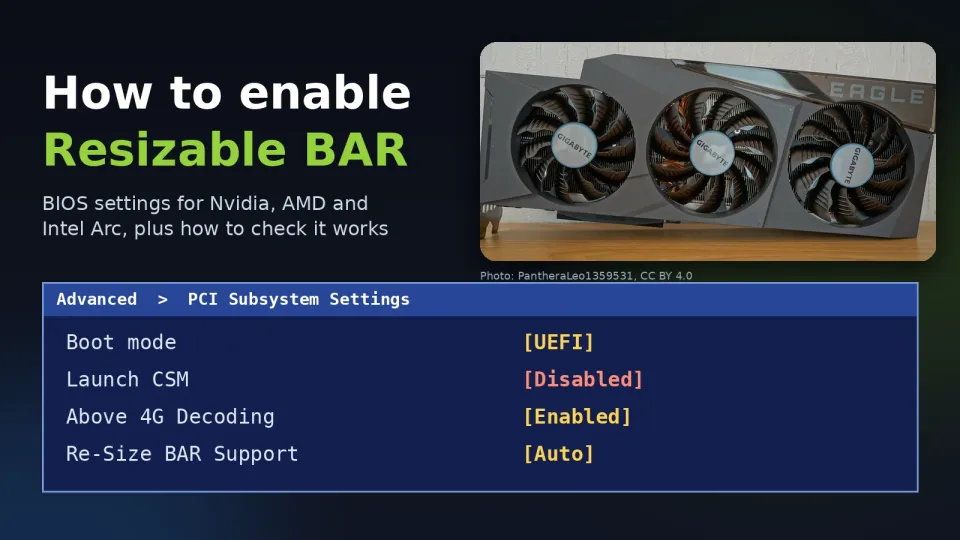
Short answer: to enable Resizable BAR, make sure Windows boots in UEFI mode from a GPT disk, update your motherboard BIOS, then go into the BIOS, turn CSM off, turn Above 4G Decoding on and set Re-Size BAR Support to Enabled or Auto. Save, boot into Windows, update your graphics driver, and check it with GPU-Z or the Nvidia Control Panel. If you own an Intel Arc card, don't skip this. Intel says Arc needs it for proper performance.
I added this one because I kept pointing at it in my budget PC build without ever explaining how to do it. The setting goes by four names, the menu moves around from one board maker to the next, and the one step that can actually stop your PC from booting (CSM off on an old MBR install) gets buried. So here it is in the order I'd do it.
How I wrote this: I haven't photographed every brand's BIOS for this post, so I'm not going to pretend I tested each menu myself. The menu paths come from each board maker's own support page, linked above, and I've noted where they differ by model.
Jump to:
- Quick checker: can your PC use Resizable BAR?
- Step 1: Check whether it is already on
- Step 2: Confirm Windows boots in UEFI from a GPT disk
- Step 3: Suspend BitLocker and update the BIOS
- Step 4: Update the graphics card VBIOS (RTX 30 only)
- Step 5: Turn off CSM
- Step 6: Enable Above 4G Decoding and Re-Size BAR
- Step 7: Update the driver and confirm it works
- Step 8: Still says No, or you get a black screen
- Is Resizable BAR worth turning on?
- FAQ
Quick checker: can your PC use Resizable BAR?
Resizable BAR is a PCIe feature. Normally the CPU can only see the graphics card's memory through a small window, usually 256MB at a time. With ReBAR on, the card and the system agree on a bigger window, so the CPU can reach the whole VRAM at once. AMD markets the same thing as Smart Access Memory (SAM), and ASRock calls it Clever Access Memory (C.A.M.). Same feature, different sticker.
You need three things to line up: a graphics card that supports it, a CPU and motherboard that support it, and firmware plus a driver new enough to switch it on. Here's the short version from the vendors' own pages.
| Your graphics card | What the vendor says you need | How much it matters |
|---|---|---|
| Intel Arc (A-Series and B-Series) | Intel lists 10th Gen Core or newer, or Ryzen 3000 (not the 3000G chips) and newer, on a board with Resizable BAR enabled. On 10th Gen, support depends on the board maker. | A lot. Intel says ReBAR must be on for optimal performance in all applications. |
| Nvidia GeForce RTX 30 series | Supported CPU and board, a BIOS with ReBAR, driver 465.89 or newer for most desktop cards, and a ReBAR-ready VBIOS (some early cards needed an update). | Nvidia switches it on per game for titles it has checked. |
| Nvidia RTX 40 and RTX 50 series | Supported CPU and board with ReBAR on in the BIOS. No VBIOS update needed. | Same per-game approach as RTX 30. |
| AMD Radeon RX 6000 and newer | A board with ReBAR in the BIOS. AMD's SAM launched with Ryzen 5000 and 500-series boards, and support has widened since. | AMD's driver uses it more broadly than Nvidia's. |
| Older cards (GTX 10/16, RTX 20, RX 5000 and earlier) | Not officially supported by Nvidia. On RX 5000, check your board maker's notes. | Skip it unless your card's maker says otherwise. |
Laptops are a different story. You usually can't flip ReBAR yourself on a laptop; it's either on from the factory or the BIOS doesn't offer it. If you're on a gaming laptop, check with GPU-Z (Step 1) and leave it there.
Step 1: Check whether it is already on
Before touching the BIOS, look. A lot of newer boards ship with ReBAR enabled now, and you might be done already.
- Any GPU: download GPU-Z from TechPowerUp, right-click it and choose Run as administrator. Look for the Resizable BAR field on the main tab. It says Enabled or Disabled. The Advanced tab has a Resizable BAR section with more detail on what's blocking it.
- Nvidia: open the Nvidia Control Panel, click System Information in the bottom-left corner, stay on the Display tab and find Resizable BAR in the Details list. Yes means it's working.
- AMD: open AMD Software: Adrenalin Edition and look for Smart Access Memory under Performance > Tuning. AMD has moved things around between driver versions, so if it isn't there, GPU-Z is the faster check.
- Intel Arc: run the Intel Driver & Support Assistant. If ReBAR is off, it shows a message saying Resizable BAR is required for optimal performance.
If it already says Enabled or Yes, you're finished. If it says Disabled, keep going.
Step 2: Confirm Windows boots in UEFI from a GPT disk
This is the step that saves you from a PC that won't boot. Resizable BAR needs CSM turned off, and with CSM off, the board can't boot an old-style Legacy/MBR install of Windows. Check this first.
- Press Win + R, type
msinfo32and press Enter. In System Summary, find BIOS Mode. You want UEFI. If it says Legacy, read on. - Right-click Start and open Disk Management. Right-click the disk Windows is on (usually Disk 0, on the left side), choose Properties and open the Volumes tab. Partition style should say GUID Partition Table (GPT).
If you have Legacy mode on an MBR disk, Microsoft's built-in MBR2GPT tool can convert the system disk without wiping it. Back up anything important first, then open Terminal (Admin) and run:
mbr2gpt /validate /disk:0 /allowFullOS
mbr2gpt /convert /disk:0 /allowFullOS
Replace 0 with your disk number from Disk Management. Only run the second line if the first one passes. After converting, the PC won't boot again until you switch the firmware to UEFI, which you'll do in Step 5 anyway. I'd do the conversion and the BIOS change in one sitting so you're not stuck halfway.
Step 3: Suspend BitLocker and update the BIOS
Changing firmware settings can trigger the BitLocker recovery screen on the next boot. That's annoying if you have the key and a disaster if you don't. If your drive is encrypted (most Windows 11 laptops and a lot of prebuilt desktops are), suspend protection first. Open Terminal (Admin) and run:
Suspend-BitLocker -MountPoint "C:" -RebootCount 0-RebootCount 0 keeps it suspended until you turn it back on, which helps because the BIOS work below can take a few restarts. When you're done, run Resume-BitLocker -MountPoint "C:". And whatever you do, know where your key is first. My BitLocker recovery key guide covers where to find it.
Next, update the motherboard BIOS. Many boards from 2020 and 2021 only got the Re-Size BAR option in a later BIOS release, and the option simply won't appear on the old version. Get the newest BIOS from your board's support page and flash it with the board's own tool (ASUS EZ Flash, MSI M-Flash, Gigabyte Q-Flash, ASRock Instant Flash). Don't flash during a storm or on a shaky power strip.
One warning: a BIOS update resets every setting, including XMP or EXPO for your RAM. Turn that back on afterwards.
Step 4: Update the graphics card VBIOS (RTX 30 only)
This step is only for GeForce RTX 30 cards. Nvidia says enabling ReBAR needs GPU firmware (VBIOS) support, and some early RTX 30 cards shipped without it. ASUS, for example, says its RTX 3060 cards support ReBAR out of the box, while its RTX 3060 Ti, 3070, 3080 and 3090 cards needed a VBIOS update. Other brands handled it card by card.
Use your card maker's updater (from its support page or its own app), or Nvidia's Resizable BAR firmware update tool for Founders Edition cards. Nvidia's own advice is to only update the VBIOS if the rest of your platform supports ReBAR, so do Step 3 first. RTX 40, RTX 50, Radeon RX 6000 and newer, and Intel Arc cards don't need this step.
Step 5: Turn off CSM
Restart and tap Delete (sometimes F2) to enter the BIOS. If you can't hit the key in time, go to Settings > System > Recovery > Advanced startup > Restart now, then Troubleshoot > Advanced options > UEFI Firmware Settings.
Find CSM (Compatibility Support Module). It's usually under the Boot tab:
- ASUS: press F7 for Advanced Mode, then Boot > CSM > Launch CSM: Disabled.
- Gigabyte: Boot > CSM Support: Disabled.
- ASRock: Boot > CSM > CSM: Disabled. ASRock notes that if you can't find the CSM menu, set Fast Boot to Disabled first.
- MSI: on most current boards, look under Settings > Advanced > Windows OS Configuration, where turning on Windows 10/11 WHQL Support switches the board to pure UEFI. Menus vary by model, so check your manual if it isn't there.
ASUS spells it out in its FAQ: Launch CSM must be Disabled for Resize BAR to work. Intel and Nvidia say the same thing. There's no way around this one.
Step 6: Enable Above 4G Decoding and Re-Size BAR
Now the actual switch. You need Above 4G Decoding set to Enabled first, and on some boards the Re-Size BAR option only appears after you've done that. Intel's FAQ even says you may need to enable Above 4G Decoding, save, restart and go back in before the ReBAR option shows up.
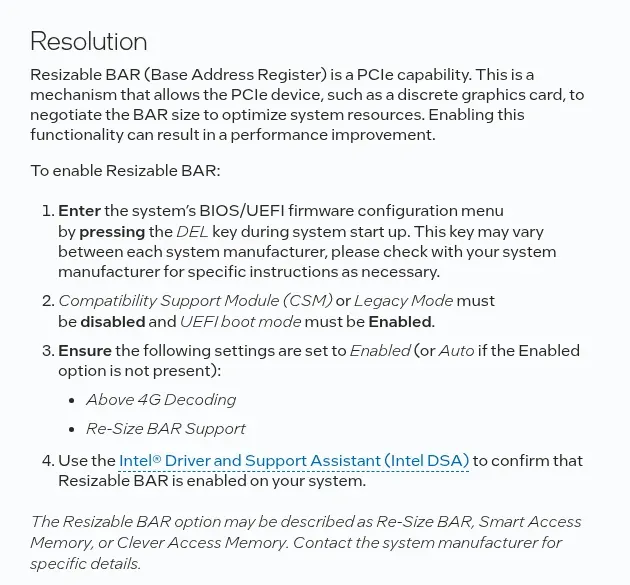
Here's where each board maker puts it, according to their own support pages:
| Board maker | Where to find it | What to set |
|---|---|---|
| ASUS | Advanced Mode (F7) > Advanced > PCI Subsystem Settings. Some boards also have a Resize BAR toggle on the EZ Mode screen. | Above 4G Decoding: Enabled. Re-Size BAR Support: Auto. |
| MSI | Settings > Advanced > PCI Subsystem Settings | Above 4G memory/Crypto Currency mining: Enabled. Re-Size BAR Support: Enabled. |
| Gigabyte | Advanced Mode > Settings > IO Ports | Above 4G Decoding: Enabled. Re-Size BAR Support: Auto. |
| ASRock | Advanced > Chipset Configuration | Above 4G Decoding: Enabled. C.A.M. (Clever Access Memory): Enabled. |
| Prebuilt PCs (Dell, HP, Lenovo) | Varies by model, often not offered at all | Check the maker's support page for your exact model. |
If the board gives you Auto and Enabled, either works. Auto is what ASUS and Gigabyte recommend. Press F10 to save and exit.
Two things I'd watch for. If the BIOS warns you about CSM or boot devices when you save, that's your cue to double-check Step 2. And don't turn CSM back on later while ReBAR is still enabled. Some boards can end up with no display when you do that, and you'd need to clear CMOS to get back in.
Step 7: Update the driver and confirm it works
Boot into Windows and install the latest driver from Nvidia, AMD or Intel. Nvidia's minimum is 465.89 for most desktop RTX 30 cards, and anything recent is far past that. Then run the same checks from Step 1:
- GPU-Z (as administrator): Resizable BAR should say Enabled.
- Nvidia Control Panel > System Information: Resizable BAR: Yes.
- AMD Adrenalin: Smart Access Memory shows as on.
- Intel DSA: the Resizable BAR warning is gone.
Then resume BitLocker if you suspended it in Step 3. Easy to forget, so do it now.
Step 8: Still says No, or you get a black screen
When ReBAR won't turn on, it's almost always one of the things Nvidia lists in its own troubleshooting notes:
- CSM is still on. Some boards flip it back on after a BIOS update or a CMOS reset. Go back and check.
- Windows is still Legacy/MBR. Run msinfo32 again. If BIOS Mode says Legacy, Step 2 didn't take.
- The VBIOS update didn't stick (RTX 30). Run your card maker's updater again and restart.
- The BIOS option is there but greyed out. Set Above 4G Decoding first, save, reboot, then come back for Re-Size BAR.
- Your CPU or chipset isn't on the list. Some older Intel 400-series boards and early Ryzen chips just don't get it, whatever you set.
If you see "The VGA card is not supported by UEFI driver" during startup, or a black screen right after disabling CSM, the graphics card's firmware is the problem, not Windows. That happens most with older cards or RTX 30 cards that missed the VBIOS update. To get back in, clear CMOS (the jumper or button on the board, or pull the battery for a minute with the PC unplugged), which puts CSM back on. Then update the VBIOS before you try again.
Is Resizable BAR worth turning on?
On Intel Arc, yes, without question. Intel's own requirement list puts it next to the PCIe slot as a must, and Arc cards are the ones that lose the most without it. If you bought an Arc B580 for a budget build and it feels slow, check this before anything else.
On AMD Radeon RX 6000 and newer, I'd turn it on too. AMD's driver uses it across games, and it's been the default advice since SAM launched.
On Nvidia, turn it on anyway. Nvidia's driver only uses it in games it has validated, so you won't see a jump in every title. But there's no real downside, because games where Nvidia hasn't enabled it just behave as before. It won't fix stutter caused by a slow drive, a weak CPU or too little VRAM, so if a specific game still stutters, look at those. I'd also keep it in mind if you're deciding whether to buy a GPU now or wait: an Arc card on an old board without ReBAR is a bad combo.
Related guides: if your game runs fine but online matches feel laggy, that's a network issue, and my high ping and lag guide covers it. For AMD-specific trouble after a driver update, see Steam crashing on launch with AMD Radeon and the Marathon black screen fix.
FAQ
Is Resizable BAR the same as Smart Access Memory?
Yes. Smart Access Memory is AMD's name for Resizable BAR, and ASRock's C.A.M. (Clever Access Memory) is the same thing again. Intel says the option can appear under any of these names in your BIOS.
Will enabling Resizable BAR delete my data?
No. Turning it on in the BIOS doesn't touch your files. The risky part is turning CSM off on a Windows install that still uses Legacy/MBR, which can stop it booting. Check BIOS Mode in msinfo32 first, and use MBR2GPT if you need to convert.
Why don't I see a Re-Size BAR option in my BIOS?
Usually your BIOS is too old, so update it first. On some boards the option only appears after you enable Above 4G Decoding, save and restart. Some prebuilt PCs and older chipsets don't offer it at all.
Does Resizable BAR work on laptops?
Some gaming laptops have it enabled from the factory, and Nvidia lists RTX 30 laptops as supported. Most laptop BIOS screens don't let you change it, though. Check GPU-Z to see whether yours has it on.
Do I need Resizable BAR for an Intel Arc GPU?
You should have it. Intel says Resizable BAR or Smart Access Memory must be enabled for optimal performance in all applications on Arc cards, and its driver tool warns you when it's off.
If your board names the setting something I haven't listed, tell me the model in the comments and I'll add it.

Comments ()