Display Driver Stopped Responding and Has Recovered: Fix
Fix "display driver stopped responding and has recovered" on Windows: check Event 4101, clean-install the driver, undo overclocks, fix heat and power.
Updated: 16 November 2026. Checked against Microsoft Learn's pages on timeout detection and recovery (TDR) and the TDR registry keys, Dell's TDR troubleshooting article, AMD's Adrenalin release notes and Adobe's Substance 3D Painter TDR page.
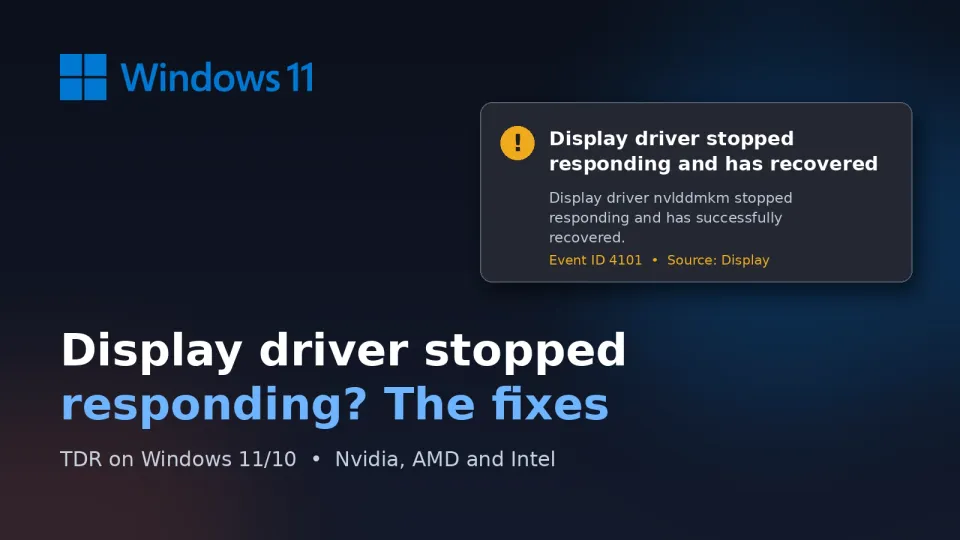
Short answer: "Display driver stopped responding and has recovered" means your graphics card took longer than two seconds to answer Windows, so Windows reset the driver. To fix it, confirm it in Event Viewer (Event ID 4101), do a clean reinstall of the current GPU driver, undo any overclock or undervolt, and then check temperatures, power and the PCIe slot. Raising the TdrDelay registry value is a last resort, not the fix.
The symptoms are easy to spot. The screen goes black for a second or two, flickers back, and a game either crashes to the desktop or freezes with a "device removed" error. Sometimes you only notice because a browser video stutters and the taskbar redraws. It happens on Nvidia, AMD and Intel cards, on desktops and laptops, and on Windows 10 and Windows 11.
How I wrote this: I'm not going to pretend I reproduced every cause on my own PC. The steps come from Microsoft's driver documentation, the GPU makers' support pages and release notes, and the fixes owners keep confirming on r/techsupport, r/nvidia, r/AMDHelp and Microsoft Q&A. They're in the order I'd try them, cheapest and safest first.
Jump to:
- What "display driver stopped responding" actually means
- Quick checker: where to start
- Step 1: Confirm it in Event Viewer
- Step 2: Update or roll back the graphics driver
- Step 3: Do a clean driver reinstall
- Step 4: Remove overclocks and undervolts
- Step 5: Check temperatures and dust
- Step 6: Fix power settings and power delivery
- Step 7: Reseat the card and check the PCIe link
- Step 8: Raise TdrDelay as a last resort
- When it is the graphics card itself
- FAQ
What "display driver stopped responding" actually means
Windows has a watchdog for the GPU called Timeout Detection and Recovery, or TDR. Microsoft's documentation explains it plainly: the GPU scheduler hands the card a job, and if the card can't finish it or pause it within the timeout, Windows decides the GPU is frozen. The default timeout is two seconds. Windows then resets the driver, clears video memory and redraws the desktop. That reset is the black flicker you see, and the "stopped responding and has recovered" message is Windows telling you it worked.
So the message itself isn't the problem. It's a symptom. Something held the GPU for more than two seconds, and a game frame should take milliseconds. The cause is somewhere in the chain: the driver, unstable clocks, heat, power, the PCIe connection, or the card itself.
There's also a limit. By default, Microsoft says, if five or more GPU hangs and recoveries happen within one minute, the next one bug-checks the PC. That's when a flicker becomes a blue screen, usually with VIDEO_TDR_FAILURE (0x116). If you're getting that blue screen, the steps below still apply.
Quick checker: where to start
Match what you see to the closest row. If nothing fits, start at Step 1 and work down.
| What you see | Most likely cause | Start at |
|---|---|---|
| Started right after a driver or Windows update | Driver bug or a messy upgrade | Step 2, then Step 3 |
| Only in one game, often at the same spot | Known game or driver issue | Step 2 (check release notes) |
| Started after you tuned the card in MSI Afterburner or Adrenalin | Unstable overclock or undervolt | Step 4 |
| Gets worse the longer you play, or in summer | Heat | Step 5 |
| Happens under heavy load, or the PC also shuts off | Power supply or cabling | Step 6 |
| Laptop only does it on battery | Power plan or switchable graphics | Step 6 |
| New card, new build or you moved the PC | Card not seated, riser or PCIe link problem | Step 7 |
| Long renders or AI jobs fail, games are fine | Workload genuinely needs more than 2 seconds | Step 8 |
Step 1: Confirm it in Event Viewer
Before changing anything, check it really is a TDR and see which driver it names. Press Win + X, open Event Viewer, then go to Windows Logs > System. Click Filter Current Log on the right, type 4101 in the event ID box and press OK.
A TDR shows up as a warning from the source Display that reads something like "Display driver nvlddmkm stopped responding and has successfully recovered." Dell's support article on TDR uses the same example for Nvidia cards. The name in the middle is the driver, not your card model: nvlddmkm is Nvidia, amdkmdag is AMD, and Intel's starts with igfx.
Two things are worth writing down:
- When it happens. The timestamps tell you whether it lines up with a game, a video call, waking from sleep or a long render.
- Whether it's a different event. If the message ends with "has been successfully disabled" instead of "recovered", Windows gave up on the card. Treat that as more serious and go straight to Steps 3, 6 and 7.
If you have two GPUs (a laptop with Intel or AMD graphics plus an Nvidia chip, for example), the driver name tells you which one is failing. That saves a lot of guessing.
Step 2: Update or roll back the graphics driver
Driver bugs cause a big share of TDRs, and the makers say so in their own notes. AMD's Adrenalin release notes regularly list known issues like "intermittent application crash or driver timeout may be observed while playing" a specific game, and AMD keeps those entries until a fix ships. Nvidia and Intel publish similar known-issue lists with each driver.
- If you're on an old driver: get the current one straight from Nvidia, AMD or Intel. Laptop owners can also check the laptop maker's support page, since some models need the OEM driver.
- If it started right after a driver update: read that version's release notes for your game, then go back one version. In Device Manager, expand Display adapters, right-click the card, choose Properties > Driver > Roll Back Driver if it's available. If it's greyed out, install the previous version manually from the maker's archive.
Also check the game itself is updated. Some TDRs only happen with one game's shaders and get fixed on the game's side.
Step 3: Do a clean driver reinstall
Installing a new driver over an old one usually works, but after a few years of upgrades, or after swapping from an AMD card to Nvidia (or the other way), leftovers can cause exactly this. A clean install is the most common fix people report.
- Nvidia: in the Nvidia app, open Drivers, choose to reinstall the driver, pick the custom installation and tick the clean install option. The standalone installer from Nvidia's site has the same choice under custom install.
- AMD: AMD's own AMD Cleanup Utility removes the old driver and software. Run it, restart, then install the current Adrenalin package. AMD's installer also offers a "Driver Only" install if you think the Adrenalin app itself is part of the problem.
- Intel: uninstall the graphics driver in Settings > Apps > Installed apps, restart, then install the current driver with Intel Driver & Support Assistant.
Many people use Display Driver Uninstaller (DDU) in Safe Mode for a more thorough wipe. It's free and well known in the PC gaming community, but it's a third-party tool, so download it only from its developer's official site and unplug from the internet before you run it so Windows Update doesn't sneak a driver in before you install yours.
If you've just been through a similar mess with OpenGL errors, my GLFW error 65542 fix covers the "Microsoft Basic Display Adapter" case, which is what you'll see if the reinstall didn't take.
Step 4: Remove overclocks and undervolts
This one is easy to overlook because the card "was fine for weeks". An overclock or undervolt can pass a benchmark and still fail in one particular game, and a driver update can change how the card boosts. A GPU that can't hold its clocks stalls, and Windows sees a timeout.
- In MSI Afterburner, EVGA Precision, ASUS GPU Tweak or similar, hit Reset to go back to stock, and stop the tool from applying settings at startup.
- In AMD Software, go to Performance > Tuning and reset the GPU tuning to default.
- Reset CPU overclocks and curve-optimizer changes in the BIOS too. Memory profiles count: if you run XMP or EXPO, try once with them off. A crash can look like a GPU problem when it isn't.
If the card is a factory-overclocked model and TDRs only stop with a small manual underclock, note that down. It's a sign the card is marginal, which matters for the last section and for any warranty claim.
Step 5: Check temperatures and dust
Heat is a classic cause, especially if the crashes come after an hour of play. On Windows 11 and recent Windows 10, open Task Manager > Performance > GPU and look at the temperature reading while you play in windowed mode. The maker's app (Nvidia's overlay or AMD Software's metrics) shows it too, along with hotspot or junction temperature on many cards.
If temperatures climb to where the card starts throttling, clean the dust out of the GPU fans and heatsink, check that every case fan spins, and give the case some breathing room. Laptops are worse for this, because the vents clog and the fans run flat out. My laptop overheating and loud fan guide goes through that properly.
Step 6: Fix power settings and power delivery
Two kinds of power problem cause TDRs: Windows saving power on the PCIe link, and the card not getting enough power.
Windows power settings. Open Control Panel > Power Options, click Change plan settings next to your plan, then Change advanced power settings. If you see PCI Express > Link State Power Management, set it to Off. Some laptops with Modern Standby hide this setting, which is fine; skip it. On Nvidia, you can also open the Nvidia Control Panel, go to Manage 3D settings and set Power management mode to Prefer maximum performance as a test. Laptop owners should test with the charger plugged in.
Power delivery. For desktops, this is where a lot of stubborn cases end up:
- Use separate PCIe power cables from the power supply for each 8-pin socket on the card where you can, rather than one cable with a daisy-chained second plug.
- On cards with the 16-pin 12VHPWR or 12V-2x6 connector, push it in until it's fully seated with no gap, and don't bend the cable sharply right at the plug.
- Check your power supply meets the card maker's recommended wattage. An old or underrated unit can handle the desktop but sag when the card spikes under load.
If the PC sometimes shuts off completely instead of just flickering, power is the prime suspect.
Step 7: Reseat the card and check the PCIe link
Turn the PC off, switch off the power supply and unplug it. Take the card out, check the slot for dust, and put it back in until the slot latch clicks. Check the bracket screws aren't twisting it. If you use a vertical mount with a riser cable, that's a common hidden cause: risers often can't handle PCIe 4.0 or 5.0 speeds reliably. As a test, set the slot to a lower PCIe generation in the BIOS (often under the PCIe or graphics settings) or try the card without the riser.
While you're in the BIOS, check the BIOS itself is current, since board makers ship stability fixes. If you recently turned on Resizable BAR and the problems started then, turn it off as a test; my guide on how to enable Resizable BAR shows where those settings live by brand.
Step 8: Raise TdrDelay as a last resort
This is the fix every old forum thread recommends, and it needs a clear warning. TdrDelay is the number of seconds Windows waits before it decides the GPU is stuck. Raising it doesn't make the GPU stall less. It just means Windows waits longer, so a two-second flicker can turn into a longer freeze.
Microsoft's own documentation lists these TDR keys for testing and debugging during driver development, and says end users shouldn't change them:
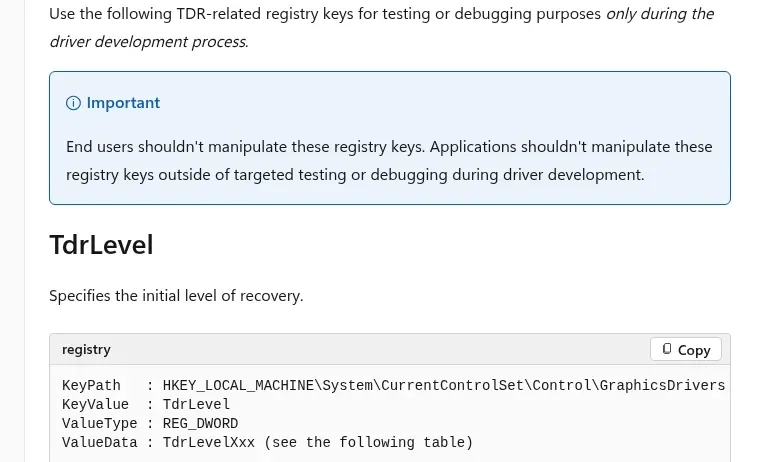
So when does it make sense? When the workload really does need the GPU for more than two seconds at a time. Adobe's Substance 3D Painter page is the best example: it tells users to raise both TdrDelay and TdrDdiDelay to 60 because long bakes and computations get killed otherwise. Long Blender renders and some local AI or compute jobs fall into the same group. A game that crashes at random isn't one of them, so finish Steps 1 to 7 first.
If you still want to try it, back up first. Open regedit, right-click the key below and choose Export to save a copy:
HKEY_LOCAL_MACHINE\SYSTEM\CurrentControlSet\Control\GraphicsDriversThen right-click in the right pane, choose New > DWORD (32-bit) Value, name it exactly TdrDelay, double-click it, switch the base to Decimal and enter a value. Microsoft lists the default as 2 seconds. Restart for it to take effect. Adobe notes that Windows or driver updates can reset these values, so check them again later if the problem comes back.
To undo it, delete the TdrDelay value you made (or import your backup) and restart. Don't set TdrLevel to 0. Microsoft's table shows that turns detection off completely, so a stuck GPU just leaves you with a frozen screen and no recovery.
When it is the graphics card itself
If you've done a clean driver install, run everything at stock, temperatures are fine, power is solid and it still happens across several games, the card may be faulty. Some signs point that way: artifacts (coloured dots, lines or checkerboard patterns), crashes that start at the same temperature every time, or TDRs that follow the card when you test it in another PC.
The cleanest test is swapping parts. Try a different card in your PC, or your card in a friend's PC. If the problem follows the card, contact the maker or the retailer while it's under warranty, and mention the Event Viewer 4101 entries and the stock settings you tested with. That helps the claim a lot.
Related guides: if the crash is specifically Steam on a Radeon card, see Steam crashing on launch with AMD Radeon. For one game that goes black on AMD, I covered the Marathon black screen fix. And if games run but online matches lag, my high ping and lag guide covers the network side. If the driver is fine but your SSD is getting hammered at idle on GeForce 621.14 or 621.24, see Nvidia driver writing to your SSD.
FAQ
What causes "display driver stopped responding and has recovered"?
Windows reset the graphics driver because the GPU didn't respond within the TDR timeout, which is two seconds by default. Common causes are driver bugs, unstable overclocks or undervolts, overheating, weak power delivery and a loose card or riser. Less often, the card itself is failing.
Is "display driver stopped responding" bad for my GPU?
The reset itself doesn't damage anything. It's Windows recovering from a hang. But frequent TDRs mean something is wrong, and if they come from heat or power problems, those can wear hardware over time, so it's worth fixing.
What is Event ID 4101?
It's the warning Windows logs in the System log, from the source Display, each time it resets a graphics driver after a timeout. The message names the driver, such as nvlddmkm for Nvidia or amdkmdag for AMD.
Should I increase TdrDelay?
Only for workloads that genuinely keep the GPU busy for long stretches, like Substance 3D Painter bakes or long renders. Microsoft says end users shouldn't change TDR keys, and a longer delay doesn't fix a stall in games. Try the driver, overclock, heat and power fixes first.
Can a power supply cause display driver crashes?
Yes. A power supply that's too weak, ageing, or connected with a single daisy-chained cable can sag when the GPU spikes under load, which leads to timeouts. If your PC also shuts off by itself, check the power supply and the GPU power connectors first.
If you found a fix that isn't here, tell me in the comments with your card and driver version and I'll add it.
Comments ()