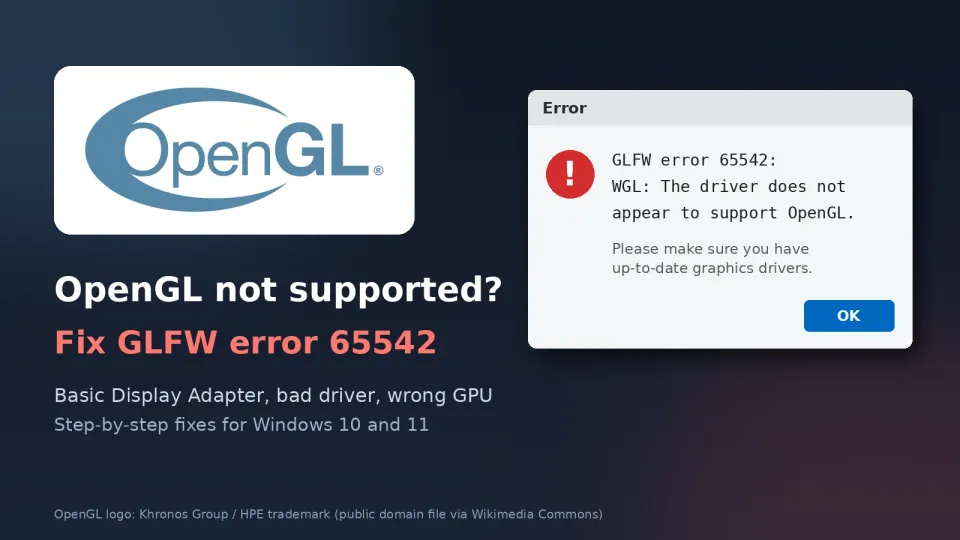
OpenGL Not Supported? Fix GLFW Error 65542 on Windows
GLFW error 65542 says your driver doesn't support OpenGL? Windows likely fell back to a basic driver. Check it, reinstall the real one, and more fixes.
Updated: 14 November 2026. Checked against Mojang's OpenGL error help page, the GLFW error code reference, Microsoft's Basic Display Adapter article and a recent Microsoft Q&A thread on this exact error.
Short answer: "GLFW error 65542: WGL: The driver does not appear to support OpenGL" almost never means your graphics chip can't do OpenGL. It means Windows isn't running the real driver for it. After a driver crash, a half-finished update or a Windows Update driver swap, Windows quietly falls back to the generic Microsoft Basic Display Adapter, and that one has no proper OpenGL. Open Device Manager, check what's listed under Display adapters, and put the manufacturer's driver back. That fixes most cases. The rest come down to the game running on the wrong GPU, Remote Desktop, a stray opengl32.dll, or hardware that really is too old.
The error number is GLFW's code 0x00010006, which it calls GLFW_API_UNAVAILABLE. The GLFW docs say it plainly: "Some pre-installed Windows graphics drivers do not support OpenGL." You'll mostly see it in Minecraft: Java Edition, but anything built on GLFW can throw it, including emulators, indie games and plenty of dev tools. Blender gives a different message for the same root problem, since Blender 5 needs OpenGL 4.3.
Quick honesty note. I haven't broken my own laptop's driver to film this, so I'm not going to claim I watched every fix work. What's below is from Mojang, Microsoft and GLFW's own documentation, plus the fixes that keep working for people in Microsoft Q&A and Intel's community forum. Where something is a forum fix rather than an official one, I'll say so.
Jump to:
- Quick checker: what your PC is telling you
- Step 1: Check which display driver Windows is using
- Step 2: Restart the graphics driver and do a full restart
- Step 3: Roll back the driver if it broke after an update
- Step 4: Install the right driver from the right place
- Step 5: Make the game use the right GPU
- Step 6: Remove what blocks OpenGL
- Step 7: Try Microsoft's OpenGL Compatibility Pack
- Step 8: Check whether the GPU is simply too old
- Stop Windows Update swapping the driver again
- FAQ
Quick checker: what your PC is telling you
Honestly, do Step 1 before anything else. It's a one-minute look in Device Manager, and what you find there decides which fix you need. Find your line in this table and jump to it.
| What you see in Device Manager or dxdiag | What it means | Go to |
|---|---|---|
| Microsoft Basic Display Adapter | No real GPU driver is loaded, so there's no usable OpenGL | Step 3, then Step 4 |
| Your GPU name with a yellow warning (often Code 43) | The driver is installed but has failed or crashed | Step 2, then Step 4 |
| Intel or AMD integrated graphics plus an Nvidia or AMD card, both look fine | The game is probably starting on the wrong GPU | Step 5 |
| Everything looks fine, error only over Remote Desktop or in a VM | Remote sessions don't hand the real GPU to the app | Step 6 |
| Everything looks fine and you once copied an opengl32.dll into a folder | That DLL is now overriding your driver | Step 6 |
| Very old Intel HD Graphics with no driver for Windows 10 or 11 | The chip or its driver doesn't reach the OpenGL version the game wants | Step 7, then Step 8 |
Step 1: Check which display driver Windows is using
Right-click Start, pick Device Manager, and open Display adapters. Write down every name you see. Microsoft's own article says that if Microsoft Basic Display Adapter is listed, Windows is using its generic driver instead of the manufacturer's one. On a laptop with two GPUs you might see one proper name and one Basic Display Adapter. That still counts as broken.
For a second opinion, press Win + R, type dxdiag and hit Enter. On the Display tab, the Name line shows the driver in use. Laptops with two GPUs show a Display tab and a Render tab, so check both.
While you're in Device Manager, double-click the adapter and read the Device status box. "This device is working properly" is good. Anything mentioning Code 43 means Windows stopped the device after it reported a problem, which lines up with the "it worked yesterday, then the screen flickered and now nothing works" story I keep seeing in forum threads.
Step 2: Restart the graphics driver and do a full restart
If the driver crashed while you were playing, Windows sometimes brings the screen back but leaves the driver in a bad state. Two cheap things to try before reinstalling anything:
- Press Win + Ctrl + Shift + B. The screen goes black for a second and you hear a beep. That restarts the graphics driver without logging you out.
- Use Start > Power > Restart, not Shut down. With Fast startup on, Shut down saves part of the system state to disk and loads it back next time, so a broken driver can survive it. Restart starts everything fresh.
Then check Device Manager again. If your real GPU name is back with no warning, launch the game. If it still says Basic Display Adapter, keep going.
Step 3: Roll back the driver if it broke after an update
If this started right after Windows Update or a new GPU driver, try going back first. In Device Manager, double-click the adapter, open the Driver tab and click Roll Back Driver. Pick a reason, confirm and restart.
Greyed out? Then Windows hasn't kept an older driver for that device, which is normal after a fresh Windows install or a driver cleanup. Nothing's wrong, skip to Step 4.
Step 4: Install the right driver from the right place
For most people this is the step that actually fixes it. The Microsoft Q&A answer I linked up top makes a point I agree with: updating Windows by itself "will not necessarily install the correct manufacturer driver." So go and get it yourself.
- Laptops: start with the support page for your exact model from the laptop maker (Lenovo, HP, Dell, ASUS, Acer, MSI and so on). Their drivers are sometimes customised for that machine, and Intel's own installer can refuse to run on some OEM laptops for that reason.
- Nvidia: download from nvidia.com or use the Nvidia app. In the installer, choose the custom option and tick the clean installation box so leftovers from the crashed driver are wiped.
- AMD: use the Adrenalin installer from amd.com. It has a Factory Reset option that removes the old driver first. If you play newer games on Radeon, my Steam games crashing on AMD Radeon fix covers rolling back to a known-good Adrenalin version too.
- Intel integrated graphics: intel.com's driver page or Intel Driver & Support Assistant, if your laptop maker doesn't have something newer.
Reboot afterwards even if the installer says you don't need to (I never trust that prompt), then go back to Device Manager. Your GPU's actual name should be sitting there with no yellow triangle.
If the installer itself fails or the PC black-screens on boot after installing, hold Shift while clicking Restart, then go to Troubleshoot > Advanced options > Startup Settings and choose Safe Mode. Uninstall the adapter from Device Manager there (tick the box to delete the driver if it appears), restart normally and run the installer again.
Step 5: Make the game use the right GPU
Gaming laptops usually have an Intel or AMD chip built into the CPU plus an Nvidia or AMD card. If the integrated one's driver is the broken one, and the game starts on it, you get the error even though your expensive GPU is fine.
On Windows 11, go to Settings > System > Display > Graphics. Add the app, open its options, and set it to High performance. That's the same step Microsoft's Q&A volunteers suggest for this error. For Minecraft: Java Edition, add the launcher and the javaw.exe it uses. The easy way to find that file is to start the game, open Task Manager, right-click the Java process and choose Open file location.
Got Nvidia? Nvidia Control Panel > Manage 3D settings > Program Settings does the same job. Some laptops have a MUX switch in the maker's app (Armoury Crate, Legion Space and so on), and flipping it to dGPU-only gets around it too, though your battery won't thank you. I'd still fix the integrated driver in Step 4, since Windows draws the desktop on that chip.
Worth knowing for Minecraft players: Mojang added a Graphics API setting in Java 26.2, and the 26.4 snapshots have been testing Vulkan as the default. On Vulkan, the game prefers a laptop's dedicated GPU by itself. Version 26.4 isn't out yet as I write this, and the current 26.3 release still uses OpenGL by default, so for now the Windows setting is what counts.
Step 6: Remove what blocks OpenGL
Driver looks healthy and the error's still there? Then I'd bet on one of these four.
- Remote Desktop or a virtual machine. Microsoft's answer on this error says not to start the game through Remote Desktop or inside a VM, because they can stop Java reaching the physical GPU. Sit at the PC, or use a streaming tool that captures the real screen instead.
- A stray opengl32.dll. Some older guides tell you to download opengl32.dll and drop it in your Java folder. Don't. Microsoft's answer says to delete it, because OpenGL comes from the graphics driver and random DLLs "can be incompatible or unsafe." Check the game folder and any Java folders you touched. For Minecraft, reinstalling the official launcher restores its bundled Java.
- USB display adapters and docks. Forum threads keep pointing at DisplayLink software clashing with Minecraft. It isn't an official Mojang fix, but if you use a DisplayLink dock, unplug it and try again. If that's the cause, update the DisplayLink driver.
- Too much RAM given to Java. Mojang's bug tracker reply for this error suggests going back to the default 2 GB if you raised it with Java arguments. That's an odd one, but it's cheap to test.
Step 7: Try Microsoft's OpenGL Compatibility Pack
Mojang's help page for GLFW error 65542 gives one official fix: install the OpenCL, OpenGL and Vulkan Compatibility Pack from the Microsoft Store, restart and launch again. It's free, and it's made by Microsoft with open-source Mesa code.
Know what it actually does before you rely on it. According to Microsoft's DirectX team, the pack adds an OpenGL 3.3 layer that runs on top of your DirectX 12 driver, and it's aimed at machines with no native OpenGL driver, like Windows on Arm laptops. If a native OpenGL driver is present, Windows uses that one instead and the pack does nothing. So it's a great fix on a Snapdragon laptop. On an Intel or AMD PC with a working driver it won't change much. And it doesn't replace getting the real driver back in Step 4.
Don't go hunting for it in Start, there's no icon. It's just a bundle of DLLs, and it only appears under Settings > Apps > Installed apps.
Step 8: Check whether the GPU is simply too old
If none of that works, the hardware might really be the limit. Minecraft: Java Edition has needed OpenGL 3.2 or newer since version 1.17. Very old Intel HD Graphics, the 2000 and 3000 series from around 2011, top out below that on Windows and never got proper Windows 10 drivers. On those machines there's no driver that fixes it. Blender is stricter still, because Blender 5 asks for OpenGL 4.3.
Mojang also raised Java Edition's minimum spec in July 2026 to a Vulkan 1.3 capable GPU with at least 2 GB of video memory, and warned that below-spec hardware may "fail to launch Java Edition in the future" as it moves from OpenGL to Vulkan. So if you're on a decade-old laptop, the honest answer is that the game is leaving it behind. If you're thinking about an upgrade, my budget PC build for 2026 has current USD and INR prices.
Stop Windows Update swapping the driver again
Fixed it, and a week later Windows Update drops the old driver back in? Annoying, and it happens. Here's what I'd do about it.
- Any edition: press Win + R, run
sysdm.cpl, open the Hardware tab, click Device Installation Settings, choose No and save. This cuts down on automatic driver downloads, though it doesn't block every one. - Pro, Enterprise or Education: in
gpedit.msc, go to Computer Configuration > Administrative Templates > Windows Components > Windows Update > Manage updates offered from Windows Update and enable Do not include drivers with Windows Updates. That one's stronger, but it blocks every driver, so check your GPU and Wi-Fi makers for updates by hand now and then.
Driver crashes on laptops also tend to come with heat. If yours crashed mid-game with the fans screaming, have a look at my laptop overheating and loud fan fix before it happens again.
Related guides: everything I've written on PC gaming lives in the list at the bottom of my high ping and lag fix. If your controller also stopped showing up after a driver mess, here's the controller not detected on PC fix. And if the screen flickers black mid-game and Windows says the display driver stopped responding, my display driver stopped responding fix walks through the TDR causes.
FAQ
What does GLFW error 65542 mean?
It's GLFW's "API unavailable" error. The app asked Windows for OpenGL and the current graphics driver didn't offer it. Nine times out of ten that's because Windows is on the generic Microsoft Basic Display Adapter instead of your GPU's real driver.
Why did my laptop suddenly stop supporting OpenGL?
Your hardware didn't change. The driver did. A crash, an interrupted install or a Windows Update driver swap can leave Windows on its basic driver or mark your GPU with Code 43. Reinstalling the manufacturer's driver brings OpenGL back.
Should I download opengl32.dll to fix it?
Nope, and this one's my pet peeve. Those DLL download sites are sketchy, and OpenGL lives in the graphics driver anyway, so one file can't put it back. Worse, a copy sitting in a game or Java folder gets loaded ahead of your real driver. Already did it? Delete it and reinstall the driver.
Does the OpenGL Compatibility Pack fix GLFW error 65542?
It can, mainly on PCs with no native OpenGL driver, like Windows on Arm laptops. It adds OpenGL 3.3 on top of DirectX 12. If your PC has a working Intel, AMD or Nvidia driver, Windows uses that one instead.
Can I play Minecraft Java on Microsoft Basic Display Adapter?
Not really. That generic driver is the reason you're getting the error in the first place, since it can't hand Java Edition the OpenGL it asks for. Get the real driver from your laptop or GPU maker and try again.

Comments ()