Microphone Not Working on Windows 11? 8 Fixes
Microphone not working on Windows 11? Turn on privacy access, pick the right input, run the test, reinstall the driver, and fix app settings.
Updated: 22 November 2026. Checked against Microsoft Support's Fix microphone problems and Fix sound or audio problems in Windows pages, plus recent threads on Microsoft Q&A.
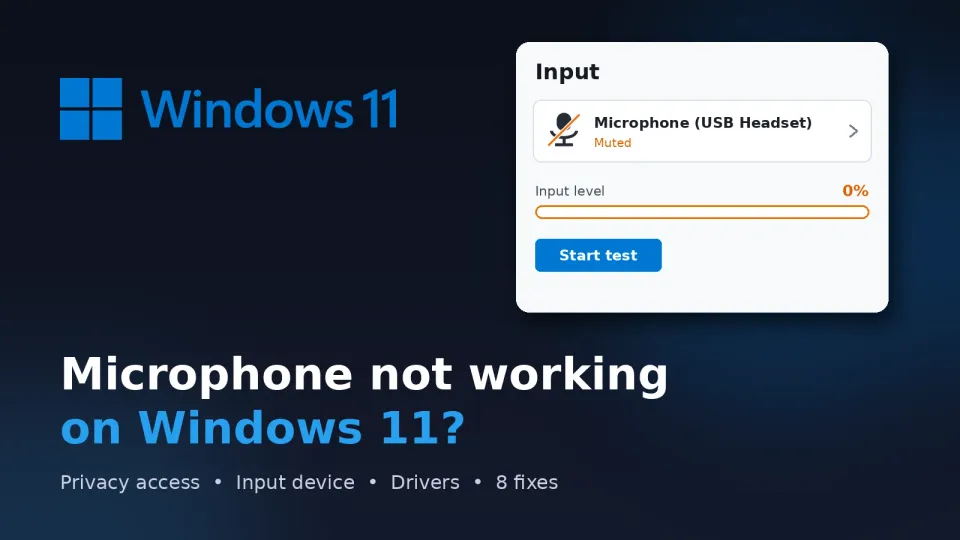
Short answer: open Settings > Privacy & security > Microphone and make sure Microphone access, Let apps access your microphone and Let desktop apps access your microphone are all on. Then go to Settings > System > Sound, pick the right device under Input, and run the Start test button. Those two screens fix most dead microphones. If the mic isn't listed at all, jump to the driver step (Step 6).
How I put this together: I don't have a PC with a broken microphone in front of me, so I'm not going to claim I tested every step on one. I checked each menu path against Microsoft's own support pages and read the Microsoft Q&A threads where people hit this. Where a tip comes from a forum poster or a hardware guide and not from Microsoft, I say so.
Jump to:
- Which fix matches what you see
- Step 1: Rule out mute switches, ports and connections
- Step 2: Turn on microphone access in Privacy settings
- Step 3: Choose the right input device and run the test
- Step 4: Fix low volume and exclusive mode
- Step 5: Run the audio troubleshooter
- Step 6: Reinstall the audio driver
- Step 7: Pick the microphone inside Discord, Teams or Zoom
- Step 8: Check Bluetooth and work-PC restrictions
- FAQ
Which fix matches what you see
"Mic not working" can mean four different things. Sorting it first saves a lot of clicking, and the Windows test in Step 3 tells you which row you are in.
| What happens | Most likely cause | Start with |
|---|---|---|
| Mic is missing from Settings > System > Sound > Input | Connection, disabled device, or missing driver | Steps 1 and 6 |
| Mic is listed, but the test shows no level | Mute switch, privacy toggle, or wrong device | Steps 1, 2 and 3 |
| Windows test works, but one app can't hear you | The app is using another microphone or is blocked | Steps 2 and 7 |
| Voice is recorded, but very quiet | Input volume, placement, or exclusive mode | Step 4 |
| Stopped right after a Windows update | Permissions reset or driver swapped | Steps 2 and 6 |
| Bluetooth headset connected, mic silent | Wrong device chosen or headset in the wrong mode | Step 8 |
Step 1: Rule out mute switches, ports and connections
It sounds too basic, but Microsoft's own page opens its "Others can't hear me" section with it: check that your headset's Mute button isn't active, and that the microphone or headset is connected correctly. Here's the quick list I'd run through:
- Look for a physical mute switch on the headset, the cable controller, the boom arm, or a keyboard key with a crossed-out mic.
- Unplug and replug it. For a USB mic, try a different USB port, and plug it straight into the PC instead of an unpowered hub if you can.
- On a 3.5 mm headset, check you're using the combined headset jack. Some PCs have separate headphone and microphone sockets.
- If the mic is built into a webcam, Microsoft notes you may also need Settings > Privacy & security > Camera turned on.
- If you can, plug the mic into a phone or another PC. If it's silent there too, the hardware is the problem, not Windows.
Step 2: Turn on microphone access in Privacy settings
Microsoft says that if your microphone isn't detected after updating Windows 11, you may need to give apps permission to use it again. The path is on its microphone support page:
- Open Start > Settings > Privacy & security > Microphone.
- Turn on Microphone access.
- Turn on Let apps access your microphone. Below it you can pick which Store apps are allowed.
- Scroll down and turn on Let desktop apps access your microphone.
That last switch is the one people miss. Desktop apps such as your browser, Discord, OBS or Zoom won't appear in the per-app list, and Microsoft says you can't turn off access for individual desktop apps, so this one toggle covers all of them. It only works while Let apps access your microphone is also on.
Step 3: Choose the right input device and run the test
Windows records from one input at a time. If you plugged in a headset, webcam or USB mic, Windows may still be listening to a different microphone.
- Open Start > Settings > System > Sound.
- Under Input, go to Choose a device for speaking or recording and select the microphone you want.
- Select the > arrow to the right of it to open its properties.
- Under Microphone test, select Start test and speak normally, then Stop test.
- Choose Play under Recorded sample to hear what it picked up.
Now read the result. If the level moves and the playback sounds fine, Windows hears you, and the problem is inside the app (Step 7). If it stays flat, the problem is before the app: a mute, a permission, the wrong device or the driver.
If your mic doesn't show up in the list, look further down the same page for a list of disabled or unavailable devices and enable it from there. I'm describing this from the Windows 11 Sound page layout and Microsoft's note that a disabled device may not show up in the input list, not from a PC where I hit it myself.
Step 4: Fix low volume and exclusive mode
On the same device properties page, under Input settings, Microsoft's page tells you to run Start test and adjust the Input volume slider if needed. A slider sitting at or near zero makes a perfectly working mic look dead. I'd bring it to a middle value first, then test again.
If the volume is fine but one app still can't get the mic, another app may be holding it. The older Sound control panel has a setting for that. Press Win + R, type mmsys.cpl, open the Recording tab, double-click your microphone, go to Advanced, and look at Allow applications to take exclusive control of this device. If your voice app grabs the mic exclusively, other apps can go silent; unticking both exclusive-mode boxes is a common forum fix. That one is a community tip, not something Microsoft's microphone page lists.
Step 5: Run the audio troubleshooter
Microsoft now sends you to the automated audio troubleshooter in the Get Help app on Windows 11.
- Open Settings > System > Sound.
- Scroll to Advanced.
- Under Troubleshoot common sound problems, choose Input devices. For a broader check, choose All sound devices.
Follow the prompts and let it apply anything it suggests. Older guides still point to Update & Security > Troubleshoot > Recording Audio, but that route belongs to older Windows, so don't waste time hunting for it on 11.
Step 6: Reinstall the audio driver
If Windows isn't detecting the headset or microphone at all, Microsoft's steps are to reinstall the audio drivers:
- Right-click the Start button and open Device Manager.
- Expand Sound, video and game controllers. Check Audio inputs and outputs as well if your mic appears there.
- Right-click the audio device and choose Uninstall device. Tick Attempt to remove the driver for this device, then select Uninstall. Repeat for other audio devices.
- Restart the PC. Windows will try to reinstall the drivers by itself.
- If it doesn't, right-click Sound, video and game controllers and choose Scan for hardware changes.
- Back in Device Manager, right-click the audio driver and select Update driver.
If the driver for your laptop's built-in mic keeps coming back wrong, the manufacturer's own audio driver (from your PC maker's support page) is the next thing I'd try. That's general advice, not a step from Microsoft's page.
Step 7: Pick the microphone inside Discord, Teams or Zoom
If the Windows test works but an app still can't hear you, that app is probably on another input device or its own mute. Set it by hand instead of leaving it on "Default":
- Discord: User Settings > Voice & Video > Input Device.
- Microsoft Teams: Settings > Devices > Microphone.
- Zoom: Settings > Audio > Microphone.
Each one has its own mic test or level meter, so you can confirm the right device is moving the bar. Menu labels shift slightly between app versions, so look for the nearest match if yours reads a bit differently. Also check that the app itself, or your browser's site permission for the mic, isn't blocked.
Step 8: Check Bluetooth and work-PC restrictions
Two cases are worth ruling out last.
Bluetooth headsets. Microsoft says to confirm a wireless headset is paired and actually connected. After that, open Settings > System > Sound and make sure the headset's microphone entry is the one chosen under Input. If the headset doesn't connect cleanly in the first place, see my Bluetooth not working on Windows 11 fix and my Bluetooth headphones keep disconnecting guide.
Work or school PCs. On a managed laptop, the privacy toggles can be locked by your organization. In a recent Microsoft Q&A thread, a user's built-in tools heard the mic fine while desktop apps could not, and the advice there was that if a setting is controlled by your organization, you need your IT administrator to review it. If a toggle is greyed out, that's the sign, and no amount of clicking on your side will change it.
Related guides: my Windows 11 100% disk usage fix links all my other Windows guides. If Teams is the app that can't hear you, my new Teams stuck on loading fix covers the app itself. And if Windows is rejecting your sign-in too, see my Windows Hello PIN not working fix. If Windows says your USB headset or mic isn't recognized at all, start with my USB device not recognized on Windows 11 fix.
FAQ
Why is my microphone not working on Windows 11?
The usual causes are a muted or disconnected device, microphone access switched off under Privacy & security, the wrong input device selected, a very low input volume, or a missing driver. Microsoft's support page walks through these in that order.
Where is the "Let desktop apps access your microphone" setting?
It's in Settings > Privacy & security > Microphone, below Let apps access your microphone. Browsers, Discord, OBS and Zoom count as desktop apps, so it needs to be on for them.
How do I test my microphone in Windows 11?
Go to Settings > System > Sound, select your microphone under Input, then use Start test under Microphone test. Speak, stop the test, and play back the recorded sample.
My mic works in Windows but not in Discord or Teams. Why?
The app is most likely set to a different input device, or it's muted. Choose the microphone manually in the app's voice or audio settings (Step 7) and watch its level meter.
Did a Windows update break my microphone?
It can. Microsoft's page says that if your mic isn't detected after updating Windows 11, apps may need permission again, so check Step 2 first. If the device is missing entirely, reinstall the audio driver (Step 6).
If your microphone is still silent after all eight steps, leave a comment with the exact headset or mic model and what the Windows test shows. I'll try to help you narrow it down.
Comments ()