Steam Download Slow or Stuck at 0 Bytes? 8 Fixes
Steam download slow or stuck at 0 bytes/s? Turn off the speed limit, switch region, clear the download cache and repair your library folder.
Updated: 19 November 2026. Checked against Steam Support's clear download cache page, the current Steam client's Settings > Downloads and Storage menus, and the fixes that keep coming up in r/Steam and Steam Community threads about stalled downloads.
Short answer: open Steam > Settings > Downloads and make sure Limit download speed is off, try a different Download region close to you, then hit Clear Cache next to Clear Download Cache. That trio fixes most slow or stuck Steam downloads. If the download shows 0 bytes/s but your disk is busy, nothing is broken: Steam is unpacking files, and it will speed up again on its own.
How I wrote this: I'm not going to claim I benchmarked twenty connections. What follows is Valve's own documented fix, the settings that actually exist in today's Steam client (I checked the menu names against Valve's current screenshots), and the steps people in r/Steam report working, ordered from quickest and safest to most involved. Do them in order and stop when your speed comes back.
Jump to:
- Which fix matches what you see
- Step 1: Read the Downloads page properly
- Step 2: Turn off the speed limit and throttling
- Step 3: Change your download region
- Step 4: Clear the Steam download cache
- Step 5: Repair the library folder and check free space
- Step 6: Let Steam past your antivirus
- Step 7: Rule out Wi-Fi and your router
- Step 8: Move the download to another drive
- FAQ
Which fix matches what you see
Steam download problems look alike but have different causes. Find your symptom first and you can skip straight to the step that matters.
| What you see | Most likely cause | Start with |
|---|---|---|
| Speed drops to 0 bytes/s, disk usage is high | Steam is unpacking or patching, not downloading | Step 1 (just wait) |
| Speed looks about 8 times lower than your plan | Bits vs bytes display | Step 1 |
| Steady but capped speed, every game | Speed limit or streaming throttle switched on | Step 2 |
| Slow only at peak hours or on big launches | Busy content servers in your region | Step 3 |
| Stuck at the same percentage, or "Content servers unreachable" | Stale download cache | Step 4 |
| "Disk write error" or the download keeps pausing | Library folder permissions or a full drive | Step 5 |
| Stuck at 0 bytes/s with no disk activity at all | Antivirus, firewall or network block | Steps 6 and 7 |
Step 1: Read the Downloads page properly
Before changing anything, open the Downloads page (the bar at the bottom of your Library, or View > Downloads). The graph there shows two things: network speed and disk usage. They tell different stories.
If network speed has dropped to zero but disk usage is busy, Steam has finished pulling a chunk and is now decompressing it or patching files that are already installed. Big updates do this a lot, and it's worse on hard drives than on SSDs. Leave it alone. Pausing and resuming over and over only makes it start the same work again.
The other thing to check is the unit. Steam has a setting called Display download rates in bits per second. Internet plans are sold in megabits (Mbps), while file sizes are in megabytes (MB), and there are 8 bits in a byte. So a 100 Mbps connection tops out at roughly 12.5 MB/s. If your plan says 100 and Steam says 11, that isn't slow; that's your line working fine. Flip the setting on if you'd rather compare like with like.
Step 2: Turn off the speed limit and throttling
Go to Steam > Settings > Downloads (on a Mac it's under the Steam menu as well). Three switches on this page can quietly hold a download back:
- Limit download speed: turn it off. People set this years ago to stop Steam hogging the home connection, then forget it's there.
- Throttle downloads while streaming: Valve says this limits download speed to keep Steam Remote Play smooth. If you use Remote Play or Steam Link while downloading, turn it off for now.
- Allow downloads during gameplay: when this is off, Steam pauses downloads whenever a game is running. That's often why a download "stops" the moment you start playing something else.
Also look at Schedule auto-updates. If it's on, updates for other games may be waiting for a time window and stacking up in the queue, which makes the one you care about look stuck behind them.
Step 3: Change your download region
Steam picks a content server based on the Download region in that same Downloads tab. When a huge game launches or a popular title pushes a big patch, the servers for one region can get crowded while the next one over is fine.
- Open Steam > Settings > Downloads.
- Click the drop-down next to Download region.
- Pick a different city or country that's still physically close to you. Going to the other side of the world rarely helps.
- Restart Steam and resume the download.
If the new region is no better, try one more nearby option, then switch back to your original. Speed that jumps after a region change points to a server-side bottleneck, and those usually clear up within a few hours.
Step 4: Clear the Steam download cache
This is the fix Valve itself recommends for games that won't download or start, and it's the one I'd reach for whenever a download sits at the same percentage or throws "Content servers unreachable".
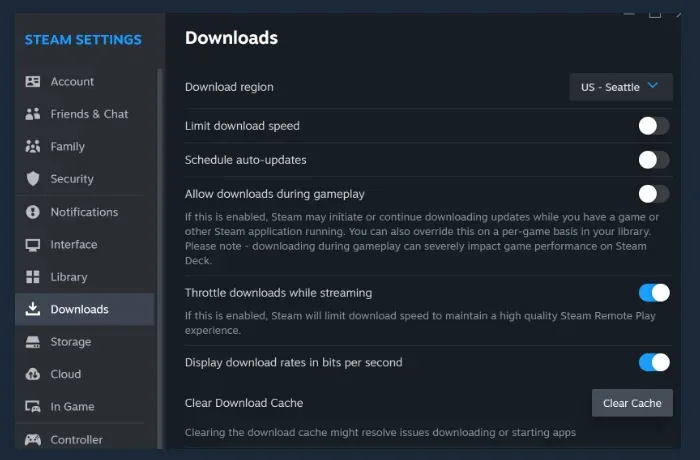
- Open Steam > Settings from the menu at the top left.
- Select the Downloads tab.
- Next to Clear Download Cache, click Clear Cache.
- Click Confirm. Steam restarts.
- Sign back in and resume the download.
Valve is clear that this doesn't touch your installed games. What it does mean is that you have to log in again, so have your password and Steam Guard code handy before you click. It can also drop whatever was sitting in the download queue, so you may need to hit Update or Install again on the game.
Step 5: Repair the library folder and check free space
When Steam can't write to the folder the game is going into, you get "Disk write error" or a download that keeps pausing on its own. Repairing the library folder resets its permissions.
- Go to Steam > Settings > Storage.
- Pick the drive where the game is installing from the drop-down at the top.
- Click the three-dot menu on the right and choose Repair Folder.
- Wait for it to finish, then restart the download.
While you're on the Storage page, look at free space. Steam needs room for the downloaded chunks and for the unpacked files, so a patch can need far more space than its listed size while it's applying. If the drive is nearly full, clear some space first. For a game that's already installed and keeps redownloading the same update, right-click it in your Library, go to Properties > Installed Files and run Verify integrity of game files.
Step 6: Let Steam past your antivirus
Security software that scans every file as Steam writes it can slow a download to a crawl, and some tools block it outright. If you use a third-party antivirus, add your Steam folder (by default C:\Program Files (x86)\Steam) and your game library folders to its exclusions list. The exact menu differs by product, so check your antivirus vendor's help page.
On Windows Security, one setting catches people out: Controlled folder access under Virus & threat protection > Ransomware protection. If it's on and your library sits in a protected folder, Windows can stop Steam from writing files. Either allow Steam through it or keep your library outside protected folders. Don't switch your antivirus off entirely to test this; an exclusion is enough.
Step 7: Rule out Wi-Fi and your router
If every fix inside Steam fails, test the connection itself. Run a quick speed test in your browser. If that's slow too, Steam isn't the problem.
- Plug the PC into the router with an Ethernet cable for one download. If it's suddenly fast, your Wi-Fi signal is the bottleneck.
- Restart the router and modem: unplug them, wait a minute, plug them back in.
- Close anything else downloading in the background, like OneDrive, cloud backups, torrent clients or other game launchers.
- Pause any VPN and retry. A VPN can route you through a far-away server and drag the speed down.
- Open Command Prompt and run
ipconfig /flushdnsto clear stale DNS entries, then restart Steam.
On a laptop or handheld PC, Windows can also put the network adapter to sleep to save power. In Device Manager, open your network adapter's properties and, on the Power Management tab, untick the option that lets the computer turn off the device to save power.
Step 8: Move the download to another drive
If one drive keeps failing while everything else works, try a different one. Add a library folder on another drive in Settings > Storage, then uninstall the stuck game and install it there instead, or move an installed game using the three-dot menu on the Storage page. A drive that throws errors for every game, or is painfully slow even outside Steam, may be failing, so back up anything important on it.
Moving a big game onto an SSD also speeds up the unpacking stage from Step 1 a lot. If you're deciding what to buy, my NVMe vs SATA SSD for gaming guide covers whether the faster drive is worth it.
Related guides: if games download fine but online play feels sluggish, my high ping and lag fix covers the network side and links to all my other gaming guides. If Steam itself closes the moment you open it on a Radeon PC, see Steam crashing on launch with AMD Radeon, and for the Xbox app's own download loop there's Gaming Services keeps downloading.
FAQ
Why is my Steam download stuck at 0 bytes per second?
Look at the disk line on the Downloads graph first. Busy disk? Then it's unpacking, give it a few minutes. If both lines are flat at zero, that's a real stall, and the cache clear plus a region swap is where I'd start, before poking at antivirus or the router.
Does clearing the Steam download cache delete my games?
Nope, your installed games stay put, per Valve's own support page. The annoying bit is the forced sign-out, plus you might have to kick off queued downloads again.
Why is Steam slower than my internet speed?
A lot of the time it's just the units. Your ISP quotes megabits, Steam shows megabytes unless you change it, so 200 Mbps is about 25 MB/s at best. Way under even that? Then go back to Steps 2 and 3.
Does changing the Steam download region really help?
Sometimes, yes, mostly on launch days when everyone near you is hammering the same servers. Pick somewhere nearby, and if nothing changes, put it back.
Why does my Steam download stop when I start a game?
That's by design. "Allow downloads during gameplay" ships switched off, so Steam pauses while you play. Flip it on under Settings > Downloads if you'd rather it kept going, though Valve warns it can hurt performance on Steam Deck.
Got through all eight and it's still crawling? Drop a comment with whatever Steam says on screen, which region you picked and if you're on Wi-Fi or a cable. I read them.
Comments ()