Get Affinity Free on Windows, Mac and iPad
Download Affinity free with a Canva account on Windows, Mac and iPad. Setup steps, what’s free vs Canva Pro AI, and system requirements.
Updated: November 3, 2026. Checked against Affinity’s download FAQ, Canva Help’s “Set up Affinity with your Canva account”, Canva’s Affinity for iPad newsroom post, Affinity’s system-requirements notes as summarized by Beyond Photo Tips (updated Sept 2026), and the App Store listing for Affinity by Canva.
Short answer: Affinity by Canva is free for individuals on Windows, Mac, and now iPad. You install the app, sign in with a free Canva account, and you get the full Pixel, Vector, Layout (and on iPad, Sketch) studios with no payment wall on those tools. The paid bit is Canva AI Studio inside Affinity — Generative Expand, upscaling, noise reduction, Decompose Layer, and similar — which needs a Canva premium plan. You only need to be online to download and activate; after that Affinity works offline for extended periods.
I pieced this together from Canva/Affinity’s own help and download FAQ after the iPad launch on 2 November pushed a lot of “how do I actually get it free?” searches. Below is the path I’d follow on each platform, plus what’s free, what isn’t, and the usual traps.
Jump to:
- What’s free vs what’s paid
- System requirements
- Step 1: Create or sign into a Canva account
- Step 2: Download and install on Windows
- Step 3: Download and install on Mac
- Step 4: Install Affinity on iPad
- Step 5: Sign in and activate in the app
- Step 6: Finish onboarding and pick a studio
- Step 7: Open old files and move between devices
- Canva Pro prices if you want AI
- Offline use and updates
- Troubleshooting
- FAQ
What’s free vs what’s paid
Affinity’s download FAQ is clear: individuals can use every tool in the Pixel, Vector, and Layout studios (and Sketch on iPad), plus customization and export, with no restrictions and no payment. Free updates keep coming on that model. A free Canva account is still required to activate the license.
| Piece | Cost | Notes |
|---|---|---|
| Affinity desktop (Windows / Mac) | Free | One app: Pixel + Vector + Layout. Download from affinity.studio. |
| Affinity for iPad | Free | App Store “Affinity by Canva”, ~1.9GB, iPadOS 18+. Adds Sketch Studio. |
| Canva account (Free) | Free | Required to sign in and activate. Works for personal use. |
| Canva AI Studio inside Affinity | Canva premium | Generative Expand, upscale, denoise, Decompose Layer, etc. |
That matches what I already covered in the short launch note for Affinity for iPad. This guide is the install-and-activate walkthrough for all three platforms.
System requirements
Affinity’s help center has a dedicated system-requirements page. Beyond Photo Tips republished the v3.x specs (last updated 10 September 2026) in line with what Affinity publishes:
- Windows: 64-bit PC, Windows 10 May 2020 Update (build 19041) or later, or Windows 11. Intel, AMD, or ARM64 (including Snapdragon X Elite). DirectX 10+ GPU; hardware GPU acceleration wants a Direct3D 12-capable card. 8GB RAM recommended. Roughly 1GB+ free disk for the install (leave more headroom while installing). Display 1280×768 or larger.
- Mac: macOS Catalina 10.15 or later. Apple silicon or Intel. 8GB RAM recommended. Up to about 2.8GB free space (more during install). Same 1280×768 minimum display.
- iPad: iPadOS 18.0 or later. Canva’s newsroom and the App Store list the 7th-gen iPad, 5th-gen iPad mini, 3rd-gen iPad Air, and every 11-inch iPad Pro or later among supported devices — check Apple’s listing on your device before you count on it.
Local Affinity ML models (separate from Canva AI Studio) need Apple silicon on macOS Ventura 13+ or a Windows 10/11 x64 or ARM64 PC, per those same notes.
Step 1: Create or sign into a Canva account
You can create the account in the browser first, or wait until Affinity prompts you after install. Either way you need one.
- Go to canva.com (or let the Affinity sign-in window open it for you).
- Sign up with email, Google, Apple, or whatever Canva offers in your region — or sign into an account you already use for Canva Docs/Sheets.
- If you’re on a school, work, or Enterprise Canva team, Affinity may be restricted by an admin. Canva Help says you’ll see a permission / “don’t have access” style message in that case; switch to a personal free team or ask the admin.
A free personal Canva account is enough for the core Affinity tools. You do not need Canva Pro just to open the app.
Step 2: Download and install on Windows
- Open affinity.studio/download.
- Pick the Windows installer that matches your PC:Affinity’s FAQ links a separate “Windows installer types” help article if you’re unsure.
- Windows (Intel/AMD) — most home PCs.
- Windows (ARM) — Snapdragon / ARM64 Windows devices.
- Enterprise (Intel/AMD) or Enterprise (ARM) — only if IT told you to use the business installer.
- Run the .EXE and finish the setup wizard (Canva Help’s install guide).
- Launch Affinity from the Start menu. Continue at Step 5.
Skip random “Affinity free crack” mirrors. The real builds are on affinity.studio and, for iPad, the App Store. Fake creative-app installers are a common malware vector — same class of risk I wrote about with fake PS5 emulator GitHub repos.
Step 3: Download and install on Mac
- From the same download page, choose Download for Mac. Affinity says it runs natively on Apple silicon and Intel.
- Open the .DMG, drag Affinity into Applications (Canva Help).
- Launch Affinity from Applications (or Spotlight). Continue at Step 5.
If Gatekeeper blocks the first open, use right-click → Open once, the usual macOS pattern for freshly downloaded apps.
Step 4: Install Affinity on iPad
- On the iPad, open the App Store and search Affinity by Canva (developer: Canva). Direct link from Affinity’s site if you prefer.
- Confirm you’re on iPadOS 18 or later, then install (~1.9GB).
- Open the app. You’ll still sign in with Canva — same free account as desktop.
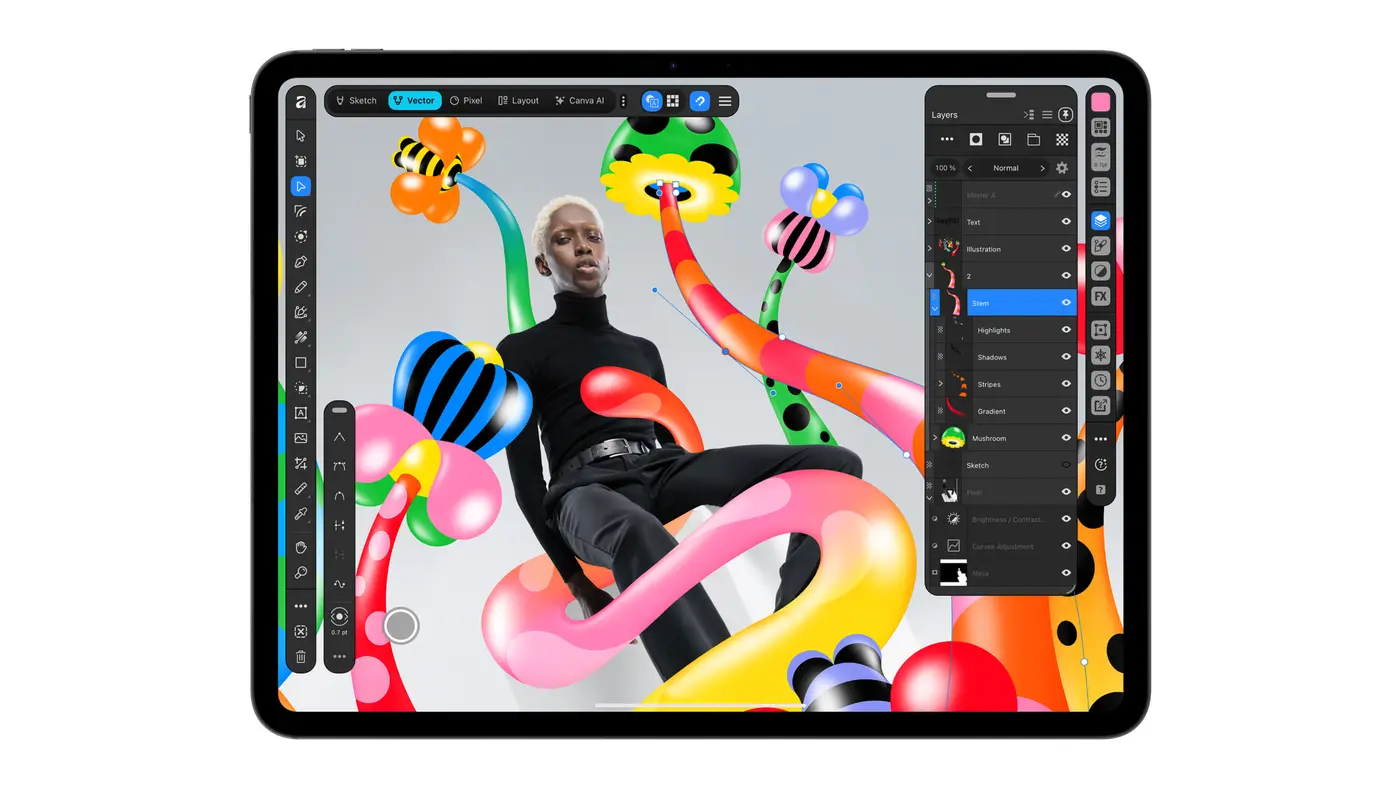
Canva pitched iPad as a full creative surface, not a companion: Sketch Studio for Apple Pencil (pressure, tilt, barrel roll, squeeze, hover on Pencil Pro), then the same Vector / Pixel / Layout studios in one .af file. Some desktop-only features are missing at launch — Books, Batch, Data Merge, Quick Adjustments, Info and Scope panels, macro recording, Astrophotography Studio — with more promised later (Affinity download FAQ / MacRumors).
Step 5: Sign in and activate in the app
Canva Help’s setup guide for Mac/Windows is the template; iPad follows the same Canva login idea.
- After launch, choose to connect or create your Canva account when prompted.
- Enter your email (or continue with the SSO / Google / Apple path Canva shows).
- If you’re new, finish the short name / account creation screen in the browser window Affinity opens.
- Authorize access when Canva asks, then return to the Affinity app.
- If you belong to multiple Canva teams, pick the team that should own Affinity. Enterprise admins can disable Affinity for a team — switch teams or talk to IT if you hit “You don’t have access to Affinity with this account.”
Activation needs a network connection once. Affinity’s FAQ: after that there’s no always-online requirement, even for long offline stretches.
Step 6: Finish onboarding and pick a studio
Canva Help’s Step 5 for Affinity covers a short onboarding:
- Optional anonymous usage data (you can turn it off).
- Which tools you’ve used before (Adobe, Figma, Procreate, etc.) — only to tailor tips.
- What kind of work you plan to do (illustration, photo, layout).
Then you land in the studios:
- Pixel — photo / raster work.
- Vector — illustration and scalable design.
- Layout — multi-page / print.
- Sketch (iPad) — freehand drawing with brushes, Sketch to Shapes into vectors.
You can revisit the tutorial later. Start a new document or open an existing file when you’re ready.
Step 7: Open old files and move between devices
- Desktop ↔ iPad: Affinity says desktop and iPad use the same
.affiles, so you can start on one and finish on the other. Move the file via iCloud Drive, Files, AirDrop, USB, or whatever you already use. - Old V1 / V2 Affinity iPad files: the new Affinity for iPad can open Designer / Photo / Publisher V1 and V2 iPad files with layers and structure preserved (Affinity FAQ).
- Don’t mix with V2 iPad apps for round-trips: files saved in the new Affinity won’t open in the old V2 iPad apps. If you need cross-device work, use the new Affinity on both ends.
- Add-ons: Affinity says existing Serif Affinity Store purchases can be linked to your Canva account.
One early App Store review claimed desktop files wouldn’t open on iPad at launch. Affinity’s own FAQ says they share .af — if a specific file fails, try exporting a copy, update both apps, and check Canva’s status / release notes before assuming the format is broken forever.
Canva Pro prices if you want AI
You can ignore this section if you don’t care about AI tools. Core Affinity stays free.
On the US App Store listing for Affinity by Canva (checked 3 November 2026), in-app purchases include:
- Canva Pro — Monthly: $18.00
- Canva Pro — Yearly: $143.99
- Canva Business — Monthly: $25.00
- Canva Business — Yearly: $250.00
That’s about ₹1,710 / month for Pro at a mid-₹85/$ conversion — only a ballpark; card billing and taxes depend on region. Canva’s India web pricing is set in rupees on canva.com/en_in/pricing (third-party India roundups through late 2026 commonly cite Pro around ₹500/month or ₹4,000/year on the web checkout — confirm the live figure before you pay). School and nonprofit plans are separate.
AI features Canva calls out for Affinity include Generative Expand, image upscaling, noise reduction, and Decompose Layer (flat image → editable layers). Canva also says local Affinity files aren’t used to train its AI features — take that as Canva’s stated policy, not an independent audit.
Offline use and updates
From Affinity’s download FAQ:
- Online for download + first activation.
- After that, extended offline use is fine.
- Connect now and then for updates and patches; it’s recommended, not a hard always-online lock.
Troubleshooting
- “Don’t have access to Affinity with this account” — you’re probably on a managed Canva team. Switch to a personal free team or ask the admin (Canva Help).
- Wrong Windows installer — Intel/AMD build on an ARM laptop (or the reverse) can fail or run poorly. Re-download the matching variant from affinity.studio/download.
- iPad won’t install — update to iPadOS 18+, free up ~2GB+, confirm the App Store region can see the app.
- Sign-in loop — finish the browser authorization tab, disable aggressive tracker blockers for the Canva login domain temporarily, retry.
- Enterprise SSO friction — Canva Help has a separate SSO path; home users can ignore it.
- Want local AI models instead of Canva cloud AI — Affinity’s ML download path has its own hardware rules (Apple silicon + Ventura+, or Win10/11 x64/ARM64). That’s separate from Canva Pro’s AI Studio.
If Affinity becomes your daily driver and you’re also picking free AI chat tools for copy or prompts around a design job, the free-tier comparison in ChatGPT vs Gemini vs Claude free plans is the sibling post I’d open next — different category, same “what’s actually free” question.
Related guides: two more from me that pair well with this one: the best free AI image generators and the best Ollama models for 8GB RAM.
FAQ
Is Affinity really free forever?
Canva’s current promise is that the core creative tools stay free for individuals, with AI features on a premium Canva plan. Policies can change; I’m describing what’s published as of 3 November 2026, not a legal guarantee.
Do I need Canva Pro to use Affinity?
No. A free Canva account unlocks Pixel, Vector, Layout, and (on iPad) Sketch. Pro/Business unlock Canva AI Studio features inside Affinity.
Can I use Affinity without an internet connection?
After the first online activation, yes — Affinity says extended offline use is supported. You still want occasional connectivity for updates.
Will my old Affinity V2 license still work?
The new Affinity is a separate free Canva-account app. Your old V2 apps and Serif licenses are a different track; Affinity says store add-ons can be linked to Canva. Keep V2 installed if you still need it for a workflow the new app hasn’t matched yet.
Does Affinity for iPad open desktop files?
Affinity says yes — same .af format both ways. If a file fails, update both apps and try a clean copy before blaming the format.
Is there an Android version?
Not as of this writing. Affinity’s download FAQ lists Windows, macOS, and iPadOS only.

Comments ()