November Windows Update Breaks Some Printing: Fixes
Microsoft confirms the November 2026 Windows update can stop Word documents with hidden images from printing. Who's hit and what to do now.
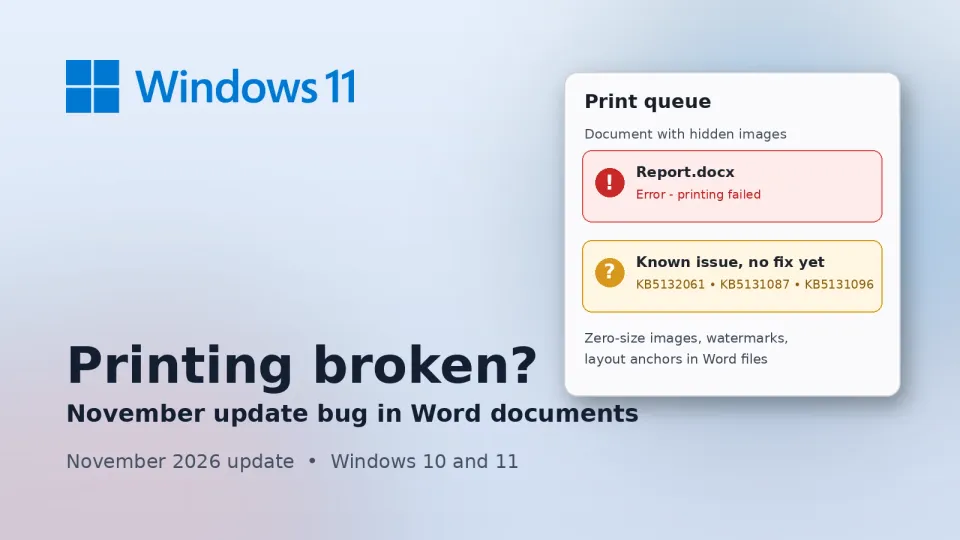
If a Word document suddenly refuses to print this week, with the job vanishing from the queue or erroring out while everything else prints fine, the problem probably isn't your printer. Microsoft has confirmed that the November 2026 Windows security update can make printing fail for certain documents, and as of Friday evening, November 13, there's no fix yet.
What happened
The November Patch Tuesday update landed on November 10. Two days later, Microsoft flagged a known issue in its admin message center (tracked as WI1549472) saying that after the update, "printing might fail for documents containing images rendered with a height or width value of zero at the selected printing resolution." BleepingComputer and The Register both reported the alert.
Those zero-size images are things you'd never notice on screen. Microsoft says they show up in complex formatting, like "invisible" images used as a watermark or as layout anchors, and that some document-generation tools insert them even when there's no graphic at all. So you didn't necessarily put anything odd in the file yourself.
Microsoft says it saw the failure when printing Word documents through GDI, the Graphics Device Interface (the older Windows drawing system many apps still print through), but other apps might be hit as well. According to The Register, the list of affected versions runs from Windows 11 26H2 back to Windows 10 Enterprise LTSC 2016, plus Windows Server 2016 through 2025. The company's only word on timing so far is that it's investigating.
Why it matters
This is the kind of bug that eats an afternoon. One file won't print, another will, the printer looks healthy, and nothing in the error tells you the cause is an image you can't even see. Offices that print invoices, letters or reports from templates are the most likely to trip over it, because templates and generated documents are exactly where hidden anchors and watermarks live.
It's also not the only November headache. Microsoft separately warned that activation commands run through SLMGR (the Software Licensing Management Tool) can fail with error 0x80041008, which mostly matters to IT teams managing KMS keys, and says a fix for that is coming in the next few days. BleepingComputer also reported that the November update can fail to install on some PCs that had the optional October preview update (KB5127936), with errors like 0x800f0993; Microsoft said it would fix that one automatically on its end, and I've covered the details in KB5132061 install error 0x800f0993.
What to do
- Confirm you have the update. Open Settings, then Windows Update, then Update history. The November security update is KB5132061 on Windows 11 25H2 and 26H2 (and 24H2 Enterprise and Education), KB5131087 on 23H2, and KB5131096 on Windows 10 22H2. You can also type
winverin the Start menu to see your build. - Check whether it's one document or all of them. Print a plain test page or a simple text file. If that works and only certain Word files fail, you're very likely looking at this bug rather than a driver or connection problem.
- Look for hidden objects. In Word, go to Home, then Select, then Selection Pane. It lists every shape and image in the file, including ones you can't see. Deleting stray empty images, or removing a watermark from Design, then Watermark, then Remove Watermark, may let the file print. Save a copy first.
- Try exporting to PDF. Use File, then Save As, and pick PDF, then print the PDF from your browser or PDF reader. Word builds that file itself instead of sending pages to the printer, so it's worth a shot, though Microsoft hasn't listed it as a workaround and I can't promise it gets around the problem every time.
- Uninstall only as a last resort. Settings, then Windows Update, then Update history, then Uninstall updates will remove it. But this month's update carries security fixes, so I'd only do it on a home PC that has to print something urgently, and I'd reinstall once Microsoft ships the fix.
My take
I wouldn't skip or roll back the November update just because of this. Most people won't hit it, and the ones who do usually have a workaround in the document itself. Pulling a whole month of security patches to fix one stubborn file is a bad trade on a PC you browse and bank on.
The people who should pay attention are small offices, schools and anyone who prints a lot of generated paperwork. In India that covers a lot of ground: shops and CA offices printing bills from accounting software, colleges printing forms and admit cards, and anyone dealing with downloaded PDFs that were turned into Word files. If that's you, test your common templates now rather than finding out at the counter with a queue behind you. If one fails, save it as a PDF and keep that version as your print copy until Microsoft patches this.
If you run a few office PCs, I'd also hold back on installing next month's optional preview update the day it appears. That's what caused this month's install failures for people who had October's preview, and preview builds are where Microsoft tends to try out its fixes before the main release. Waiting a week costs you nothing.
This also fits a pattern. Printing breaks after Windows updates more often than it should: Microsoft patched printer problems after the March and July 2025 updates, and after the August 2026 .NET update broke printing in some apps. The good news is that this month's update also fixed the USB audio Code 10 bug that had been around since September, which I covered in USB audio Code 10 fixed in the November update. So it's a mixed month.
If your printer won't print anything at all, not just certain documents, it's probably a different problem; my printer offline fix guide walks through the usual causes. If the November update itself won't install, see how to fix a stuck Windows Update. For more PC fixes, start with my Windows 11 100% disk usage guide, which links the rest of the Windows series.
I'll update this post when Microsoft releases a fix or posts an official workaround.

Comments ()